ZePrA | Global Settings | Gradation

Gradations

Manage and create tone value correction curves

Overview

Almost every printing process requires a tone value increase (TVI) correction shortly before printing, which is stored in the RIP of the platesetter. This tone value correction is primarily used to maintain printing standards and to compensate for intangible data in the printing process caused by a large number of factors, including the substrate and ink. These TVI corrections can be included in the data to be converted. Subsequently, only a linear conversion in the RIP software of the imagesetter is required for the exposure of the data.

By using gradation curves, tonal value corrections can be performed on process and spot colors. Gradation curves can be integrated into configurations and applied automatically, either after or instead of color conversion. The Gradations tool can be used to create the required gradation curves and then integrate them into Configurations (under Configurations in the Gradations tab).

Manage gradation curves

Create new gradation curves

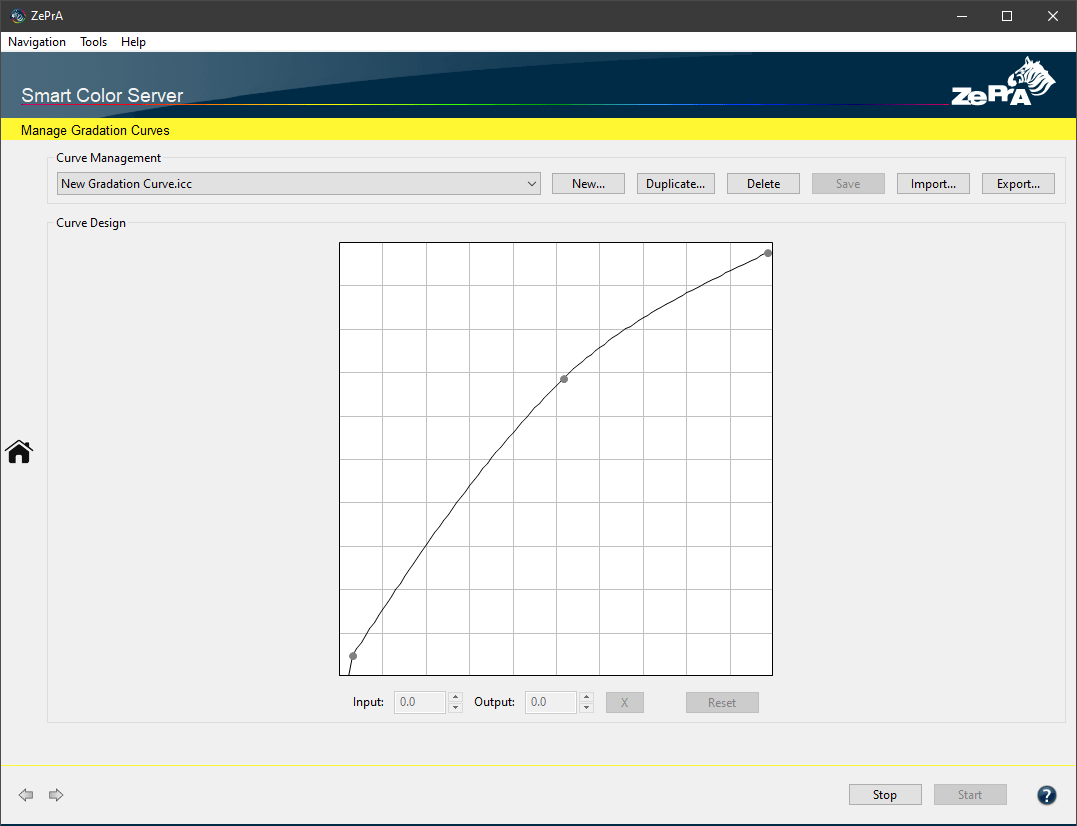
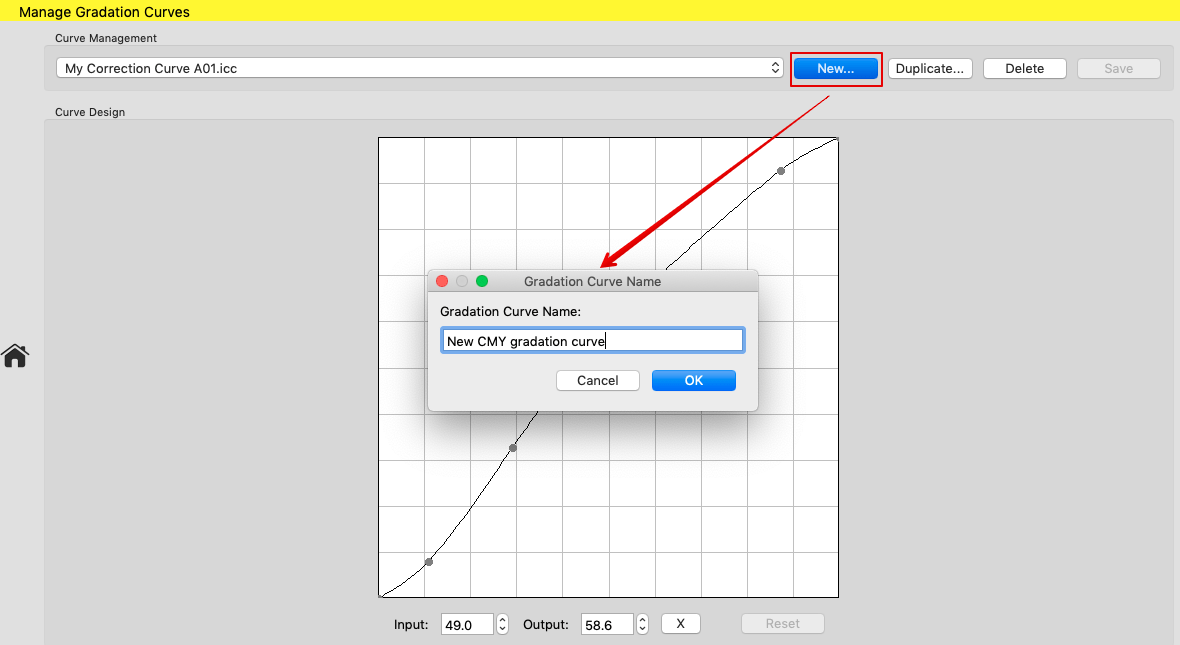
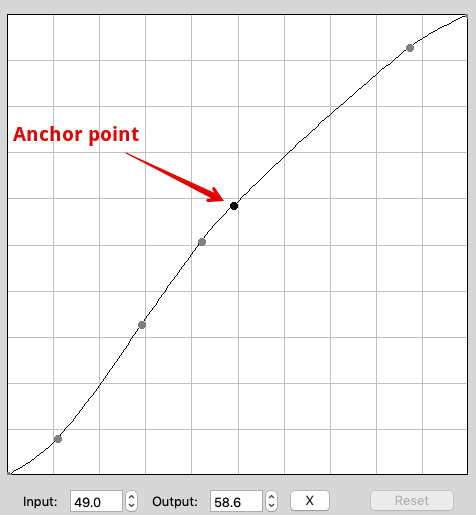
In the Manage Gradation Curves window, create New curves and Duplicate or Delete existing ones. New curves can be modified in the Curve Design panel either by clicking and moving the displayed curve with the mouse pointer or by entering values. If you would like to enter percentage values in the Input and Output fields, first create an anchor point in the curve by clicking on the curve.

Creating a new curve

The entered values then refer to this anchor point. The X button is used to delete the selected anchor point.

Percentage values can be entered up to one digit after the decimal point. This allows for more precision of gradation corrections.

Note: The correction works most accurately with 16-bit data. For 8-bit data, the smallest change is 0.4 units (100/255=0.39), so corrections smaller than 0.4 cannot be applied.

Import and Export: This provides the option to export one or more gradation rules from one configuration and import them into another configuration.

ZePrA | Configurations | PDF | Transparency

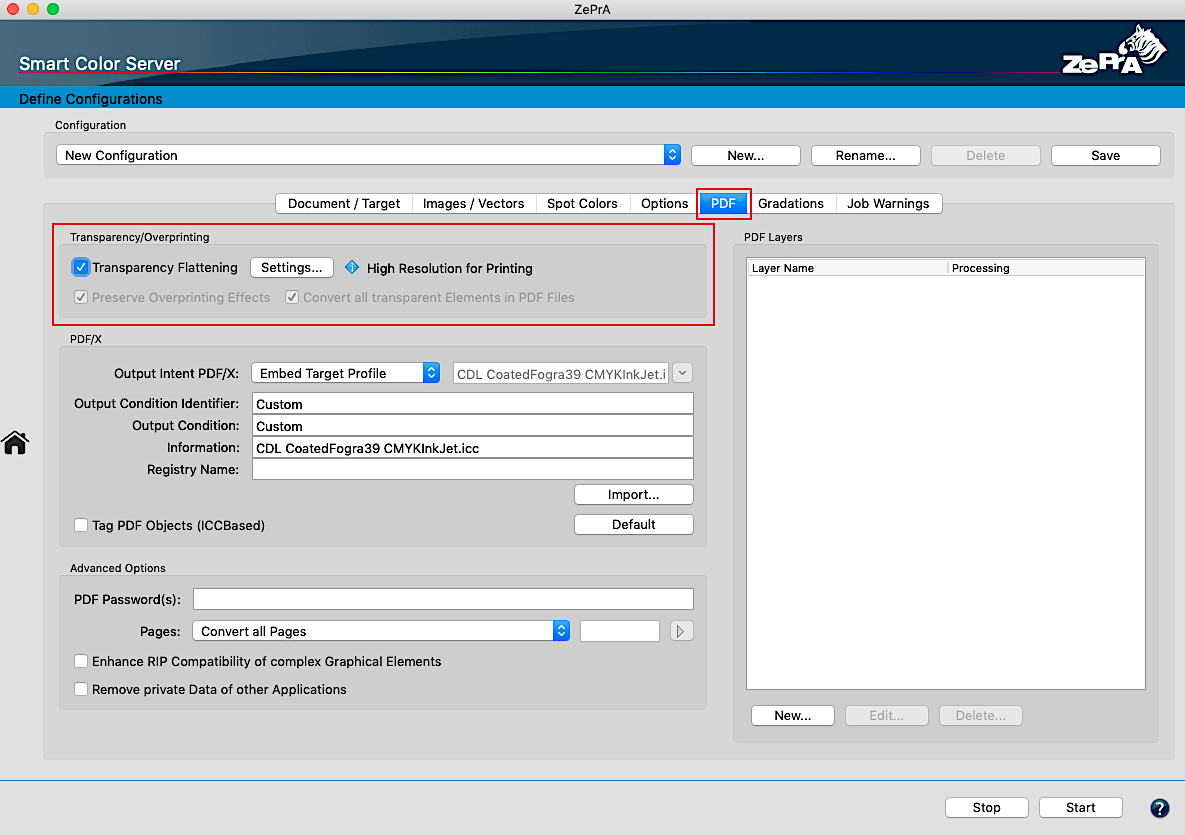
Transparency/ Overprinting

Automatically reduce transparencies in PDF files

Transparency/Overprinting

The processing of transparencies and overprint objects can be precisely defined with the three available options.

Preserve Overprinting Effects: Provides automatic adjustment of overprint properties. Some overprint effects may be lost when changing color spaces, for example, with CMYK-to-N channel or ICC-based CMYK conversions. This feature enables the best possible conversion of colors, especially vector colors. It is enabled by default when no Transparency Flattening is performed. 

Note: The Transparency Flattening feature suppresses the Preserve Overprinting Effects and Convert all transparent Elements in PDF Files functions.

Convert all transparent Elements in PDF Files: Transparent objects in PDF files have a color space and color values in addition to the intrinsic transparency effect. By default, all transparent objects are converted the same as all other color objects, even if no transparency reduction is performed. With some transparency effects, however, this can lead to visual flaws. In this case, disable this feature and perform the color conversion again. Alternatively, Transparency Flattening can be performed. If this function is deactivated, transparencies will continue to be color-converted correctly, however, individual effects that have no color relevance will be excluded.

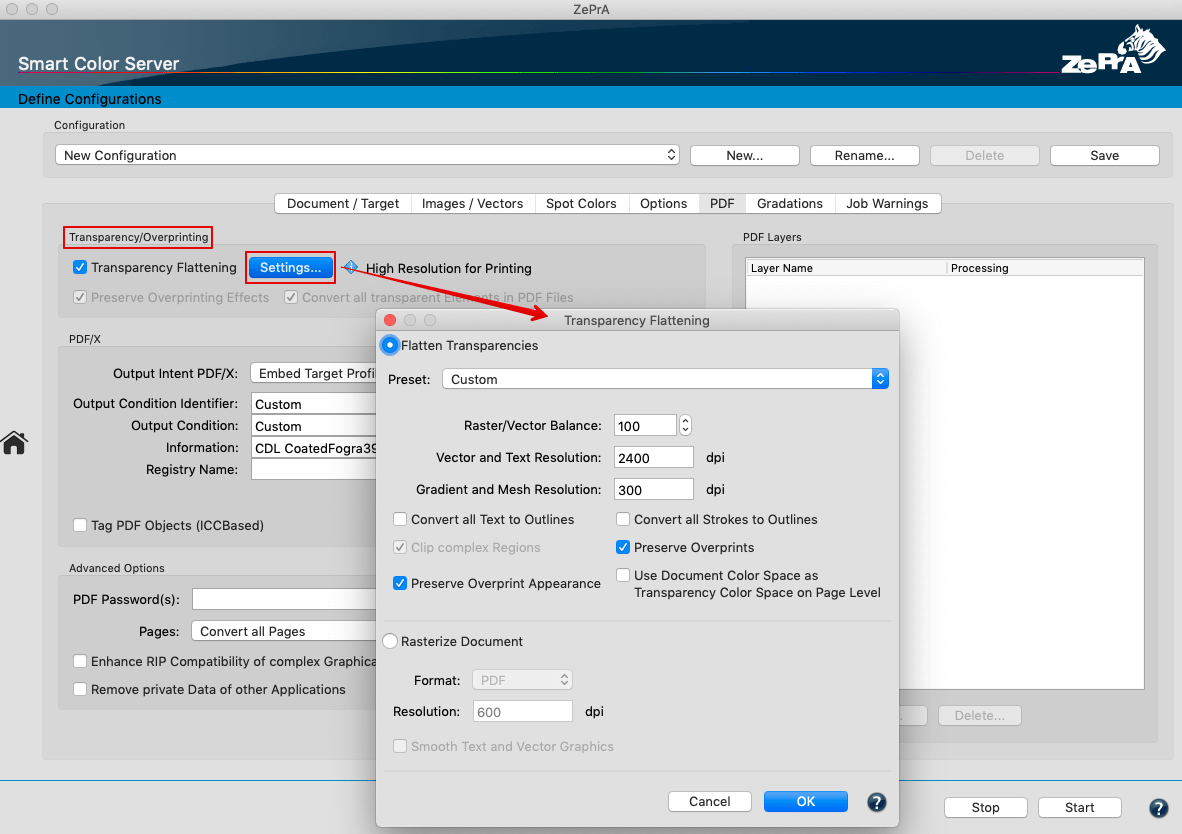
Transparency Flattening: Activating this checkbox enables the Settings button. This button opens the Transparency Flattening window, which enables a precisely controlled conversion of transparencies and overprinting elements with its numerous detail settings.


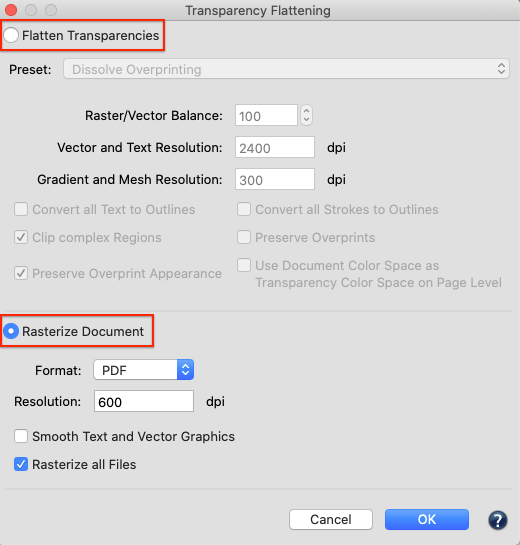
The transparencies and overprint objects of a PDF file can be processed using two methods:

  1. Flatten Transparencies
  2. Rasterize Document

1. Flatten Transparencies

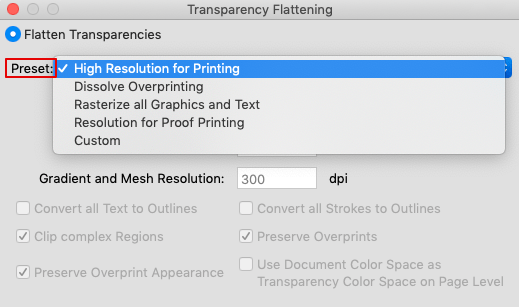
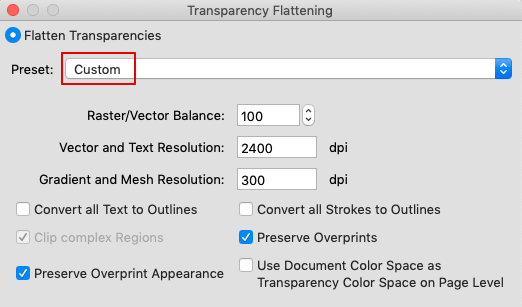
Preset: Presets are available for the most common daily transparency flattening tasks. The settings used are grayed out and cannot be changed. Presets can also be used as a basis for Custom settings. 

Preset:

High Resolution for Printing: This default setting retains as many vector objects as possible. A typical resolution setting of 2,400 dpi is used for the rasterization of vectors and texts. This presetting is suitable for print production, for example in conventional printing presses.

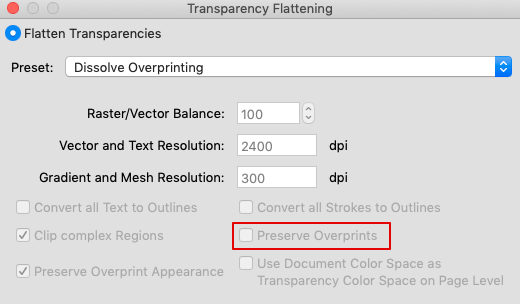
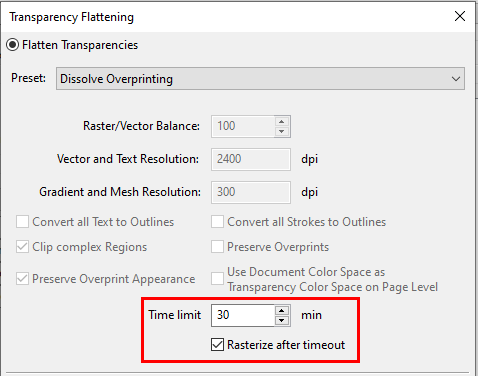
Dissolve Overprinting: This is the best solution if there are problems with overprinting elements after a color conversion, especially when combining a spot color conversion and a transparency reduction, or if the total amount of coverage (TAC) is too high. This should be used specifically to convert spot colors to process colors to ensure the best possible conversion of colors and vector objects.

Overprinting elements are separated into individual vector objects and, if necessary, rasterized so that the resulting color result is identical to that of the original file. The main difference between High Resolution for Printing and Dissolve Overprinting is that the Preserve Overprints checkbox is disabled.

Note: The two functions Preserve Overprints and Preserve Overprint Appearance work independently of each other. If the Preserve Overprints checkbox is deactivated, overprinting objects are resolved in the same way as transparent objects. This can lead to adverse results with overprinting and transparent objects when spot colors are present and a spot color conversion is carried out afterward. The Preserve Overprint Appearance function can be used to avoid these problems without rasterizing the file.

Rasterize all Graphics and Text: If the Raster/Vector Balance is set to zero, all vectors and texts will be rasterized. The resolution of the rasterized elements then corresponds to the Vector and Text Resolution.

Note: Images are also converted to this resolution and can be blurred in print when using extended resolution. The resulting PDF file can become significantly larger when using this function.

Resolution for Proof Printing: Uses the resolution of a typical inkjet printing system for proof printing. Overprinting elements are resolved to reproduce the correct color appearance.

Custom: Enables custom conversions of transparencies and overprinting elements by specifying user-defined settings.

Raster/Vector Balance: Determines the amount of vector information that is preserved. A higher setting preserves more vector objects, while a lower setting rasters more vector objects. Medium settings preserve simple areas and rasterize more complex ones. The lowest setting rasters all graphics with transparency.

Note: The conversion to pixel images depends on the complexity of the page and the type of overlapping objects.

Vector and Text Resolution: All objects are rasterized to the specified resolution, including images, vector graphics, text and gradients. The resolution influences the accuracy of the intersection points when converting to pixel images. Adobe recommends 600 to 1,200 ppi for vector graphics and text resolution to achieve high-quality screening, especially for serif fonts and small fonts.

Gradient and Mesh Resolution: Specify a resolution between 72 and 2,400 ppi for gradients and Illustrator grid objects that are rasterized due to the transparency flattening. The resolution affects the accuracy of the intersection points when converting to pixel images. Adobe recommends 150 to 300 ppi for gradients and grids. Higher resolutions do not improve the quality of gradients, cast shadows, or soft edges. However, higher resolutions can increase print times and file size unnecessarily.

Convert all Text to Outlines: Converts all text objects to outlines and ignores all text glyph information on pages with transparency. This function ensures that the text width remains unchanged during reduction.

Note: Small fonts appear slightly wider when the file is opened in Acrobat or when printing at low resolution. Quality is not affected when printing at high resolution or using a platesetter.

Convert all Strokes to Outlines: Converts all strokes on pages with transparencies to single-filled outlines. This ensures that the width of the strokes remains unchanged during transparency reduction. Note that thin strokes are displayed slightly thicker and may affect reducing performance.

Clip complex Regions: Ensures that borderlines between vectors and rasterized graphics run along object paths. Prevents visible transitions in graphics where one part has been converted to a pixel image while another part preserves the vector format. However, with this function, paths can be created that the printer cannot process due to their complexity.

Preserve Overprinting Appearance: Solves common overprinting problems without rasterizing the file. This option can be applied to overprint problems with or without transparencies in the file. It is enabled by default in all presets within the Transparency Flattening feature, but can be disabled in Custom settings.

Use Document Color Space as Transparency Color Space on Page Level: Available only with the Custom setting by default. Overwrites the transparency color space at page level and uses the profile set under Document Color Space. This option is convenient when converting a file with a transparent RGB blending space from CMYK to CMYK. In this case, a more reliable result is obtained when the transparent blending space is CMYK rather than RGB.

Time limit: By default, flattening processes are canceled after 30 minutes. However, some PDF files contain complex transparencies which may need more than 30 minutes for flattening. Therefore, the allowed flattening time can be defined under Time limit.

Note: It is not recommended to reduce the Time limit to less than 20 minutes.

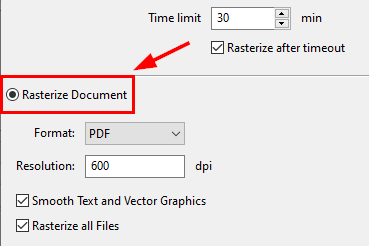
Rasterize after Timeout: By enabling the check box, files will be rasterized when the Time limit is exceeded. The rasterization is carried out by using the settings defined in the grayed-out section Rasterize Document. To change these settings, select Rasterize Document, make the desired changes (use the tab key after changing the Resolution for the dialog to accept your change), select Flatten Transparencies, and click OK.

Note: Some files take hours to flatten, and it is not certain that they will be processed correctly. Rasterizing is then the last resort to convert such files correctly.

2. Rasterize Document

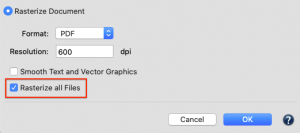
Rasterizes the entire PDF file to the specified resolution, including vectors, text, images, and white paper backgrounds. This setting is convenient when printing with a RIP that does not support transparency or when generating a soft proof as a pixel-based file.

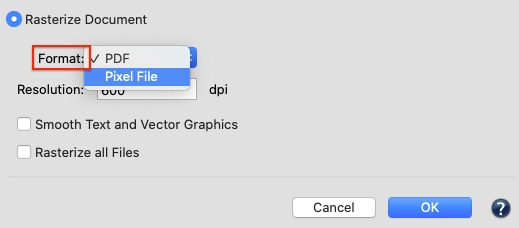
Under Format choose between PDF and Pixel File.

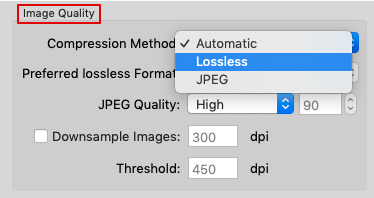
Note: For pixel files, set the settings under Options > Image Quality. If you select Automatic mode for the Compression Method, a TIFF file is usually generated. Please note that for multi-page PDF files as many pixel files are created as there are pages.

Smooth Text and Vector Graphics: Anti-aliasing is applied to text and vector elements to avoid artifacts at low resolution. Anti-aliasing can also cause some blurring in the processed file.

Note: Fonts are also rasterized. For best results, choose a resolution that is high enough to achieve a good quality result when rasterizing text and vector lines (at least 600 dpi).

Rasterize all Files: Rasterizes any PDF document even if it does not contain transparencies.

Note: By default, a document is only flattened if it contains transparencies. Otherwise it is not flattened. Use this function to create a pixel file such as TIFF or PSD from a PDF that does not contain transparencies.

ZePrA | Extract ICC Profile

Extract ICC Profile

Extracting ICC profiles from PDF/X files

Extracting ICC Profiles

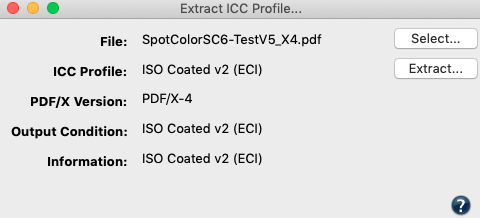
The Extract ICC Profile tool extracts and saves profiles that are embedded in images or output intents of PDF/X files. Embedded profiles that do not exist separately as ICC profiles but are embedded in image or PDF files can be extracted and used, for example, This feature allows embedded profiles that are generally embedded in image and PDF files to be extracted and used, e.g., to create DeviceLink or SaveInk profiles.

Extracting an ICC profile


Procedure

  1. Click the Extract ICC Profile icon in the Sidebar.
  2. Select the File (PDF, JPEG, TIFF, PSB, or PSD) containing the embedded profile, or  drag-and-drop the file into the selection window.
  3. The embedded ICC Profile, the PDF/X Version, and the Output Condition are displayed. The embedded profile can be saved with Extract.

ZePrA | Auto Setup EN

Auto Setup

Create workflows with ZePrA’s Auto Setup Wizard

Auto Setup

Workflow Creation

ZePrA provides several auto setup methods to set up workflows for the most common color management tasks. The Automatic Setup Wizard also allows workflows that save ink, optimize the total area coverage (TAC), apply gradation corrections and proofing. It takes just a few steps to create Configurations and Queues.

To process files, either use a previously created DeviceLink profile, or use the SmartLink function to create a DeviceLink profile on-the-fly (SmartLink license required).

Setting Up Workflows with the Auto Setup Wizard

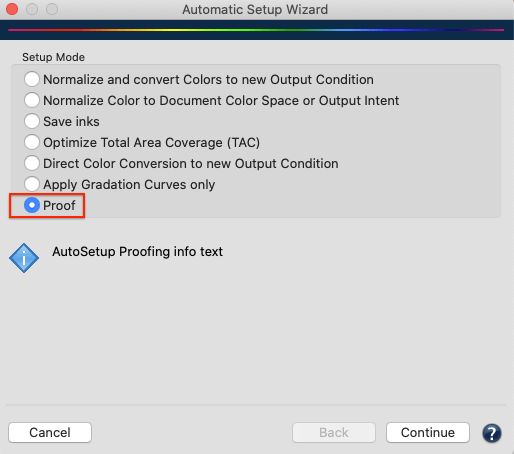
Select Auto Setup in the sidebar. There are seven different setup options for creating Configurations and Queues. The first two modes involve normalizing the data. General Information about Normalizing Data can be found further down this page.

Select a Setup Mode

Normalize and convert Colors to new Output Condition

The content of the PDF file is first normalized to the document color space or output intent and then converted to the desired target color space.

PDF files usually do not contain any information about the document color space. If there is no PDF/X file available for Normalization but only a PDF file, decide on a Document Color Space into which any existing ICC-based PDF objects will be converted.

There are two options to choose from:

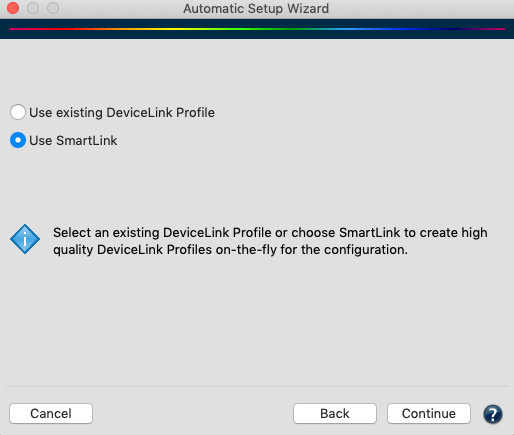
  1. Use existing DeviceLink Profile
    Choose a DeviceLink profile for the configuration (e.g. from our DeviceLink sets, available from any ColorLogic dealer), and select it from the drop-down menu. The source and target profiles are set by the DeviceLink profile.
  1. Use SmartLink
    The SmartLink function creates DeviceLinks on-the-fly from source and target profiles.
    Note: Requires a SmartLink license. If the SmartLink function is not available, normal ICC conversions are performed for objects with embedded ICC profiles.
    For more information, see DeviceLink or SmartLink further down on this page.

Select the rendering intent for the calculation. More information can be found further down this page under Rendering Intent.

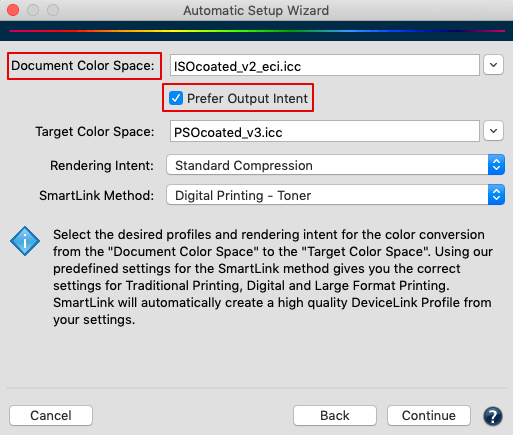
Prefer Output Intent: The output intent of the PDF/X file is used instead of the manually set document color space.

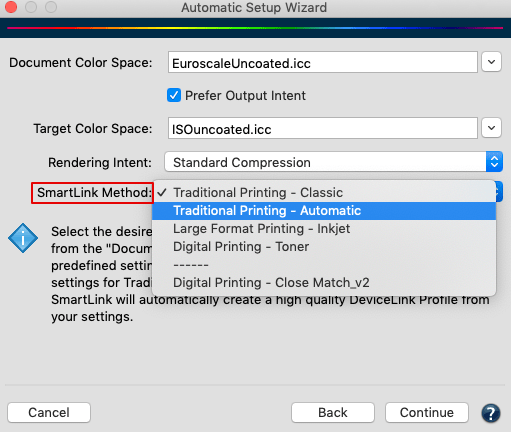
SmartLink MethodDefines the conversion settings. There are predefined methods available for traditional printing, large format printing, and digital printing, but custom methods can also be used.

Data processing:

RGB objects with embedded profiles are first converted to the document color space (normalized). If the SmartLink function is activated and an individual PDF object contains an embedded device profile, the device profile is used to create a DeviceLink profile on-the-fly. Embedded rendering intents are also considered. When normalizing, all images without embedded profiles are converted to the document color space based on the predefined profile.

CMYK objects with embedded profiles are first converted to the document color space (normalized). If the SmartLink function is activated and an individual PDF object contains an embedded device profile, the device profile is used to create a DeviceLink profile on-the-fly. The conversion is then performed using this DeviceLink profile.

If a Relative Colorimetric rendering intent is embedded in a PDF object, Auto Setup automatically activates the Blackpoint Compensation to ensure clean reproduction of details in the shadow areas.
Exception: PDF 2.0 files - see Black Point Compensation with PDF 2.0 files under Configurations/Options/Rendering Intents.

If the DeviceLink profile was created using the option to preserve pure primaries and secondaries, pure colors are kept pure in CMYK objects with embedded profiles.

To ensure precise color conversions, ZePrA completely recalculates the conversion of source and target profiles on-the-fly. The algorithms used are identical to those used in ColorLogic's CoPrA profiling software.

There are five additional rendering intents available for SmartLink to avoid inharmonic color conversions that can result from differently calculated tables for source and target profiles (see Rendering Intents).

If SmartLink has not been licensed, a direct ICC-based conversion to the target profile or document color space is performed. This can contaminate pure CMYK colors, which can cause problems with overprinting elements.

The automatic setup wizard’s option to normalize first and convert afterwards provides the most consistent results for color conversions, as recommended by the PDF/X specification.

The default name of this queue starts with Convert.

Normalize Color to Document Color Space or Output Intent

The data is standardized, i.e. it is converted to the document color space or output intent (normalized).
For PDF files, all ICC-based PDF objects are converted from the embedded ICC profile via the embedded rendering intent to the document color space (output intent). After this step, all objects of the PDF file are color-matched to a consistent standard (document color space/output intent).

PDF files usually do not contain any information about the document color space. If there is no PDF/X file available for Normalization but only a PDF file, decide on a Document Color Space into which any existing ICC-based PDF objects will be converted.

After conversion, the final, normalized file consists only of a document color space and spot colors, if present.

If a Relative Colorimetric rendering intent is embedded in a PDF object, Auto Setup automatically activates the Blackpoint Compensation to ensure clean reproduction of details in the shadow areas.

Exception: PDF 2.0 files - see Black Point Compensation with PDF 2.0 files under Configurations/Options/Rendering Intents.

The following color conversions are performed during normalization:

  • Conversion of device RGB and ICC-based RGB objects to document color space
  • Spot colors remain unchanged (can be converted to the target color space if required)
  • Conversion of ICC-based CMYK to document color space, retaining pure colors and separation properties (when using SmartLink)
  • Assignment of ICC-based gray to the black channel of the document color space (prevents four-color gray)

The default name of these queues start with Normalize.

Save inks

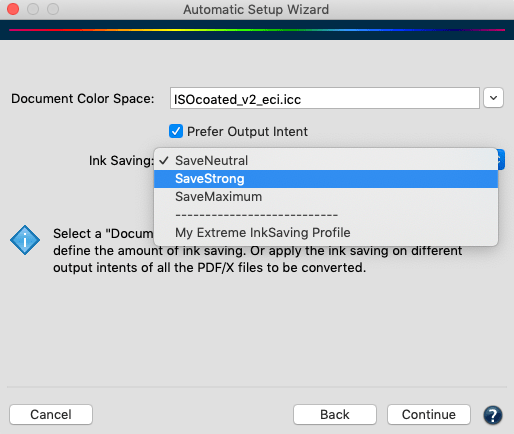
The data is first normalized to the document color space and then optimized using either an existing SaveInk profile or a SmartLink SaveInk method. Three Ink Saving methods are available.

Selecting an Ink Saving method

The Save inks setup mode is available when the source and target profiles are identical. The optimized file remains in the same color space. The focus is on accurate color reproduction while reducing CMY inks and increasing black ink (K).

Use existing DeviceLink Profile: Select an existing SaveInk DeviceLink profile from the drop-down menu. ZePrA only shows profiles whose source and target profiles are identical.

Use SmartLink: Select the profile which matches the Document Color Space and choose from three standard Ink Saving methods (SaveNeutral, SaveStrong, SaveMaximum). It is also possible to define custom SaveInk settings in CoPrA and share them with ZePrA. These custom SaveInk settings are displayed below the dashed line (My Extreme InkSaving Profile in the screenshot above).

SaveNeutral: Moderately increases the amount of black in neutral color areas. Ideal for print shops looking for a quick introduction to saving ink and wanting to gain practical experience. These profiles primarily stabilize the printing process and are less suitable for saving large quantities of ink.

SaveStrong: The black portion is significantly increased. This is aimed at print shops that have control of their printing process in accordance with standardization and are looking for high ink savings, but still want to leave room for adjustments on the press.

SaveMaximum: Maximizes the amount of black and provides the greatest ink savings. Mainly suitable for print shops that have successfully implemented standards and control them completely.

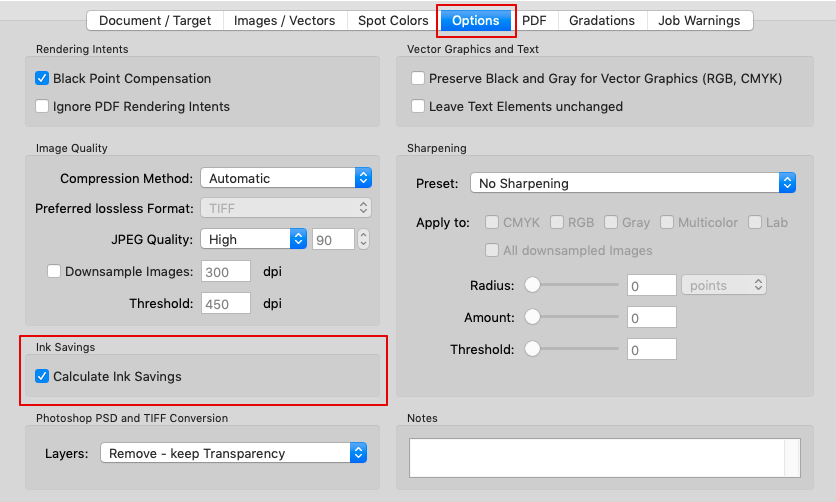
Calculate Ink Savings: The Automatic Setup Wizard can calculate the ink savings for processed files. However, this calculation can significantly slow down processing. If faster data processing is desired, deactivate this option.

Note: The ink saving calculation can be enabled or disabled under Configurations/Options.

The default queue name starts with SaveInk.

Optimize Total Area Coverage (TAC)

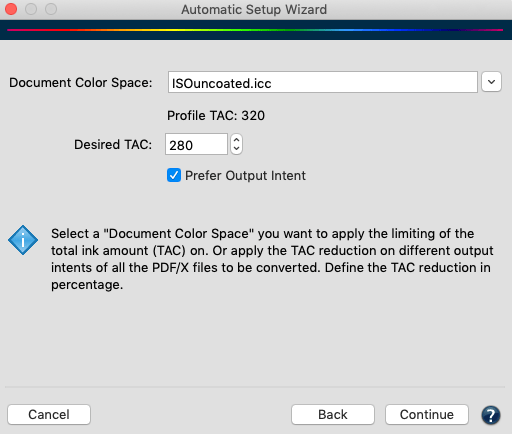
The data is normalized to the document color space and the total amount of ink is reduced. This can either be done by using special profiles to reduce the total area coverage (TAC), or - if SmartLink is used - by specifying the Desired TAC value.

Adjusting the maximum ink coverage

The source and target profiles must be identical. The optimized file remains in the Document Color Space. The focus is on accurate color reproduction while reducing ink coverage.

Choose from two options:

  1. Use existing DeviceLink Profile: Select an existing TAC reduction DeviceLink profile from the drop-down menu. ZePrA only displays profiles with identical source and target profiles.
  2. Use SmartLink: Assigns a TAC to the selected Document Color Space on-the-fly (requires a SmartLink license).

Prefer Output Intent: The output intent of the PDF/X file is used instead of the manually set Document Color Space.

The default name of these queues starts with TAC.

Direct Color Conversion to new Output Condition

​The data is directly converted to the target color space using embedded profiles, without normalizing to the document color space beforehand. This setup mode enables the maximum color space utilization of the target color space and is particularly suitable for media-neutral data, e.g. RGB image data with ICC profiles, or image file conversions (TIFF, JPEG, PSD). It is particularly well-suited for use with Push-2-ZePrA.

If the profile embedded in the file matches the profile defined as Document Color Space, the profile setting defined in the Document/Target tab is used instead of the settings in the Image/Vector tab.

In addition, the rendering intents of the PDF are ignored (the Ignore PDF Rendering Intent checkbox in the Options tab is enabled) and the rendering intents defined in the Image/Vector tab are used instead, which usually leads to an improved color rendering for direct color conversions.

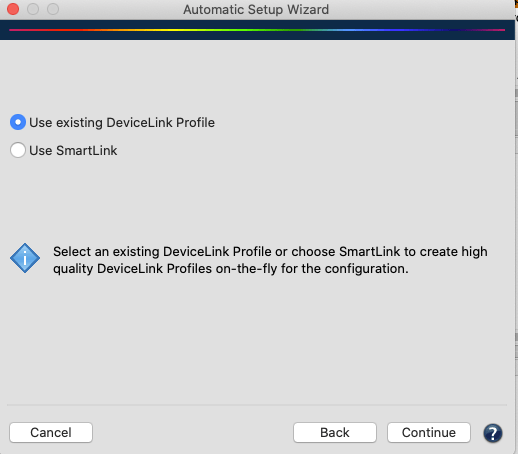
Select either Use existing DeviceLink Profile or Use SmartLink.

Use existing DeviceLink Profile: Select a DeviceLink profile that converts from the document color space to the required output condition. All other settings for RGB, CMYK, Gray and Lab color spaces are set automatically.

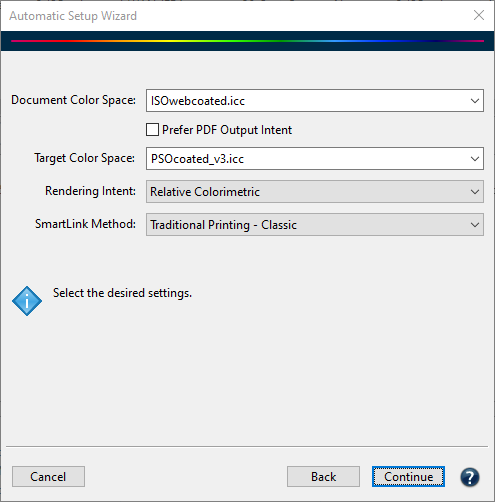
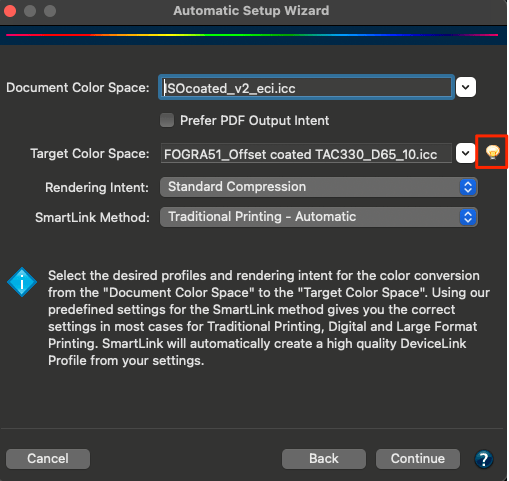
Use SmartLink: Select the respective ICC profiles under Document Color Space and Target Color Space to create the DeviceLink on-the-fly. Define the intended Rendering Intent and the SmartLink Method that best fits your workflow process.

RGB objects with embedded profiles: Converts directly to the target color space and utilizes the maximum color space, however, the embedded profiles and the selected Rendering Intent are taken into account. This guarantees a consistent conversion and optimization of the data.

RGB data without embedded profiles: The sRGB color space is used, which can be changed in the configuration, if necessary.

In general, Blackpoint Compensation is enabled when the embedded intent is Relative Colorimetric.

CMYK objects with embedded profiles: The SmartLink function optimizes direct color conversion via the DeviceLink profiles. Embedded profiles/intents are considered.

The default queue name starts with Output.

Apply Gradation Curves only

Gradation adjustments apply external files on-the-fly to existing curves, adjusting process colors and/or spot colors without changing the document color space.

Gradation curves are a simple solution for applying gradation corrections to print-ready PDF/X-1a files consisting of CMYK and spot colors only.

There are two ways to correct gradations:

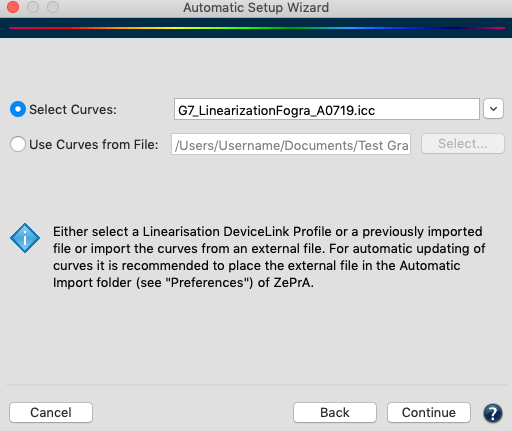
1: Select Curves

Select Linearization DeviceLinks created by CoPrA or previously imported files including curves (gradations). Previously imported files will be shown beneath the linearization DeviceLink profiles.

Gradation curves created with CoPrA’s Linearization tool are saved in the Profiles folder (/User/User name/Library/ColorSync/Profiles oder C:/WINDOWS/system32/spool/drivers/color/) and are automatically listed in ZePrA’s Select Curves drop-down menu. Only curves with a matching color space are shown. These curves are read only and cannot be edited with ZePrA’s Gradations tool. When changing the gradation curves (e.g. by overwriting the .icc file in CoPrA with differing linearization data), these changes will automatically be applied to all configurations using these curves. The location of the selected .icc file is not relevant (e.g. Profile or Auto Import folder).

2: Use Curves from File

Loads an external file that includes the gradation corrections for the process color(s) to be changed.

Gradation curves created with ZePrA’s Gradations tool are saved in the Profiles folder and are automatically listed in the Gradations tab drop-down menu under New/Edit. The curves can also be accessed by Load Curves/Use Curves from File . When changing the gradation curves with ZePrA’s Gradation tool, these changes will automatically be applied to all configurations using these curves.

Normalize and Document Color Space

Normalize: PDF/X-3 or PDF/X-4 files that contain RGB or CMYK objects with embedded profiles are normalized and the curves are applied to the normalized file.

Document Color Space: Define an ICC profile as the document color space for files with no output intent defined in the PDF file. Activate the Prefer Output Intent checkbox to ensure that any existing output intent always takes precedence over the specified document color space and is thus retained.

The default name for these queues starts with Gradations.

Proofing

ZePrA's sophisticated technology - e.g. the quality of DeviceLink and SmartLink profiles and the spot color rendering of its advanced spot color module - can be used for proofing as well. This is especially useful as many RIPs do not support CxF/X-4 data and SCTV calibration nor have a spectral color prediction model for spot color rendering.

Procedure

Select Proofing under Setup Mode to create a proofing queue.

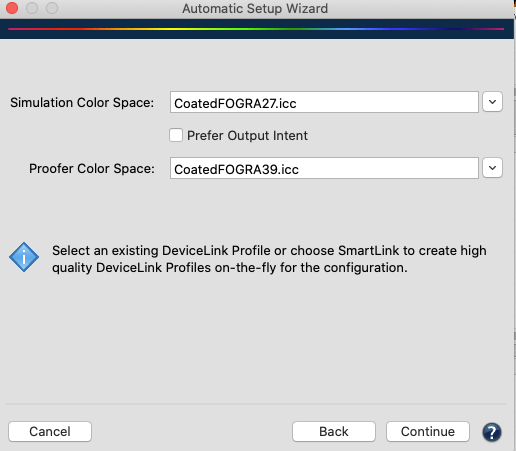
Select either an already created DeviceLink profile for the proof workflow - this can be an iterated DeviceLink profile created by CoPrA - or use SmartLink to create a proof DeviceLink based on your simulation profile and the proofer profile.

Use SmartLink: The DeviceLink for proofing is created “on-the-fly” based on the Simulation Color Space and the Proofer Color Space. Activate the checkbox Prefer Output Intent to use the output intent of the PDF/X file.

At this point you don’t have to select a rendering intent or SmartLink method as the appropriate settings will be set automatically to achieve best results (e.g. absolute colorimetric rendering and the use of no color exceptions). This includes typical settings for transparency flattening and spot color conversions, too. 

If required, the settings can be customized under Configurations once the configuration has been set up, for example to select the desired spot color library for spot color conversion.

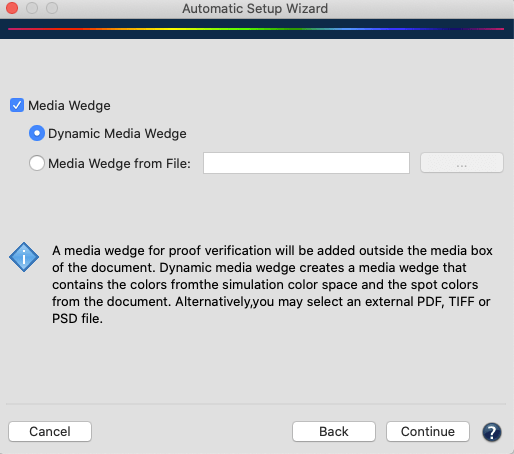
Select a Media Wedge. The media wedge is added outside the media box for proof verification. It can either be a dynamic or an external media wedge.

Dynamic Media Wedge: Uses the colors of the simulation color space and all spot colors of the documents to be processed.

Media Wedge from File: Can be media wedges such as the FOGRA, UGRA, IDEAlliance® or other media wedges (as PDF, TIFF or PSD file).

Note: External media wedges need to be provided (and possibly bought from organisations) by the user. The Idealliance ISO 12647-7: 2013 control wedge for CMYK, Idealliance-3-Row-Digital-Control-Wedge® is available for free. The Idealliance ISO 12647-7 Control Wedge 2013 is included in ZePrA and available under /Users/Shared/ColorLogic/MediaWedges (Idealliance ISO 12647-7: 2013, 3-Row Digital Control Wedge® is a registered trademark of the IDEAlliance®).

Create the proofing configuration and queue:

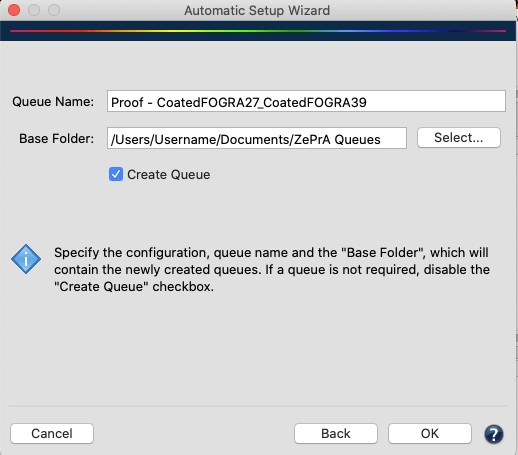
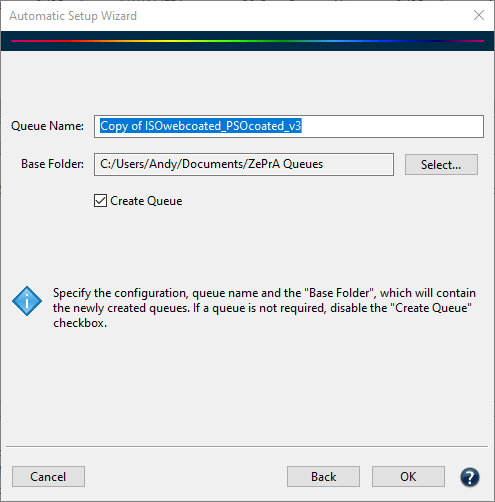
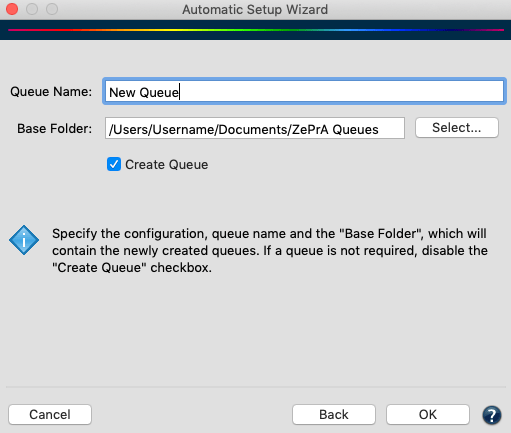
Confirm the Queue Name suggested by ZePrA or enter a custom name.

Specify the Base Folder in which the queue is to be created. To create a Queue (Hotfolder) in the Base Folder, activate the Create Queue checkbox and the corresponding subfolder will be created.

To only create a new configuration, uncheck the Create Queue checkbox. The new configuration can be assigned to an existing queue in the Queues dialog later if required.

Use an existing Configuration as a Template

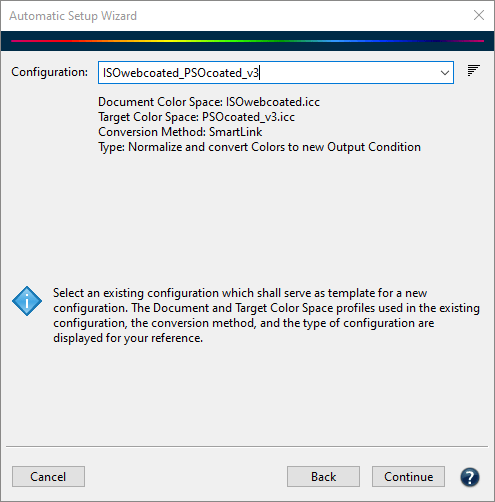
This Setup Mode uses an existing configuration with all custom settings as a template to create a new valid configuration with only the profiles adjusted. Depending on the profile adjustments made, the settings are modified accordingly to ensure proper functionality of the new configuration:

  • When the Document Color Space has changed, the default profile used under Images/Vectors is changed accordingly.
  • Iterated spot colors are removed when the target profile has changed (they are kept when the target profile has not changed).
  • Correction profiles are deactivated when the target profile has changed (they are kept when the target profile has not changed).
  • PDF/X settings are changed when the target profile has changed.

Procedure

First, select the existing configuration to be used as a template. The dialog provides some information about the profiles used as Document and Target Color Space, the Conversion Method, and the configuration Type.

In the next step, new profiles can be selected, which must be of the same color space and type as the original profile, e.g., if the base configuration uses a DeviceLink as the conversion method, the wizard will only allow DeviceLinks to be selected, if the base configuration uses SmartLink, the new configuration will also use SmartLink, etc.
Note: In contrast to the above restriction, when using a SmartLink configuration with Multicolor target profile, Multicolor profiles with other color spaces can also be selected as the new target profile. This is particularly helpful if the Multicolor profile variants created by CoPrA are to be used in ZePrA.

Finally, create the new configuration and queue:

Confirm the Queue Name generated by ZePrA or enter a custom name.

Specify the Base Folder in which the queue is to be created. To create a Queue (Hotfolder) in the Base Folder, select the Create Queue checkbox and the corresponding subfolder will be created.

To only create a new configuration, deselect the Create Queue checkbox. The new configuration can be assigned to an existing queue in the Queues dialog later if required.

DeviceLink or SmartLink

DeviceLink or SmartLink

Either use an existing DeviceLink profile in your configuration or use SmartLink to create and use a high-quality DeviceLink profile within the workflow.

Use existing DeviceLink profile or SmartLink

Use existing DeviceLink Profile

If files are processed without embedded profiles, and there is a matching DeviceLink profile, you can use it within your workflow. This DeviceLink profile then defines the source profile and the target profile.

Select the DeviceLink Profile to be used for conversion from the document color space to the target color space. All relevant PDF/X information is automatically transferred. (For more information, see Configurations - PDF/X)

In the Save inks and Optimize Total Area Coverage (TAC) modes, the drop-down menu DeviceLink Profile only lists profiles with identical source and target profiles.

Use SmartLink

The DeviceLink for the conversion is created "on-the-fly" based on source and target profiles. The Rendering Intent for the calculation can be selected manually. Instead of the manually set Document Color Space, read out and use the output intent of the PDF/X file by activating the Prefer Output Intent checkbox.

The SmartLink option creates high quality DeviceLink profiles to avoid the problems of typical ICC conversions and ensures optimal color conversions.

Sharing settings with ZePrA (CoPrA 5 and lower)

Due to the close connection between CoPrA (ColorLogic’s profiling solution) and our color server ZePrA, the profile settings from CoPrA can be used to calculate DeviceLink profiles in ZePrA.

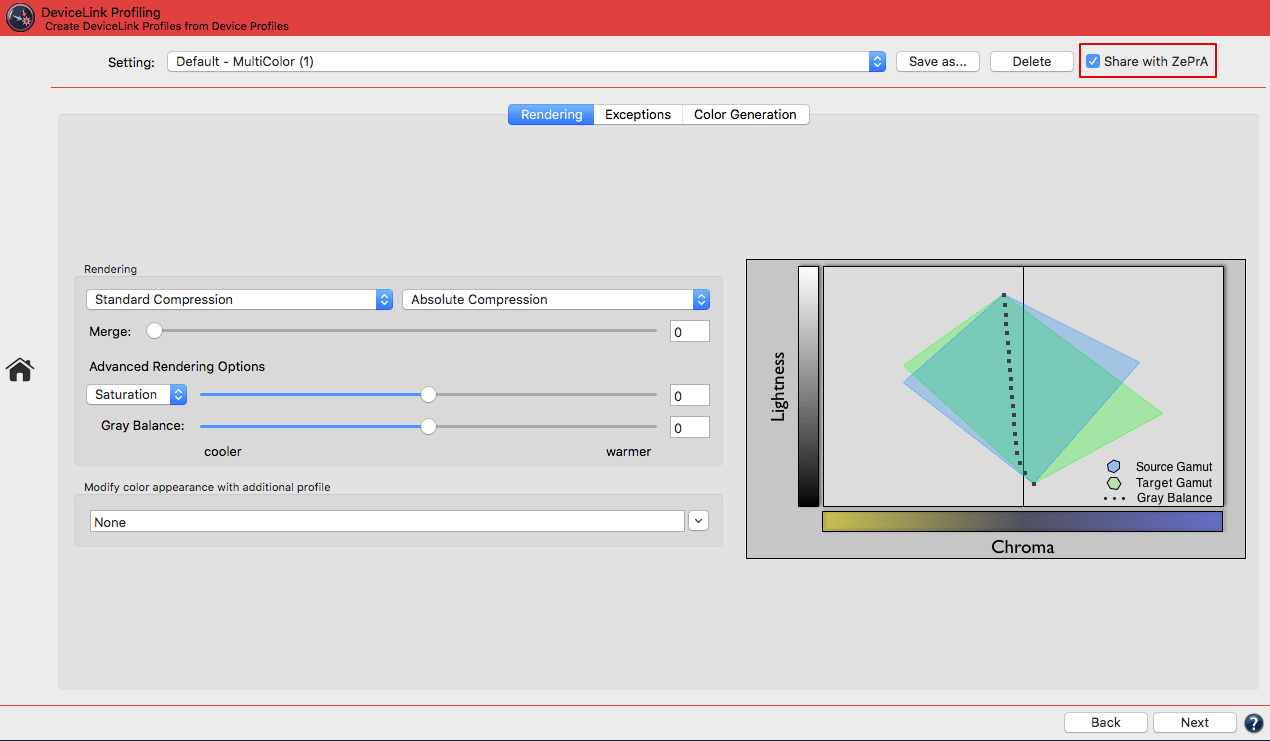
By selecting the checkbox Share with ZePrA in CoPrA, the settings of your DeviceLink and SaveInk profiles are transferred directly to ZePrA and can be used there as SmartLink Method.

The SmartLink Method in ZePrA allows calculation of the necessary DeviceLink and/or SaveInk profiles for the conversion of PDF files on-the-fly, without the need to create these DeviceLinks in advance.

The DeviceLink tool in CoPrA: SmartLink can use the profile settings from CoPrA to create DeviceLinks in ZePrA

To do so, make all the required settings in CoPrA by entering all relevant information in the DeviceLink tool under Rendering, Exceptions, and Color GenerationClick Save As and enter a name for the setting. Confirm with OK, then activate the Share with ZePrA checkbox. 

The so created methods shared with ZePrA are then available as SmartLink Method in the drop-down menus of both the Auto Setup and the Configurations.

Note: Only saved settings can be shared with ZePrA. Default or edited presets cannot be shared.

Sharing settings with ZePrA (CoPrA 6 and higher)

The SmartLink Method in ZePrA allows to create DeviceLinks and SaveInk profiles for the conversion of PDF files on-the-fly, without the need to create these DeviceLinks in advance.
Due to the close linkage between CoPrA and ZePrA, profiling settings specified in CoPrA can be used by ZePrA to create the required profiles.

The settings are accessible via a shared folder which has the advantage that CoPrA and ZePrA do not need to be installed on the same computer. The shared folder must simply be accessible by both ZePrA and CoPrA, either over the network, a shared local folder or the cloud.

Procedure

In CoPrA

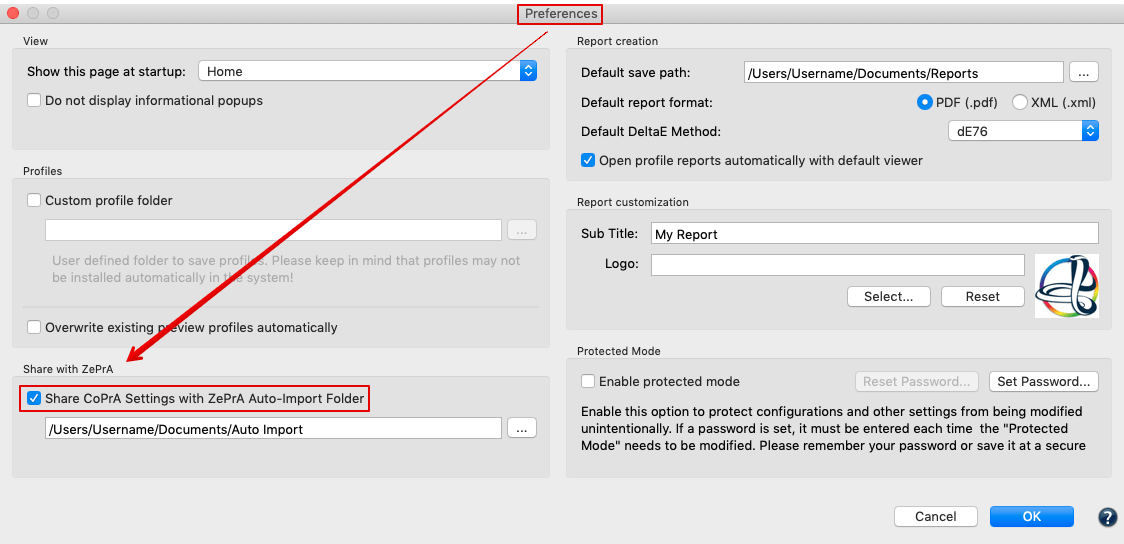
  1. Under Preferences, enable the checkbox Share CoPrA Settings with ZePrA Auto Import Folder and select ZePrA’s Auto Import folder.
    Note: The Auto Import folder must be activated in ZePrA as well.
    If the checkbox is enabled and the Preferences dialog closed with OK an information message will appear asking the user if all shared presets should now be copied to the defined Auto-Import Folder.

  2. In the DeviceLink tool, define all required settings by entering all relevant information under Rendering, Exceptions and Color Generation.
  3. Click Save As and enter a name for the setting. Confirm with OK, then activate the Share with ZePrA checkbox.
  4. CoPrA Settings created that way and shared with ZePrA are available for selection as SmartLink Method in the drop-down menus of both the Auto Setup and the Configurations settings.

Note: Only saved settings can be shared with ZePrA. Default or edited presets cannot be shared.

In ZePrA

Make sure to enable the Auto Import function in ZePrA’s Preferences and to use the same folder as CoPrA. CoPrA’s DeviceLink and SaveInk settings are now accessible in ZePrA and can be used there as a SmartLink Method. SmartLink can now create custom DeviceLinks which can be used in ZePrA configurations.

Basic information on the Auto Import folder

Files (such as ICC profiles, configurations, spot color libraries, gradations or SmartLink settings) that are moved or copied into the Auto Import folder are transferred to ZePrA’s internal dataset and can then be used by ZePrA.
When the file in the Auto Import folder is replaced by a newer version, it will be updated in ZePrA’s internal datasets as well.
Note: If a file in the Auto Import folder is deleted, it is not deleted in ZePrA’s internal dataset. For example if a SmartLink setting has been deleted in the Auto Import folder, it is still available in ZePrA’s internal dataset and if this setting is deleted in ZePrA’s dataset, it is still available in the Auto Import folder.

Document Color Space

The document color space serves as a reference to define a uniform color space for the colors of the PDF file.

  • CMYK color spaces are usually used for print production, as CMYK colors are generally used for printing.
  • RGB document color spaces are suitable for modern publications for mobile media.
  • Multicolor color spaces are often used in packaging printing or in modern digital printing.

ZePrA supports the full spectrum of color spaces (Multicolor color spaces require a Multicolor license). Individual RGB or CMYK objects with embedded profiles in PDF files are converted to the document color space. For professional print production, data exchange should always be based on the PDF/X standard.

Prefer Output Intent

By activating this checkbox, the output intent of the PDF/X file is used instead of the manually set Document Color Space.

In addition to the ICC device profiles of individual PDF objects, an output intent can be defined for the entire PDF document (an ICC device profile that describes the document color space).

The document color space in PDF/X documents is clearly defined as the output intent.

If Prefer Output Intent is activated, PDF/X files with various output intents can be correctly converted in a queue because the respective output intent is considered instead of the document color space.

Note: This function is only applicable for PDF/X files.

Target Color Space

The Target Color Space is defined by the target profile selected in the drop-down menu. If necessary, the target profile can be changed here.

A PDF/X file whose Document Color Space/Output Intent does not match the color space of the final printing process requires the entire PDF file to be converted from the Document Color Space to the Target Color Space. The best conversion quality is achieved by using high-quality DeviceLink profiles (e.g., created by CoPrA) or SmartLink.

If CoPrA profiles with viewing conditions other than the standard are selected as Target Color Space (e.g., D65 and 10 degrees, as typically used in textile printing), this is indicated by a light bulb icon.

When hovering the mouse pointer over it, the Viewing Condition (e.g., D65, 10 degrees) is displayed and the wizard automatically sets this Viewing Condition in the CIE Conversion. The light bulb icon is also displayed in the Configuration dialog next to the profile drop-down menu for selecting the Target Color Space.

Note: The light bulb icon only appears for non-standard viewing conditions. The viewing condition can be changed manually in the configuration. However, this could have undesirable consequences and cause a workflow warning.

Rendering Intent

General information on the design of ICC device profiles

Rendering intents, such as Perceptual or Relative Colorimetric, contain large tables which, for example for CMYK profiles, convert either CMYK color values to Lab or Lab color values to CMYK.

Due to these two color conversion directions, there are two tables for each rendering intent. The tables are calculated from the measurement data when a color profile is generated.

If ICC device profiles are calculated from the same measurement data, but with different profiling programs, then the tables generated can differ considerably in some color ranges.

This is especially true for the two tables of the Perceptual intent, for the gray balance and also for the areas with very high color saturation in the two tables of the Relative Colorimetric intent (also called "Out of Gamut" colors).

For optimal and harmonious color conversion, it is recommended, especially with CMYK-to-CMYK color conversions, to ensure that the source and target profiles were calculated with the same profiling software.

However, profiles from different providers (such as Adobe, ECI or ColorLogic) are often used in practice, which can lead to problems in color conversions if the perceptual rendering intent is used.

These problems can be avoided by using SmartLink.

The SmartLink module uses the source profiles embedded in PDF or image data and automatically calculates the DeviceLink profile required for conversion between source and target for each object and applies it at object level. The main conversion from the document color space to the target color space is also carried out via SmartLink. SmartLink is ideal for processing external data from a wide variety of sources to ensure optimum color accuracy (via DeviceLinks).

Additional SmartLink Rendering Intents
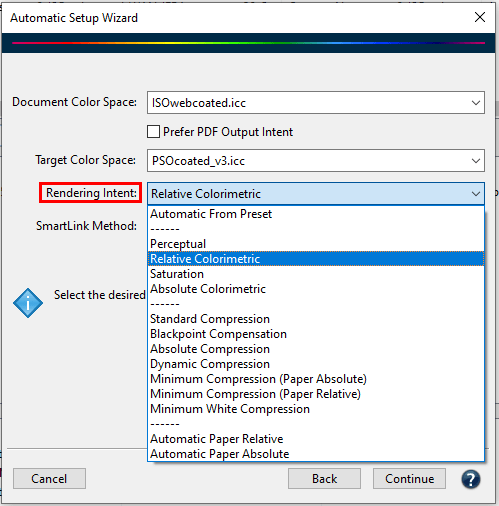
There are several additional Rendering Intents for SmartLinks


The SmartLink module provides several additional rendering intents to avoid inharmonic color conversions, which can result from differently calculated tables for source and target profiles.

To ensure precise color conversions, ZePrA completely recalculates the conversion of source and target profiles on-the-fly. The algorithms are the same as ColorLogic's CoPrA profiling software.

Note: These additional rendering intents are only available with SmartLink enabled. If the checkbox Use SmartLink is not activated or SmartLink has not been licensed, only the four standard rendering intents are available.

Automatic from Preset: This option is for Custom SmartLink Methods shared from CoPrA and takes whatever setting has been selected in the shared DeviceLink setting from CoPrA, including the rendering options, like a merge between two rendering options, chroma or saturation boosts, all exceptions and black generation settings.
Note: Automatic from Preset is only available in the drop-down menu when a custom SmartLink Method is selected. So, first select a custom SmartLink Method and the option Automatic from Preset will be on top of the list.
Note: In earlier versions of ZePrA (9 and lower) it is not possible to merge two different rendering options for color conversion, because the rendering settings of a profiling setting shared from CoPrA are always overwritten by the rendering setting selected in ZePrA.

Standard Compression: This is the default method. It uses a perceptual conversion that is well suited for all types of gamuts, i.e., also for conversions between color spaces of different sizes. Neutral tones are converted using a relative colorimetric approach, and the appearance of the gray axis always depends on the paper white of the target profile. Therefore, the gray axis of the transformed file will appear yellowish on a very yellowish paper. The same gray axis will appear bluish on a bluish paper. For very small color gamuts, for example in newspaper printing, the dark tones are raised slightly to achieve more image definition in these areas.

Black Point Compensation: Use Black Point Compensation to achieve the same results with a perceptive conversion as with “Relative Colorimetric with Black Point Compensation”. When converting from large to small color spaces, the image definition is preserved in the highlights and shadows, unlike with a pure Relative Colorimetric conversion. Neutral tones are converted using the Relative Colorimetric intent. Out-of-gamut colors are cut off.

Absolute Compression: This method is based on the absolute colorimetric rendering intent in terms of color reproduction and is recommended when the paper tones differ significantly (the color gamuts can be similar or different). In contrast to the Standard Compression and Black Point Compensation, the paper tint is compensated in the gray balance. The rendering of neutral colors is based on the absolute colorimetric rendering intent, without paper tone simulation in the highlights. If, for example, the paper white is significantly more yellow than in the reference, the gray axis appears neutral despite the yellowish paper tone. This ensures that the color appearance of the original file is preserved as best as possible on a target medium with a different paper tint. The contrast range in the highlights and shadows is adapted to avoid any loss of image definition.

Minimum Compression (Paper Absolute): This method is largely similar to the absolute colorimetric intent and only compensates close to the black and the white point.
In addition, the white point of the source color space is not simulated, but scaled to the white point of the target color space, thus ensuring a pure paper white.
Use this rendering intent to achieve a close reproduction, for example when using print standards such as ISO Coated V2 or GRACoL2006 Coated1v2 on a digital printer.
Note: As for the absolute colorimetric rendering intent, ensure that the target color space is larger or has at least a similar size to avoid any loss of image definition. For color conversions from larger to smaller color spaces use Absolute Compression to maintain the gray balance of the source color space.

Minimum Compression (Paper Relative): This method is largely similar to the relative colorimetric intent and only compensates close to the black and the white point. It is similar to Minimal Compression (Paper Absolute) but uses relative colorimetric instead.

Dynamic Compression: Compares the source color space with the target color space and generates a compression that minimizes out-of-gamut areas. This setting preserves the brightness of the original color space while reducing the saturation, and therefore also preserves the image definition. As for the Standard Compression, the gray axis of the conversion is built relative to the paper white of the target profile. This approach is well suited when the source and target profiles have a very large dynamic range and contrast, for example, in RGB-to-CMYK conversions.
Note: This method is now only available in ZePrA for compatibility reasons, and no longer in CoPrA. We recommend using Automatic Paper Relative instead.

Minimum White Compression: This method is similar to Minimum Compression (Paper Absolute). Both rendering intents compress the white point without paper simulation, however, there is an important difference: The Minimum Compression is a rather perceptual rendering that additionally compresses the black point, so the maximum dynamic range is utilized without loss of detail in the shadows. In contrast, the Minimum White Compression compresses the white point but not the black point, so a close absolute colorimetric match between source and target color spaces can be achieved. This can be useful for the color representation across various media, color matching or printing on slightly differing media. It can be regarded as close to absolute colorimetric rendering without paper tint simulation.

Note: Remember that the target color space should be larger than the simulated color space (or similarly large) to avoid loss of detail and vividness (similar to the absolute colorimetric rendering intent). For conversions from large to small color spaces, instead use our rendering intent Absolute Compression if the gray balance of the source color space is to be preserved.

Important: To ensure that an on-the-fly DeviceLink profile created with SmartLink uses the rendering intent set under Configurations > Images/Vectors, activate the checkbox Ignore PDF Rendering Intents in the Options tab.

Automatic Paper Relative: A paper-relative rendering without adjusting the gray balance, which differs between the source and target profiles due to differences in paper tone. A typical use case would be a more colorful rendering of a color space on a different printer where the gray balance does not necessarily need to match. For example, a campaign that has been prepared for ISO coated V2 but is to be printed on a large format inkjet printer. The gray balance is reproduced with the same coloration as the paper color tone of the target profile.

Automatic Paper Absolute: An absolute paper rendering with consideration of the paper color tone. A typical use case would be the same as Automatic Paper Relative, but with the paper color tone of the source profile taken into consideration. This results in a reproduction of the gray balance on the target printer that matches the color tone of the source profile and thus provides the best possible color appearance.

Important: For PDF processing ZePrA typically uses the rendering intent defined in the PDF for each object. When deviating from this rule, ensure that an on-the-fly DeviceLink profile created with SmartLink uses the rendering intent set under Configurations > Images/Vectors, select the checkbox Ignore PDF Rendering Intents in the Options tab.

SmartLink Method

The SmartLink Method considers the different requirements of different printing conditions so the printed color is correctly reproduced and optimally separated for the printing process.
Traditional Printing – Classic: Conversions for offset, gravure, or newspaper printing. The DeviceLinks created ensure that black and gray, as well as the primary, secondary and triplex hues of the source profile, are preserved. The total area coverage is taken from the target profile.

Choosing a SmartLink Method


Traditional Printing – Automatic: Select this setting when the colors and paper of the target color space are significantly different from the output intent or document color space. Separation is preserved, but Exceptions for special colors such as black and gray, primary, secondary, and triplex colors are automatically calculated based on both profiles.

Multicolor – Preserve CMYK: This method ensures that CMYK objects in PDF files or CMYK image files remain CMYK when converted to Multicolor.

Other color spaces, such as RGB or spot colors (when conversion is enabled), are converted to Multicolor using the black and color generation of the target profile to achieve optimal color fidelity. For image and vector conversions, color exceptions are generated automatically.

Large Format Printing – Inkjet: The separation settings and the total area coverage are taken from the selected target profile. The Exceptions for special colors, such as black and gray, primary, secondary, and triplex hues, are automatically calculated based on both profiles. This is to avoid problems that can occur when the hues of the primary inks vary between different inkjet printers or between the inkjet printer and the source color space (as with ISOcoated V2 or GRACol).

Digital Printing – Toner: For toner-based digital printers and office printers. The separation method ensures a high percentage of black and an early black start. This will achieve a stable print and neutral gray balance. The total area coverage is taken from the target profile. The Exceptions for special colors, such as black and gray, primary, secondary, and triplex hues, are automatically calculated based on both profiles.

Proofing: For proofing applications. All exceptions are disabled. All separation settings of the target profile are applied. The rendering intent is automatically set to Absolute Colorimetric.

Creating Queues and Configurations

Creating Queues and Configurations
  1. Enter a Queue Name that matches the name of the configuration.
  2. Specify the Base Folder in which the queue is to be created. To create a Queue (Hotfolder) in the Base Folder, activate the Create Queue checkbox and the corresponding subfolder will be created.
  3. To only create a new configuration, uncheck the Create Queue checkbox. The new configuration can be assigned to an existing queue in the Queues dialog later if required.
    Note: Auto Setup overwrites configurations without warning.
    If a configuration with the same name is to be overwritten, a warning only appears if the existing configuration or queue has different settings. If the settings are identical, the configuration is overwritten without warning.

    In the final step of the Auto Setup the queue is created along with all required folders

Configurations

All settings related to color handling and PDF processing are defined under Configurations. This includes color conversion via ICC output profiles or DeviceLink profiles, handling of mixed PDFs (documents with data in CMYK, RGB, Grayscale and spot colors) and individual settings of gradation curves and spot colors. Various presets and optimization options are available for all settings.
In the upper part of the window, select a configuration, create, rename and save new configurations.
To duplicate an existing configuration, select New, enter the new name and Save. To use a duplicated configuration, assign it to a queue.

Using Queues

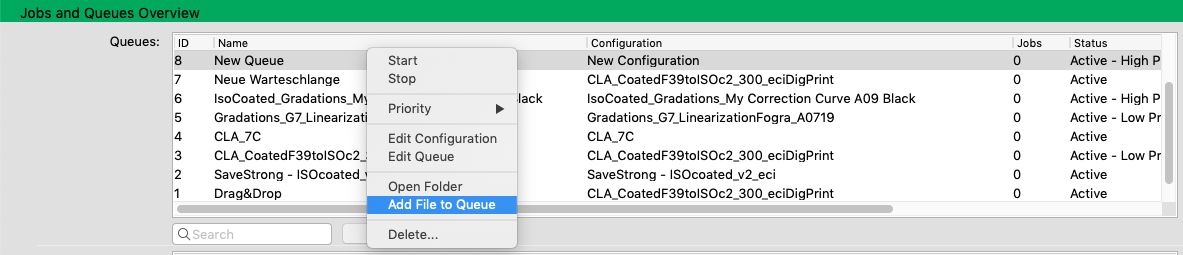
The Automatic Setup Wizard simplifies the setup process, once complete, the new configuration and queue can be used immediately. To use a queue, simply copy or move the PDF file to be converted to the Input Folder of the queue.

The queue is automatically started by placing a file in the hotfolder

PDF files in the Input Folder are automatically converted according to the color management settings and saved to the Output Folder. Original files are moved to the Done Folder. Files that have caused an error are saved in the Error Folder.

General Information

General Information on Normalization

When a normalizing mode is selected, the Document Color Space is the same as the Target Color Space and no conversion between document and target takes place. However, all images and vectors color spaces deviating from the Document Color Space profile are first standardized, e.g., converted to the document color space or output intent. This is called normalization.

With PDF/X files, all ICC-based PDF objects are converted from the embedded ICC profile via the embedded rendering intent to the document color space (output intent). After this step, all objects of the PDF file have been converted to a consistent "standard" (Document Color Space/Output Intent).

PDF files generally do not contain any information about the document color space (Output Intent). If there is no PDF/X file available for normalization but only a PDF file, decide on a document color space into which any existing ICC-based PDF objects are converted.

After conversion, the final, normalized file consists only of a color space and spot colors, if present. 

The following color conversions are performed during normalization:

  • Conversion of device RGB and ICC-based RGB to document color space
  • Spot colors remain unchanged (can be converted to the target color space if required)
  • Conversion of ICC-based CMYK to document color space, retaining pure colors and separation properties (when using SmartLink)
  • Assignment of ICC-based gray to the black channel of the document color space (prevents four-color gray)
Converting PDF files with Auto Setup

The easiest way to set up a color management workflow between various color spaces is to use the Auto Setup in combination with the SmartLink method. ColorLogic’s DeviceLink Sets (DLS) are also an option for standard color spaces. All sets are optimized so that the colors of both image and vector data of a PDF file can be reliably converted. The profiles are optimized and checked for smoothness and visually correct conversion, and have been proven in production.

All color information required for PDF/X is automatically set by Auto Setup, including the use of the target profile as output intent, normalization, and color conversion.

Gradients in vector graphics that consist of just one or two CMYK colors still contain only the original colors after application of the profile. The color values are merely adjusted for the output.

Example: If PDF objects are in the RGB color space and the Relative Colorimetric rendering intent is embedded, the Auto Setup queue automatically activates Black Point Compensation to ensure accurate detail reproduction in shadow areas.

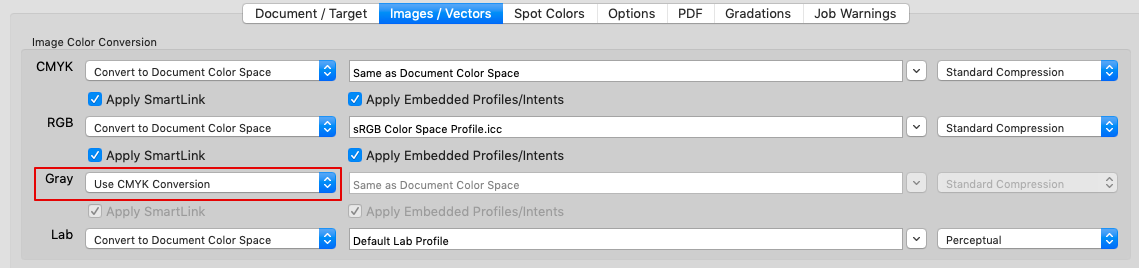
Grayscale: Grayscale objects can be handled like CMYK, preserving gray and avoiding conversion to four colors. To do this, choose Use CMYK Conversion

from the drop-down menu Gray in the Images/Vectors tab under Configurations. If SmartLink is licensed, color conversions of objects with embedded profiles are always performed via SmartLink to ensure the best possible quality.

Spot Color: If the PDF files contain spot colors, they remain unchanged. To convert spot colors to process colors, the spot color settings must be adjusted under Configurations > Spot Colors.

Embedding profiles: By default, no ICC device profiles are embedded in the individual elements of the output file.

SmartLink: If the SmartLink function has been licensed, color conversions of objects with embedded profiles are always performed via SmartLink and use DeviceLink profiles in order to guarantee the best possible quality.

PDF Transparencies: If a PDF file contains transparencies, the individual PDF objects are processed in exactly the same way as the PDF files without transparencies. The colors of the transparencies are converted by default and the transparency information is preserved unchanged. If required the Transparency Flattening can be set in the configuration in the PDF tab under Transparency/Overprinting

Flattening is mainly required for transparent objects if there are problems after conversion while maintaining transparency and when spot colors are to be converted to process colors.

Converting Image Files with Auto Setup

TIFF, JPEG, PSD, or PSB image data are processed in auto setup queues the same way as image data of a PDF file. The conversion is based on the settings under Images/Vectors and Document/Target.

For pure image data conversion of TIFF, JPEG, PSD and PSB images from a source color space to a target color space, it is recommended to use the Auto Setup option Direct Color Conversion to new Output Condition and select one of two options in the Automatic Setup Wizard:

Option 1: Use a previously created DeviceLink profile for the conversion of the image color space to the target color space. The DeviceLink chosen in the Automatic Setup Wizard should be set to source profile of the image, for situations where images without embedded profiles are processed. The target profile is set by the Auto Setup

For images with embedded profile and images with other color spaces not defined under Document Color Space the settings under Images/Vectors are applied. Make sure to select the proper default profiles, the desired rendering intent and make sure that the checkboxes under Apply Embedded Profiles are enabled.

Option 2: Use ICC Profiles for document color space and target color space to calculate a DeviceLink “on-the-fly” via SmartLink, which requires a license for SmartLink. Choose the desired Rendering Intent and SmartLink Method for the calculation.

When using the SmartLink option, either a DeviceLink profile is created “on-the-fly” or a stored DeviceLink profile is used depending on the setting under Profile Assignments. Store the specific profile in the table in the Profile Assignments window to ensure that a specific DeviceLink profile is applied in the configuration.

Additional information regarding image files

ZePrA supports images with 8 bit and 16 bit color depth. The color depth of the input data is preserved with the conversion unless TIFF, PSD or PSB files are saved as JPEG files under Options/Image Quality. This will result in a color depth of 8 bit since only 8 bit is possible in JPEG files. Read more about this under Configuration > Options > Image Quality. ZePrA supports layers in PSD and TIFF files. Read more about this under Configuration > Options > Photoshop PSD and TIFF Conversion.

General Information

For high-quality color conversions, the source color space of the object to be converted should be known or readable. If no suitable document color space (ICC Output Intent) is assigned to the objects of the PDF file, the conversion is performed based on the document color space selected as source profile. Be sure to select a suitable document color space, as an unsuitable document color space will affect the quality of the conversion.

In most cases, Auto Setup converts PDF files to an output color space without assigning an embedded profile to each element. The output depends on the target profile (CMYK, RGB, Gray or Multicolor).

Data containing additional spot color information is not changed in a standard queue. All color information required for PDF/X is automatically set in Auto Setup, including the definition of the target profile as an output condition.

Auto Setup is great for creating queues for common color conversions. However, if the workflow requires special adjustments, changes can be made as needed under Configurations.

In the Queues chapter, you can learn more about how to handle the hot folders created by the Auto Setup Wizard or the Queues tool.

ZePrA | Preferences

Preferences

Set Preferences for various basic settings

Preferences

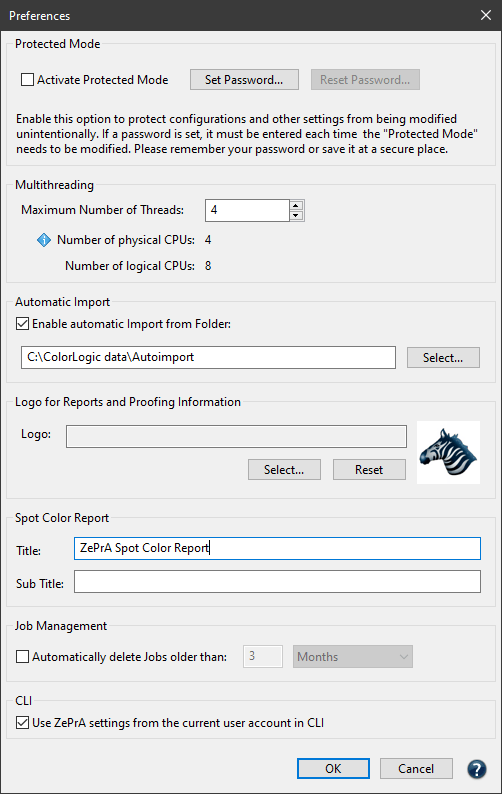
Protected Mode

The Protected Mode prevents unintentional changes to configurations, queues, registration (and license) and other settings.

In Protected Mode new configurations cannot be created or existing configurations and queues cannot be edited using the Auto Setup Wizard. Importing configurations and changing the registration is also prevented. Only file processing and starting or stopping queues are possible.

If an action that is protected is to be performed deactivate the Protected Mode under Preferences.

The Protected Mode can be used with or without a password.

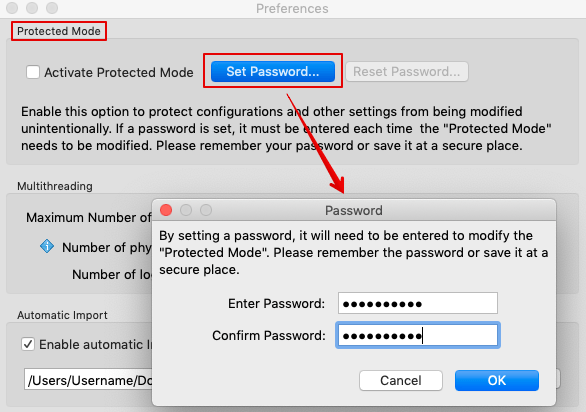
Set Password: Enter a secure password and confirm by entering it a second time. If a password has been set, it must be entered each time the protected mode is to be deactivated. To remove or change the password, click Reset Password.

Set password for Protected Mode

Multithreading

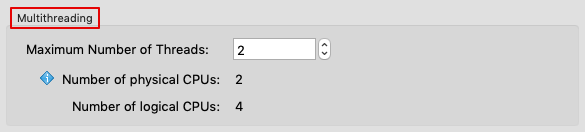
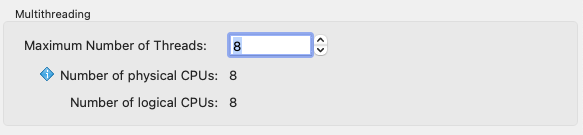
ZePrA works in 64-bit mode which allows the use of additional memory for simultaneous processing of multiple files. Thanks to multithreading, ZePrA supports modern multi-core CPUs and can process multiple files simultaneously. As a result PDF files are processed much faster. ZePrA uses the same number of threads as there are CPUs in the system by default. The number is shown in the number field next to Maximum Number of Threads and can be changed. However, the processing speed does not increase if you use more threads than CPUs available. It is recommended to use fewer threads so the system can use the computing power for other tasks.

Example: On a 4-core MacBook Pro with ZePrA 4 processing of 135 files with a size of 2.8 GB took 30 minutes, whereas ZePrA 6 and higher only take 7 minutes. Using 8 threads would slow down processing.

Setting the number of threads

Multithreading

ZePrA works in 64-bit mode which allows the use of additional memory for simultaneous processing of multiple files. Thanks to multithreading, ZePrA supports modern multi-core CPUs and can process multiple files simultaneously. As a result PDF files are processed much faster.

However, the processing speed does not increase if you use more threads than physical CPUs available. It is recommended to use fewer threads so the system can use the computing power for other tasks.

The number of threads that can be used depends on the available CPUs of the computer and the ZePrA license.

With the base license ZePrA Process, three threads can be used simultaneously, while the Multithreading module makes all threads available that are possible on the system.

Note: For ZePrA 12 and lower, only one thread can be used without the Multithreading module.

The Multithreading module is part of the Complete Color Management - Process Plus or Multicolor packages, but can also be added to the ZePrA Process package.

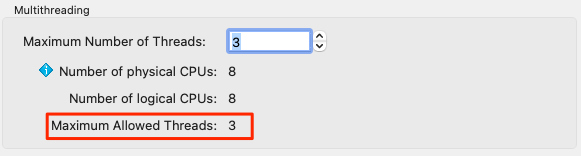
The Maximum Allowed Threads information indicates the maximum number of threads that can be used with the ZePrA base license.

The screenshot shows an example of a computer with 8 CPUs, of which up to 3 can be used with the ZePrA Process base license:

If the Multithreading module is licensed, the information Maximum Allowed Threads is not displayed and up to 8 threads can be used in this case, enabling even higher processing speeds:

Note: Multiple threads greatly accelerate the processing of multiple jobs, but the processing of a single large file is not significantly faster.

Automatic Import - ZePrA's cloud function

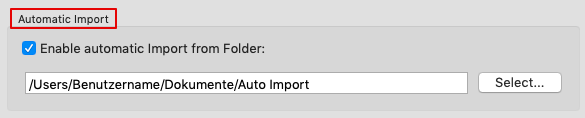
When ZePrA is used on multiple computers within a company, the cloud feature Automatic Import allows sharing configurations and spot color libraries by deploying a shared folder in the cloud (DropBox, Google Drive, internal cloud) or on the internal network. The folder supports ZePrA's spot color libraries (*.ccf files), spot colors in CxF files, ZePrA configurations (*.ccf files), and CoPrA DeviceLink settings for SmartLink (*.dlcfg and *.sicfg files).

Specifying the location for the Auto Import folder

Example: A flexo printer is continuously adding new spot colors for use in ZePrA's spot color conversion. By saving the spot color library to the shared folder, each ZePrA installation, no matter where it is located, will automatically receive the updated file. It is important that all ZePrA applications have access to the cloud folder.

Files (such as ICC profiles, configurations, spot color libraries, gradations or SmartLink settings) that are moved or copied into the Auto Import folder are transferred to ZePrA’s internal dataset and can then be used by ZePrA.

When the file in the Auto Import folder is replaced by a newer version, it will be updated in ZePrA’s internal datasets as well.

Notes:

  1. Make sure to only add supported files to the Auto Import folder. For example, subfolders with jobs do not belong there.
  2. If an unsupported file has been added to the Auto Import folder, the import is stopped, and a red workflow warning is shown. In such cases, the Auto Import folder is deactivated in the Preferences. To reactivate it, the problematic file must first be deleted and then the checkbox Enable automatic Import from Folder must be ticked again in the Preferences.
  3. If a file in the Auto Import folder is deleted, it is not deleted in ZePrA’s internal dataset. For example, if a SmartLink setting has been deleted in the Auto Import folder, it is still available in ZePrA’s internal dataset and if this setting is deleted in ZePrA’s dataset, it is still available in the Auto Import folder.
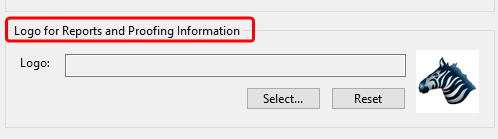
Logo for Spot Color Report and Proofing Information

A custom company logo for the Spot Color Report, the Job Report and the Proofing Information can be specified in this section. Accepted image formats are TIFF, JPEG or GIF in RGB color space.

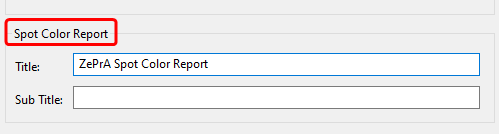
Spot Color Report

The default title of spot color reports created by ZePrA can be replaced by any individual title. In addition, an individual subtitle can be added to the report as well.
Note: To revert back to the default title, simply delete the custom title from the text box.

Job Management

In the Job Management section, you can specify when and whether or not older jobs are to be deleted from the list of processed jobs. Note that the information about these jobs is also completely removed.

Note: Deleted jobs and the associated configurations cannot be restored.

Jobs that are no longer needed can be deleted automatically

CLI

Use ZePrA settings from the current use account in CLI: Check the box to make the settings of the current user account available to the CLI. This allows ZePrA to be used within automated workflows from other vendors.
Note: This function is addressed to experts among ZCMD users only. It is intended for the case that the ZePrA GUI and all its configurations and settings are managed and used under one user account, but the CLI is to be used on the same computer with a different user account. This case could occur when other systems need to connect to ZePrA via the CLI with a different user account. For the CLI to work properly, it requires access to the settings created in the ZePrA GUI, and these are typically stored in special folders in the corresponding user account. To make the settings available to the CLI, the checkbox must be activated and the CLI must be given access rights to the ZePrA settings folders in the other user account. This is usually accomplished by running the CLI under an admin or super user account.

Enabling the checkbox allows ZePrA to be used within automated workflows from other vendors.

ZePrA | Registration

Registration

Register and license ZePrA

Registration

Activation


Installing a Permanent License

A permanent license will be provided by your dealer after purchasing the application. Permanent licenses are available as computer-based or dongle licenses.

Computer-based licenses are always tied to the computer on which the software (CoPrA, ZePrA or ColorAnt) is installed. This is useful for temporary test purposes. Computer-based licenses are also required if the computer lacks an USB port or space for an USB dongle, i.e. a rack server.

USB dongle licenses are serialized to the dongle. The USB dongle communicates with the appropriate software license and enables the software to be used on different computers. To assign the license to the USB dongle, it must be connected to the computer before starting the software.

After purchasing the software, a permanent license file (*.lic) will be sent via email.


Activating a License

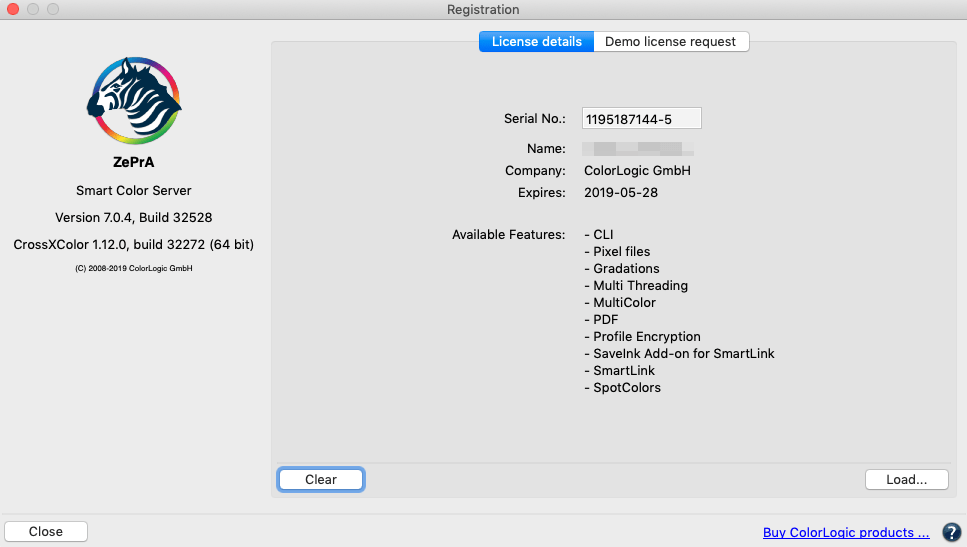
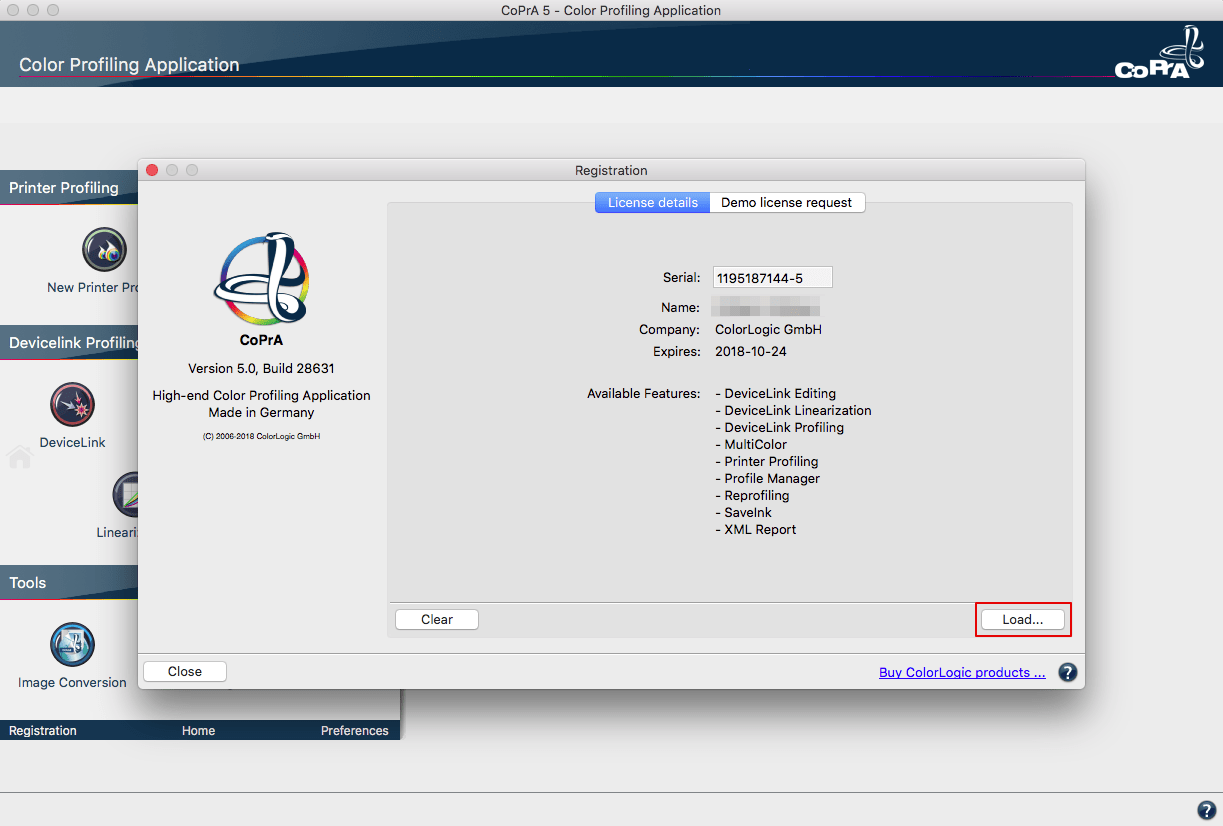
Load the license file in the tab License details under Registration to activate the application.

After installing the permanent license file, the licensed modules are displayed under License details.


Using One License File on Multi-User Systems

macOS

Copy the license files of ColorLogic applications into the following folder:

/Users/Shared/ColorLogic/LicenseInstall.

  • Create the folder if it does not exist.
  • Check the folder permissions.
  • When the application is launched, it will check the specified folder by default.

Windows

Copy the license files of ColorLogic applications into the following folder: C:\Users\Public\Documents\ColorLogic\LicenseInstall.

  • Create the folder if it does not exist.
  • Check the folder permission.
  • When the application is launched, it will check the specified folder by default.

License Details

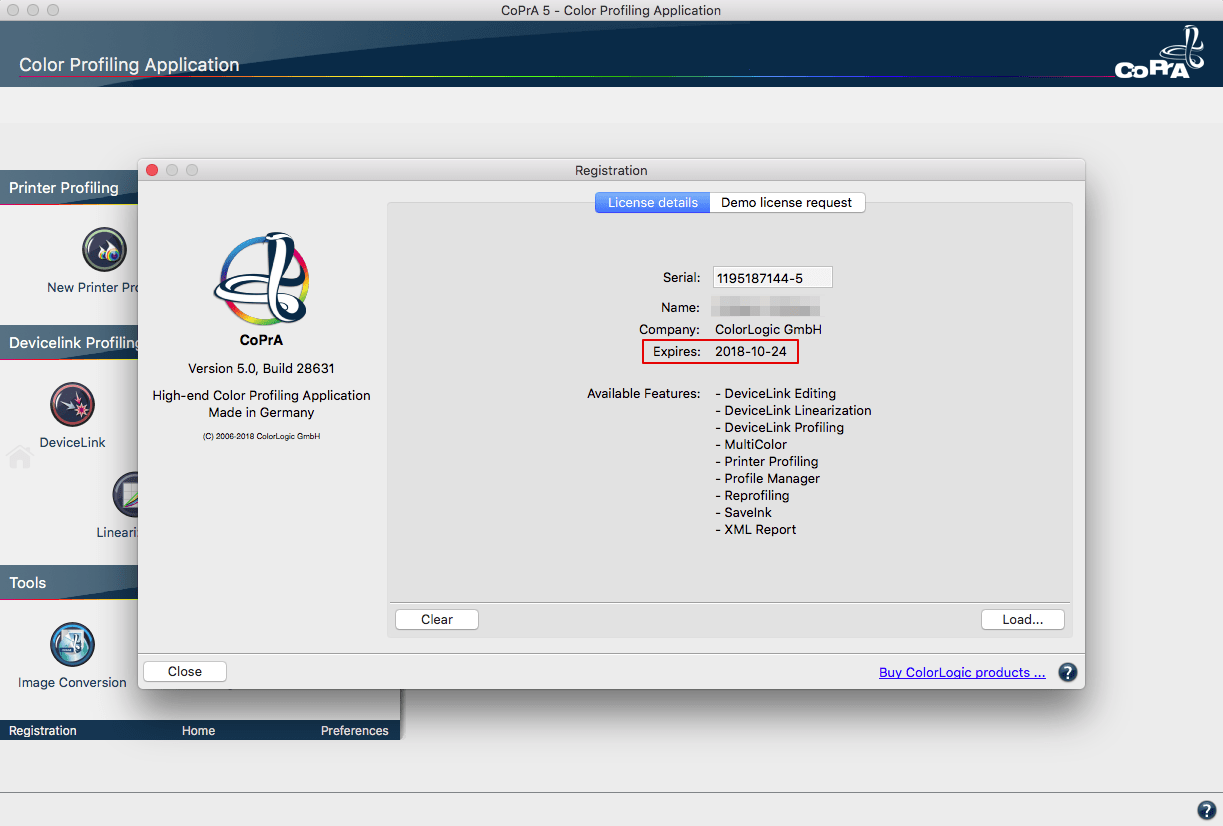
License status: The expiry date for time limited versions of the software (for example, NFR or demo licenses) is shown at the bottom right of the software window. No expiry date is displayed for full versions.

Available Features: Shows the activated modules and add-ons.

Complete instructions on how to download and install ColorLogic applications and how to request and activate a demo license can be found here.

Demo Licenses


ColorLogic offers 14-day trial licenses for the applications CoPrA, ZePrA and ColorAnt allowing the user to evaluate the software features and performance.


Restrictions with Demo Licenses

All profiles created with a demo license in CoPrA can only be used correctly in ColorLogic applications.

A ZePrA demo license gives users a 14-day evaluation period to try all the functions of ZePrA within the application. All files converted with a demo license in ZePrA are watermark protected. If it becomes necessary to test ZePrA within a workflow without the watermark during the test period, contact your dealer for instructions.


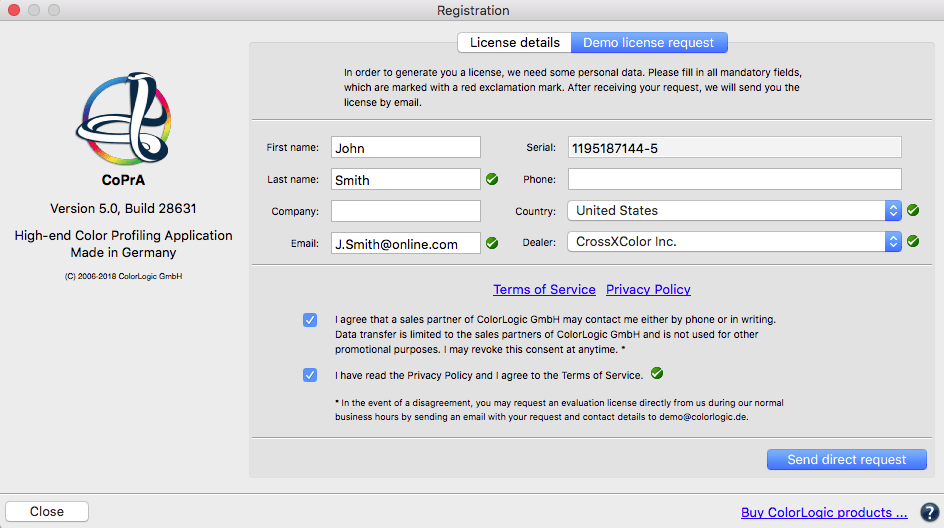
Requesting a Demo License

  1. Click on Registration in the lower left corner of the sidebar.
  2. Click on the tab Demo license request.
  3. Enter all required information.
  4. After selecting the country, the software shows a list of available dealers in that region. Select a dealer and click on Send direct request. The relevant demo license will be send to the specified email address within a few minutes.
  5. Save the license file (*.lic) contained in the email on the computer being used.
  6. Load the license file in the tab License details under Registration to activate the respective application.

The expiration date of demo licenses is shown under License details right after activation.

FAQ


Does the license file have to be saved on the USB dongle for USB dongle-based licenses?
No, the license file does not have to be saved on the USB dongle. However, it is recommended if the application is to be used on several computers, as the required license file is then always available.

Why does my software not work anymore?
Please make sure that the USB dongle is plugged in and that the serial number of the license file matches the serial number under Registration.

What is the correct order to start the application with USB dongle based licenses?
First plug the USB dongle into your computer, then start the software and load the license under Registration.

What if the application with a computer-based license is to be used on another computer (e.g. if the old computer is broken)?
In this case, please contact the dealer from whom you purchased the software. He will provide you with a document (License Transfer Agreement) for you to sign, in which you agree to delete the old license file and not to use the software on the old computer anymore. You will then receive a new license file for the new computer.

Important: If a computer-based license is to be used, the application must be installed on exactly the computer on which you want to work permanently. You should also make sure that no USB sticks etc. are present before you start the software and open the Registration dialog.

Tip: If you send the serial number to the dealer, it is best to copy and paste the serial number from the Registration dialog (this is easier than writing it down or sending a screenshot). The permanent license file runs only and exclusively on this computer. If you have a computer-based license, you cannot use the software on another computer.

Registering and Downloading ColorLogic Software