ZePrA | Quick Start Guide EN



Spot Color Report
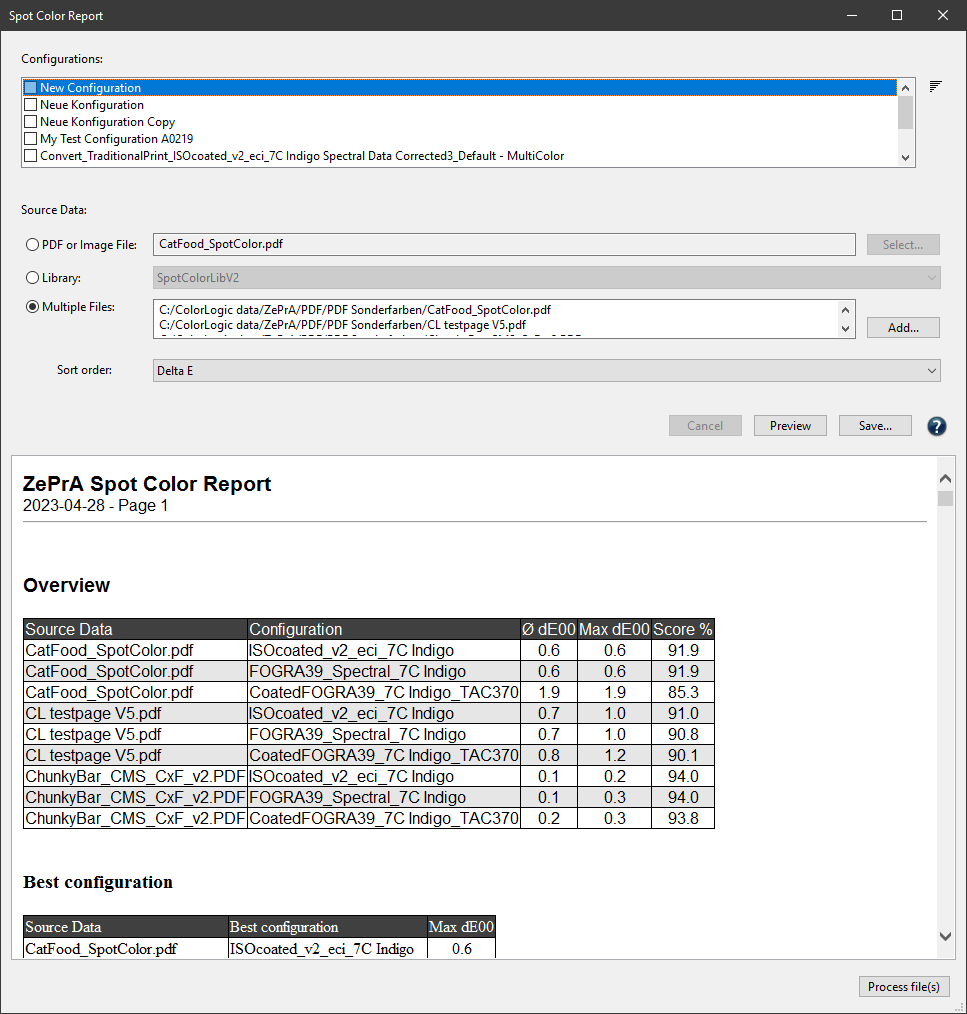
The spot color report shows the results achieved with a spot color conversion in relation to deltaE00, deltaE76, and the separation into process colors. This allows the accuracy of spot color conversions to be checked before processing or printing, and to determine in advance how ZePrA converts spot colors (e.g., Pantone® or other spot colors).

Supported file formats
The Spot Color Report can be saved in various formats:

Note: Saving as CGATS text and Color Exchange Format (CxF) allows the file to be opened in external tools such as ColorAnt. This way, the device values (DCS) after optimization by ZePrA and the resulting Lab values can be examined. The Lab values of the spot colors in this file reflect the actual achievable Lab values resulting from the conversion via ZePrA and may differ from the original Lab values (due to out-of-gamut or other limitations).
The two file formats JSON Files and XML Files at the bottom of the list are optimized for machine reading and are best for use by external systems to extract data for reports.
Note: The XML (legacy format) option is only available for downwards compatibility to older ZePrA systems.
Best Configuration: Automatically determines the Best Configuration to match the spot colors of one or several jobs from a list of selected configurations.
Note: The configuration with the highest Score is automatically determined as Best Configuration and listed on top of the report. The highest score is always achieved by the configuration with the lowest number of channels while maintaining an equal or slightly poorer colorimetric result (compared to configurations with target profiles that use more channels).
For example, if the spot colors of a job can be processed equally well with 7, 6 or 5 process colors on the same press, the configuration using 5 process colors is the best because it saves on inks and costs during production.
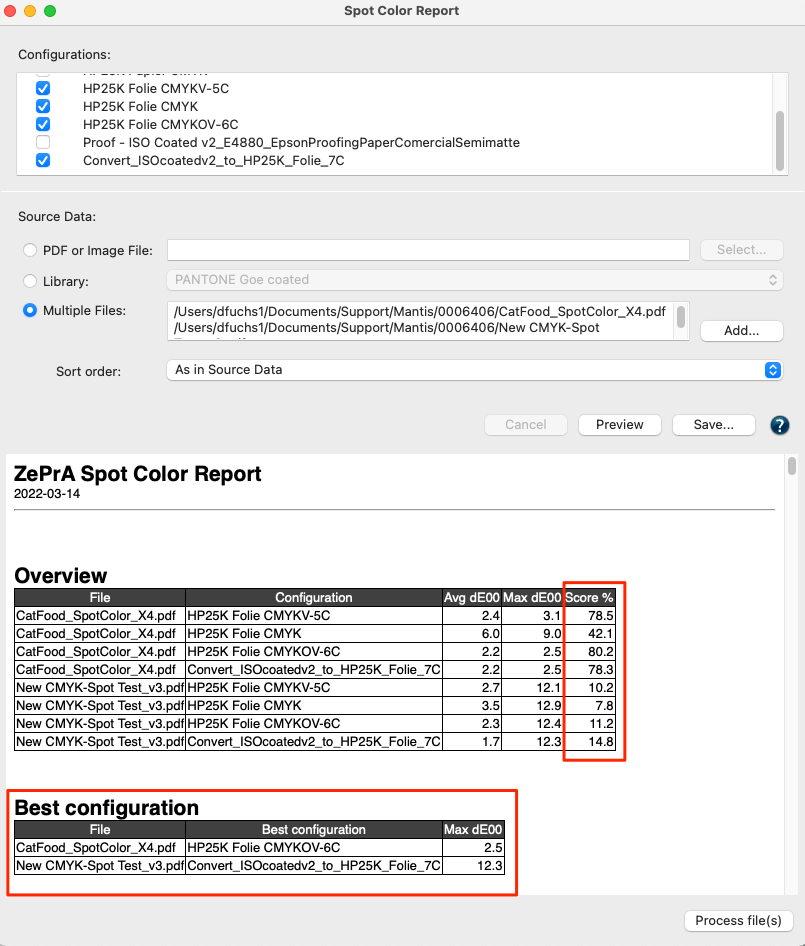
Overview: The Preview and the spot color PDF report show an Overview and a Best Configuration section that describes how the file(s) were processed with the various user-selectable configurations.
Score: Shows the percentage match of each tested configuration to achieve the spot colors of a job when converting spot colors to process colors (0% - no match, 100% - perfect match using a maximum of three process colors).
Note: The calculation of the Score considers the maximum dE00, the average value (Avg dE00) over all individual dE00s of the spot color conversions and the number of channels. The configuration achieving the highest score will be listed on top under Best Configuration.
The screenshot shows two files tested with four configurations. The Best Configuration section lists the configurations that achieve the best Score for each file.
Process File(s): Selected files can be processed directly from the Spot Color Report window with the best configuration. The files are automatically moved to the Input folder of the corresponding configuration and automatically processed.
The spot color report shows the results achieved with a spot color conversion in relation to deltaE00, deltaE76, and the separation into process colors.
Note: When creating the report, all spot color settings made in the Configurations are used, including manual settings and warnings. Colors with warnings are displayed in red deltaE values.
If the Minimize Channel function is activated, the report lists all profile variants that are created in this configuration and the spot color conversion using these variants. Hence, this can become quite a long report, which can also take considerable time to calculate and create, especially if several configurations are to be checked.
A table of contents (TOC) in the PDF report file allows easy navigation to the details of each configuration. This is especially helpful in getting directly to the details of the individual configuration results if a spot color library has hundreds or even thousands of spot colors that have been evaluated.
Basically, the report is structured so that the analyzed files are listed at the top in the Details section. Underneath are the configurations used per file, followed by the profile variants and their details.
Instead of using a single configuration with the Minimize Output Channels function, several configurations can be set up, for example for printing with the same printer but using different target profiles with CMYK, 5 colors, 6 colors or 7 colors. Then the production PDF file(s) can be checked with all possible color configurations. It may be found that the production PDF file(s) do not need 7C, but are already well suited with a certain set of 5 colors or even CMYK.
This way, many clicks in digital printing or many plate productions in conventional printing could be saved. After checking the file(s) and determining the best matching configurations, the file(s) can be automatically processed with the configurations having the lowest maximum DeltaE directly from the Spot Color Report dialog.
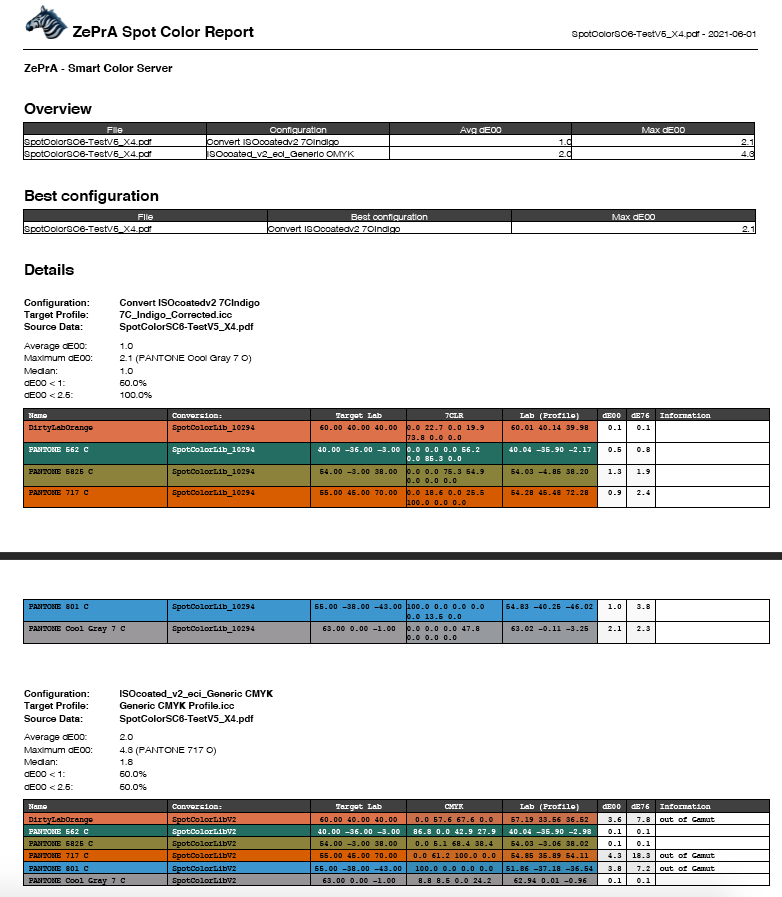
Spot Color Report Example: The screenshot shows the preview for processing spot colors with two different configurations. All spot colors found in the PDF file are included. One configuration uses a CMYK target profile and the other a 7C target profile. The report shows that in this case the 7C profile is much better suited for simulating the spot colors of the PDF file.
Spot Color Iteration
If spot colors have been iterated (see number 1 in the screenshot) the displayed Lab measurements and deltaE values (2) originate from the Spot Color Iteration process.

If a final evaluation measurement has been conducted, a single asterisk is shown in the Information column (2) and the corresponding information message (3) indicates that The Lab and dE values are based on the measurements of the Spot Color Iteration.
If no final evaluation measurement has been carried out, a message with two asterisks indicates that The Lab and dE values are based on the last applied Spot Color Iteration and may not match the actual print.
Profile assignments can customize ZePrA's SmartLink function. Standard DeviceLinks, house standards, or custom profiles can be assigned to configurations automatically and used for conversions.
Create and manage profile assignments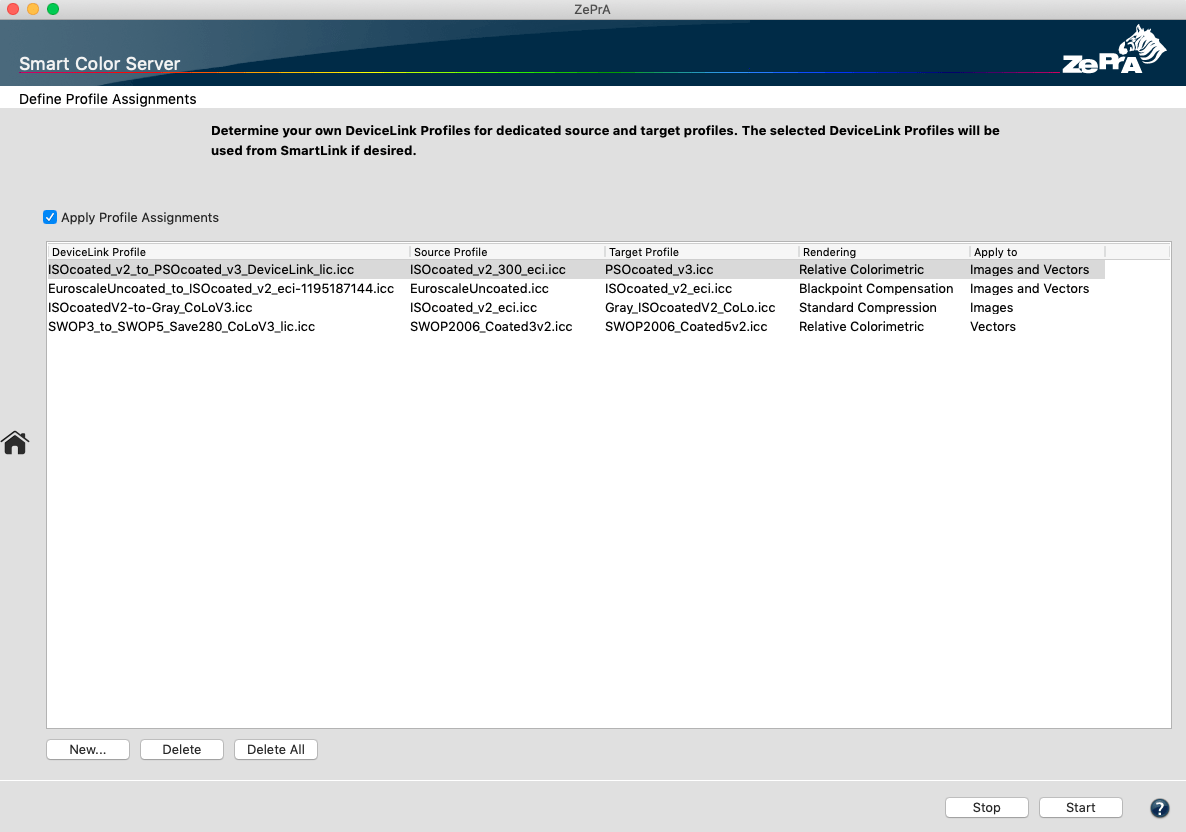
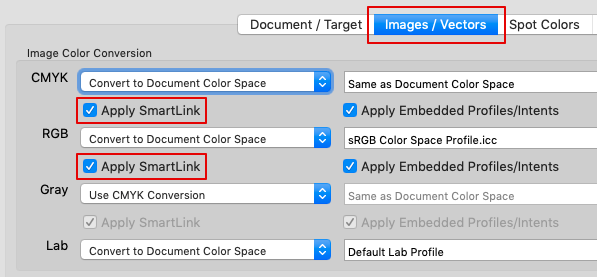
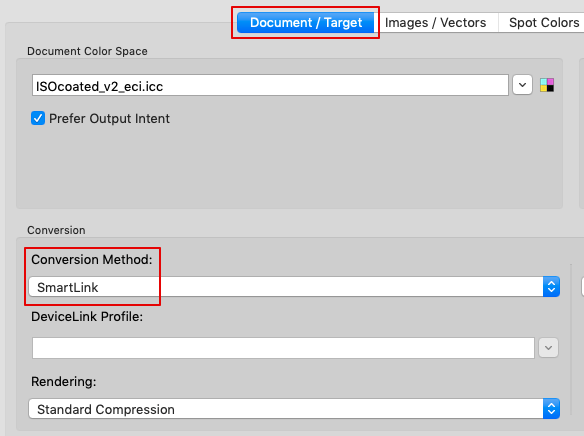
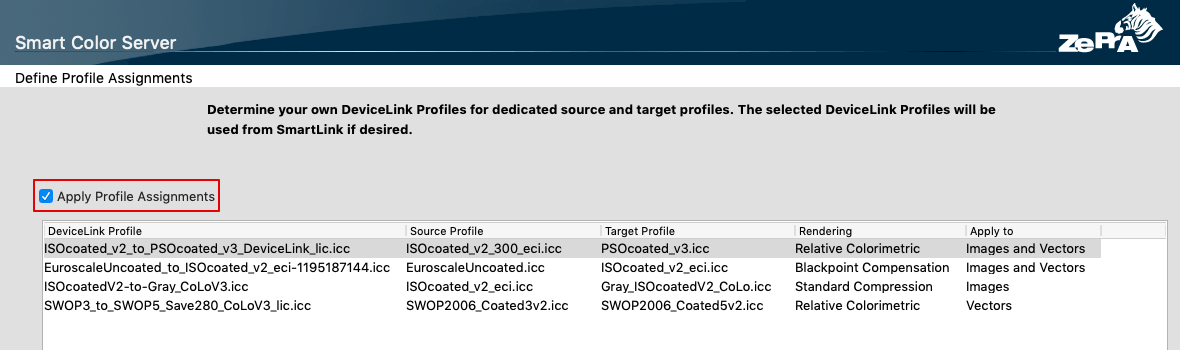
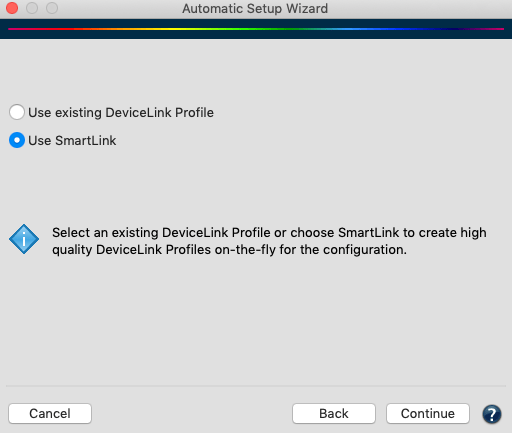
To create or edit SmartLink profile assignments, use existing Device Links or standard profiles.
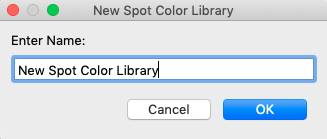
To add new profile assignments, click New at the bottom of the window and select the DeviceLink profile directly from the DeviceLink Profile drop-down menu.
To edit existing profile assignments, open the Edit Profile Assignment window by double-clicking the particular assignment.
Change profile assignment settings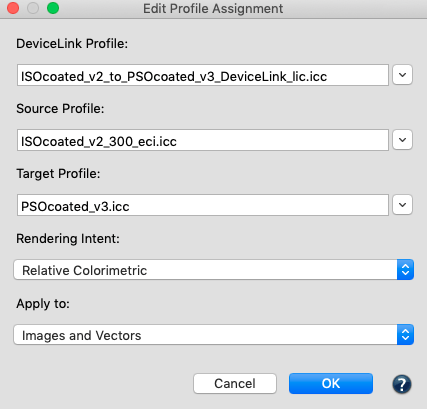
If the DeviceLink profile contains a PSID tag (e.g., ColorLogic profiles), the source and target profiles are automatically displayed in the Source and Target Profile drop-down menus. Alternatively, select a combination of Source and Target Profile and a Rendering Intent. The DeviceLink Profile matching this combination of color spaces can be selected from the drop-down menu.
To ensure that the selected DeviceLink profile is used, both the source and target profiles of the DeviceLink and the rendering intent must comply with the settings under Configurations. If the DeviceLink profile is to be a priority, regardless of the rendering intent selected under Configurations, then select the entry All in the Rendering Intent drop-down menu under Edit Profile Assignment. The DeviceLink will be used with all rendering intents.
Apply to specifies whether a DeviceLink is to be applied to vectors and images, only to vectors, or only to images. This allows a vector DeviceLink profile to be selected for a color conversion (e.g., AdobeRGB to ISO Coated V2) that converts primary and secondary colors to 100% of the corresponding CMYK values, while a different DeviceLink can be selected for images for which such a conversion is not desired.
Delete removes individual profile assignments, Delete All removes all table entries.
Note: When jobs are being processed, ZePrA displays in the status bar of the jobs and queues Overview whether DeviceLink profiles are calculated via SmartLink in the background. In the Job Properties, you can also view the color spaces and whether a DeviceLink profile was derived from the Profile Assignments or whether SmartLink created it on-the-fly.

Note: If separate libraries are created for different substrates or printing processes, identical spot color names can occur in several libraries but will be associated with different measurements. Make sure to select the correct library for the color conversion in the configuration to avoid problems.
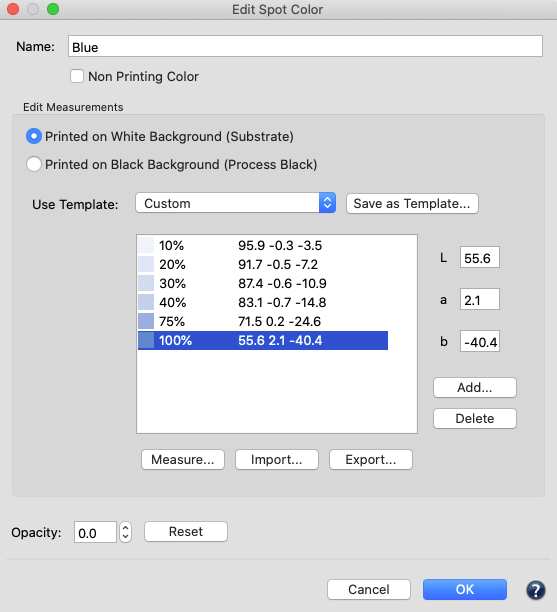
Editing a Spot Color
Note: It is recommended to print a wedge of the spot color directly onto the respective substrate as well as a second wedge of the spot color as an overprint with the black process color (black must be printed first) using the correct printing conditions and to measure them spectrally in ZePrA. This will allow ZePrA to perform high quality conversions for the solid tones, the gradations and the opacity, taking dot gain into account. Compared to Lab values, spectral measurement data can improve the simulation of overprinting spot colors.
Opacity indicates how translucent or opaque a color is. A spot color is fully transparent when the value is set to 0% and completely opaque with a value of 100%. When the opacity value is changed manually, the spot color has a custom opacity.
Reset: Removes the custom opacity from the spot color. The Reset button is enabled if the spot color has a custom opacity, otherwise it is disabled. If the spot color has no custom opacity (Reset button disabled), the displayed opacity value is updated whenever a relevant measurement value (e.g. measurement on black) changes.
Note: ZePrA will automatically calculate the opacity of measured values on black backgrounds, and use the opacity values for the color conversion of spot colors. Information from the ink manufacturer regarding the opacity of the spot color can be entered directly as a percentage, measurements on a black background are not required. Without any opacity information ZePrA will assume the spot color to be fully transparent at 0%.
Note: The Information table under Spot Colors from selected Libraries indicates whether a spot color in the library consists of a solid tone or of tints and whether the color values are based on spectral or Lab data. The opacity of the spot colors is shown as well, if available. Color values can be edited by double clicking on a spot color in the table. Delete, Cut, Copy and Paste are accessible using the right click context menu. Colors can be moved to another library by Cut and Paste. To do so, select the color(s) to be moved, right click and either Cut or Copy. Then select another Library, so that its colors appear in the table under Spot Colors from selected Libraries, right click and Paste.
Some measuring instruments allow to select the measuring mode (M0, M1 or M2). Select the mode that fits the measuring requirements, then select the measuring mode for the wedge layout and press the Measure button on the instrument.
Note: Barbieri measuring instruments are optimized for test chart measurement therefore single patch measurement is not available.
Once the measurement is complete, the measured color appears in the Measure Tool. The measurement data can now be transmitted to ZePrA by clicking Transmit. Saving the measured values in the Measure Tool is not required.
The Measure Tool is part of ColorAnt and included in ZePrA. If it has not been installed on the computer, the Measure button is not available in ZePrA.
The following measuring instruments are supported by the Measure Tool:
Connect the measuring instrument to the USB port of the computer and select the appropriate wedge from the drop-down menu Use Template. Then click the Measure button in the Edit Spot Colors window in ZePrA. The Measure Tool will start and the rest of the process is completed within the Measure Tool software.
If a solid tone is selected, a single color patch is preselected for the measurement. If a step wedge is selected, the layout of the wedge selected in ZePrA is displayed. Under Selection, select the measuring instrument connected to the USB port from the drop-down menu. Click Connect and follow the instructions. More information about measuring can be found in the ColorAnt online help.
In single patch measurement, only one color is measured and transmitted at a time. Either click Transmit or re-measure if the measurement was faulty or unsuccessful.
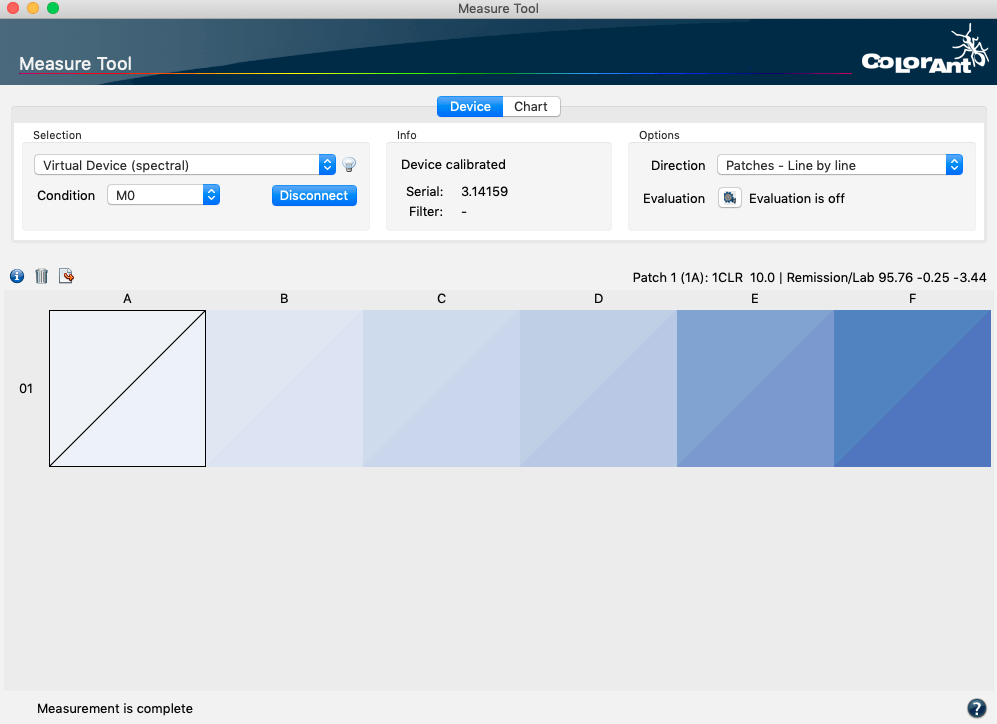
The Measure Tool Window
Spot Color Libraries
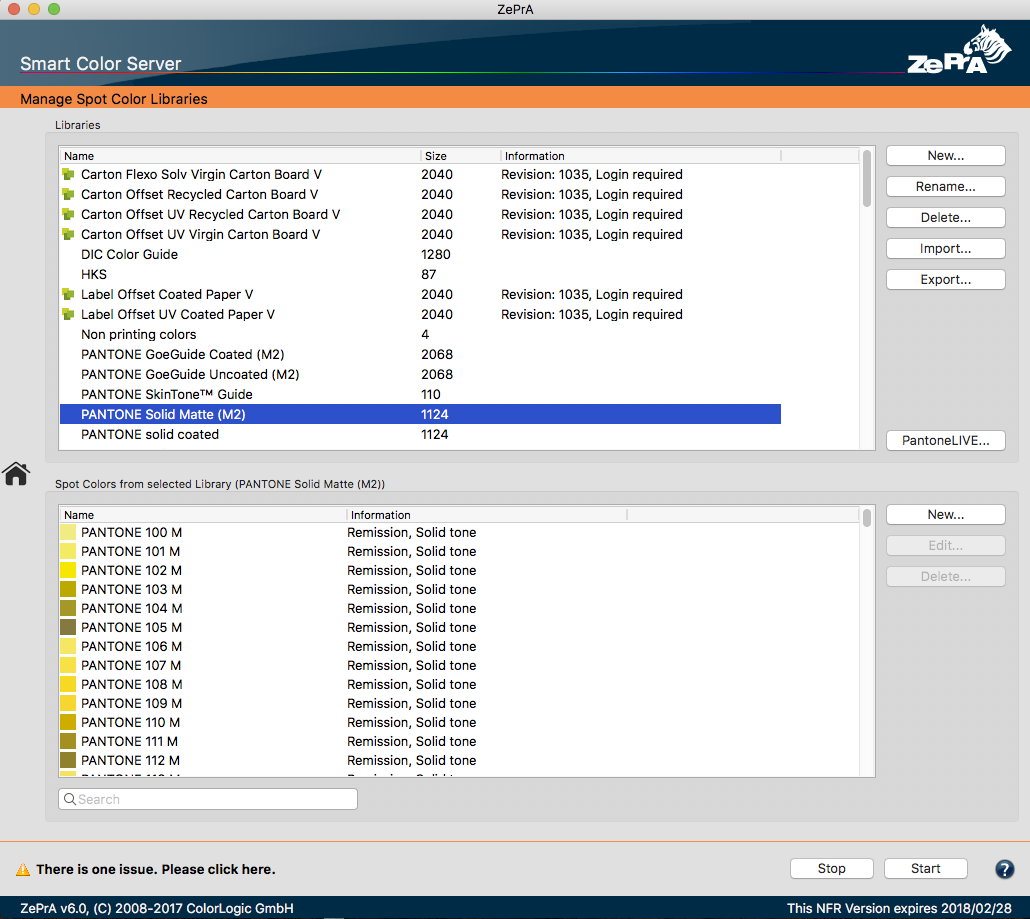
ZePrA’s spot color module allows management of spot colors and spot color libraries efficiently. Select the tool Spot Color Libraries from the sidebar to access the window Manage Spot Colors.
Here you can create, add, view and customize libraries. Spot colors can be edited, imported or measured. For example, spot colors from color fans can be measured with a spectrophotometer or Lab values can be entered manually. Furthermore, color tables with spot colors can also be imported. Supported formats are Named Color ICC profiles, Photoshop ACO color tables, Adobe ASE color tables (from InDesign or Illustrator), text files in CGATS format or CxF files, such as CxF/X-4.
X-Rite Pantone Color Manager color tables support Named Color ICC profiles, CxF files (there are current Lab values, but no spectral values for Pantone solids), and CGATS-compliant text files. Import your PantoneLIVE color fans stored in the cloud by clicking the PantoneLIVE button.
Note: PantoneLIVE® from X-Rite is a cloud-based solution for the digital storage of spectral spot colors. To use PantoneLIVE, licenses are required for the ZePrA spot color module and X-Rite's PantoneLIVE module. You need to unlock your licenses for use in ZePrA under My X-Rite. See PantoneLIVE to learn how to activate your licenses.
Both lab and spectral color values are supported; however, spectral measurement data is preferred as it provides the best results internally.
A spot color library can contain a multitude of different information in just one library, such as the full tone, tints printed on a substrate or black, spectral or Lab measurements and opacity values.
All available libraries and the number of spot colors of a library are listed under Libraries. Additionally, the revision number and expiration date of PantoneLIVE libraries are displayed (with the PantoneLIVE icon).
After double-clicking on the selected library the spot colors will be shown in the lower part of the window. In order to improve the performance – especially with extensive libraries – spot colors will only become available when they are used for the processing of jobs or by double-clicking on a library.
The spot color table shows the Name of each spot color and additional Information such as the data type (Remission or Lab) Solid tone or Tone values, or Opacity information (custom or calculated).
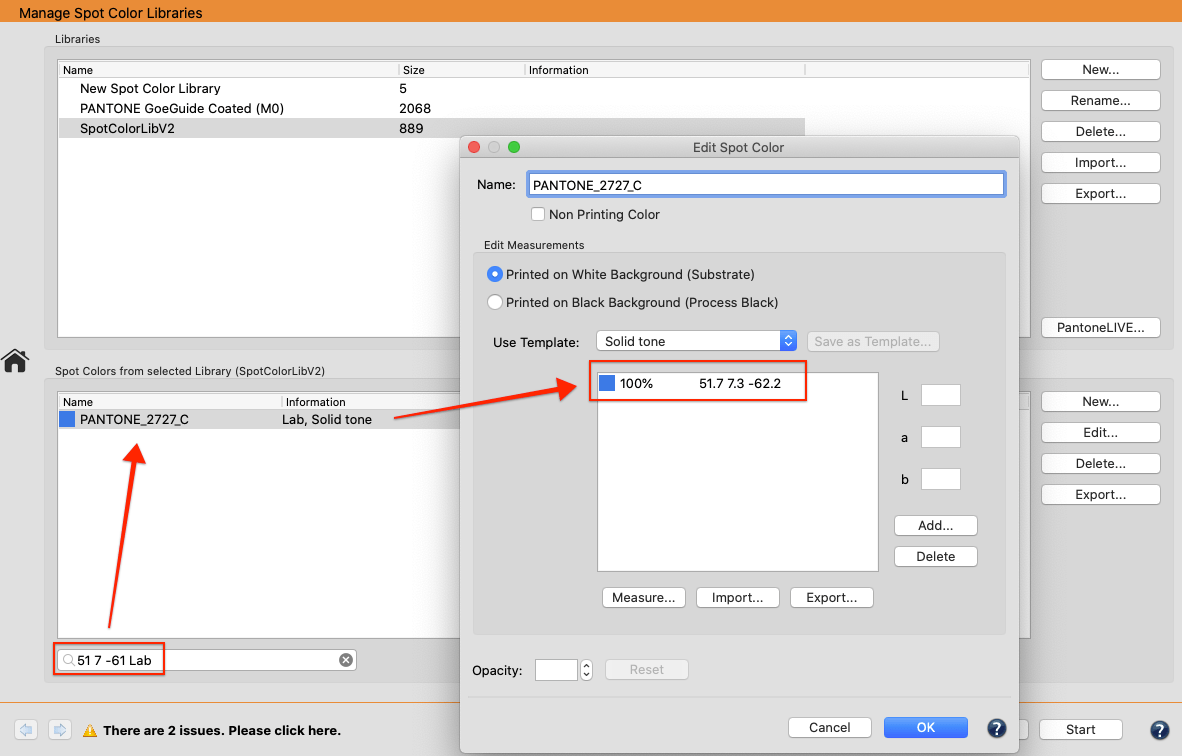
The search function can be used to find specific spot colors quickly. Spot color libraries can also be searched for Lab values. If the search text is of the form "L a b Lab" (e.g. "51 7 -61 Lab"), ZePrA searches for spot colors matching the specified value. Since exact matches often fail due to rounding and non-precise input, a tolerance is applied.
Note: PantoneLIVE libraries are protected and in ZePrA they can not be edited, extended or removed. With PantoneLIVE, Pantone spot colors and libraries can be accessed directly from ZePrA.
Note: ZePrA does not provide spot color libraries with a new install. To obtain spot colors from some applications export Adobe Photoshop color tables with Lab color values as ACO files or Adobe InDesign/Illustrator files as ASE. Color tables of the X-Rite Pantone Color Manager can be saved as Named Color ICC profiles or as CxF file (provides current Lab values but no spectral values for Pantone full primaries) and CGATS compliant text files. Another source for spot colors is the PantoneLive eco system. The use of PantoneLIVE libraries requires the corresponding access data and an X-Rite license.
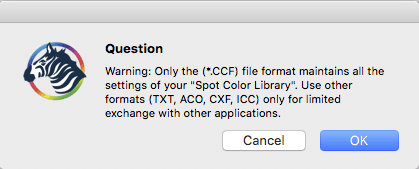
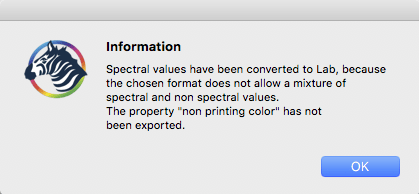
Spot color libraries can be exported. When clicking Export the supported file formats (CCF, ACO, ICC, TXT, CxF) for saving the library are displayed. Note that only the ZePrA internal CCF format allows saving all information that may be in a library. Use the CCF format to exchange a library with another ZePrA installation on another computer. The other more common file formats are mainly included for exchange with other applications. A warning appears for other file formats.
There are three ways to Export spot colors:
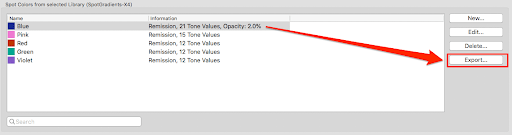
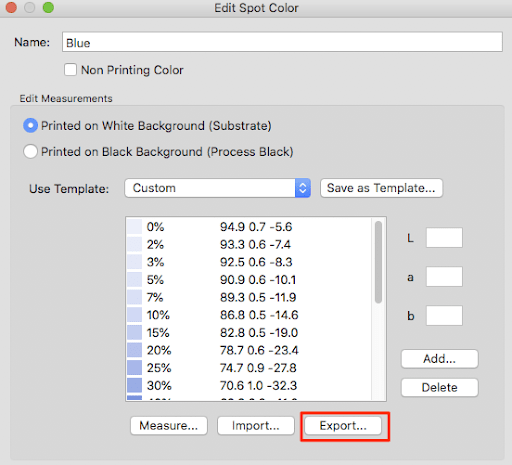
When clicking Export the supported file formats (CCF, ACO, ICC, TXT, CxF) for saving the library or a single spot color are displayed:

SaveInk reports give a detailed overview of the ink savings of all SaveInk queues and jobs processed. To create a report select SaveInk Report in the sidebar.
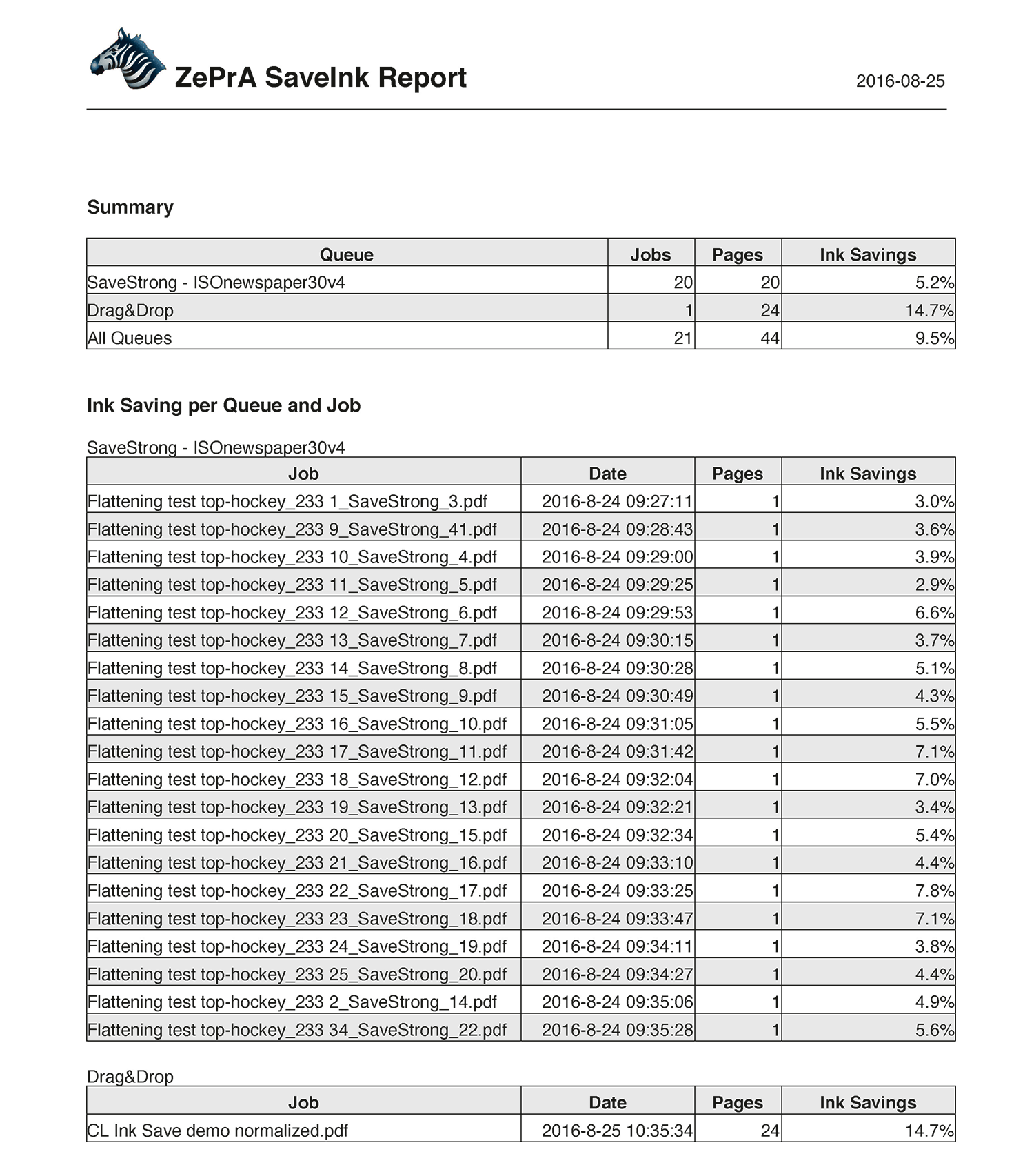
Ink savings on all SaveInk queues
Summary: Shows the ink saving for all files for each SaveInk queue and for all queues.
Ink Saving per Queue and Job: Shows details of individual queues and jobs.
Note: The percentage calculations in the SaveInk Report refer only to the CMYK components. Transparency effects, overprinting elements, and spot colors are not taken into account.