ColorAnt | Workflow EN

Workflow

Customized automatic processing and optimization of measurement data

Custom Workflows

The Workflow feature enables automatic processing and optimization of measurement data. The application of various tools for data correction and optimization can be defined and adapted to the requirements of specific jobs, which means that measurement data can be automatically processed in a precisely specified manner.

Creating a Workflow

To create a custom Workflow, simply load a measurement file and apply any desired data correction and optimization tools from the Editing sidebar area with all required settings.

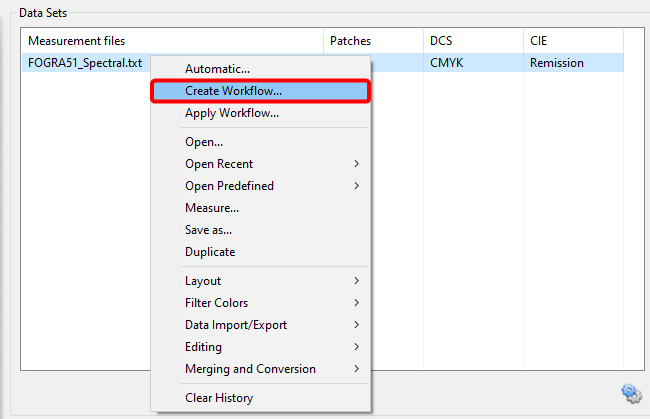
Afterwards open the context menu with a right click and select the entry Create Workflow.

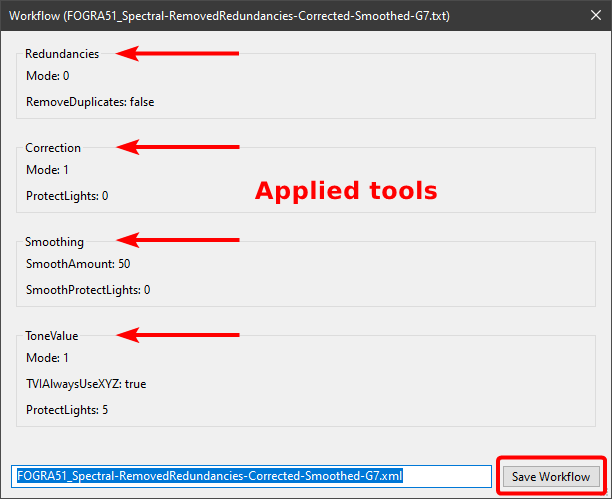
Create Workflow: Shows all tools with all settings applied to the selected measurement file. Underneath, the workflow can be assigned a custom name and saved. Workflows are saved in the user Documents folder under ColorAnt\Workflows as xml files which can be transferred to other systems (by copy and paste or import/export).

Applying a Workflow

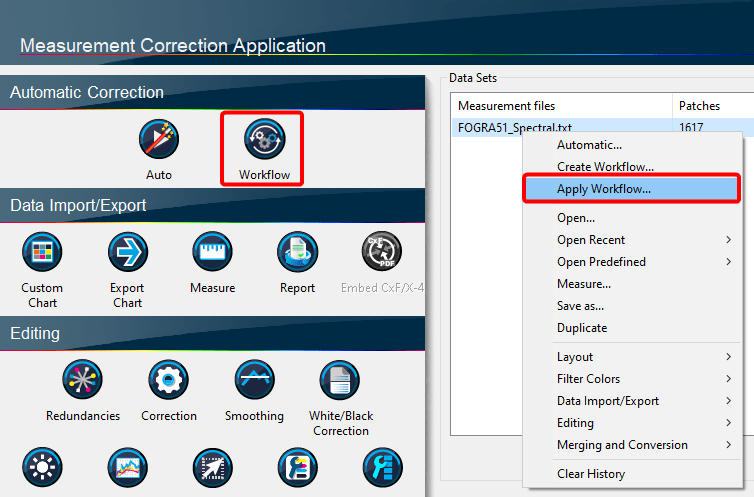
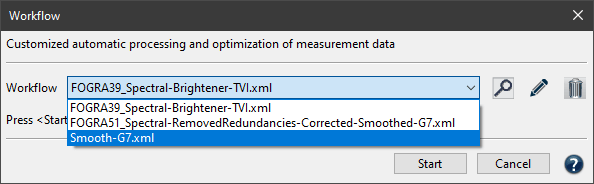
To apply a custom workflow to one or more measurement file(s), open the Workflow feature either from the context menu or the sidebar.

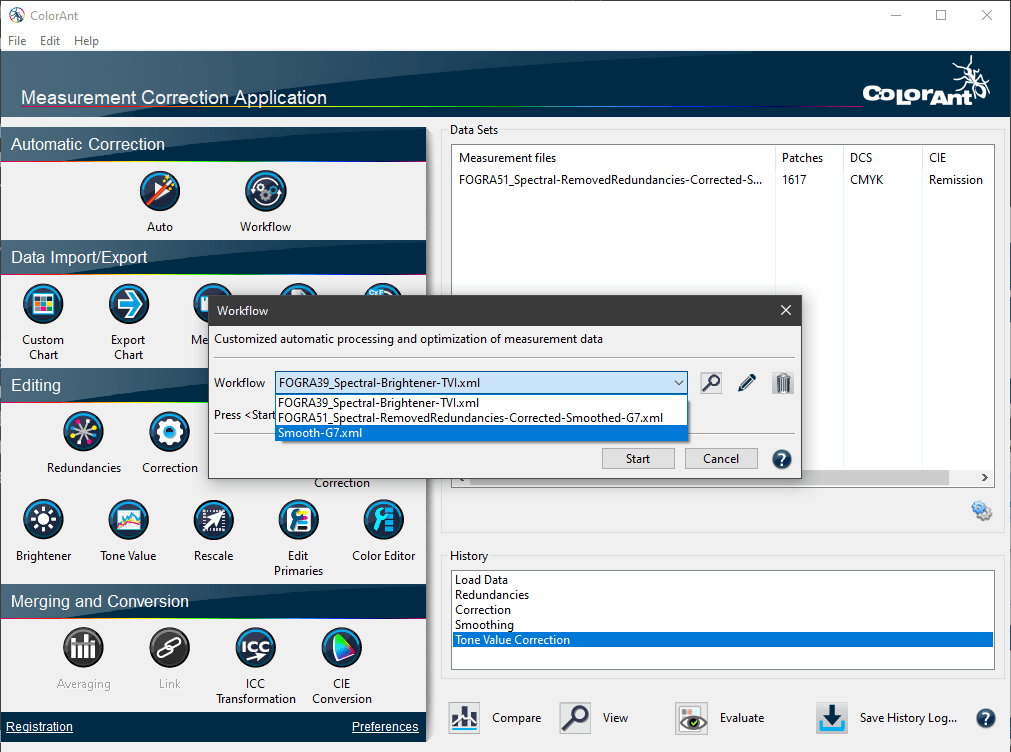
Select the desired workflow from the drop-down menu, and click Start.

All data correction and optimization steps of the workflow are now applied to the selected file in the specified order.

The settings of the selected workflow can be viewed (magnifying glass icon), and workflows can be renamed (pencil icon) or deleted (trash can icon).

ColorAnt | Quick Start Guide

Quick Start Guide

Get started with ColorAnt

Quick Start Guide

Introduction

Thank you for choosing ColorLogic’s ColorAnt. Reaching higher quality in production environments has never been easier.

ColorAnt, the ultimate color management solution
ColorAnt is the ultimate color management tool to manipulate, analyze and optimize measurement data including RGB, CMYK and Multicolor.

Use ColorAnt to create special measurement charts, measure color patches, and to check measurement data prior to profiling to avoid issues such as mis-measurements or inhomogeneous data. ColorAnt can be used to average several measurements together when required before creating a profile.

The quality of ICC profiles depends strongly on the quality of the measurement data used to create them. By adding analysis and optimization of measurement data, profile quality will improve which also leads to higher production safety.

ColorAnt's Online Help
The question mark ? (bottom right in all program windows) opens the Online Help. This is context-sensitive, so if you click ? in the Redundancies tool, the Redundancies online help page opens. The online help contains more detailed information about the various functions of this application.

Automatic Updates
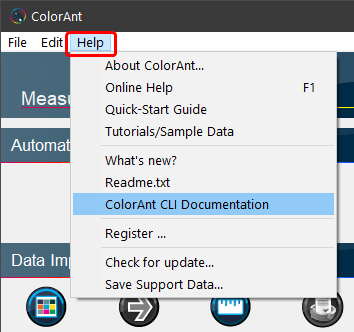
ColorAnt can automatically search for new versions of the application at program start. Activate or deactivate the automatic update check under Help > Check for Update.

Enjoy analyzing and optimizing your measurement data!

Your ColorLogic Team

Click here to download a PDF version of the Quick Start Guide.

01 INSTALLATION

ColorAnt - Available Packages

02 MAIN WINDOW

Sidebar

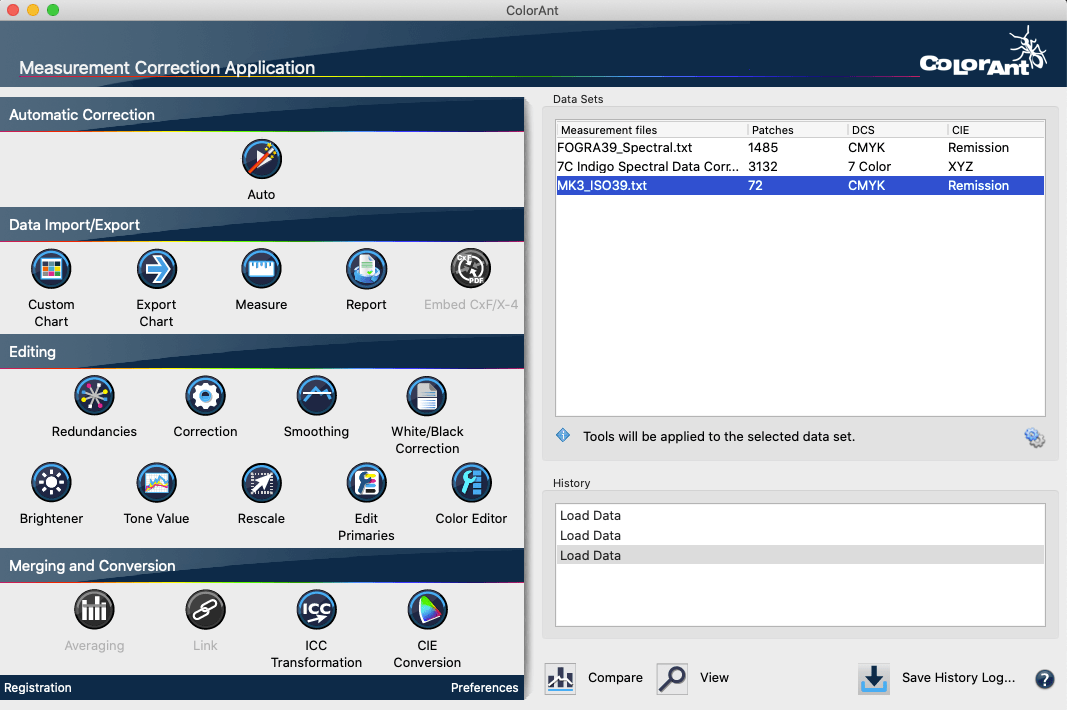
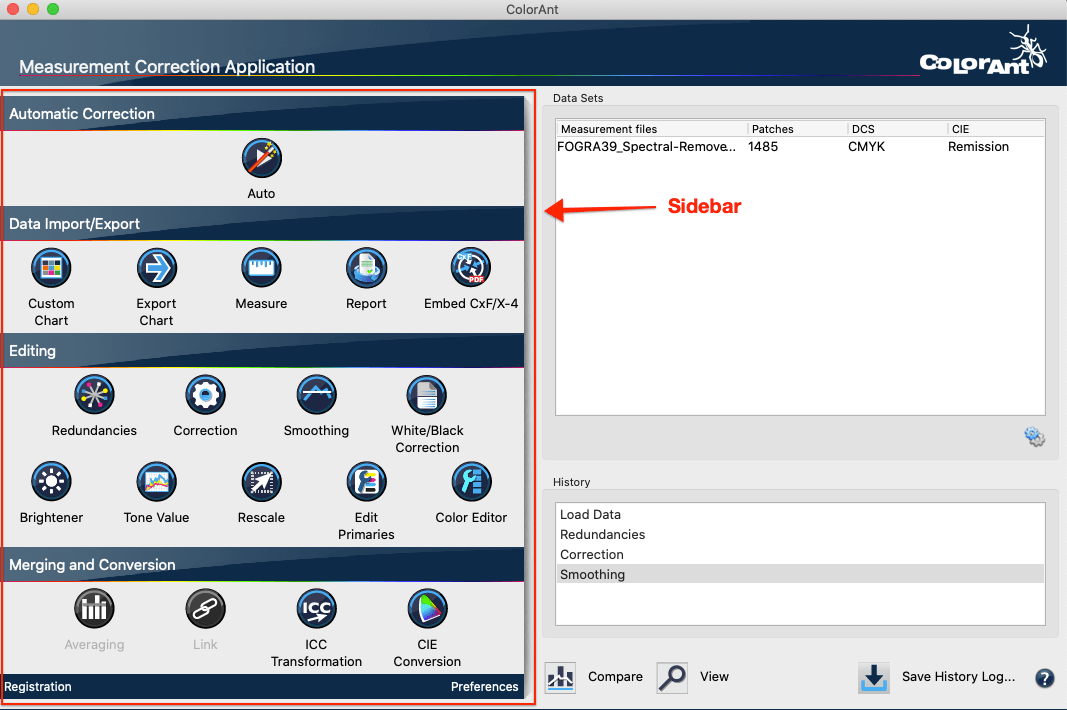
ColorAnt's Sidebar allows quick access to all tools from a central, easy-to-use location.

Automatic Correction

Auto
Correct measurement data automatically


Data Import/Export

Custom Chart
Create custom test charts

Export Chart
Export custom charts for printing and measuring

Measure
Measure printed charts or ambient light

Report
Create detailed reports on measurement data

Embed CxF/X-4
Embed CxF/X-4 spectral data in PDF files


Editing

Redundancies
Correct redundant patches in measurement data

Correction
Corrects and detects faulty measurements and inconsistent data

Smoothing
Smooth and correct uneven curves

White/Black Correction
Apply manual corrections to white and black areas

Brightener
Correct data for optical brighteners

Tone Value
Correct measurement data to a specific set of curves

Rescale
Recalculate data to a different color chart

Edit Primaries
Add, remove, or exchange primaries and recalculate measurement data

Color Editor
Edit colors to match a reference file

Averaging
Average several data sets into one data set

Link
Combine multiple charts into one measurement file

ICC Transformation
Use ICC device and DeviceLink profiles to test impact on data

CIE Conversion
Change the standard observer illumination of data sets


Registration
Activate ColorAnt and manage licences

Preferences
Preferences - Customize various ColorAnt settings

Data Sets and History

Data Sets
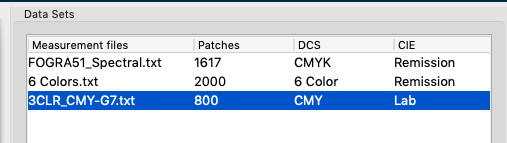
Displays relevant information about the measurement data: Number of Patches, DCS (color model: Lab, CMYK, RGB, Multicolor) and measurement type CIE (colorimetric = Lab, spectral = Remission).

History
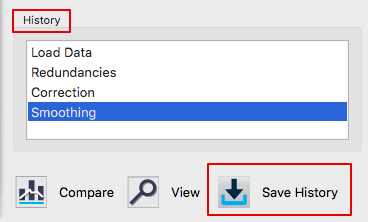
Shows the tools and corrections applied to the measurement data of each editing step and allows switching between different editing states of a file. By clicking on an entry in the History window (either above or below the current status) an individual processing step can be accessed and checked, for example, in the View window.

Save History Log and Averaging Report
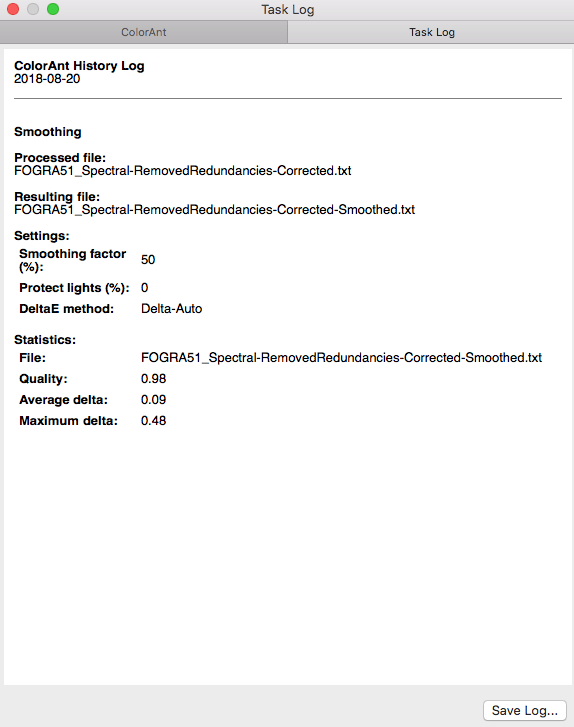
Save History Log is available at the bottom right of the main dialog (Fig 2.3).  It saves all modifications applied to all files in a detailed PDF document. When double-clicking a single entry in the History section, a dialog pops up showing the settings applied to the data at a specific step. The single step can be saved with Save Log.

Averaging Features
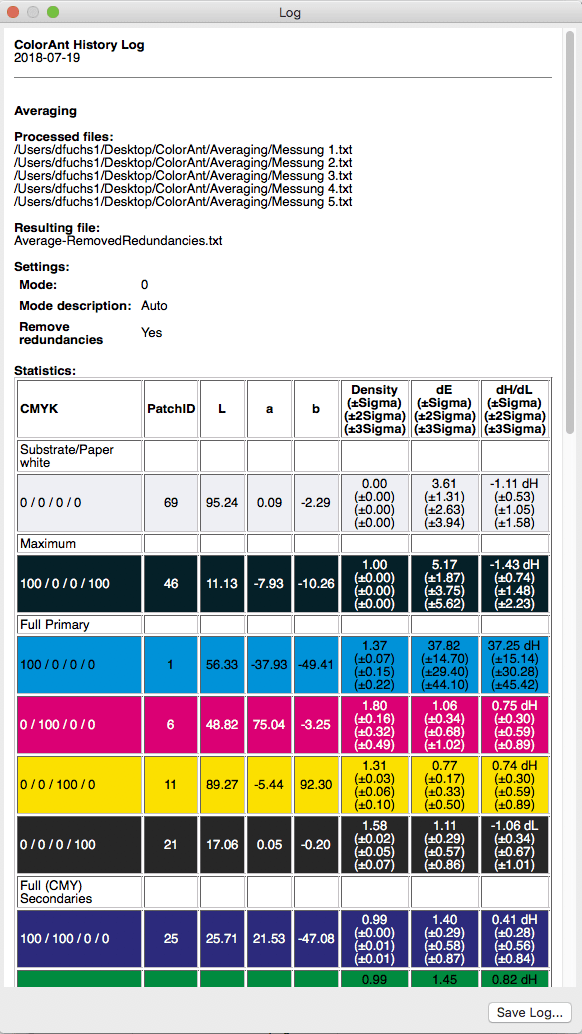
The averaging log contains detailed reporting with sample colors (similar to the Report feature) comparing the averaged data and providing process control statistics. Standard deviations (sigma) for Density, dE and dH/dL. This allows users to easily recognize colors with large deviations which would not be obvious by visually confirming values.

View and Compare Data
Advanced viewing options for ColorAnt’s tools are located at the bottom of the main window enabling both the inspection of measurement data (View) and the pre- and post-comparison of measurement data (Compare).

To view measurement data, select the data in the Data Sets area and open the View window. Five different options allow for a quick overview of all color patches in the measurement file: the 2D view shows the reference and the corresponding Lab values for each patch, 3D shows a rotating view of the color space, TVI displays the curves for each channel, Spider Web for a top down view, and Curves for various gradations and various curves of gradations.

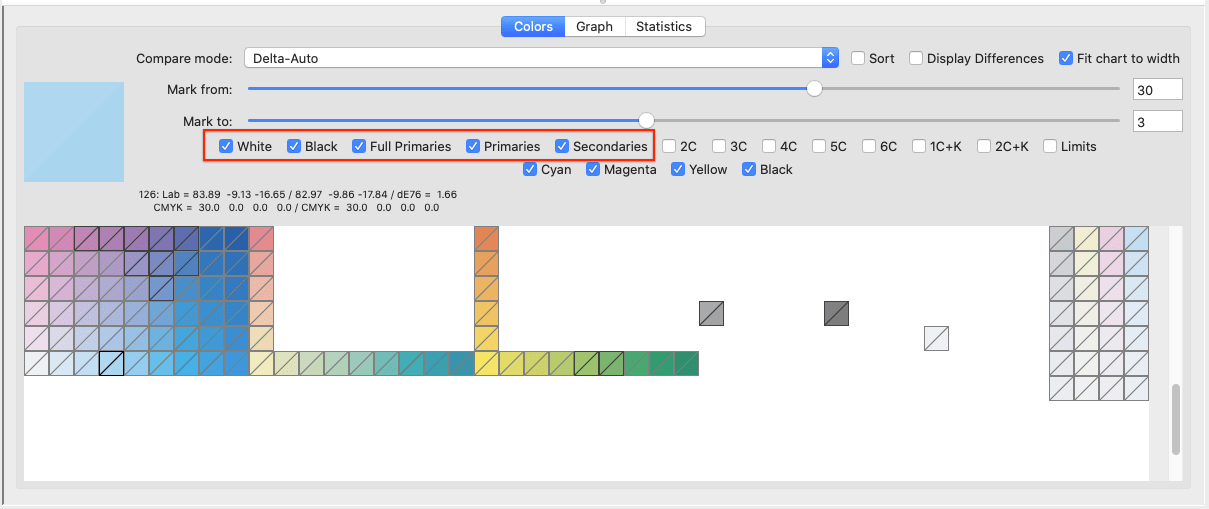
Color filters: Using the checkboxes, colors can be selectively displayed in 2D and 3D view. All other color patches are then hidden. This allows you to immediately find selected colors in the test chart layout of the 2D view.

The 3D view displays the color body defined by the color filters. This way, the Full Primaries, Limits, Primaries, Secondaries, White or Black can be viewed separately. With Multicolor data, it is easy to recognize in which areas the additional colors extend the color body compared to CMY or CMYK.

There are some dependencies between the color filters, so selecting a certain color filter may automatically activate another color filter (or even several others). For example, if the Secondaries checkbox is activated, the Primaries and White color filters are also automatically activated. They can be deactivated if only two color combinations (Secondaries) are to be highlighted.

Color channels: By selecting color channels, either all color patches or only the color patches of the selected color channels can be displayed. Color channels can be combined with color filters so that, for example, only the Multicolor Primaries or Secondaries can be displayed. Duplex and triplex colors can be displayed by individual selection of suitable color channels (for example, Cyan + Black shows duplex colors and Cyan + Magenta + Black shows triplex colors).

2D View
Color filters highlight selected colors. View full primaries, limits, selected channels, primaries, secondaries, paper white or black. Individual color patches can be edited or deleted by selecting the patch and right-clicking to open a context menu.

3D View
Turn the color patches into the desired direction by clicking and dragging. By dragging the gamut, the color space is rotated in that direction. Increase or decrease the view by using the right side Zoom slider. Enlarge or minimize the color patches by using the Point Size slider.

TVI
Analyze Tone Value Increase curves (TVI). The tone value curve works in conjunction with the curve view or any other correction which will affect the TVI. Choose either Murray-Davies or ISO 20654 (SCTV) methods.

Spider Web
The Spider Web provides a top view of the color space in an a*-b* diagram. The measured or optimized color patches are arranged in a spider web configuration. Verify changes in the View dialog by moving forward or backward in the History list.

Curves
View the linearity curves from white to all 100% primary colors, (including multicolor data). Visualizes data and assists with analyzing non-smooth gradation curves. Choose from ColorLogic Default, ISO 20654 (SCTV) or Tone Value.

03 USING COLORANT

Automatic Correction

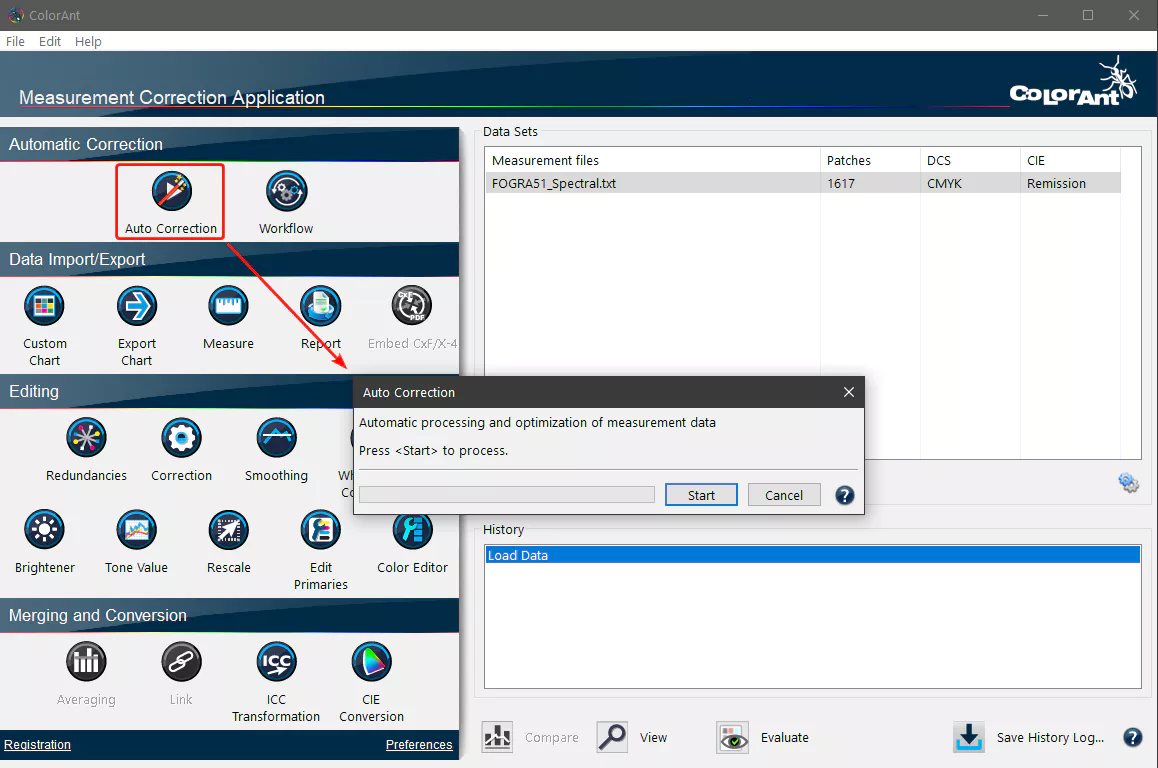
The Auto feature optimizes measurement data by applying the following tools in the specified order:

Redundancies: Clean up redundant color patches

Correction: Correcting faulty measurement values

Smoothing:  50% slider setting with no protection of highlights

Each tool that is applied is displayed in the History section. ColorLogic recommends to create a Report for detailed results and further recommendations on your measurement data.

 Procedure

  1. Load measurement data by drag-and-drop onto the Data Sets area or via File > Open.
  2. Click Auto and then Start. The corrections applied to the data are displayed under History.
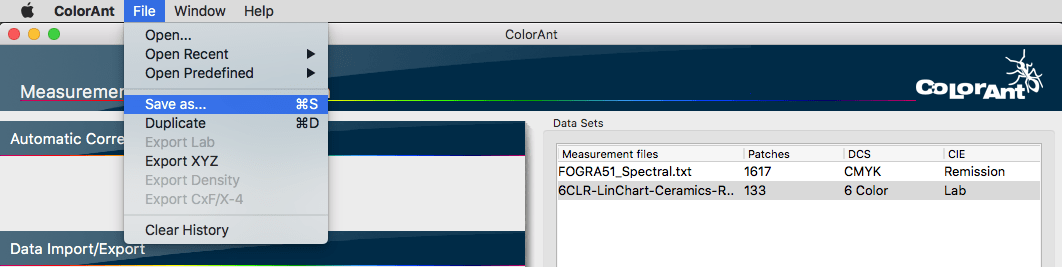
  3. Save the optimized measurement data as a new file via File > Save as. Use the optimized measurement data in profiling software such as ColorLogic’s CoPrA to create high quality ICC printer profiles.
Measure

Measurement data is acquired with the Measure Tool and transferred to ColorAnt. Measurement data files are stored in the folder Users/Documents/ColorAnt/MeasurementData. The Data Sets section of the main window displays pertinent information about the measurement data including: number of color patches, color model (Lab, CMYK, RGB, Multicolor), measurement value type (colorimetric = Lab - spectral = Remission).

Sidebar tools will be highlighted when applicable to the measurement data, tools which are not applicable are grayed out. Use the tools by first highlighting the data (multiple files can be selected, e.g., by linking or merging several data sets together) and right click. When multiple data sets are present and no set is selected, corrections are applied to all measurement files.

View and Compare Data

View
The View window provides plenty of features that facilitate the evaluation of measurement data. Filters allow the combining of individual channels. Combinations of 2, 3, 4, 5 or 6 channels, as well as one and two channels in combination with black, can be faded in and out. These filters are available in 2D and 3D view.

The number of displayed color patches is shown on the left, i.e., if one or more filters are selected, the number of affected color patches as well as the total number of patches is shown on the left.

Compare
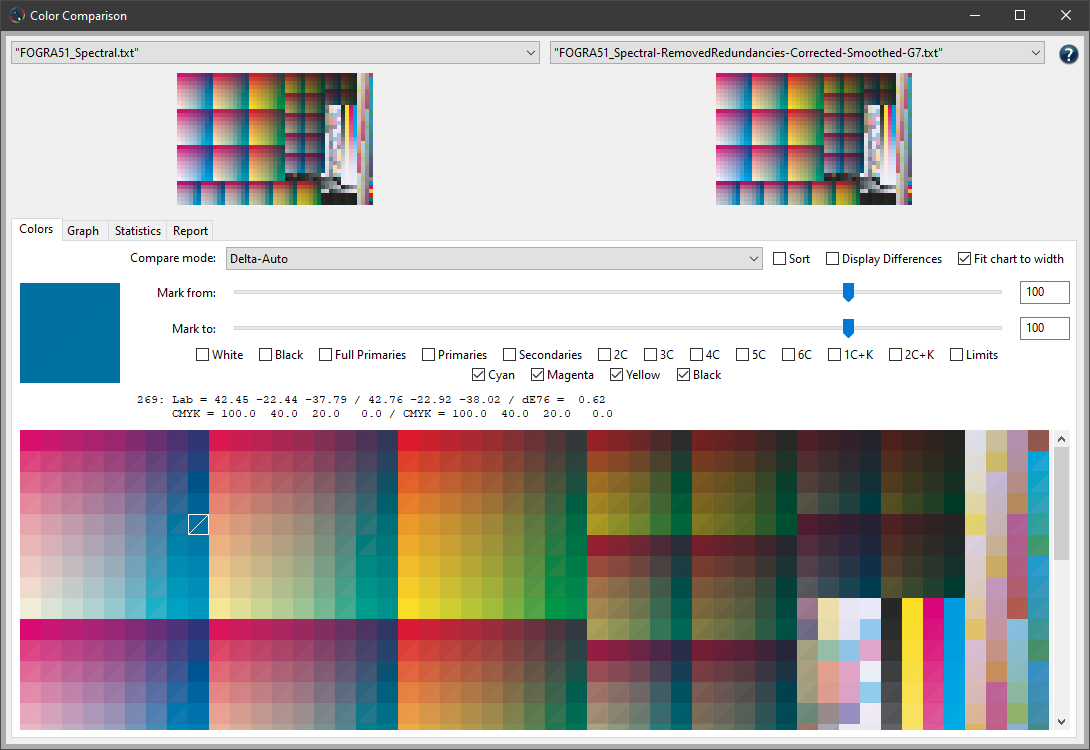
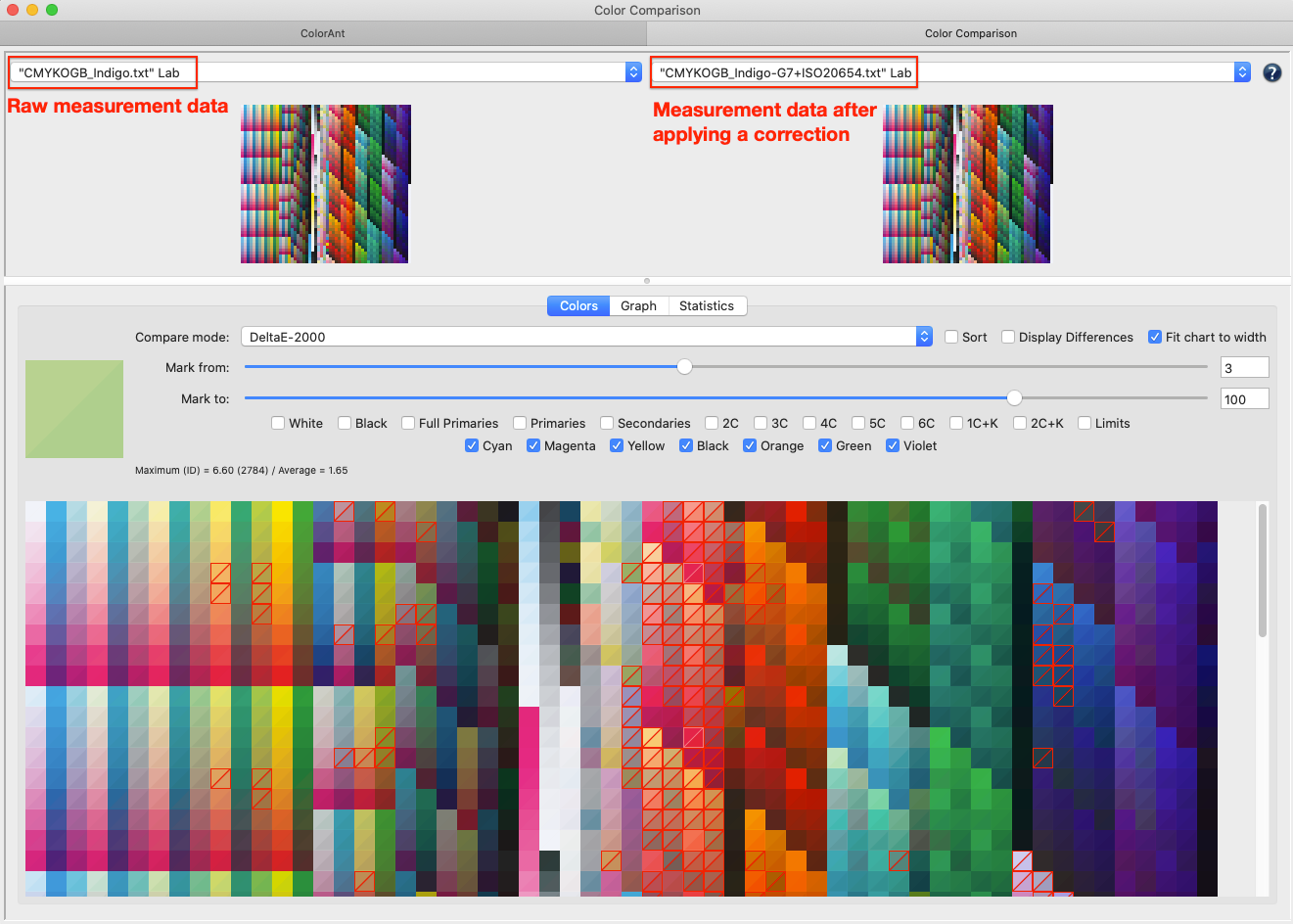
The Color Comparison window shows measurement data (Fig 3.2) before and after optimization. It can also be used to view the actions taken to optimize the data (e.g., File Name Correction, File Name Smoothing). Filters allow the combination of individual channels which are to be compared. 

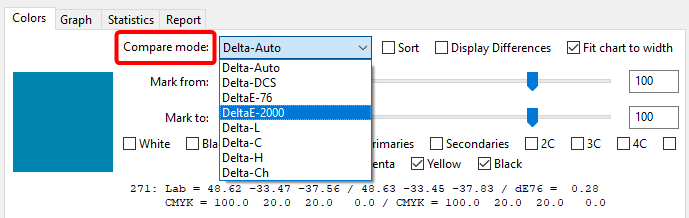
The Mark from and Mark to slider displays various levels of DeltaE deviations.

Save or export measurement data
The name of every tool applied to correct or optimize data is appended to the name of the data set (e.g., Data_smoothed_corrected). Save the optimized measurement data with File > Save As. Additional export options allow conversion of spectral data to Lab or Density only. Other Save As options include CGATS compatible TXT file, CGATS XML, Named Color ICC profile, CxF compatible CXF file format, Photoshop ACO, color table, Adobe ASE or as GMG CSC file.

Generate Reports
ColorLogic recommends using the Report tool both on the initial data import and after the measurement data has been optimized.

04 DATA IMPORT & EXPORT

Custom Chart

The Custom Chart tool is designed to create reference files for test chart generation. A custom test chart for profiling requires a reference file containing the device data for the color space.

Note: Creating multicolor charts requires a ColorAnt L license.

Depending on the selection of color space, the Custom Chart dialog provides several options:

Gray, RGB and CMYK: Define the Number of Patches and click OK. Select the desired Color Space from the drop-down menu.

CMYK: Choose the linearization from another measurement data set or from another print run as a starting point. To use the linearization feature, load the appropriate measurement file in ColorAnt before opening the Custom Chart tool and select the file under Color Space.

Multicolor Charts
Modifying settings: Select the desired Color Space. For example, to create a 6 color profiling chart, ColorAnt will display a pre-defined color order, in this example: CMYK+Pantone Red and Green. The Eyedropper function allows reordering the channels. To exchange the 5th channel which is Red with Green (similar to fig 4.1) click on the Red Eyedropper Icon and from the Colors section select Green by clicking on it.

Mode: Select one of the presets based on the purpose of the test chart: Profiling, Flexo Profiling, Profile Updating, Linearization or CxF/X-4 Wedge.

Number of patches: Affects how precisely the device color space will be filled with color patches. Please consider the available space on your output, the required accuracy of the characterization data and the capabilities of your printer. Available choices are Large, Medium and Small test charts and a Custom option which allows entering a specific number of patches (the Custom option is not available for CxF/X-4).

Note: The Custom Chart tool works even with only a few patches. The color space is covered in the best possible way to allow proper profile creation.

Changing or defining the channel names
To change channel names, click the Pencil icon, e.g., click the Green channel and type in the new name.

Define the channel name of each channel, (including or excluding CMYK) enter the name in the text field or click on the Eyedropper icon and select a color from the pop up dialog that matches closest.

Linearization
ColorAnt provides intelligent settings that provide a starting point for typical use cases to create Linearization test charts, Profiling test charts, special profiling test charts for Flexo printing and Profile Updating. The Number of Patches feature chooses the optimal number of patches for specific profiling situations.

Note: This option is useful for difficult print processes that are challenging to profile. ColorAnt uses a very smooth linearization to avoid inconsistencies in the curves.

Once the color space, channel names and the Number of Patches are defined, click OK and calculate the reference file. The reference file will appear in the Data Sets section. Save the file if necessary for other chart generation tools. To create a test chart within ColorAnt, select the reference file and click Export Chart.

Export Chart

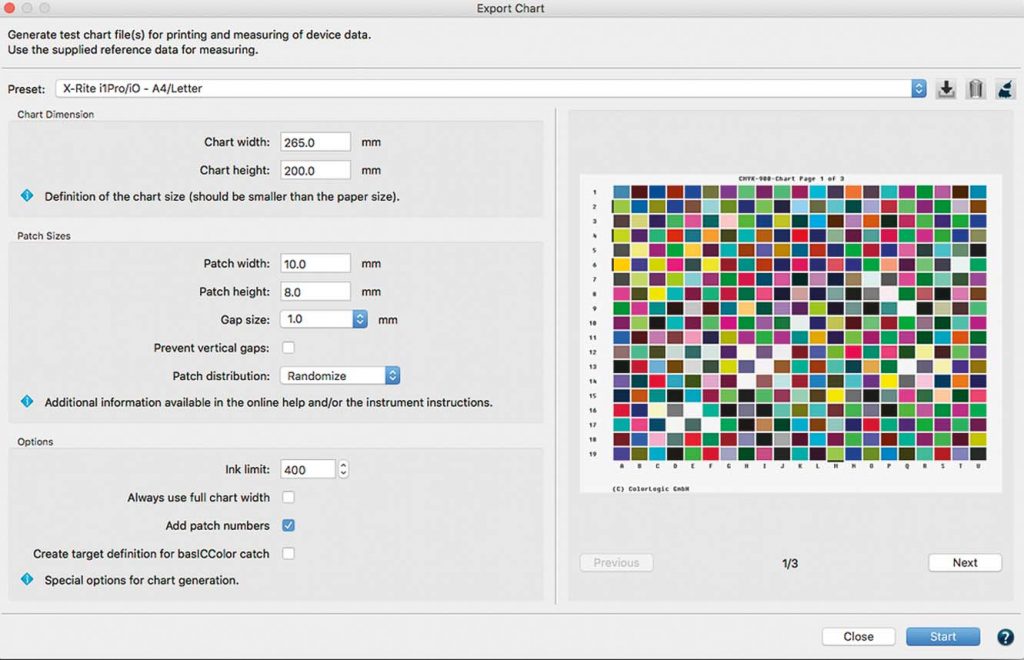
Export Chart creates test charts based on device color values (e.g., RGB, CMYK, 7 Color etc.), which can be stored as PDF, TIFF or PSD files.

At the top a Preset covering all settings can be selected and manual presets can be created, saved or deleted. The largest section covers options for Chart Dimensions, Patch Sizes and additional Options. The section on the bottom provides information on the number of files to be created with the chosen Preset, settings and buttons to Cancel or create (Start) the test charts. The tool is optimized to work with most of the instruments supported in the Measure Tool. The Custom Chart tool fills the full chart width with patches minus margins for the numbering. Instruments that do not have width limitation (no ruler required) can benefit from this feature.

Ink Limit takes into account printing processes that can't handle 400% ink on paper/substrate. Typically each of ColorLogic’s CMYK and multicolor test charts have patches with a maximum of 400% ink. If a 400% ink limit is too high for the press, or the user would like to define another ink limit, the user can enter the desired Ink Limit. The resulting chart will have ink limit integrated. Use the exported reference file for measuring and profiling.

Procedure

Step one: Select the reference file with the required device color values.

Step two: Use either one of the presets, or define a custom size and patch width.

Step three: Define the number of patches to be produced.

Measure

ColorAnt’s Measure Tool is used to measure test charts for profile creation.

Measuring test charts

  1. Select Measure from the sidebar.
  2. Select the measurement device under Selection and the measuring mode (M0, M1, M2 or M3).
  3. Connect your device and open the test chart. Charts can be opened via the File menu via the Recently used files and Predefined Charts entries. Your own charts can be added to the list by placing them in the ColorAnt Wedges folder (User\Documents\ColorAnt\Wedges). Alternatively, simply load a reference file or drag-and-drop it onto the window.
  4. Select the Direction of scanning: Patches - Line by line, Patches - Column by column, Scan Rows or Scan Columns.
  5. Begin measuring: Follow the instructions of your measurement device. For the virtual device, double click the first patch to start the measurement.
  6. Transmit Data: When measuring is completed, click the Transmit icon to transfer the data into ColorAnt’s Data Sets section.
Report

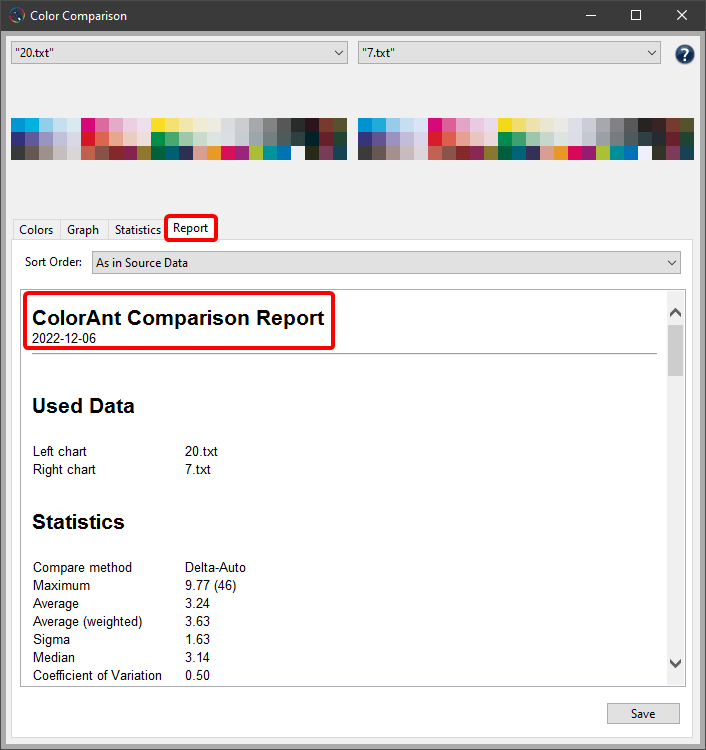
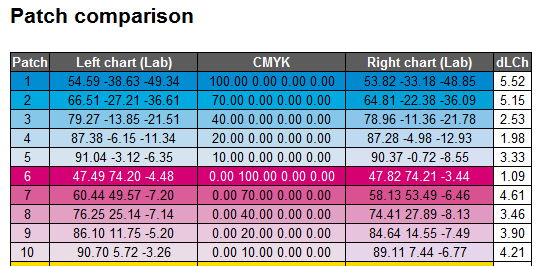
A Report offers detailed information for measurement data analysis and provides recommendations for measurement data corrections. It can be used to verify and graphically display the data, and is therefore a powerful feature to document which types of corrections are necessary for the measurement data.

The various report pages provide an insight into the Tonal Value Increase Curves, the gamut representation (Spider Web) as well as the results of the test on the matching of redundant color patches (Quality Evaluation section), measurement or printing errors and the smoothness of the measurement file.

Embed CxF/X-4

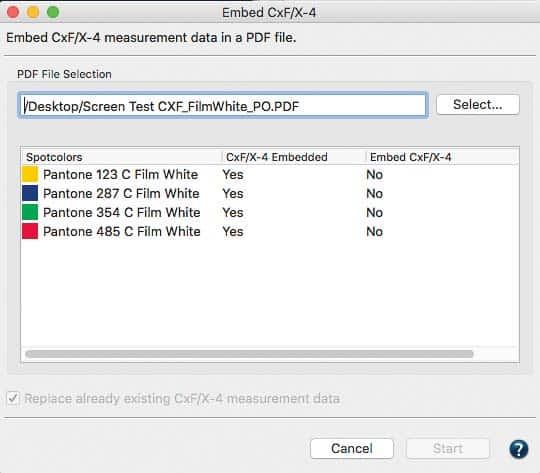
Allows to embed spectral measurement data of spot colors (compliant with CxF/X-4) in a PDF file so that other CxF/X-4 compatible tools (e.g., ZePrA) are able to extract or use this data.

Procedure

Open the PDF/X file. The tool lists all spot colors of the PDF file, checks for spot color names that fit those of the CxF/X-4 measurement data and warns in case of conflicts. The data will only be embedded if the spot color names of the PDF file fit those of the CxF/X-4 file (Fig 4.5). When the spot colors match up, click on Start.

05 EDITING

Editing

Redundancies
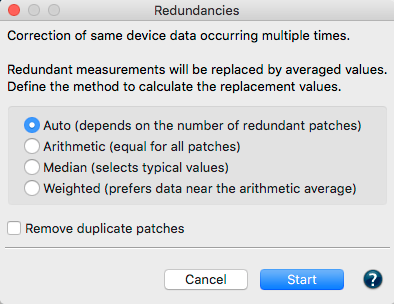
Corrects color patches by averaging the redundant patches and replacing with the same value.

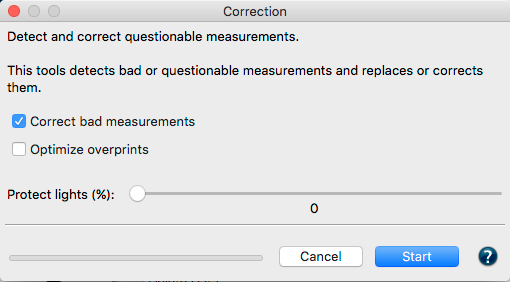
Correction
Detects faulty measurements or inconsistent measured values and replaces the data with expected measurement values. Use the Protect Lights feature to exempt Flexo data bumps. 

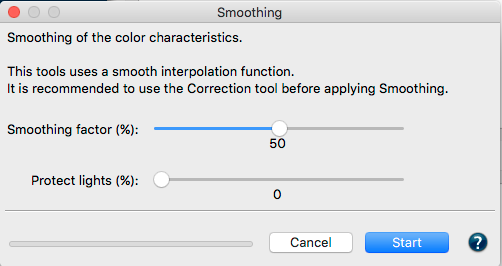
Smoothing
Corrects inhomogeneous measurement data and non-smooth curves by interpolating existing smoothed data. The Auto correction uses the maximum slider setting. Use the Protect Lights feature to exempt Flexo data bumps for being unintentionally smoothed.

White/Black Correction
Apply manual corrections to the most white and darkest color patches, typically the paper or other substrates. The White/Black Correction tool is designed to be used only on a single measurement file.

Brightener
Step one: Analysis
Brightener corrects and analyzes the remission curve of the paper white to determine whether the paper contains optical brighteners or is merely a blue-colored paper.
Step two: Correction
Correction will be applied when optical brightener has been detected. The correction can be adjusted via a slider control and at 100% setting, a similar result will be achieved as if the paper were measured with a UV cut filter.

Tone Value
Corrects measurement data to a specific set of curves. Data is corrected according to specific conditions (e.g., G7, ISO 20654 SCTV). The Protect Lights slider can be adjusted to protect the highlights of flexo data. Correction curves can be exported as Photoshop gradation curves (ACV) and as XML according to ISO 18620 to be used in either Adobe Photoshop or any external RIP software that supports the ISO 18620 standard.

Three options are available:

Correction according to a given profile:
Specify a profile and the measured values are adjusted to achieve the same tone value increase curves as those of the selected profile.

Correction according to:
Tone value curves are calculated to match the requirements of G7 Gray Balance, ISO 20654 (SCTV), G7 + ISO 20654 (SCTV) or ISO 20654 (MultiColor).

Correction according to TVI targets:
Manual editing of each channel (Fig 5.1) allows predefining the increases in tone value to be incorporated in the measurement data

Rescale
ColorAnt can calculate a large test chart based on several measurement files from small test charts. In some printing processes, (e.g., flexo printing on uneven materials) it can be challenging to achieve artifact-free printing of a large test chart. An effective approach to measuring large charts is to place several small test strips on a single page, measure, average and scale up the test strips to a large ECI2002 test chart using the Rescale tool.

 Averaging
Average several measurement files (e.g., press runs) of the same test chart and combine them to form a data set.

 Link
Combine multiple data sets into a single large data set. We recommend to verify the obtained data using the View tool and to optimize the data with either the Auto function or the Redundancies tool.

ICC Transformation
Use both ICC device and DeviceLink profiles on reference data (device data such as CMYK or RGB) to test the impact of an ICC color conversion with up to three profiles.

CIE Conversion
Convert spectral measurement data into another viewing condition. The spectral data are converted to Lab during CIE conversion with the set illumination and the selected observer.

Edit Primaries
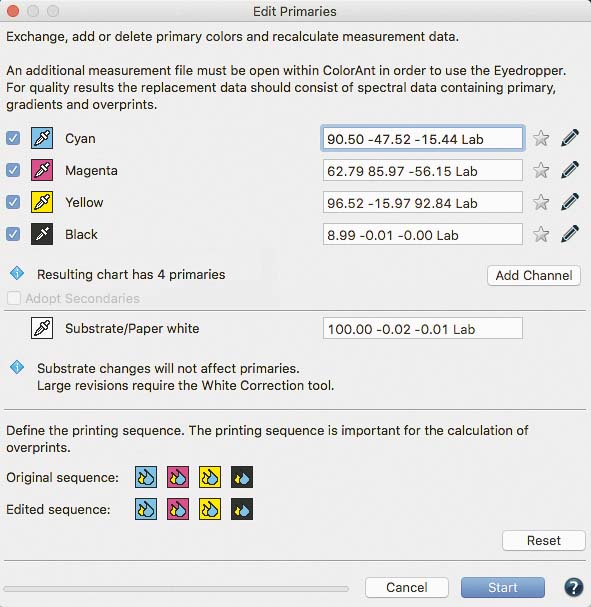
Add, remove, and exchange primaries or the paper/substrate in existing measurement data (Fig 5.2).

In typical print production, adding or swapping ink(s) requires the expense of printing a complete, full size test chart. The Edit Primaries tool simply requires the spectral data of the new ink(s) to be added or exchanged. It also recalculates all overprints based on intelligent spectral color models. One of the major features is its ability to dynamically choose the best patches from the data provided. The more complete the provided data, the more accurate the results. This improves the exchange of gradations of the primary color and overprint information, e.g., the primary combined with black. If the selected data contains overprints, such as secondary colors, the Adapt Secondaries feature will take the additional data into account. 

Scenarios for potential efficiency gain with the Edit Primaries tool in production:

Modify channel names: Reorder channel names without modifying data

Variance in press condition: The characterization press run is slightly deficient in solid ink density or hue on one or more colors.

Exchange of paper/substrate: The inks are the same but a slightly different paper shall be used.

Exchanging inks in a print packaging production environment: Create a new profile that swaps colors, e.g., Blue for Cyan or Rhodamine Red for Magenta.

Adjusting the print sequence: Allows improved overprint calculations.

Flexibility for the packaging manufacturer: Create different color variants from a full size 7 color press characterization data set by deleting channels to building new characterization data sets without printing a new test chart. For example, from an original 7C data set (e.g., CMYK+Orange+Green+Violet) build variants for CMYK only, CMY+Violet, CMYK+Orange+Green or other combinations. The production facility would need to ensure the press is stable, and depending on the color needs of the job(s), print select the profile with the least amount of channels.

Increasing CMYK gamut: Adding a 5th, 6th or 7th color to the CMYK printing process.

Using Edit Primaries
We suggest loading another data set with the measured new primaries, gradations of the primaries and overprint information. Select the measurement data of a test chart measurement file for editing and click Edit Primary.

Exchanging a primary: Click on the Eyedropper icon of the color to be exchanged. Select the new primary from another data set loaded in ColorAnt. Click on the channel to be imported to the primary. Fig 5.2 shows a new Cyan ink that is slightly different. Selecting ink from other channels is also possible. Click OK and the data set will be modified.

Important: Using Lab values will not produce the highest quality results. ColorLogic recommends using spectral data. When a data set is present, enter a new Lab value for the selected color or select another channel from the same measurement data set to change the printing order.

Verify the exchange of primaries with the Compare tool.

Exchange paper/substrate
Load the test chart measurement data and load the secondary file containing information of the measured paper white into ColorAnt.

Select the measurement data of a test chart for editing and click Edit Primaries.

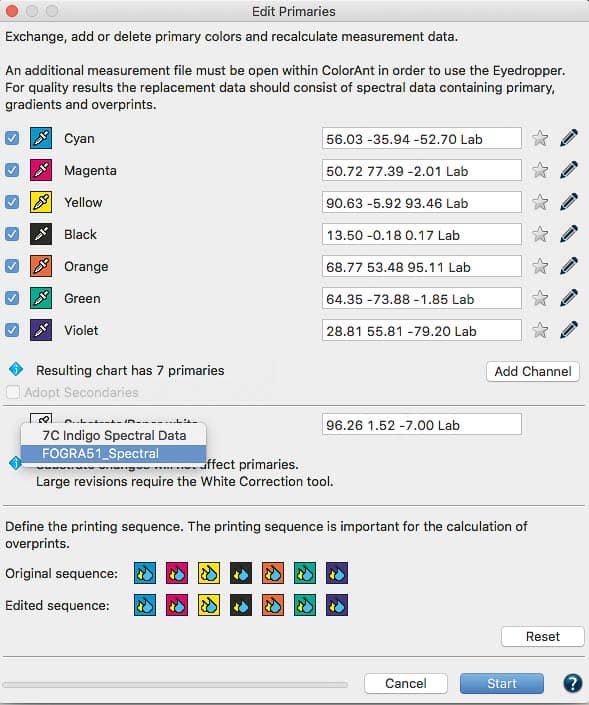
Click on the Eyedropper icon of the Substrate/Paper white and select the new paper white from another data set loaded in ColorAnt (Fig 5.3). Click on the name of the data set to import the data. The second option is to manually enter the new Lab values in the text field.

Click OK and the data set will be modified. For large differences in substrates, use the White/Black correction tool.

 Adding channels

  1. Load the test chart measurement data and load the secondary information with the measured primaries, gradation and overprint information into ColorAnt.
  2. Select the measurement data you would like to edit and click Edit Primaries.
  3. Click on Add Channel. A new channel with default gray Lab values and the channel name Auto is added.
  4. Click on the Eyedropper icon of the new channel and select the new primary from another data set loaded in ColorAnt. Click on the channel to import the data. Fig 5.4 shows an example where a 5th Orange color has been added to an original CMYK data set. To rename the channel click on the Pencil icon and enter the new channel name. The new channel can be linearized according to the ISO 20654 (SCTV) standard by selecting the checkbox.
  5. Click OK to generate the new data set. To view the new data set, use the View tool and select the tabs 2D, 3D, Spider Web and TVI to verify all colors including overprints have been added. Additional edits can be made to the curves using the Tone Value tool.

Removing channels
Load the measurement data of a test chart and click Edit Primary. Disable the check boxes in front of the channels that need to be deleted and click OK.The new data set will be reduced to the selected channels.

Color Editor
Edit color patches and process color conversions of spot colors. 

Procedure
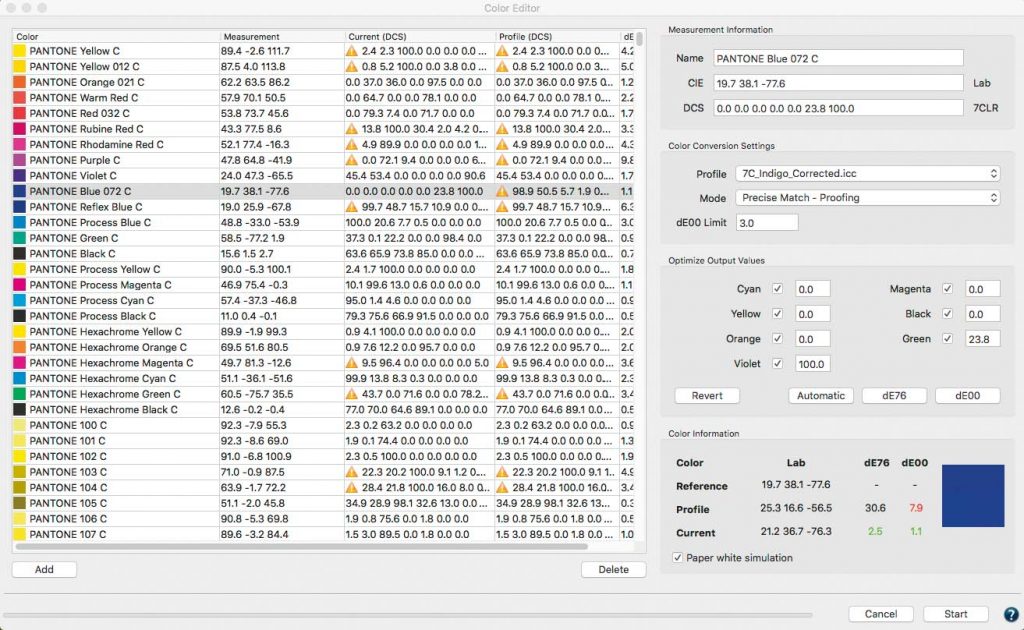
The Color Editor allows the user to edit patch names (Fig 5.5), Lab values or device color values (DCS).

Convert and optimize a complete spot color library to a target profile for RGB, CMYK or Multicolor.

To convert spot colors to a desired target profile, first load the spot colors into the ColorAnt Data Sets section, e.g., a Pantone spot color library (or any supported file format such as CxF), then click on Color Editor.

The window contains a table on the left showing all spot colors of the file and editing options on the right.

Select an ICC Profile from the drop-down list and a calculation Mode.

Six modes are available:

  1. Precise Match - Proofing
  2. Visual Match - Utilize More Channels
  3. Use the Least Amount of Channels
  4. Use one Output Channel only
  5. Use a Maximum of two Channels
  6. Use a Maximum of three Channels

The preset dE Limit highlights colors that exceed the defined threshold.

If a color is selected from the table, the device color values for each channel of the selected profile are shown under Optimize Destination Values.

As a default, the device values calculated via the ICC profile are shown without any optimization. By clicking on dE76 or dE00 the deltaE can be minimized (Fig 5.6) for each color.

Clicking on Automatic applies the selected calculation Mode which typically results in a reduced amount of channels for better printability.

Users can optimize each individual color and can even enter device values manually. By clicking on Start, the entire list of colors is generated in the Data Sets section including the calculated and possibly optimized device color values.

The values can be saved for further usage in other applications in any format supported by ColorAnt (CGATS TXT and XML, CXF3, Photoshop ASE and ACO, named color ICC profile or GMG CSC).

Main Window


View 

Display of measurement data in various views

Compare 

Comparison of different data sets

Automatic Correction

Auto 

Correct measurement data automatically

Data Import/Export

Custom Chart 

Create custom reference files for test chart creation

Export Chart 

Create printable test charts from custom reference files

Measure 

Measuring printed test charts with the Measure Tool

Report 

Detailed analysis of measurement data as PDF or XML file

Embed CxF/X-4

Embed spectral color information in PDF files

Editing

Redundancies 

Remove redundant color patches

Correction 

Correct erroneous and inconsistent measurement data

Smoothing 

Smooth and correct measurement data

White/Black Correction 

Adjust the black and white of measurement files

Brightener

Remove optical brightener from measurement data

Tone Value 

Adjust dot gain curves

Rescale 

Scale measurement files to create required test chart layouts

Edit Primaries 

Add, remove or exchange primaries and paper white in existing measurement data

Edit Color 

Optimize color patches and (spot) colors

Merging and Conversion

Averaging 

Average measured values from multiple similar test chart prints

Link 

Combine measurements from several test charts into a new measurement file

ICC Transformation 

Comparisons and profile tests with printer and DeviceLink profiles

CIE Conversion 

Change the observer and illumination

Working With ColorAnt

ColorAnt’s main window is divided into 3 sections. All tools are located and grouped by function on the left side, measurement data is shown in the Data Set section on the right hand side upper window of the application window. Measurement data can be loaded or saved via the File menu or by dragging & dropping data to the Data Sets window. Tools applied to the measurement data show are shown in the lower right hand side History window. Clicking on an action item in the History window (above or below the current status) gives the user control over individual corrective tasks.

When viewing measurement data, the View Options in the 2D and tabs have been updated with additional color channel check boxes for the primary colors available in the loaded data set. The color channel check boxes can be combined with the above color filters so that only the Multicolor Primaries or Secondaries can be shown. This greatly facilitates finding and viewing patches. The removed viewing options, Duplex and Triplex known from previous versions of ColorAnt, can be compensated by selecting appropriate color channels individually (e.g. Cyan + Black shows duplex combinations and Cyan + Magenta + Black shows triplex combinations). Both options were removed to gain space in the user interface. In addition, the filters work in combination with the color channels. If, for example, the check box Secondaries is enabled, the check boxes Primaries and White are automatically enabled.

Data Sets and History

The Data Sets section of the main window will display pertinent information about the measurement data including: number of color patches, color model (Lab, CMYK, RGB, Multicolor), measurement value type (colorimetric = Lab - spectral = Remission)

History

The tools applied to the measurement data show in the lower right hand side History window. Clicking on an action item in the History window (either above or below the current status) gives the user control over individual corrective tasks.

Save History Log and Averaging Report

Save History Log is available at the bottom right of the main dialog. This saves all modifications applied to all files in a detailed PDF document. When double-clicking an single entry in the History section, a dialog pops up showing the settings applied to the data at a specific step. The single step can be saved with Save Log.

Averaging Features

The averaging log contains detailed reporting with sample colors (similar to the Report feature) comparing the averaged data and providing process control statistics. Standard deviations (sigma) for Density, dE and dH/dL. This allows users to easily see colors with large deviations which would not be obvious by visually verifying values.

Data Sets and History

Select the data set (or sets) to process. The Data Sets section of the main window (Fig 2.1)displays pertinent information about the measurement data including: number of color patches, color model (Lab, CMYK, RGB, Multicolor), measurement value type (colorimetric = Lab - spectral = Remission).

History

The tools applied to the measurement data are shown in the lower right side History window. Clicking on an action item in the History window (either above or below the current state) gives the user control over individual corrective tasks.

Viewing and Comparing Options

Advanced viewing options for ColorAnt include tools located at the bottom of the main window which can be enabled for both viewing measurement data (View) and comparing pre and post comparison of measurement data (Compare).

2D highlight with the Color Filter

The Color Filter highlights selected colors in 2D and 3D views. View by full primaries, limits, primaries, secondaries, paper white or black. Other custom settings are also available.

3D viewing options

The Color Filter highlights selected colors in 3D views. Zoom and rotate the model by using the sliders. Click the Compare ICC profile to compare the two in the window. The same filter options are available in the 2D view.

TVI View options

Analyze tone value variation curves (TVI). The tone value curve works in conjunction with the curve view or any other correction which will effect the TVI.

Spiderweb

The top view of the color space in a a*-b* diagram. The measured or optimized color patches are arranged in a spider web configuration. Verify changes in the View dialog by moving forward or backward in the History list.

Curves

View the linearity curves from white to all 100% primary colors, (including multicolor data). Visualizes data and assists with analyzing non-smooth gradation curves.

Working With ColorAnt

ColorAnt’s main window is divided into 3 sections. All tools are located and grouped by function on the left side, measurement data is shown in the Data Set section on the right hand side upper window of the application window. Measurement data can be loaded or saved via the File menu or by dragging & dropping data to the Data Sets window. Tools applied to the measurement data show are shown in the lower right hand side History window. Clicking on an action item in the History window (above or below the current status) gives the user control over individual corrective tasks.

When viewing measurement data, the View Options in the 2D and tabs have been updated with additional color channel check boxes for the primary colors available in the loaded data set. The color channel check boxes can be combined with the above color filters so that only the Multicolor Primaries or Secondaries can be shown. This greatly facilitates finding and viewing patches. The removed viewing options, Duplex and Triplex known from previous versions of ColorAnt, can be compensated by selecting appropriate color channels individually (e.g. Cyan + Black shows duplex combinations and Cyan + Magenta + Black shows triplex combinations). Both options were removed to gain space in the user interface. In addition, the filters work in combination with the color channels. If, for example, the check box Secondaries is enabled, the check boxes Primaries and White are automatically enabled. They can be disabled if only two color combinations (Secondaries) are to be highlighted. The TVI tab allows users to switch between the typical density based dot gain curves according to Murray Davies or the modern colorimetric dot gain curves according to ISO 20654 (SCTV). Linear dot gain curves according to ISO 20654 would show a straight horizontal line.

Data Sets and History

The Data Sets section of the main window will display pertinent information about the measurement data including: number of color patches, color model (Lab, CMYK, RGB, Multicolor), measurement value type (colorimetric = Lab - spectral = Remission)

History

The tools applied to the measurement data show in the lower right hand side History window. Clicking on an action item in the History window (either above or below the current status) gives the user control over individual corrective tasks.

Save History Log and Averaging Report

Save History Log is available at the bottom right of the main dialog. This saves all modifications applied to all files in a detailed PDF document. When double-clicking an single entry in the History section, a dialog pops up showing the settings applied to the data at a specific step. The single step can be saved with Save Log.

Averaging Features

The averaging log contains detailed reporting with sample colors (similar to the Report feature) comparing the averaged data and providing process control statistics. Standard deviations (sigma) for Density, dE and dH/dL. This allows users to easily see colors with large deviations which would not be obvious by visually verifying values.

Data Sets and History

Select the data set (or sets) to process. The Data Sets section of the main window displays pertinent information about the measurement data including: number of color patches, color model (Lab, CMYK, RGB, Multicolor), measurement value type (colorimetric = Lab - spectral = Remission).

History

The tools applied to the measurement data are shown in the lower right side History window. Clicking on an action item in the History window (either above or below the current state) gives the user control over individual corrective tasks.

View and Comparing Tools

Advanced viewing options for ColorAnt's tools located at the bottom of the main window that can be enabled for both viewing measurement data (View) and comparing pre and post comparison of measurement data (Compare).Absolute or Relative Density can be set in ColorAnt's Preferences

2D highlight with Color Filter

The Color Filter highlights selected colors in 2D and 3D views. View by full primaries, limits, selected channels, primaries, secondaries, paper white or black. Other custom settings are also available.

3D viewing options

The Color Filter highlights selected colors in 3D views. Zoom and rotate the model by using the sliders. Click the Compare ICC profile to compare the two in the window. The same filter options are available in the 2D view.

TVI View options

Analyze tone value variation curves (TVI). The tone value curve works in conjunction with the curve view or any other correction which will effect the TVI. Choose either Murray-Davies or ISO 20654 (SCTV) methods

Spiderweb

The top view of the color space in a a*-b* diagram. The measured or optimized color patches are arranged in a spider web configuration. Verify changes in the View dialog by moving forward or backward in the History list.

Curves

View the linearity curves from white to all 100% primary colors, (including multicolor data). Visualizes data and assists with analyzing non-smooth gradation curves. Choose from ColorLogic Default, ISO 20654 (SCTV) or Tone Value.

Working With ColorAnt

Working with ColorAnt

ColorAnt’s main window is divided into 3 sections. All tools are located and grouped by (Fig 3.1) function on the left side, measurement data is shown in the Data Set section on the right-hand side upper window of the application window. Measurement data can be loaded or saved via the File menu or by dragging & dropping data to the Data Sets window. Tools applied to the measurement data show are shown in the lower right-hand side History window. Clicking on an action item in the History window (above or below the current status) gives the user control over individual corrective tasks.

Automatically correct and smooth measurement files

Load the measurement data file. Click on the Auto button and on the OK button. Each tool that is applied is displayed in the History section. ColorLogic recommends completing this process running by a Report for detailed results and further recommendations for your measurement data.

Recommended manual working method

Opening or Importing data

Measurement data can be loaded or imported through a variety of ways in ColorAnt. Simply open the data file (File>Open) or Drag and Drop to the Data Sets window. Predefined data sets and recently opened files are also available via the File menu.

Acquiring data by measuring

Measurement data is acquired with the Measure tool and transferred to ColorAnt. Measurement data files Measure tool are stored in the Users/Documents/ColorAnt/MeasurementData folder.

The Data Sets section of the main window will display pertinent information about the measurement data including number of color patches, color model (Lab, CMYK, RGB, Multicolor), measurement value type (colorimetric = Lab - spectral = Remission).

Tools located on the left will be highlighted when applicable to the measurement data, tools not accessible are grayed out. Access the tools by first highlighting the data (or multiple files e.g. linking or merging several data sets together) and right click. When multiple data sets are present and no set is selected, corrections are applied to all measurement files.

To add reference files for additional or custom profiling test charts and color wedges accessible using the File/Open predefined or the Rescale tool - add the CGATS 1.7 compatible TXT file to Users/Documents/ColorAnt/Wedges folder.

Viewing and Comparing Data

Advanced viewing options for ColorAnt include tools located at the bottom of the main window that can be enabled for both viewing measurement data (View) and comparing the original and post comparison of measurement data (Compare).

The View window includes options for 2D, 3D, Spider Web and TVI curve options to facilitate comprehensive measurement data analysis.

Color Comparison allows the user to view measurement data (Fig 3.2) before and after optimization. The comparison window also allows the user to view the actions taken to achieve the optimized data (e.g. File Name Correction, File Name Smoothing). The Mark from and Mark to slider displays various levels of DeltaE deviations.

Saving or exporting measurement data

Once a tool or tools have been used to correct or optimize data, the name of the data will be appended with the tool(s) that have been applied (e.g Data_smoothed_corrected).

Save the optimized measurement data by going to File and choose Save as. Additional export options allowing conversion of spectral data to Lab or Density only. Other save as options include CGATS compatible TXT file, CGATS XML, Named Color ICC profile, CxF compatible CXF file format, Photoshop ACO, color table, Adobe ASE or as GMG CSC file.

Generate Reports

ColorLogic recommends using the Report tool both on the initial data import and after the measurement data has been optimized.

Data Import and Export

Custom Chart

The Custom Chart tool is designed for creating reference files for test chart generation. To define a custom test chart for profiling, a reference file containing the device data for the color space is required. Important: Creating multicolor charts requires a ColorAnt L license.

Depending on the selection of color space, the Custom Chart dialog provides several options:

Gray, RGB and CMYK: Define the Number of Patches and click OK. Select the desired Color Space from the chooser.

CMYK: Choose the linearisation from another measurement data set or from another print run as a starting point. To use the linearisation feature, load the appropriate measurement file in ColorAnt before opening the Custom Chart tool and select the file in the Color Space chooser.

Multicolor Charts

Modifying settings:

Select the desired Color Space, for example to create a 6 color profiling chart, ColorAnt will display a predefined color order, in this example: CMYK+Pantone Red and Green. The Eyedropper function allows reordering the inks. To exchange the 5 channel which is Red with Green, similar to fig 4.1 click on the Red Eyedropper Icon and from the Colors section select Green by clicking on it.

Mode:

Choose one of the presets based on the purpose of the test chart: Profiling, Flexo profiling, Profile updating, Linearization.

Choosing the number of patches

Choose from any of the four predefined settings, Small, Medium or Large. For a specific number of patches choose Custom and enter a number in the box.

Changing or defining the channel names

To change channel names, click the Pencil icon, e.g., click the green channel and type in the new name as shown in fig 4.2.

Define the channel name of each channel, (including or excluding CMYK) enter the name in the text field or click on the eyedropper icon and select a color from the pop up dialog that matches closest.

Linearization

ColorAnt provides intelligent settings that provides users a starting point for typical use cases such as creating linearization test charts, profiling test charts, special profiling test charts for Flexo printing and updating of profiles. Number of Patches chooses the optimal number of patches for specific profiling situations. More information on this topic can be found in the Online Help.

Note: This option is useful with difficult print processes that are challenging to profile without linearization or having very high dot gain. ColorAnt uses a very smooth linearization to avoid inconsistencies in the curves.

Once the color space, channel names and the Number of Patches are defined, click OK and calculate the reference file. The reference file will appear in the Data Sets section. Save the file if necessary for other chart generation tools. To create a test chart within ColorAnt, select the reference file and click Export Chart.

Export Chart

Export Chart allows creation of test charts as TIFF, PSD or PDF files.

At the top a Preset changing all the settings can be selected, manual presets can be created, saved or deleted. The largest section covers options for Chart Dimensions, Patch Sizes and additional Options. The section on the bottom provides information of how many files will be created with the chosen Preset, settings and buttons to Cancel or create (Start) the test charts. The tool is optimized to work with most of the instruments supported in the Measure Tool. The Custom Chart tool fills the full chart width with patches minus margins for the numbering. Instruments that do not have width limitation (no ruler required) can benefit from this feature.

The Ink Limit option allows the user to take into account special printing processes that can't handle 400% ink on paper/substrate. Typically each of ColorLogic’s CMYK and multicolor test charts have patches with a maximum of 400% ink. If a 400% ink limit is too high for the press, or the user would like to define another ink limit, the user can enter the desired Ink Limit. The resulting chart will have ink limit integrated. Use the exported reference file for measuring and profiling.

Quick Start Procedure

Step one: Select the reference file that was created with the Custom Chart tool or a reference file from another source.

Step two: Choose either one of the presets, or define a custom size and patch width.

Step three: Define the number of patches to be produced.

Measuring test charts

The ColorAnt Measure tool directly measures test charts for profile creation.

Productivity Feature: When measurement data is loaded into the Data Sets window and Measure is selected, the previous chart and measurement device by default are automatically loaded into the Measure tool.

Quick Start Procedure

To Measure:

Step one: From the ColorAnt Data Import/Export module, click Measure. Step two: Connect to your device, and double click the first patch to begin measuring (may vary by instrument). To select a different chart for measurement, select the Chart from the dialog. For custom charts including ColorLogic's test charts, click Load and the select the desired chart from the pull down menu.

3. Select the measurement device under Selection and select the measuring mode (M1, M0 or M2 if applicable). or task.

4. Select the method of scanning: by Line by Line, Patches Column by column, Scan Rows or Scan Columns.  5. Begin measuring: As you begin measuring with the options chosen, grayed out patches are replaced by measurement data. Continue measuring until completed.

6. Transmit Data: When measuring is completed, press Transmit to copy the data into ColorAnt.

Report

ColorAnt offers detailed reporting for measurement data analysis and provides the user with corrective recommendations for measurement data. Users can customize the logo and report title. Reports can be generated as pdf files or .xml data.

Features of ColorAnt's Report tool include Tone Value increase chart and the option of utilizing a layered PDF to view combinations of channels.

ColorAnt will report the presence of optical brightener the deltaE variance and the corrective action needed to improve the measurement data.

Other features in ColorAnt are available via ColorLogic's Online Help.

Embed CxF/X-4

Embeds CxF/X-4 compliant spectral data into PDF files. Embed CxF/X-4 is only available if the data selected in the Data Sets window contains spectral data that is compliant with the following standards:

CxF/X-4b single patch characterization (full tone only)

CxF/X-4a single background characterization (full tone and gradient on white)

CxF/X-4 full characterization (full tone and gradient on white and black)

Quick Start Procedure

The tool will list all the spot colors in the PDF file vs the names that match the CxF/X-4 data (Fig 4.5). A warning message is displayed when conflicts occur.

When the spot colors match up, press Start.

Editing

Redundancies

Corrects color patches by averaging the redundant patches and replacing with the same value.

Correction

The Correction tool detects faulty measurements or inconsistent measured values and replaces the data with expected measurement values. Use the Protect Lights feature to exempt Flexo data bumps.

Smoothing

Corrects inhomogeneous measurement data and non-smooth curves by interpolating existing smoothed data. The Auto correction uses the maximum slider setting. Use the Protect Lights feature to exempt Flexo data bumps for being unintentionally smoothed.

White/Black Correction

Apply manual corrections to the most white and darkest color patches, typically the paper or other substrates. The White/Black Correction tool is designed to be used only on a single measurement file.

Brightener

Step one: Analysis

Brightener correction analyzes the remission curve of the paper white to ascertain whether the paper contains optical brighteners or blue-colored paper.

Step two: Correction

Correction will be applied if optical brightener has been detected. The correction can be adjusted via a slider control and at 100% setting, a similar result will be achieved as if the paper were measured with a UV cut filter.

Tone Value

The Tone Value tool corrects measurement data to a specific set of curves. Data is corrected with a "what if" the data was printed to (e.g. G7, ISO 20654 SCTV) specific conditions.

The Protect Lights slider can be adjusted to accommodate the highlights of flexo data.
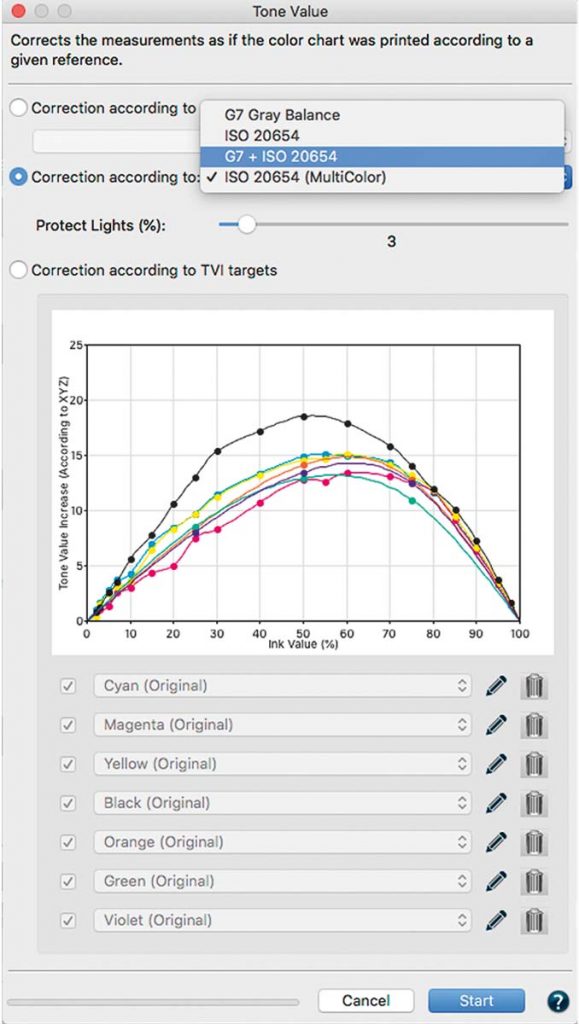
Tone Value Dialog

Three options are available:

Correct according to a given profile:

Specify a profile and measured values are adjusted to achieve the same tone value increase curves as those with the standard profile that was chosen.

Correction according to:

Tone value curves are calculated to match the requirements of G7 Gray Balance, ISO 20654 (SCTV), G7 and ISO 20654 (SCTV) or ISO 20654 (SCTV) multicolor.

Correction according to TVI targets

Manual editing of each channel allows the user to predefine the tone value increases that should be incorporated in the measurement data.

Rescale

ColorAnt can calculate large test charts that can be used for profiling from small chart measurement files. Some printing processes, (e.g. flexo printing on uneven materials) pose challenges to an artifact-free printing ECI2002 test chart. An effective approach to measuring large charts would be to place several small test charts, e.g. ColorLogic Profile Updating strips on one page, measuring the test strips and, averaging them in ColorAnt and then scaling up to a large ECI2002 test chart with the Rescale tool.
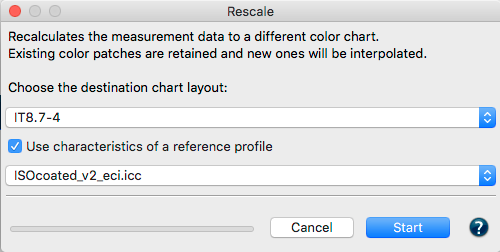
Rescale a chart

Edit Primaries

The Edit Primaries tool (Fig 5.3) allows users to add, remove, and exchange primaries or the paper/substrate in an existing measurement data. In typical print production, adding or swapping ink(s) requires the expense of printing a complete, full size test chart. The Edit Primaries tool simply requires the spectral data of the new ink(s) to be added or exchanged. Edit Primaries not only exchanges inks but also recalculates all overprints based on intelligent spectral color models. One of the major features of the Edit Primary tool is the ability to dynamically choose the best patches from the data provided. The more complete the data that is provided to the Edit Primaries tool (spectral data is preferred) the more accurate the results. Items that will improve are: the exchange of gradations of the primary color, overprint information, e.g the primary combined with black. If the data that was chosen contains overprints, such as secondary colors, the Adapt Secondaries feature will take the additional data into account.
Scenarios for potential efficiency gain with the Edit Primaries tool in production :

Modify channel names: Reorder channel names without modifying data

Variance in press condition: The characterization press run is slightly deficient in solid ink density or hue on one or more colors.

Exchange of paper/substrate: The inks are the same but a slightly different paper shall be used.

Exchanging inks in a print packaging production environment:

Create a new profile that swaps in e.g. Blue for a Cyan or a Rhodamine Red for Magenta.

Adjusting the print sequence: Allows improved overprint calculations.
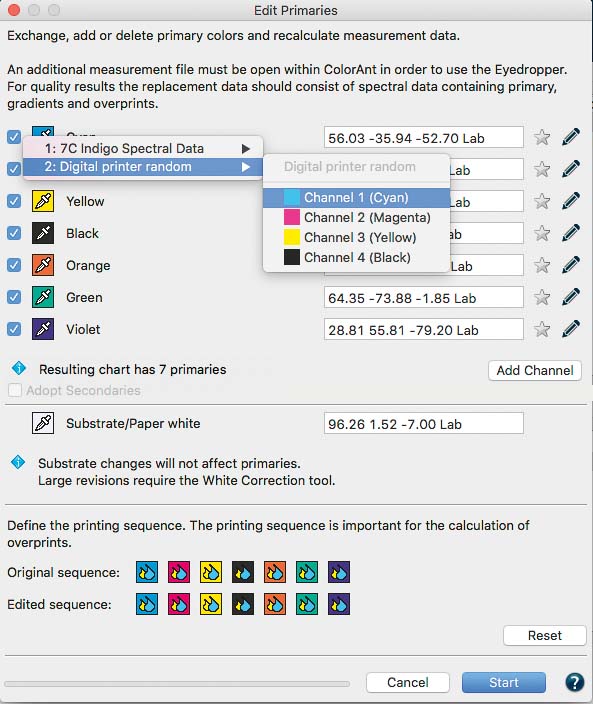
Flexibility for the packaging manufacturer: Create different color variants from a full size 7 color press characterization data set by deleting channels to building new characterization data sets without printing a new test chart. For example, from an original 7C data set (e.g. CMYK+Orange+Green+Violet) build variants for CMYK only, CMY+Violet, CMYK+Orange+Green or other combinations. The production facility would need to ensure the press is stable and depending on the color needs of the job(s), and print select the profile with the least amount of channels.

Increasing CMYK gamut: Adding a 5th, 6th or 7th color to the CMYK printing process.

Using Edit Primaries

ColorLogic's suggested workflow: Load another data set with the measured new primaries, gradations of the primaries and overprint information.

Select the measurement data of a test chart measurement file for editing and click Edit Primary.

Exchanging a primary: Click on the eyedropper icon of the color to be exchanged. Select the new primary from another data set loaded in ColorAnt. Click on the channel to be imported to the primary. The screenshot shown (Fig 5.4) with a new Cyan ink that is slightly different. Selecting ink from other channels is also possible.

Click OK and the data set will be modified.
Important: Using Lab values will not produce the highest quality results. ColorLogic recommends using spectral data. When a data set is present, enter a new Lab value for the selected color or select another channel from the same measurement data set to change the printing order.

To check the exchange of primaries, use the Compare tool to verify the data.

Exchange paper/substrate

Load the test chart measurement data and load the secondary file containing information of the measured paper white into ColorAnt.

Select the measurement data of a test chart for editing and click Edit Primaries.

Click on the eyedropper icon of the Substrate/White and select the new paper white from another data set loaded in ColorAnt (Fig 5.5) Click on the name of the data set to import the data. The second option is to manually enter the new Lab values in the text field.

Click OK and the data set will be modified.

For large differences in substrates, use the White/Black correction tool.

Adding channels

Load the test chart measurement data and load the secondary information with the measured primaries, gradation and overprint information into ColorAnt.

Select the measurement data of a test chart for editing and click Edit Primaries.

Quick Start Procedure

Step one: Click on Add Channel. A new channel with default gray Lab values and the channel name Auto is added.

Step two: Click on the eyedropper icon of the new channel and select the new primary from another data set loaded in ColorAnt. Click on the channel to import the data.

The screenshot shows an example where a 5th Orange color (Fig 5.6)has been added to an original CMYK data set.

To rename the channel click on the pencil icon and enter the new channel name.

Step three: Click OK to generate the new data set.

To view the new data set, use the View tool and select the tabs 2D, 3D, SpiderWeb, TVI to verify all colors including overprints have been added. Additional edits can be made to the curves using the Tone value tool.

Removing channels

Load and select the measurement data of a test chart and click Edit Primary.

Disable the check boxes in front of the channels that need to be deleted and click OK.

The new data set will be reduced to the channels that were selected.

Color Editor

Used to edit color patches and to process color conversions of spot colors.
Quick Start Procedure

Color Editor allows the user to:

Edit patch names, (Fig 5.7) Lab values or device color values (DCS).

Convert and optimize a complete spot color library to a target profile for RGB, CMYK or Multicolor.

To convert spot colors to a desired target profile, first load the spot colors into the ColorAnt Data Sets section, e.g. a Pantone spot color library (or any supported file format such as CxF), then click on Color Editor. The window contains a table on the left showing all spot colors of the file and the editing options on the right. Select an ICC Profile from the drop down list and a calculation Mode.

Three modes are available:

Precise Match - Proofing

Visual Match - Utilize More Channels

Use the Least Amount of Channels

The preset dE Limit highlights colors that exceed the defined threshold. If a color is selected from the table, the device color values for each channel of the selected profile are shown under Optimize Destination Values. As a default, the device values calculated via the ICC profile are shown without any optimization.
By clicking on dE76 or dE00 the deltaE can be minimized (Fig 5.8) for each color.
Clicking on Automatic applies the selected calculation Mode which typically results in a reduced amount of channels for better print-ability. Users can optimize each individual color and can even enter device values manually.

By clicking on Start, the entire list of colors is generated in the Data Sets section including the calculated and possibly optimized device color values. The values can be saved for further usage in other applications in any format supported by ColorAnt (CGATS TXT and XML, CXF3, Photoshop ASE and ACO, named color ICC profile or GMG CSC).


Merging and Conversion

Averaging

Average several measurement files (e.g. press runs) of the same test chart.

Link

Average multiple test charts into one large measurement file. The Link tool should be used in conjunction with the Redundancies tool.

ICC Transformation

Use both ICC device and DeviceLink profiles on reference data (device data like CMYK or RGB) to test the impact of an ICC color conversion with up to three profiles.

CIE Conversion

The CIE Conversion tool converts spectral remission data with a different Illuminant and Observer angles (e.g. D50, D65). CIE Conversion also supports ambient light measurements from supported instruments via the Measure Tool. The readings can be saved separately for later use.

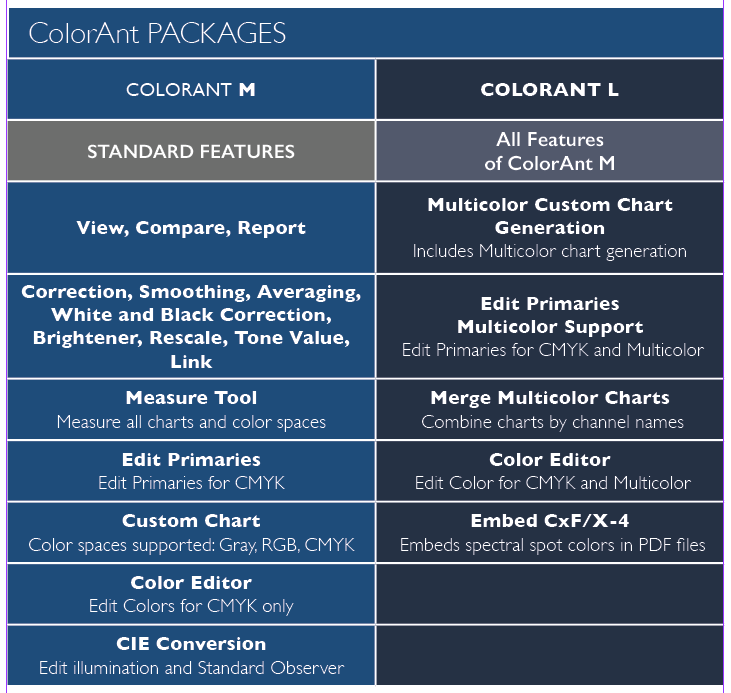
ColorAnt Packages

R

ColorAnt M


STANDARD FEATURES


Viewing, Comparing, Reporting

Correction, Smoothing, Averaging, White and Black Correction, Brightener, Rescale, Tone Value, Link


Edit Primaries

Edit Primaries for CMYK


Custom Chart Generation

Color spaces supported: Gray, RGB, CMYK


CIE Conversion

Edit the Standard Observer

R

ColorAnt L


ALL FEATURES OF ColorAnt M


Multicolor Custom Chart Generation

Color spaces supported: Gray, RGB, CMYK, Multicolor


Full range of editing and correction tools

Correction, Smoothing, Averaging, White and Black Correction, Brightener, Rescale, Tone Value, Link


Edit Primaries Multicolor Support

Edit Primaries for CMYK and Multicolor


Merge Multicolor Charts

Combine charts by channel names


ColorAnt M

STANDARD FEATURES


Measure test charts

Create and export custom charts for RGB, Gray and CMYK

Automatic optimization of data

Data correction

Smooth data

Reporting

Rescaling data and charts

Optical brightener correction

Tone value adjustments

White and black point correction

Edit Primaries for CMYK

Color Editor CMYK

Averaging

Link test charts

ICC transformation

Generate reports

View and compare

CIE conversion with ambient light measurement

ColorAnt L

Standard Features


Measure test charts

Create and export custom charts for RGB, Gray, CMYK and Multicolor

Automatic optimization of data

Data correction

Smooth data

Embed CxF X-4 Data

Rescaling

Optical brightener correction

Edit Primaries for CMYK and Mulitcolor

Color Editor

Tone value adjustments

White and black point correction

Averaging

Link Multicolor test charts

ICC transformation

Generate reports

View and compare

CIE conversion with ambient light measurement

ColorAnt | Main Window

Main Window

Access all features of ColorAnt

Main Window: Sidebar - Data Sets - History

Overview

ColorAnt’s main window is divided into 3 sections: The Sidebar, Data Sets and History.

All tools are located and grouped by function on the left side in the Sidebar, measurement data is shown in the Data Sets section on the right-hand side upper window.

Tools applied to the measurement data show are shown in the lower right hand side History window.

Note: If no dataset is selected, the tools are applied to all opened datasets!

All ICC profile drop-down menus function as search fields. Simply type in some letters of the desired profile name and only those profiles containing these letters will be shown in the drop-down menu.

Working With ColorAnt

Data Sets

The Data Sets section displays relevant information about the measurement data: Number of Patches, DCS (color model: CMYK, RGB, Multicolor) and measurement type CIE (colorimetric = Lab, spectral = Remission).

Open or import data

Measurement data can either be opened (File > Open) or dragged and dropped into the Data Sets window.

Note: If measurement data has been saved in an ICC profile (e.g., in profiles created by ColorLogic's CoPrA), it can simply be dragged and dropped onto the Data Sets window. The measured values are then displayed. If the profile does not contain any measured values, an error message appears (Missing ICC Tag: Could not read color data from file).

Extraction of original measurement data from an ICC profile: This functionality imports the original measurement data from ICC profiles. If you created or updated a profile with CoPrA using the Measurement Processing options Brightener Compensation and/or Measurement Correction, CoPrA stores two data sets inside the profile. The original measurement data (raw data) as well as the corrected data used for profiling (profiling data). ColorAnt extracts both data sets naming them accordingly when opened or when an ICC profile is dragged to the ColorAnt window.

Predefined data and recently opened files are also available from the File menu.

Measurement data can also be captured using the Measure Tool and transferred to ColorAnt. Measurement files created by Measure Tool are saved in the folder Username/Documents/ColorAnt/MeasurementData.

The ICC specification allows ICC profiles with up to 15 channels. Consequently, ColorAnt allows loading and saving test chart measurement data with up to 15 channels. If data with more than 15 channels is to be loaded, a warning is displayed as such data cannot be processed.

Note: This does not affect spot color data. It is still possible to load spot color measurement data containing thousands of colors.

Workaround for profiles without measurement data

If the measurement data of a profile is missing, you can use the ICC Transformation tool to create virtual measurement data:

  1. Open a reference file in ColorAnt with the color space of the profile
  2. Open the ICC Transformation tool
  3. Select the profile with the missing measurement data, the Checkbox Convert to Lab is enabled automatically
  4. Select Absolute colorimetric
  5. Click Start to convert the profile to Lab
  6. The profile data is opened under Data Sets in ColorAnt

The quality of the generated measurement data depends on the accuracy of the profile.

Opening combined CxF files

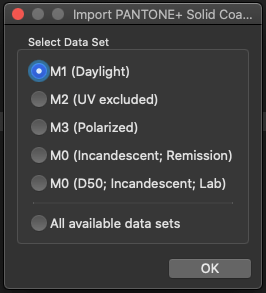
A single CxF file can contain several data sets, e.g., Lab data, remission data, CMYK data or DCS values.

When opening a CxF file that contains multiple measurement conditions, a prompt automatically appears inquiring which of the contained data sets is to be opened.

Either select the desired data set or open All available data sets.

Supported file formats

The following file formats can be opened:
CGATS text file (TXT) (including multiple tables)
CGATS XML file (XML) (including multiple tables)
Named ICC Profile (ICC)
Color Exchange Format (CxF)
Photoshop Palette (ACO)
Adobe Swatch Exchange (ASE)
GMG CSC file (CSC)
Ink Master file format (MIF)

The following file formats can be saved:
CGATS text file (TXT)
CGATS XML file (XML)
Named ICC Profile (ICC)
Color Exchange Format (CxF)
Photoshop Palette (ACO)
Adobe Swatch Exchange (ASE)
GMG CSC file (CSC)

History

History: Shows the tools and corrections applied to the measurement data of each editing step and allows to switch between different editing states of a file. By clicking on an entry in the History window (either above or below the current status) an individual processing step can be accessed and checked, for example in the View window.

Double-clicking on an entry in the History opens a window that displays the settings that were applied to the data in exactly this step. This information can be saved as a PDF document using Save Log.

This has an additional advantage when averaging files using the Averaging tool. The averaging log contains a detailed report with sample colors that compares the averaged data with all files and provides useful statistics for process control, such as standard deviations (sigma, 2 sigma, 3 sigma) for Density, dE and dH/dL. This makes it easy to identify colors with large deviations.

Save History Log: Saves all changes applied to all files to a PDF document.

View, Compare and Evaluate

Advanced viewing options for ColorAnt's tools located at the bottom of the main window that can be enabled for both viewing measurement data (View) and pre and post comparison of measurement data (Compare).

Evaluate can be used to check whether the proof measurement data from a media wedge fulfills the requirements for a contract proof according to ISO 12647-7 or a validation print according to ISO 12647-8.
In addition, a PSD evaluation can be performed using two different evaluation methods: "Side-by-Side" or "Media Relative". Finally, a fully detailed report can be created with a pass/fail indicator.

Note: The Evaluate tool is available from ColorAnt L.

At the bottom of the sidebar, you can access the Registration page, where you can load and manage your licenses. Absolute or Relative Density can be set in ColorAnt's Preferences.

Context Menu

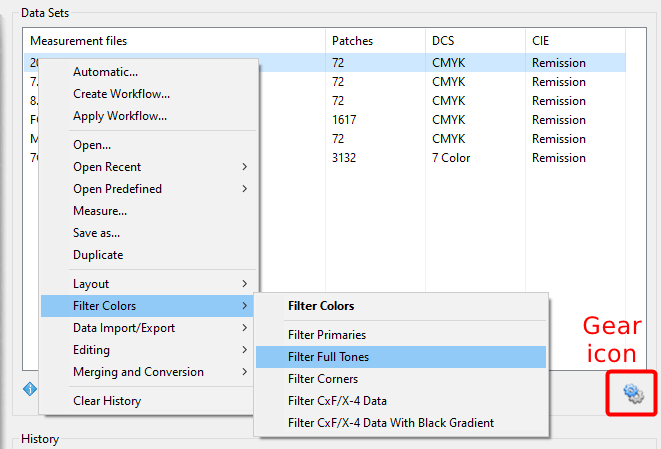
The context menu can be opened with a right-click on a selected measurement file or the Gear icon and thus enables quick access to all tools of the Sidebar and the functions from the File menu of the menu bar.

Note: Depending on the selected file(s) only the relevant options are available via the context menu. Options that are not available are grayed out. A file has to be selected for the context menu to appear unless there is no file loaded, then the context menu appears when right-clicking in the empty Data Sets section, for example, to open files. 

Workflow
The Workflow feature enables automatic processing and optimization of measurement data. The application of various tools for data processing can be defined and adapted to the requirements of specific jobs, which means that measurement data can be automatically processed in a precisely specified manner.
Detailed information can be found on the Workflow page.

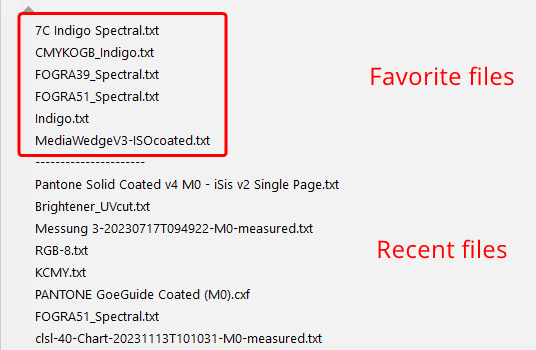
Open Recent: Opens a list of all recently opened files. Frequently used files (favorite files) can be added to this list as well, and can then conveniently be opened via the context menu.

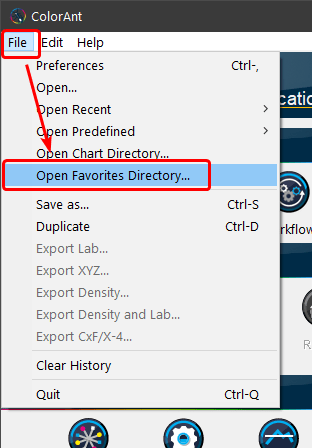
To make them accessible in the context menu, store them in the FavoriteFiles folder which can be opened via the ColorAnt File menu.

All supported files of this folder are displayed at the top of the list of recent files, separated by a dashed line. As this list is shared by all ColorLogic applications, the files contained there are also available in CoPrA and ZePrA.

Layout

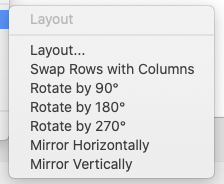
The Layout submenu contains options to rotate and mirror test charts and to change the overall layout.

Layout: Allows you to change the width and height of the color patches. For example, the number of rows in a chart can be defined by Height and the number of columns by Width.

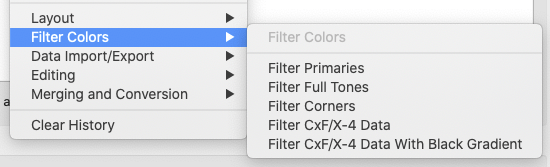
Filter Colors

Filter Primaries: Extracts the primary colors from a measurement file.

Filter Full Tones: Extracts the full tones from a measurement file.

Filter Corners: Extracts the corner points from a measurement file.

Filter CxF/X-4 Data: Extracts all values corresponding to the CxF/X-4 specification (e.g., the gradients of the primaries on white and black) from a measurement file.

Filter CxF/X-4 Data With Black Gradient: Extracts all values useful for CxF/X-4 including a black gradient from a measurement file.

Data Import/Export

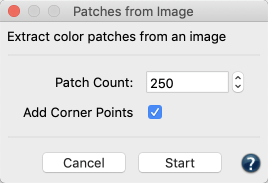
Patches from Image: Creates an image-related test chart based on a loaded image by extracting the most common/important colors from that image. It can be accessed via the context menu or by dragging and dropping TIFF or JPEG files into ColorAnt’s main window. In the Patches from Image settings screen, select the number of desired patches for the test chart and whether the corner points should be added as well.

Note: This function determines the best color set to accurately render an image (if these colors are accurately rendered, the entire image will be accurately rendered). This requires a compromise in color frequency, avoiding neighboring colors, avoiding large gaps and covering the gamut of the image.

Separate Esko Test Charts: Extracts data out of a 7C data set to generate a 4x4 Equinox test chart (Equinox is a Multicolor profiling application from Esko that has special requirements for creating test charts for Multicolor profiling).

Example: For a CMYKOGV data set, this function creates the following four data sets: 

  1. CMYK.txt, which contains the CMYK components
  2. OMYK.txt, which contains the OMYK components, but the first channel (Orange) must be named Cyan
  3. CGYK.txt, which contains the CGYK components, but the second channel (Green) must be named Magenta
  4. CMVK.txt, which contains the CMVK components, but the third channel (Violet) must be named Yellow

Export Lab/XYZ/Density/CxF/X-4: Data can be exported in the following formats:
Lab, XYZ, density in formats such as CGATS text files (txt) or Color Exchange Format (CxF3).
For more information on this format, see the help on Export CxF/X-4.

Delete: Removes the selected files from the Data Sets window. However, the files are not deleted from the hard disk.

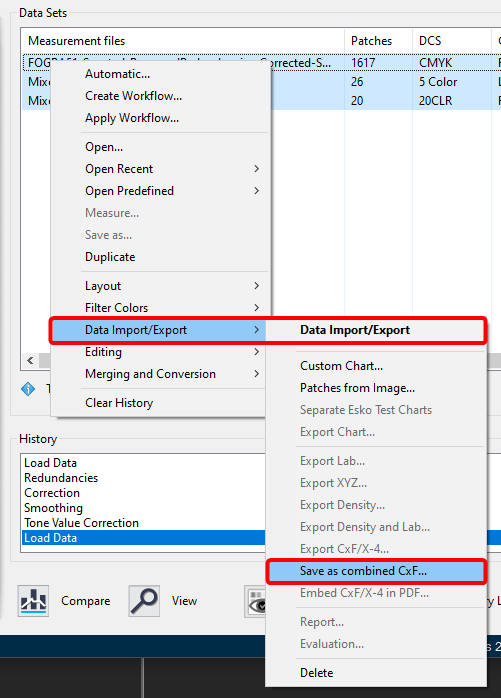
Save as combined CxF
Combined CxF files may contain several measurement sets (e.g., spectral and Lab datasets) and can be generated directly in ColorAnt.
This function is only available when several files are loaded in the Data Sets area. Select all files which are to be combined in a single CxF file, then select Data Import/Export > Save as combined CxF and then the CxF format.

Note: A single dataset can be saved as a CxF file by using Save as.

Editing

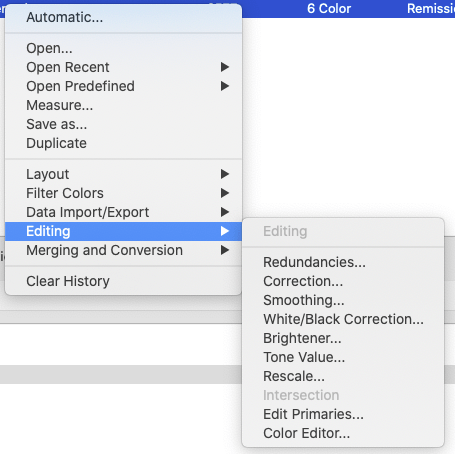
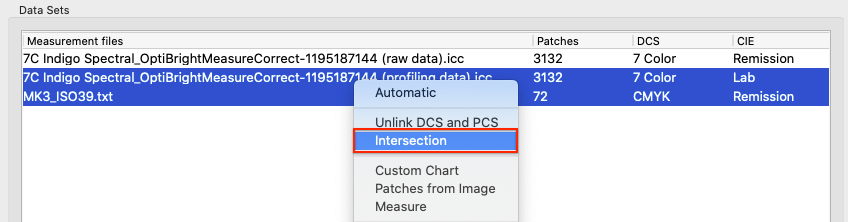
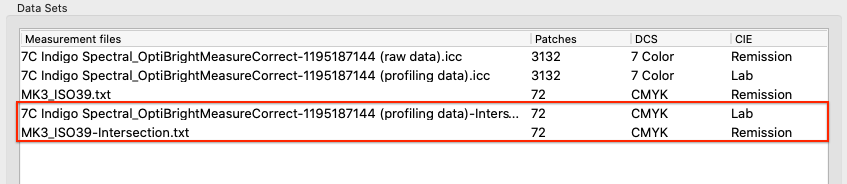
Intersection: Compare measurement data containing a differing number of color patches and/or color channels. To use this function, choose the two measurement data sets in the main window and select Intersection from the context menu. Alternatively, click the button with the gear symbol to the right below the measurement data list.

ColorAnt then scans both files for color patches with identical device values and removes all other values. This creates two new files containing identical device values which can be compared in the Compare window.

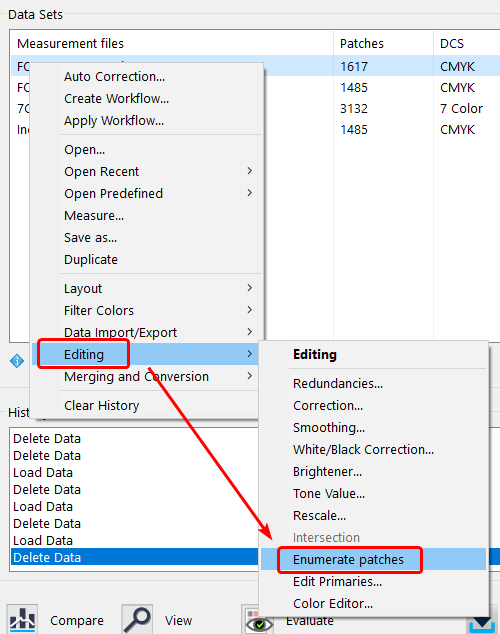
Enumerate patches: Sometimes IDs of patches get mixed up, for example, when merging several files, resulting in different types of IDs.

The Enumerate patches function creates new, consistent IDs for all patches.

Merging and Conversion

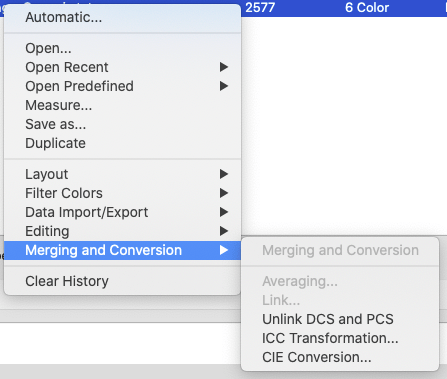
Unlink PCS and DCS: Separates the measurement data from reference data. (Splits files with reference and measurement data into two individual files).

Clear History: Removes all entries in the History window.

Context Menu

The context menu can be opened with a right-click on a selected measurement file or the Gear icon and thus enables quick access to all tools of the Sidebar and the functions from the File menu of the menu bar.

Note: Depending on the selected file(s) only the relevant options are available via the context menu. Options that are not available are grayed out. A file has to be selected for the context menu to appear unless there is no file loaded, then the context menu appears when right-clicking in the empty Data Sets section, for example, to open files. 

Workflow
The Workflow feature enables automatic processing and optimization of measurement data. The application of various tools for data processing can be defined and adapted to the requirements of specific jobs, which means that measurement data can be automatically processed in a precisely specified manner.
Detailed information can be found on the Workflow page.

Open Recent: Opens a list of all recently opened files. Frequently used files (favorite files) can be added to this list as well, and can then conveniently be opened via the context menu.

To make them accessible in the context menu, store them in the FavoriteFiles folder which can be opened via the ColorAnt File menu.

All supported files of this folder are displayed at the top of the list of recent files, separated by a dashed line. As this list is shared by all ColorLogic applications, the files contained there are also available in CoPrA and ZePrA.

Layout

The Layout submenu contains options to rotate and mirror test charts and to change the overall layout.

Layout: Allows you to change the width and height of the color patches. For example, the number of rows in a chart can be defined by Height and the number of columns by Width.

Filter Colors

Filter Primaries: Extracts the primary colors from a measurement file.

Filter Full Tones: Extracts the full tones from a measurement file.

Filter Corners: Extracts the corner points from a measurement file.

Filter CxF/X-4 Data: Extracts all values corresponding to the CxF/X-4 specification (e.g., the gradients of the primaries on white and black) from a measurement file.

Filter CxF/X-4 Data With Black Gradient: Extracts all values useful for CxF/X-4 including a black gradient from a measurement file.

Data Import/Export

Patches from Image: Creates an image-related test chart based on a loaded image by extracting the most common/important colors from that image. It can be accessed via the context menu or by dragging and dropping TIFF or JPEG files into ColorAnt’s main window. In the Patches from Image settings screen, select the number of desired patches for the test chart and whether the corner points should be added as well.

Note: This function determines the best color set to accurately render an image (if these colors are accurately rendered, the entire image will be accurately rendered). This requires a compromise in color frequency, avoiding neighboring colors, avoiding large gaps and covering the gamut of the image.

Separate Esko Test Charts: Extracts data out of a 7C data set to generate a 4x4 Equinox test chart (Equinox is a Multicolor profiling application from Esko that has special requirements for creating test charts for Multicolor profiling).

Example: For a CMYKOGV data set, this function creates the following four data sets: 

  1. CMYK.txt, which contains the CMYK components
  2. OMYK.txt, which contains the OMYK components, but the first channel (Orange) must be named Cyan
  3. CGYK.txt, which contains the CGYK components, but the second channel (Green) must be named Magenta
  4. CMVK.txt, which contains the CMVK components, but the third channel (Violet) must be named Yellow

Export Lab/XYZ/Density/CxF/X-4: Data can be exported in the following formats:
Lab, XYZ, density in formats such as CGATS text files (txt) or Color Exchange Format (CxF3).
For more information on this format, see the help on Export CxF/X-4.

Delete: Removes the selected files from the Data Sets window. However, the files are not deleted from the hard disk.

Save as combined CxF
Combined CxF files may contain several measurement sets (e.g., spectral and Lab datasets) and can be generated directly in ColorAnt.
This function is only available when several files are loaded in the Data Sets area. Select all files which are to be combined in a single CxF file, then select Data Import/Export > Save as combined CxF and then the CxF format.

Note: A single dataset can be saved as a CxF file by using Save as.

Editing

Intersection: Compare measurement data containing a differing number of color patches and/or color channels. To use this function, choose the two measurement data sets in the main window and select Intersection from the context menu. Alternatively, click the button with the gear symbol to the right below the measurement data list.

ColorAnt then scans both files for color patches with identical device values and removes all other values. This creates two new files containing identical device values which can be compared in the Compare window.

Enumerate patches: Sometimes IDs of patches get mixed up, for example, when merging several files, resulting in different types of IDs.

The Enumerate patches function creates new, consistent IDs for all patches.

Merging and Conversion

Unlink PCS and DCS: Separates the measurement data from reference data. (Splits files with reference and measurement data into two individual files).

Spot Color Library to DCS: Converts files containing spot colors and up to 15 channels into the corresponding Device Color Space.

Create Charts from Spot Colors: Splits the entire library into individual charts for each color.

Merge Charts to a Spot Color Library: Combines several compatible charts into one spot color library.

Clear History: Removes all entries in the History window.

Sidebar

Automatic Correction

Auto 

Correct measurement data automatically

Workflow

Customized automatic processing and optimization of measurement data

Data Import/Export

Custom Chart 

Create custom reference files for test chart creation

Export Chart

Create printable test charts from custom reference files

Measure

Measuring printed test charts with the Measure Tool

Report

Detailed analysis of measurement data as PDF or XML file

Embed CxF/X-4

Embed spectral color information in PDF files

Editing

Redundancies

Remove redundant color patches

Correction

Correct erroneous and inconsistent measurement data

Smoothing

Smooth and correct measurement data

White/Black Correction 

Adjust the black and white of measurement files

Brightener

Remove optical brightener from measurement data

Tone Value

Adjust dot gain curves

Rescale

Scale measurement files to create required test chart layouts

Edit Primaries 

Add, remove or exchange primaries and paper white in existing measurement data

Color Editor

Optimize color patches and (spot) colors

Merging and Conversion

Averaging

Average measured values from multiple similar test chart prints

Link

Combine measurements from several test charts into a new measurement file

ICC Transformation 

Comparisons and profile tests with printer and DeviceLink profiles

CIE Conversion

Change the observer and illumination

Menu Bar

ColorAnt

 About: Calls the Registration. Contains information about the version and build number.
Preferences: Adapt ColorAnt to your requirements. Define the display of density, the tone value calculation, report settings and general settings.

File

Under File you can open, save or export data in various formats.

Save As: Saves files in the following formats:

  • CGATS text file (txt)
  • CGATS XML file (xml)
  • Named ICC profiles (icc)
  • Color Exchange Format (CxF)
  • Photoshop Palette (aco)
  • Adobe Swatch Exchange (ase)
  • GMG CSC file (csc)

Special features of the formats:
Named Color Profiles are special ICC profiles that are intended for spot color tables. They contain the CIE and DCS values in addition to the color name.
ACO and ASE files can contain either CIE or DCS values. Therefore, when saving in one of the two formats, a message appears to select which data should be saved.
CGATS files can contain different specifications in one file, e.g., measurements from different test charts or different color spaces. ColorAnt supports multiple tables in CGATS files. A typical use case would be the export of various Lab values of converted spot colors from the Spot Color Report feature in ZePrA and their import to ColorAnt for further inspection.

Duplicate: Creates a copy of the selected file.

Export Lab/XYZ/Density/CxF/X-4: Data can be exported in the following formats:

As Lab, XYZ, density in formats such as CGATS text files (txt) or Color Exchange Format (CxF3).

For more information on this format, see the help on Export CxF/X-4.

Help

Online Help
ColorAnt’s Online Help Guide

Quick Start Guide
Access ColorAnt’s online Quick Start Guide

Tutorials/Sample Data
Link to the Tutorials website which contains a download link for Sample Data. With this data you can test or demonstrate the different tools of ColorAnt. You can download the sample data as an archive file (SampleData.zip).
The package also includes a PDF document that explains all the examples and how to use the sample data.

What’s new?
View what’s new, includes new features and bug fixes in ColorAnt.

Readme.txt
Version notes for the current release

ColorAnt CLI Documentation: ColorAnt provides a command line interface for integration into other workflows. The document ColorAntCLI.pdf provides an overview of the available commands and can be opened by clicking on ColorAnt CLI Documentation in the Help menu. It is intended for developers, scripters and experts and describes the usage of the command line interface of ColorAnt.
Note: The CLI functionality is part of the ColorAnt XL package.

Register
Access the Registration information window

Check for update
The automatic update in ColorAnt checks for updates via an internet connection. Enable Automatic Update Checks may be disabled at any time which is recommended if an internet connection is not available. When disabled, it is still possible to manually update and download it directly from the dialog.

Save Support Data
If support issues arise, use the Save Support Data menu entry under Help to save support data and send it to a ColorLogic representative for assistance. This feature will gather the required information such as the operating system used, ColorAnt’s log file and the functions enabled when the issue occurred.

ColorAnt | Automatic Correction

Auto Correction

Auto correct measurement data

Automatic Correction

Measurement data can be optimized by applying appropriate corrections, thus increasing the quality of the resulting profiles. The characteristics of the print are retained as accurately as possible.

When optimizing measurement data, a certain sequence of corrections is recommended. First, redundant color patches must be resolved, then incorrect measured values must be corrected and finally the measurement data must be smoothed.

The Auto Correction tool automatically performs these optimizations in the recommended order, applying the Redundancies, Correction and Smoothing tools sequentially.
Note: Measurement data from flexographic printing should be optimized manually, as the Auto Correction tool smoothes the highlights.

The screenshots show the settings that are used by the Auto Correction tool:

1. Redundancies: Resolves redundant color patches

2. Correction: Corrects faulty measurement values without optimizing the overprint properties

3. Smoothing: Smoothes the measurement data with a Smoothing factor of 50 % without protecting the highlights​

All applied tools are listed in the History section. It is advisable to create a report with detailed results and relevant recommendations on the measurement data.

Procedure

  1. Open the measurement data to be optimized
  2. Click on Auto Correction and then Start. The corrections applied to the data are displayed under History.
  3. Save the optimized measurement data as a new file via File > Save as.

Automatic correction of multiple datasets

The Auto Correction recognizes the corrections to be made based on the measurement data. If multiple datasets have been selected, it checks whether the number of color patches matches and averages the data while optimizing the measurement data for individual files or multiple files with different numbers of color patches.

ColorAnt | Compare

Compare

Compare measurement data before and after correction

Compare

The Comparison window shows measurement data before and after optimization and allows the user to compare the steps that achieved the optimized data (for example Correction, Smoothing or Auto).

Colors

Compare Mode: Select a color distance formula. Available are Delta-Auto, Delta-DCS, DeltaE-76, DeltaE-2000, Delta-Ch, Delta-L, Delta-C and Delta-H, with the last three being particularly helpful when evaluating proofs.
Note: Delta-Auto is a special method that allows for a delta calculation of DCS data. If measurement values are existing in the files to be compared then Delta-Auto uses DeltaE-76.

Sort: Allows you to sort color patches by their delta values. Select the preferred Compare mode from the drop-down menu and activate the Sort checkbox to reorder the color patches from larger to smaller delta values. This makes it easy to find the patches with the highest and the lowest deltaEs or those patches with the highest chroma or lightness differences.

Zoom: The Zoom function allows a closer look at the color patches of the measurement file. Use the shortcuts CMD + and CMD - (macOS) or STRG + and STRG - (Windows) to zoom in and out.

Mark from: Displays the Delta values from the specified value.
Mark to: Displays the Delta values up to the specified value.
Note: The sliders can be used to limit the displayed number of color patches to the relevant delta ranges.

Filters allow a combination of individual channels which are to be compared. Combinations of 2, 3, 4, 5 or 6 channels, as well as one and two channels in combination with black, can be faded in and out.

Note: For each selected patch, the Lab value and the color space and reference values are shown. If no patch is selected, the Maximum and Average delta values are displayed for the entire file considering the set filters.

Display Differences shows color deviations from white (no deviation) to dark gray (high deviations).

Fit chart to width displays the color patches as large as possible to the size of the window. Display the entire chart by clicking the check box.

Graph

Shows a graphical representation of the error distribution as percentiles.

Statistics

Shows statistics like Average, Maximum, Sigma, Median, and Coefficient of Variation of the 10 worst patches and the error distribution in 10% percentiles.

Report

A Comparison Report can be created for two selected datasets.

The Comparison Report contains information about the Average and Maximum deviation, the Patch numbers and their corresponding Lab values, the CMYK values and the Delta deviation of each patch.

The Comparison Report can be saved as PDF or XML file.

Procedure

  1. Apply a correction to the measurement data.
  2. Select the data in the Data Set window.
  3. Click on the Compare button at the bottom of the window.
  4. Select the original measurement data from the drop-down menu in the upper left-hand window. Next, select the processed measurement data from the right-hand side of the window.

  5. Select the Compare mode from the drop-down menu (Delta-Auto, Delta-DCS, DeltaE-76, DeltaE-2000, Delta-Ch, Delta-L, Delta-C and Delta-H).

  6. Use Mark from and Mark to sliders to highlight patches within the DeltaE deviations selected. Highlighted patches are marked in red and the one patch with the maximum DeltaE is highlighted in cyan.
  7. Selecting a patch with the mouse – the before and after optimization will show in a split window with the Lab values and DeltaE information. If no patch has been selected, the Maximum and Average delta values are displayed.
  8. The Graph tab shows a graphical error distribution in percentiles.
  9. The Statistics tab lists statistical quantities such as maximum value, average, median, sigma, coefficient of variation as well as the ten worst measuring patches and the error distribution in 10% steps.