ZePrA | Flows EN

Flows

Automate various recurring routine tasks

Flows

Overview

The Flows tool can be used to automate various recurring routine tasks. This includes the ability to connect multiple configurations, route files based on conditions and perform simple automation tasks by setting up rules for file processing.

Flows help to reduce the number of queues and hot folders. However, more complex workflows require high-end automation workflows such as HYBRID CLOUDFLOW or Enfocus Switch, into which ZePrA can easily be integrated.

The Flows tool covers the following automation scenarios:

  • Combining multiple configurations, such as a color conversion configuration with an ink-saving configuration, in just a single queue.
  • Searching for output intents in PDF/X files or PDF files without output intents and forwarding them to the required configurations
  • Distribution of files based on naming convention, file size, file type, image width our height, or number of pages
  • Embedding CxF/X-4 spectral data for spot colors in PDF/X files
  • Automated creation of spot color reports for large numbers of PDF files and optional processing of the files with the best-suited configuration

Note: The Flows tool is part of the ZePrA Multicolor package, and can be added to a ZePrA Process package.

Working with Flows

Flows can be configured in the Define Flows section. Each flow carries a name and contains one or more Processing Rules. Similar to configurations, Flows can be created with or without a Queue and managed in the same way.

In the Overview, Flows are identified by a dedicated orange flow icon. For better distinction, configurations have their own blue icon.

Define Flows

Existing Flows can be selected from the drop-down menu. The sorting order of the menu items can be changed with the icon next to the menu:

  • Sort Order: Default – sorts the list of Flows by its IDs from lowest to highest number. Therefore, the Default sorting is not necessarily only sorting by creation date.
  • Sort Order: Name (A-Z) – sorts the list of Flows alphanumerically with numbers on top followed by the alphabets.
  • Sort Order: Modification Date – the last modified or created Flows are on top of the list.

Create, Rename, Delete and Save Flows

New: Creates a new Flow.

Rename: Can be used to change the name of an existing Flow.

Delete: Deletes the selected Flow.

Save: Saves the selected Flow.

Processing Rules

Processing Rules form the core of all Flows. A processing rule can include one or more Conditions. If a condition is met, a Procedure can be defined, which will then be executed. The next step after that can be defined as well. If a condition is not met, an alternative procedure and an alternative next step can both be defined.

New: Opens the Edit Processing Rule dialog that allows defining a new rule with  Conditions and Procedures for the selected Flow.

Edit: Allows processing rules to be modified as needed. Rules can also be edited by double-clicking on them.

Delete: Removes the selected processing rule from the Flow.

Conditions

Edit Processing Rule

Name: The name of the processing rule must be entered here. Without a dedicated name a processing rule cannot be saved.

Conditions

One or multiple conditions can be defined per rule. All specified conditions must be met for the rule to be applied. If multiple conditions are defined, the Filter Logic must be considered; see the section on Filter Logic below.

Select the Condition(s) that must be met for the filter rule to be applied:

  1. Select the Condition Type from the first drop-down menu
    If Output Intent is selected, the More Options button becomes available. Click this button to select the appropriate ICC profile.
  2. Select the Comparison Option from the second drop-down menu. Only applicable comparison options are available
  3. Specify the Comparison Criteria: In the text field, enter the value or text that the condition will be compared against

The following Conditions are available:

Always: No conditions need to be met; the selected Procedure is always carried out.

File Name: Enter the name of the file. The file name does not have to be entered exactly and is not case sensitive. Wildcards can also be used for file names:

  • The * wildcard stands for any number of characters.
    Example: CL*.pdf finds all files whose name begins with “CL” and ends with “.pdf” - e.g. CL_report.pdf or CL123.pdf.
  • The ? wildcard refers to exactly one character.
    Example: CL testpage V?.pdf would find CL testpage V5.pdf or CL testpage V9.pdf, but not CL testpage V11.pdf, as “11” contains two characters. To cover two characters, either use ?? or *.

Note: For wildcards to function correctly, the comparison option matches expressions with wildcards must be selected rather than equal to.
If several names are to be accepted, enter each one using wildcards and separate them with a semicolon (without spaces).
Example: CL*;ColorLogic*

If a search term contains a semicolon and should not be interpreted as a separator, enclose the entire term in quotation marks.
Example: "CL;must be"

File Size: Enter the file size using one of the following units: B, KB, MB, GB, or TB. The input is not case-sensitive, and spaces between the number and unit are optional.

If no unit is specified, bytes (B) are assumed by default.

Note: If the comparison criterion in range is selected, a unit can also be specified for the range.
Example: 10MB-20MB refers to a size between 10 and 20 megabytes.

Note: While some systems use 1000 as the conversion factor, the Flows tool uses 1024 (e.g., 1 KB = 1024 B, 1 MB = 1024 KB, 1 GB = 1024 MB, 1 TB = 1024 GB).

File Type: The following file types are supported: PDF, TIFF, PSD, PSB, JPEG.
Note: If multiple file types are to be accepted, use the comparison option is one of and list all file types separated by a semicolon (without spaces).
Example: TIF;JPG;PSD

Output Intent: Once the option Output Intent is selected from the Conditions drop-down menu, the More Options icon becomes available. Click this button to select the desired ICC profile.

Note: Select the equal to comparison option if the profile name should match exactly or use the is equivalent to comparison option if profiles that are similar to the selected profile should be treated as equivalent.
ZePrA contains an internal list of almost all known standard profiles. Many of these standard profiles are available in several naming variants which are also included in the list. These variants are the equivalent profiles recognized by ZePrA.

Equivalent profiles are for example: ISOcoated V2.icc, ISO coated V2 (300).icc, CoatedFOGRA39.icc, ISOcoated V2 (bas).icc

Note: If the text field of the comparison criterion is left empty, it is checked whether the PDF files have no output intent. This can be helpful for sorting out PDF files without an output intent.

Number of Pages: Enter the number of pages in the following formats:

  • Single page: 5 (refers only to page 5)
  • Page range: 2-6 (refers to pages 2 through 6)
  • Multiple single pages: 5,7 (refers to pages 5 and 7 but not 6)
    Note: If the in range comparison option is selected, the comparison criteria must be specified as a comma-separated list of ranges or numbers.
    Example: 1-3,6-7 (refers to the pages 1,2,3,6,7).

Width: Refers to the width of either a pixel file (such as TIFF, JPEG, PSD or PSB) or the width of the media box of a PDF file.

Height: Refers to the height of either a pixel file (such as TIFF, JPEG, PSD or PSB) or the height of the media box of a PDF file.
Note: Units should be specified for Width and Height. The input is not case-sensitive, and spaces between the number and unit are optional.
Example: 5 cm, 5INCH - both are valid and represent 5 centimeters and 5 inches, respectively.
If no unit is provided, the value is interpreted as pixels by default.
When the comparison criterion in range is selected, ranges can also have units. Example: 10cm-20cm refers to a range between 10 and 20 centimeters.

More Options icon (button with dots): If applicable, a dialog box opens where the desired item can be selected.

+/- buttons: Add or remove a Condition

Filter Logic: Only applicable if there is more than one condition.

  • or: Only one of the listed conditions is sufficient to initiate the respective Procedure
  • and: All of the listed conditions must be met to initiate the respective Procedure

Procedure - Operations

The operations which are to be carried out when the conditions are met can be defined in this section.

The following Operations are available:

None: No operation is performed.

Apply Configuration: The data is converted and processed according to the settings in the configuration. Use the More Options icon to select the desired Configuration.

Apply Flow: An existing Flow can be used and implemented as a self-contained step. Use the More Options icon to select the desired Flow.

External Command: After conversion, a file can be processed further by an application or a script file (e.g. a batch file under Windows or a shell script under macOS) which is to be used to open the converted file. This is equivalent to a drag-and-drop operation of the converted file onto the selected application or script.
For example, a script can be used to rename the file or add a number.

Path to Executable: Use the More Options icon to select a batch file or a Java Script file, whereby the path to the file is automatically specified. Example for a batch file: C:\CL\Temp\example.bat, example for a Java Script: C:\CL\Temp\example.js

Note: To use Java scripts, a Java Script runtime environment like Node.js must be installed.
Please make sure that the correct permissions are assigned to the script file, otherwise execution of the script will fail. This can be done via the console (terminal) with the command “chmod 755 /path/to/scriptfile.sh”.

Arguments: Specifies the command line arguments which are passed to the executable.

Time limit: Enter the time limit in seconds. If the script cannot be completed within the specified time, a timeout error is triggered.

Spot Color Report: Automatically creates a Spot Color Report. Click on the More Options icon to open the Spot Color Report dialog.

Select one or more configurations from the list which contain all settings for the conversion. Only Configurations which have the option Convert Spot Colors enabled are displayed in the list.
Note: Configurations that use PantoneLive spot color libraries are not listed here, as X-Rite/Pantone does not allow the export or embedding of the original PantoneLive spectral data.

Sort order: Sorts the spot colors in the list according to various criteria. When sorting by Delta E, spot colors with the lowest deltaE are listed at the top, and the highest deltaE at the bottom.

Format: The Spot Color Report can be saved in various formats:

  • PDF
  • HTML
  • Text
  • CGATS
  • CxF
  • JSON
  • XML

Note: Saving as CGATS text and Color Exchange Format (CxF) allows the file to be opened in external tools such as ColorAnt. This way, the device values (DCS) after optimization by ZePrA and the resulting Lab values can be examined. The Lab values of the spot colors in this file reflect the actual achievable Lab values resulting from the conversion via ZePrA and may differ from the original Lab values (due to out-of-gamut or other limitations).

The two file formats JSON and XML of the list are optimized for machine reading and are best for use by external systems to extract data for reports.

Note: The original PDF or image files with spot colors to be checked will be copied to the Output folder with the job ID added to the file name (provided that hot folders are assigned to the flow).
If the original PDF or image files are to be optionally converted using the best suitable configuration according to the results of the spot color report, a second processing rule must be defined with an Appy Configuration procedure that uses the %BestConfiguration placeholder. This placeholder can either be entered manually or selected via the More options button from the Configuration drop-down menu.

Embed CxF/X-4 Data in PDF: Embeds spectral measurement data of spot colors (CxF/X-4 compliant) into a PDF/X file so that other CxF/X-4 compliant tools can extract or use this data. Embedding complies with the PDF 2.0 and CxF/X-4 specifications if corresponding measurement data is provided in the spot color libraries.
Note: CxF/X-4 data can only be embedded in PDF/X-compliant files - embedding in normal PDF files is not possible.
Embedding also allows the addition of measurement data containing only full tone spectral data, even if these are not CxF/X-4b compatible. (CxF/X-4b requires both full tone data and paper white data).

Only spot color libraries that contain spectral data are displayed in the list. PantoneLive libraries are not listed here, as X-Rite/Pantone does not allow exporting or embedding the original PantoneLive spectral data. Use the checkboxes to select one or more spot color libraries. The order of the libraries is relevant as ZePrA checks the list from top to bottom for matching spot color names and only uses those spot colors which names are identical to the names in the PDF/X- file. To change the order of the libraries, use the buttons on the right.

There are two drop-down menus in the dialog to specify what to do with existing CxF/X-4 data and what to do if a spot color name does not exist in a selected spot color library:

Handling existing CxF/X-4 data: Select from the drop-down menu how existing spectral spot color data should be handled.

  • Always overwrite: Replaces any existing CxF/X-4 data with the data from the selected spot color library or libraries.
  • Don’t overwrite: Keeps the existing data unchanged; no overwriting occurs.
  • Overwrite if CxF/X-4 compliance is improved: Replaces the existing data only if the new data includes overprint information and improves compliance with the CxF/X-4 standard.

Undefined Spot Colors: If the name of a spot color cannot be found in a PDF/X file, there are three ways to handle this: Ignore it, Generate a Job Warning or Generate a Job Error.

Generate Job Error: This option displays a job error. Enter the message to be displayed in the text field. Error messages are displayed in the Overview > Processed Jobs list.

Generate Job Warning: This option displays a job warning. Enter the message to be displayed in the text field. The job warning will be displayed in the Overview > Processed Jobs list.

Add Information to Job Report: Enter the information to be added to the Job Report in the text field.

Copy File(s): Copies the processed file(s) to the folder specified here. Click on the More Options icon to select the folder.
If the text field remains empty, i.e. no folder is selected via More Options, the Output folder of the flow is automatically used.
Note: Only the resulting file(s) are copied, not the original one(s).

Procedure – Continuation

The next step after an operation has been completed must be defined. If a condition is not met, an alternative operation and an alternative next step can both be defined.

and continue with / and continue here: The drop-down menu contains all steps of the current Flow, along with an End and a Next Step option.

  • Next Step: The processing sequence continues with the next defined rule in the Flows table. This is the default setting.
    Note: If a continue with/here sections step is set to Next Step, make sure that this is still OK if a change of steps has been done for the flow.
  • Step 1, Step 2, …etc.: Sets one of the existing rules as the next processing step and ensures that a specific rule is applied next. This allows precise control over the flow's progression.
    Note: When changing the order of steps in the Flows table, the continue with/here sections in the rule are changed accordingly if a dedicated step was selected. Only if a step has been deleted and that step was selected in a processing rule the continue with/here sections will change to End.
  • End: This option stops further processing and should be selected if the current rule is to be the last processing step for the file. By default, files are processed sequentially through all steps from top to bottom.
Processing Rules table

The created processing rules are added to the table sequentially. The order of the rules is important, as the files are processed from top to bottom based on their order. Therefore, it is sometimes necessary to move rules from one position to another or to place new rules between existing rules when adding them.

The position of rules can be changed by drag-and-drop. Alternatively, right-click on a rule and use the context menu to move it. The context menu also offers additional options such as Duplicate, Delete, Cut, Copy, and Paste. Cut, Copy, and Paste can be used to transfer or copy rules from one flow to another.

Active rules are displayed with a marked checkbox. Removing the check mark deactivates the rule so it is skipped during processing.

ZePrA | Configuration | Image Quality

Image Quality

Manage all image quality settings in one place

Image Quality

All image quality-related aspects, such as Format Options, the Image Resolution and Image Dimensions as well as the sharpness (Sharpening) are grouped together in the Image Quality tab.

Format Options

TIFF, JPEG, PSD, or PSB image formats are processed in ZePrA  the same way as image data of a PDF file.

ZePrA supports images with 8 bit and 16 bit color depth. The color depth of the input data is preserved in conversions unless TIFF, PSD or PSB files are saved as JPEG files. This results in a color depth of 8 bit since only 8 bit is possible in JPEG files.

Compression Method: Four compression methods can be used for the color conversion of images:

  • Automatic: Images of PDF files can use a variety of compression methods. The Automatic method typically ensures that all existing image formats and compression methods are preserved. The only exception is that JPEG2000 compressed images of PDF files are written as lossless ZIP compressed images.
    This improves interoperability with various PDF workflows and viewers.
  • Lossless: Saves the image file in either PSD or TIFF format. JPEG data compressed into a PDF file is converted to ZIP. Multicolor files cannot be saved as JPEG.
  • JPEG: JPEG compression converts TIFF and PSD files to JPEG as well as uncompressed or ZIP compressed data of PDF files.
  • From Source: Ensures that all existing image formats are preserved, neither the color depth, type nor compression of the input data are changed.
    Note: ZePrA does not support JPEG2000 image file formats such as *.jp2, *.jpf or similar.

Preferred lossless Format: TIFF or PSD are available as lossless output formats.

JPEG Quality: Specifies the quality of JPEG compression for pixel images and JPEG-compressed images in PDF files. The compression rate is set to High by default, which can result in a larger file after color conversion for maximum compressed JPEG images.

Select one of the four predefined quality levels or use Custom to set an individual compression factor.

Tip: We recommend using the default setting High (90%).

Image Resolution

The Image Resolution section allows changing the resolution of images by adding thresholds for downscaling and upscaling. This applies to both pixel images and images in PDF files.

Change Image Resolution: This checkbox defines the desired resolution of images. Specify the required resolution in dpi. At least one of the threshold checkboxes must be enabled.

Downsample Threshold: Specifies the resolution from which images should be downscaled, for example, to optimize data for display on the Internet, to adjust the resolution for printing, or to avoid unnecessary resizing.

Note: ZePrA uses the “Bisquare” interpolation method to compensate for the potential loss of sharpness that may occur when images are scaled down.

Tip: The bicubic (sharpen) interpolation method of Photoshop can produce sharper images than ZePrA, but unlike ZePrA it shows noticeable artifacts. As described under Sharpen, the image downscaling and sharpening functions can be combined in ZePrA, in which case ZIP compression is used for images.

Upsample Threshold: Specifies the resolution from which images should be upscaled, for example if the image resolution is too low for printing (such as 72 dpi) or to avoid unnecessary resizing.
Example: To upscale images with a resolution below 150 dpi to 300 dpi, set the Upscale Threshold to 150 dpi and the Change Image Resolution value to 300 dpi. This configuration ensures that only images with a resolution lower than 150 dpi are upscaled, while images between 150 and 300 dpi remain unchanged to prevent unnecessary resampling.

Note: ZePrA uses the “Bicubic Catmull” interpolation method to compensate for the potential loss of sharpness that may occur when images are upscaled.

Note: When changing the image resolution, it is not sufficient to just activate the checkbox Change Image Resolution and deactivate the threshold. If no threshold checkbox is enabled, a job warning is displayed.

When all images, regardless of their resolution, are to be rescaled to a specific resolution (e.g. 300 dpi), activate the Change Image Resolution checkbox and enter the desired resolution. Select both checkboxes for the threshold values as well and define the same dpi figure in each number field. This way, images with a higher resolution (300 dpi in this example) will be scaled down, and images with a lower resolution will be scaled up.

In most situations, however, the image resolution should not be changed, and a resampling should only be considered if the image resolution is much too high or much too low. In such cases, appropriate resampling thresholds can be set.

When only downscaling from higher resolutions is required, enable the Downsample Threshold checkbox.

Conversely, if only low-resolution images need to be upscaled, just enable the Upsample Threshold checkbox.

Image Dimensions (Image Files only )

The Image Dimension section is intended for resizing image files. Among other things, this is useful for adjusting the usually enormous dimensions of pictures taken with smart phones.

Note: This only applies to image files (TIFF, JPEG, PSD, PSB files) but does not affect images in PDF files.

Mode: The available modes allow for flexible resizing with or without preserving the image’s original proportions.

  • Don’t Change: The image size and proportions remain unchanged.
  • Change Width and Height: This option allows you to manually set both the Width and Height of the image, regardless of its original proportions.
    This is useful when the image must conform to certain dimensions and the aspect ratio is of no concern.
    Note: Changing the aspect ratio will distort the image.
  • Preserve Proportion (specify width): This option allows you to change the Width of the image, while its height is automatically adjusted to maintain the original aspect ratio.
    This is useful when the image has to be adjusted to a certain width and image distortion is to be avoided.
  • Preserve Proportion (specify Height): This option allows you to change the Height, while the width is automatically adjusted to preserve the image’s aspect ratio.
    This is useful when the image needs to fit to a specific height and image distortion is to be avoided.
  • Change Width only: This option changes only the Width, without adjusting the Height, which will distort the image.
    This option is useful when a horizontal stretching or compression effect is desired and proportional accuracy is not required.
  • Change Height only: Changes the height while keeping the width fixed. This will stretch or compress the image vertically.
    This option is useful when a vertical stretched or compressed effect is desired and proportional accuracy is not required.

Width: Enter the desired image width and select the appropriate unit from the drop-down menu.

Height: Enter the desired image height and select the appropriate unit from the drop-down menu.

No Resampling: The number of pixels in the image remains unchanged, only the physical dimensions (width and height in cm or inches) are adjusted by automatically adjusting the image resolution. This avoids resampling, which is typically associated with a loss of quality.
This approach is particularly useful for images with low and unsuitable resolutions for print, such as smartphone images at 72 dpi, but with very large width and height.
Note: The checkbox is only available if the Image Resolution options above are unchecked. It is best suited when one of the two Preserve proportion Modes is used. In other modes, a workflow warning appears, but the function can still be executed.

Sharpening

Lack of sharpness is usually already compensated for by the camera or the integrated recording software. In addition, the Sharpen function is also used as a creative option in image processing programs.

ZePrA uses the "Unsharp Masking" algorithm for sharpening, which is also used by Adobe Photoshop. Sharpening images involves intensifying differences in brightness or color between two adjacent pixels. This can lead to lines between image areas with different brightness/color when sharpening strongly.

With ZePrA's Sharpen function, images can be sharpened after color conversion. In media production, there are several reasons for using sharpening:

  • To compensate for digitalization shortcomings (digital photo or scan)
  • Sharpen as a creative option
  • To compensate for loss of detail after changing the image resolution
  • To compensate for shortcomings in the printing process (e.g. screening)

Sharpening of image data can be applied to individual color formats (CMYK, RGB, Multicolor, Gray, Lab) or all color formats simultaneously.

Sharpening generally takes place after color conversion. In certain situations, for example when a transparency reduction is to be performed at the same time, images are sharpened before conversion.

Sharpening Presets

Three presets are available for sharpening - in addition to the option not to sharpen. Custom settings are also possible.

Note: Files that were created in a controlled, in-house working environment can usually be sharpened stronger.

Preset

  • Moderate Sharpening of all Images: Recommended presetting. Compensates for typical anomalies in the printing process.
  • Strong Sharpening of RGB and Gray Images: For media-neutral workflows that frequently use high-resolution RGB and Gray images.
  • Moderate Sharpening of downsampled Images: Compensates for minor sharpening losses that can occur, for example, when downscaling.
  • Custom: Allows all sharpening parameters to be defined individually. An Amount of 80% and a Threshold of 8 usually provide stable results.

The following parameters can be set individually:

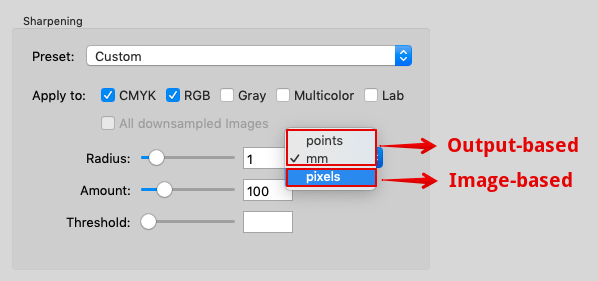
Radius: The wider the radius, the wider the line created during sharpening. The choice of the correct radius depends on several factors, such as the usual viewing distance or the resolution of the printing process used. For more information see the section on the relationship between scaling and image resolution below.

Amount: Indicates the intensity of sharpening in relation to the selected radius and should take into account the sharpness of the original image and the anomalies of the printing process.

Threshold: Describes the difference in color or brightness at which the sharpness filter will apply. The lower the threshold, the more image areas will be sharpened and the greater the risk that unwanted image artifacts will also be sharpened. The usual values here are 2 to 10.

Tip: Too much sharpening due to an excessively high Radius and too much Amount can lead to an unnatural image display. Depending on the Sharpening settings, artifacts that were previously not visible can now be visible and over-emphasized. This applies in particular to the square patterns of JPEG compression or the image noise in dark areas of digital photos.

To learn more about the special work processes/flattened transparencies and sharpening, see Working with Transparencies.

Image-based vs Output-based Sharpening Radius

The sharpening Radius can be defined in two different ways: image-based or output-based.

Image-based sharpening: The Radius is specified in pixels. With a radius of 2 pixels, the effective width of the sharpening is correspondingly 2 pixels. Corresponds to the method of the "Unsharp Mask" filter in Photoshop.

If a sharpened image is placed in a layout program, the visually perceived effective width or radius of the sharpening depends on the image resolution in pixels per inch (ppi) and the scaling in the layout program.

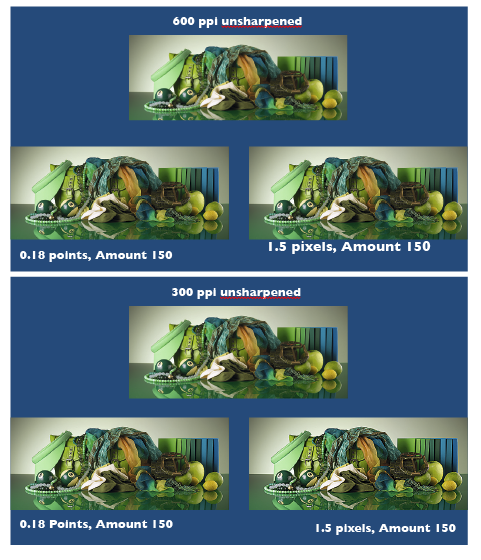
Example: If you specify a radius of 2 pixels for an image with 288 ppi resolution and place it in a layout program with a 100% scale, the visually perceived radius of sharpening is 0.5 points (0.18 mm). This results from the fact that 72 points represent one inch. For an image with 288 pixels per inch, one pixel is 0.25 points (0.09 mm) wide.

Output-based sharpening: The sharpening radius (in points or mm) remains the same for images with different resolutions or scaling in the layout program. Since output-based sharpening mainly compensates for detail losses of the output system (e.g. due to rasterization), it is ensured that the sharpening radius of all images in the document counteracts the detail loss of the output in a comparable way.

sharpening-2 sharpening-one

Correlations Between Scaling and Image Resolution

If you reduce the image from the previous example with 288 ppi resolution to 50% in the layout program, the image resolution changes to 576 ppi. An output-based sharpening with 0.5 points results in a doubled radius of 4 pixels.

Typical image-based sharpening radii of 300 dpi images with 100% scaling in the layout program correspond to the following values of output-based sharpening in points:

0.8 pixels = 0.19 points
0.9 pixels = 0.22 points
1.0 pixels = 0.24 points
1.1 pixels = 0.26 points
1.2 pixels = 0.29 points
1.3 pixels = 0.31 points
1.4 pixels = 0.34 points
1.5 pixels = 0.36 points
1.6 pixels = 0.38 points

Converting the Width of an Image Pixel of Any Resolution into Points

The following correlation applies:

Radius (in points) = 72 / Image resolution (in ppi)

Note: Adobe Photoshop uses the term dpi (dots per inch) instead of ppi (pixel per inch).

The radius of the sharpness should not be larger than the raster width in the print. The following table shows the raster width and the radius of the sharpness (in mm) in a ratio of 1:1:

60 l/cm= 0.17 mm (0.48 points)
70 l/cm = 0.14 mm (0.40 points)
80 l/cm = 0.13 mm (0.37 points)
90 l/cm = 0.11 mm (0.31 points)
100 l/cm = 0.10 mm (0.28 points)
110 l/cm = 0.09 mm (0.26 points)
120 l/cm = 0.08 mm (0.23 points)
200 l/cm = 0.05 mm (0.14 points)

l/cm = lines per centimetre

If you are printing with a 70 l/cm screen ruling, the radius should be 0.14 mm or less.

The sharpening radius (in mm) corresponding to a given screen ruling can be calculated using the following formula:

Radius (in mm) = 10 / screen ruling (in lines per centimeter)

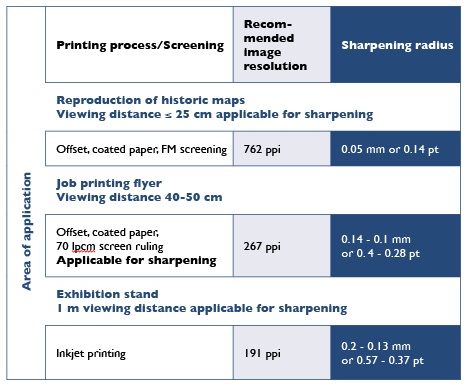
Sharpening and Image Resolution in Relation to Viewing Distance, Printing Process and Screen Ruling

The radius of the sharpening can be determined by taking the viewing distance, the printing process and the screen ruling into account.

The maximum resolution of the eye - depending on the contrast of the structures and the position in the field of view - is approximately 0.2 mm (127 pixels per inch) at a viewing distance of 1 m or approximately 0.05 mm (508 pixels per inch) at a viewing distance of 25 cm.

The image resolution and effective width (or radius of sharpening) should only be adjusted to the print resolution if the selected printing method is capable of reproducing details in the resolution of the eye for the respective viewing distance. To be on the safe side, the image resolution should be approximately 1.5 times higher than the print resolution or the assumed viewing distance.

Example 1: An offset print with a screen ruling of 70 l/cm (178 lpi) can reliably reproduce details up to 0.14 mm wide, which also defines the maximum radius of sharpening. With a 1.5-fold reserve, the image resolution should be at least 267 ppi.

Example 2: At a trade fair stand viewed from a distance of 1 m, the normal eye can detect details down to approximately 0.2 mm, which determines the radius of sharpening. With a 1.5-fold reserve, an image resolution of 191 ppi is sufficient.

ZePrA | Automation EN

Automation and Connectivity

Job Control Files - Command Line Interface - Auto Import Folder - Enfocus Switch Integration - Push-2-ZePrA

Automation and Connectivity

ZePrA's automation capabilities allow for complex workflows with dynamic changes on a job-by-job basis.

One of ZePrA's greatest quality is its versatility:

  • ZePrA can be used as stand-alone color sever or connected to other workflows.
  • ZePrA can be operated via the user interface or completely faceless via the Command Line interface (CLI).
  • The Push-2-ZePrA Adobe Photoshop extension allows color converting image files - selected in Photoshop - with ZePrA, without having to leave Photoshop.
  • Multiple ZePrA instances in larger organizations can all share a common folder - the Auto Import folder - to connect to each other and share configurations, spot color libraries and profiles to synchronize each other.
  • ZePrA Connector launched in cooperation with sister company HYBRID Software and links ZePrA with CLOUDFLOW enterprise packaging software.
  • The Enfocus Switch ZePrA configurator allows ZePrA to be integrated into more complex workflows. Integration with the Impressed Workflow Server (IWS) is also possible.
  • With Job Control Files almost every function in ZePrA can be controlled remotely without the need to intervene in ZePrA's user interface. Job Control Files are XML or JSON files with ZePrA commands and are placed in the Input folder of a ZePrA Queue or used as argument in a command line


Push-2-ZePrA

Push-2-ZePrA is an Adobe Photoshop extension that allows color converting an image file selected in Photoshop with ColorLogic’s color server ZePrA from Photoshop.

Depending on the color server settings high quality color conversions with DeviceLink profiles will be performed leading to better color rendering of images than typical color conversion with Photoshop. Even spot colors can be converted if the selected ZePrA configuration is set up accordingly. The converted file will be opened up in Photoshop so that you do not need to leave Photoshop in order to get the best possible color converted images.

Detailed Information is available on the Push-2-ZePrA page.

Automatic Import - ZePrA's cloud function

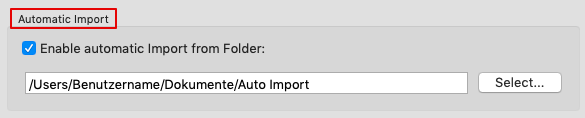
When ZePrA is used on multiple computers within a company, the cloud feature Automatic Import allows sharing configurations and spot color libraries by deploying a shared folder in the cloud (DropBox, Google Drive, internal cloud) or on the internal network. The folder supports ZePrA’s spot color libraries (*.ccf files), spot colors in CxF files, ZePrA configurations (*.ccf files), and CoPrA DeviceLink settings for SmartLink (*.dlcfg and *.sicfg files).

Specifying the location for the Auto Import folder

Example: A flexo printer is continuously adding new spot colors for use in ZePrA’s spot color conversion. By saving the spot color library to the shared folder, each ZePrA installation, no matter where it is located, will automatically receive the updated file. It is important that all ZePrA applications have access to the cloud folder.

Files (such as ICC profiles, configurations, spot color libraries, gradations or SmartLink settings) that are moved or copied into the Auto Import folder are transferred to ZePrA’s internal dataset and can then be used by ZePrA.

When the file in the Auto Import folder is replaced by a newer version, it will be updated in ZePrA’s internal datasets as well.

Note: If a file in the Auto Import folder is deleted, it is not deleted in ZePrA’s internal dataset. For example if a SmartLink setting has been deleted in the Auto Import folder, it is still available in ZePrA’s internal dataset and if this setting is deleted in ZePrA’s dataset, it is still available in the Auto Import folder.

HYBRID CLOUDFLOW Integration

CLOUDFLOW Colorspace

Launched in partnership with sister company HYBRID Software, CLOUDFLOW Colorspace delivers state-of-the-art spectral color predictions for CLOUDFLOW enterprise packaging software. CLOUDFLOW Colorspace is based on ZePrA and uses ZePrA's innovative technologies for spot color calculations and color conversions.

CLOUDFLOW’s modular production workflow suite is tailor made for the label and packaging industry and offers file processing, asset management, soft proofing and workflow automation tools.

CLOUDFLOW Colorspace is driven seamlessly from CLOUDFLOW and supplies automatic color optimizations for enhanced spot color performance, cost optimizations linked to Extended Color Gamut printing and ink-saving technology, and improved press uptime and performance through reduced waste and energy usage.

Elevate color capabilities with CLOUDFLOW Colorspace:

  • State-of-the-art spectral color predictions
  • Drive ZePrA in an easy to use and configurable UI within CLOUDFLOW
  • Unlock cost optimisations with Extended Color Gamut printing and ink saving technology
  • Color targeted for your unique printing condition
  • Tight integration into your unique business processes
  • Automated decision analysis of spot color performance
  • Routing flexibility to conventional and digital printing

Learn more about CLOUDFLOW at cloudflow.hybridsoftware.com.

About HYBRID Software

With offices in Belgium, Germany, US, UK, Spain, France, Italy, and China plus a global partner network, HYBRID Software is an enterprise software development company focused on innovative productivity tools for the graphic arts industry.

HYBRID Software’s CLOUDFLOW workflow, PACKZ and STEPZ editors, and print quality solutions offer a unique set of advantages that include native PDF workflows, enterprise cloud solutions, scalable technology with low cost of ownership, and direct integration with leading MIS solutions and output devices. These products are used by thousands of customers worldwide in all areas of prepress and print, including labels and packaging, folding cartons, corrugated, wide format and digital printing. HYBRID Software is a subsidiary of Hybrid Software Group.

www.hybridsoftware.com

Contact: marketing@hybridsoftware.com

Enfocus Switch Integration

Working with Enfocus Switch

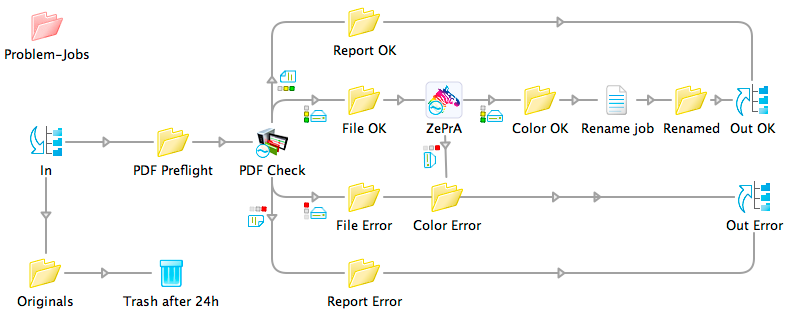
Even for highly advanced and efficiently configured applications like ZePrA, there are still application scenarios where special file treatment or an additional approval step for optimized PDF files make sense. This particularly applies to print providers and printing companies who receive PDF data from numerous customers that have been produced in a variety of different ways. The combination of ZePrA with Enfocus Switch and a preflighting solution has proven to be very successful for this kind of application.

Job Control Files

Job Control Files are XML or JSON files containing ZePrA commands and are placed in the Input folder of a ZePrA queue or used as an argument in a command line. With the Job Control Files almost every function in ZePrA can be controlled remotely without the need to intervene in ZePrA's user interface. The Job Control File feature can also be used independently from the CLI in regular ZePrA operations.

The working principle of Job Control Files is explained in the video below.

To get started, we have compiled a few Job Control Files examples that can be used to familiarize yourself with the functionality and the application (Download here).

The technical documentation on Configuration Options and Job Control File File format can be downloaded as PDF.

For 3rd parties intending to parse and use the information provided in the ZePrA Job Report, the ZePrA_JobProperties.pdf file is available, which contains a description of the ZePrA Job Properties in JSON format.

Using Job Control Files with the ZePrA CLI and the ZePrA GUI

ZePrA Job Control Files

This section describes the usage of Job Control Files with the ZePrA CLI and the ZePrA GUI. The content and format of Job Control Files are specified in detail in JobControlFileFormat.pdf and ConfigurationOptions.pdf.

Basics

  • Job Control File is an XML or JSON file
  • Job Control File can be processed using the CLI (via command line) or the ZePrA user interface (via Queues)
  • The Job Control File contains information about the input file, the desired output file and the to be used configuration and options

Configuration

The configuration can be specified in three ways:

  1. Name of an existing configuration plus options. A temporary copy of the existing configuration is modified with the options and the file is processed with the resulting configuration.
  2. Auto setup plus options. A temporary configuration is created with auto setup and modified with the options and the file is processed with the resulting configuration.
  3. Pure options. A temporary configuration is created "from scratch" based on the options and the file is processed with the resulting configuration. In this case, the options completely define the configuration.

In any case, creation or modification of configurations are only temporary and have no effect on the saved settings of ZePrA.

Input file

The input file can be specified in different ways:

  • full path
  • relative path (also a pure file name)
  • The input file is a file with the same base name and same path as the Job Control File. That means, if the Job Control File is "test.xml", ZePrA looks for a file name "test.pdf", test.tif", etc. at the same location.

Output file

The output file can be specified in different ways:

  • full path
  • file name without path
  • default

Reporting

  • In the Job Properties (e.g. available in the Overview dialog of ZePrA via right click on a processed job) in section Processing there is an entry Job Control File containing the Job Control File file name.

Queues (GUI only)

  • Job Control File are not supported with drag & drop
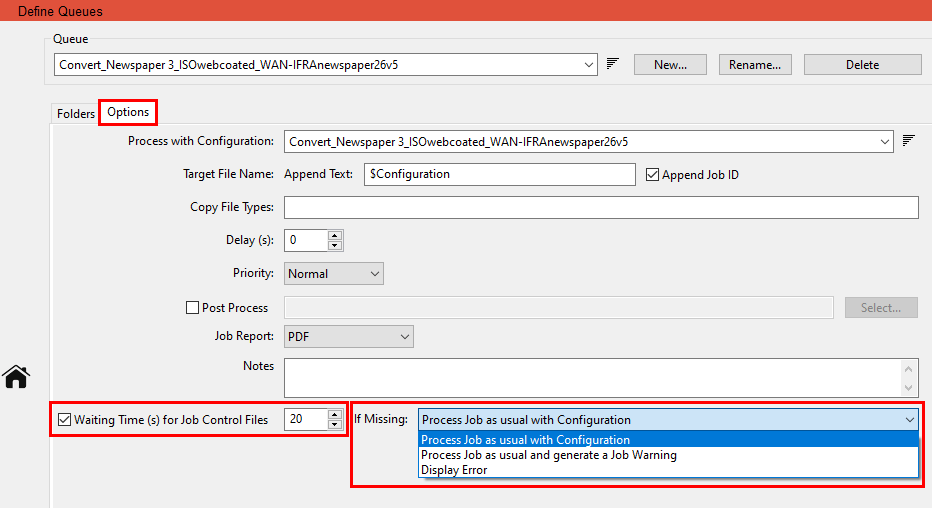
  • For hot folder queues, the Waiting time for Job Control Files can be activated with a checkbox in the Define Queues settings in the Options
  • In the Pending Jobs list on the Overview dialog, the target file name defined in the Job Control File is shown in the first place. The name of the Job Control File is displayed in brackets as additional information.
  • When a Job Control File arrives in a hot folder queue, ZePrA waits a certain time until the target file completely arrives. After the time elapsed an error is displayed.
  • When a PDF, TIFF, ... file arrives in a hot folder queue, ZePrA waits a certain time until a Job Control File arrives, which is recognized as belonging to the target file. When the time elapsed, one of the following happens, depending on the queue settings:
    • the file is processed as usual
    • the file is processed as usual, and a yellow job warning is generated
    • a job error occurs, and the file is placed in the Error folder

  • After processing, the Job Control File is removed from the Input folder and moved into the Done folder
  • The location of the output file depends on the input file and other settings in the Job Control File.

Command Line Interface - CLI

There are two ways of using a Job Control File with the CLI:

  1. Placing the Job Control File as argument of the -j option:
    zcmd -j <job control file> <inputfile> -o <outputfile>
    The file is converted using the configuration specified in the Job Control File.
    The Job Control File should not specify "Input File" and "Output File".
  2. Placing the Job Control File on the command line (without using -j):
    zcmd <job control file>
    The Job Control File should contain "Input File" and "Output File".

ZePrA | Spot Color Iteration (ZePrA 9 and higher)

Spot Color Iteration

Iterate spot colors to improve or maintain quality

Iterate Spot Colors

Spot Color Iteration is a process that involves printing of the spot colors converted from ZePrA on the printer to be used for the print job, followed by measuring test charts and optimizing the color differences (expressed in deltaE2000) until the measured deltaE values are within the desired tolerances. Printing the test chart and applying the Iterate Spot Colors feature once only already results in an improved spot color rendering which is usually close to the optimum of this printer.

Why can spot color iteration be required?

First of all, be assured that ZePrA already calculates the best possible spot color conversion based on the target profile set under Configuration/Target Color Space. However, printers, inks and papers drift over time so that there are always some deviations from the state the printer was profiled. During spot color iteration we measure how converted spot colors are actually printed in the current state, and subsequently optimize the deltaE2000 values. The iteration report shows which colors are improved and where restrictions based on the color gamut or the spot color Calculation Method occur so they can’t be optimized further or if additional iteration steps are recommendable.

Procedure

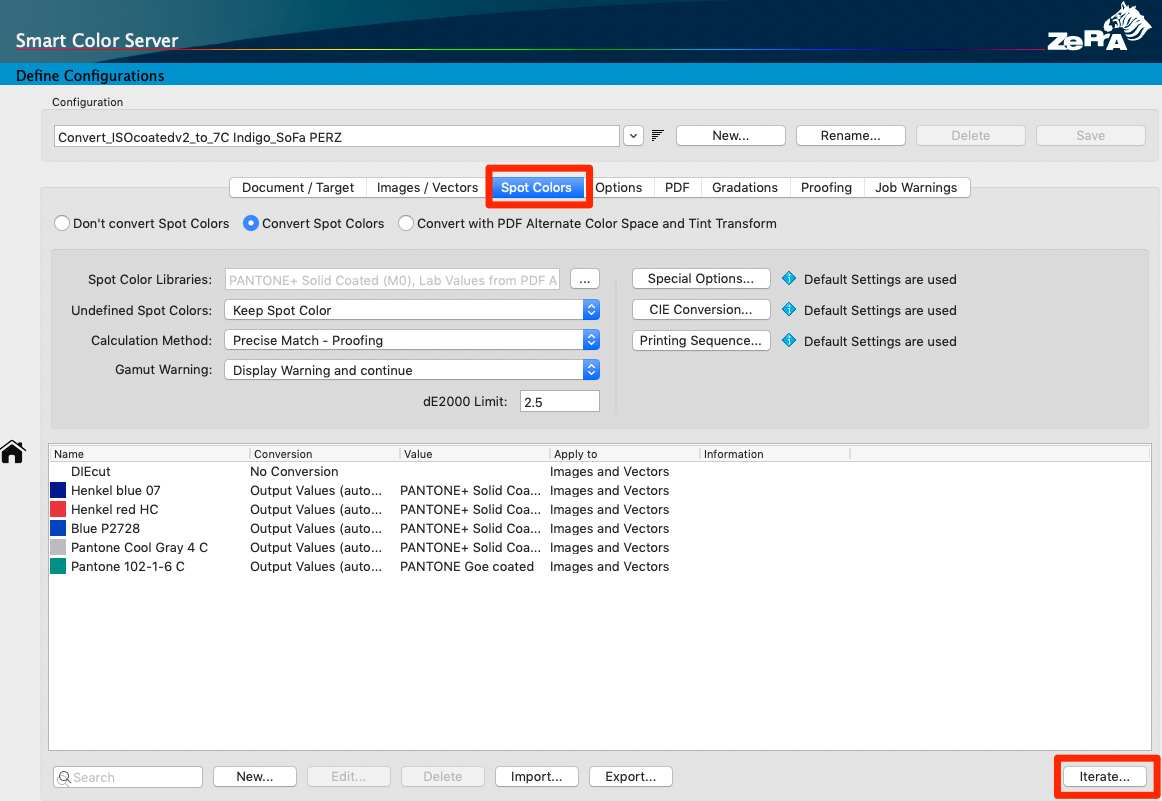
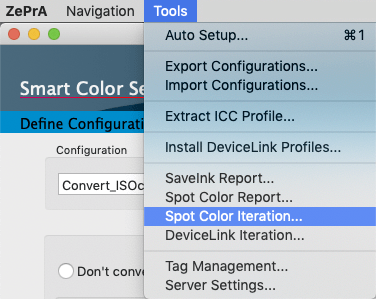
Open the Spot Color Iteration Wizard, either from:

  1. The Spot Colors tab under Configurations (Configurations > Spot Colors > Iterate at the bottom of the window).

  2. The Tools menu (Tools > Spot Color Iteration).

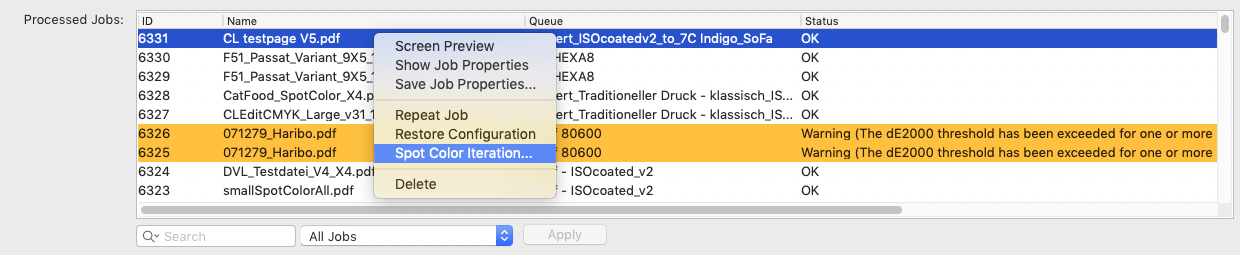
  3. Alternatively, if a job with spot colors has been converted via a queue and the associated configuration is set to Convert Spot Colors, the Spot Color Iteration Wizard can be started by right-clicking on this job in the Processed Jobs section of the Overview window and selecting Spot Color Iteration.

Note: A spot color module license is required to use the tool.

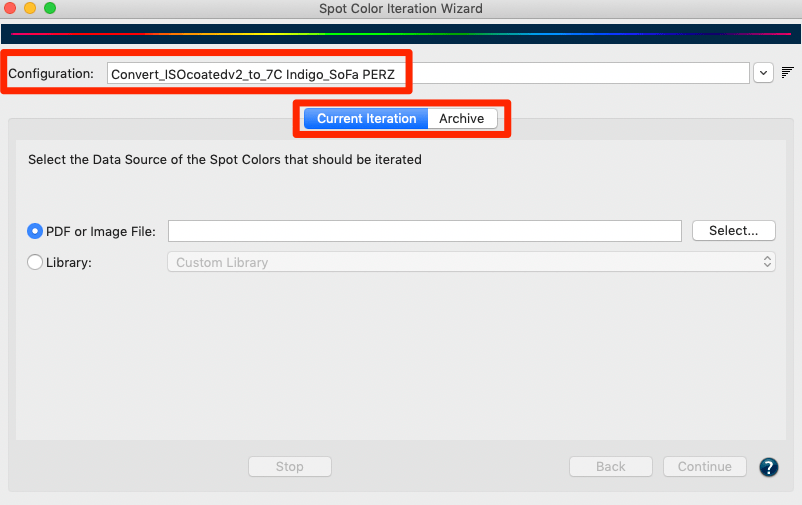
The Spot Color Iteration Wizard dialog consists of two tabs, the Current Iteration and the Archive tabs. The Current Iteration tab contains the actual iteration wizard and typically, if a configuration is selected that has not yet been iterated, the wizard is started directly there. The Archive tab contains all the iteration steps that have been carried out, including all the evaluation details.

The wizard guides the user through the iteration process in seven steps:

Step 1: First, select the Configuration you would like to use for printing. The option Convert Spot Colors must be enabled in this configuration.

Notes: When the Spot Color Iteration Wizard is started via Processed Jobs of the Overview, the Configuration is already preselected.
The best approach for the iteration of spot colors is to set the Calculation Method to Precise Match or Visual Match in the respective Configuration.
The setting Use the least Amount of Channels may be insufficient for iterating spot colors. Importantly, spot color iteration will not work when the spot color conversion is set to Convert using Alternate Color Space from PDF.

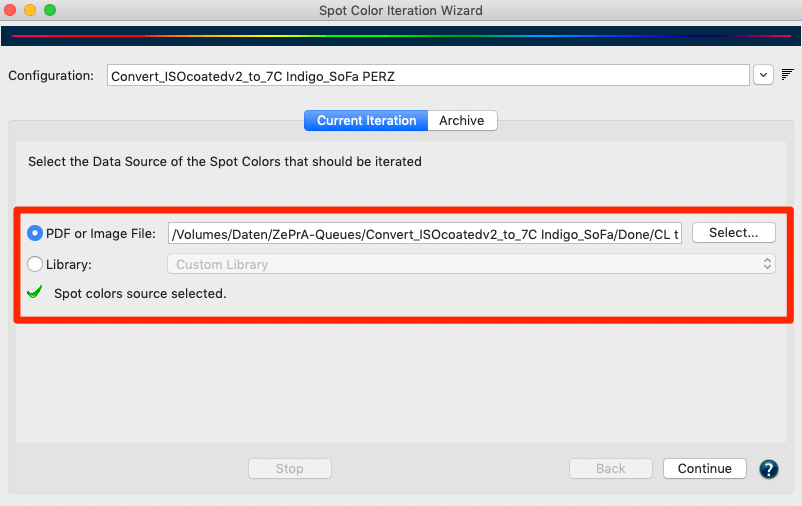
Step 2: Select the source of the spot colors you would like to optimize. You can either choose a PDF or Image File with spot colors or an entire spot color Library.

Note: When the Spot Color Iteration Wizard is started via Processed Jobs of the Overview, the Job (PDF or image file) is already preselected.

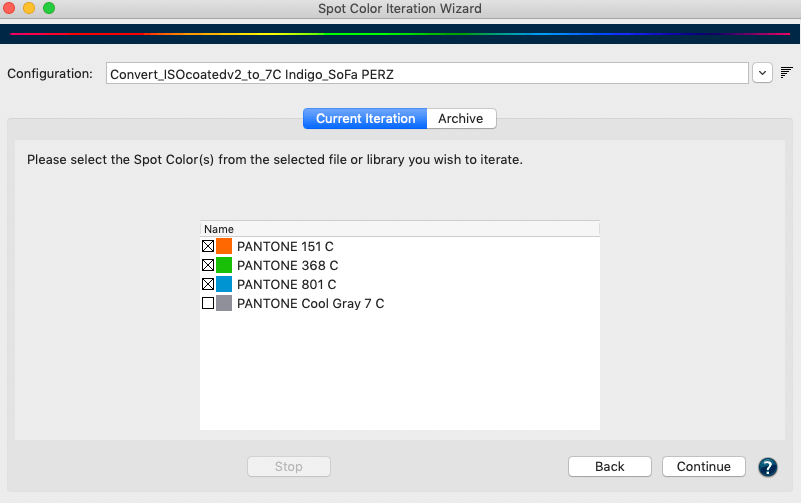
Step 3: Select one or more spot colors for iteration. All spot colors of the job, PDF or image file will be automatically extracted and displayed. Disable the colors that are not to be iterated. By default all spot colors are preselected.

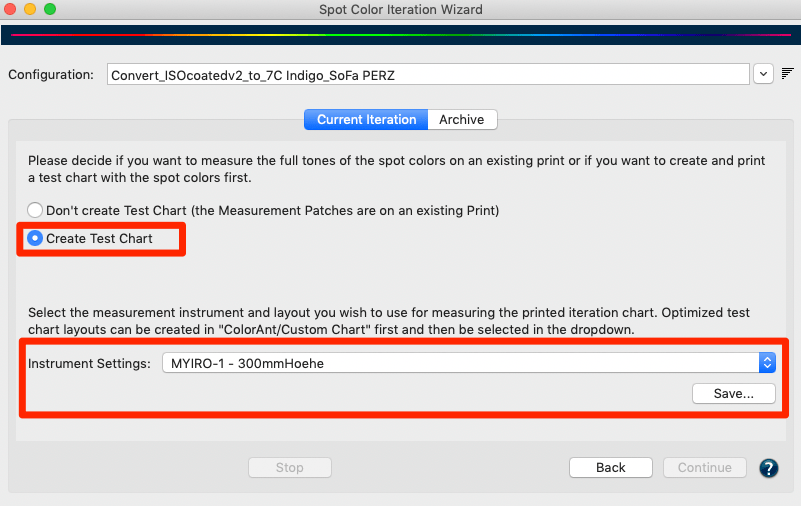
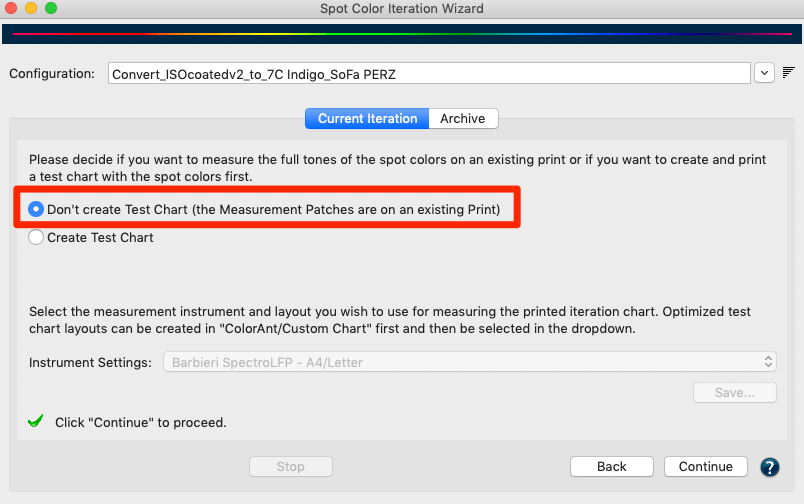
Step 4: Choose to Create a Test Chart or to measure the full tones of spot colors from an existing print (Don’t create Test Chart).
Create a Test Chart: Creates a test chart with the spot colors selected in the previous step. Select an Instrument Setting and click on Save to enable the Continue button.

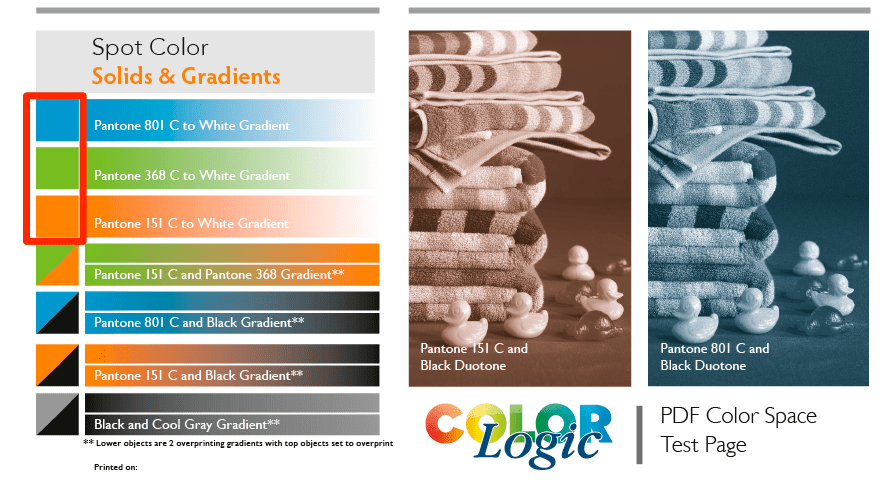
Don’t create Test Chart: Some prints contain control patches of spot colors that can be used for measuring. Larger areas in the design that contain the 100% tone of a spot color can also be used.

Note: The test chart contains the converted spot colors as given in the Configuration using the conversion settings and Calculation Method defined in the tab Spot Colors.

Step 5: Measure the printed spot colors. When using the test chart, it must be printed on the printer without any color management and can be measured after drying.
Measure: Starts the Measure Tool. You do not need to worry about the reference file and layout, as this is already preselected within the Measure Tool. Instructions on how to select your device and make measurements can be found under Measure.

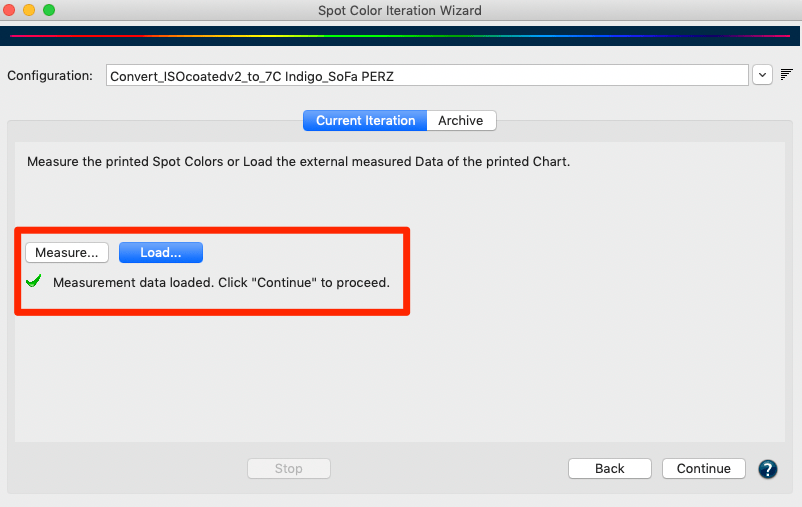
Load: If you have created a test chart you can use the associated exported reference file and measure your printed chart with a different measurement tool. Make sure that the measurements are saved in standard file formats that can be read by ZePrA, such as CGATS TXT, XML or CXF3. The external measurement files can be loaded using the Load button.

Once the measurement data has been transmitted from Measure Tool or loaded from external sources, and it conforms to the printed chart which is indicated by a green check mark, you can proceed by clicking Continue.

Note: When loading measurement data that does not match the chart layout or the corresponding patches in the reference file, you are alerted by a warning message and cannot proceed to the next step.

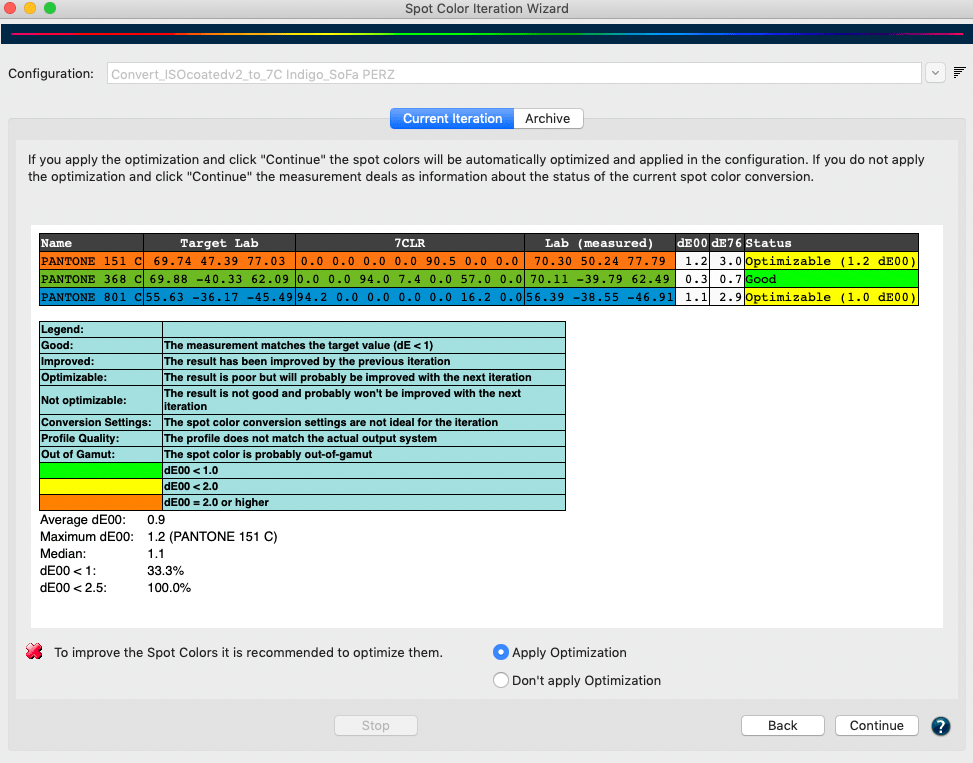
Step 6: The evaluation results of the measurements of each spot color are displayed in comparison to the reference Lab values of the original spot colors. In addition to the DeltaE2000 (dE00) and DeltaE76 values, a Status information text is also displayed, either in green, yellow or orange. The Legend below the table explains the indication colors and status information.

Green: The spot color match is less than 1 dE00 and a perfect match is achieved. Further optimization is then no longer required. 

Yellow: The spot color match is less than 2 dE00 but higher than 1 dE00 and the Status column indicates that the match can further be improved.

Orange:  The spot color has a higher deviation than 2 dE00 and the Status column indicates that the match can further be improved.

If a color is not optimizable or out-of-gamut, it can not be improved which is indicated in the Status information column, too.

ZePrA preselects one of the two options (Apply Optimization or Don’t apply Optimization) depending on the evaluation results. However, the preselection can be overridden and another iteration cycle can be applied if the results are to be improved even further. To do this, select the Apply Optimization radio button and click Continue. Alternatively, if you just need the measurements for evaluation select the Don’t apply Optimization radio button.

Step 7: The concluding step of the iteration cycle contains three options and a checkbox to choose from. Based on the previous results, the wizard already preselects a logical option for you to follow:

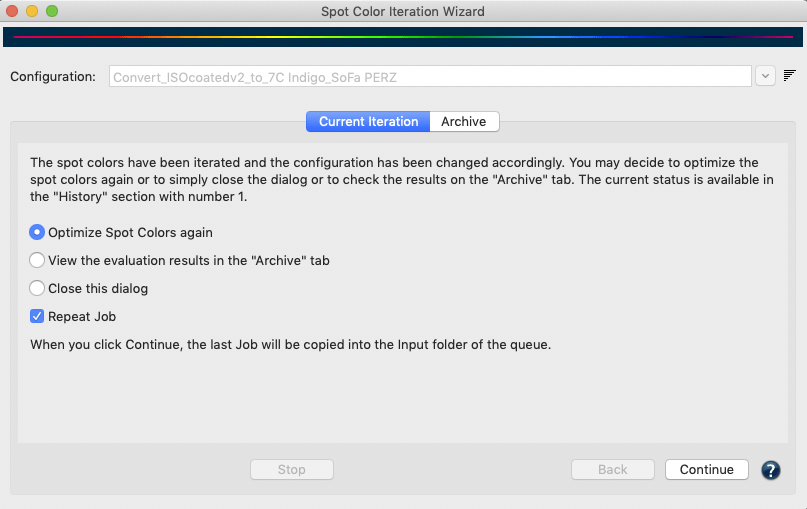
  1. Optimize Spot Colors again: Runs another iteration cycle, for example, to check whether a previously iterated spot color successfully passes the evaluation. If you select this radio button and click Continue, a new iteration cycle starts with step 1 and the selection of the spot colors to be optimized.
  2. View the evaluation results in the Archive tab: If you have already completed several iterations or would like to see the evaluation results once more, select this option. When you click Continue, the Archive tab opens.
  3. Close this dialog: If the evaluation results are fine or if you want to end the iteration process you can simply select Close this dialog and by clicking Continue the iteration is ended. 

The checkbox Repeat Job works independently from the three radio buttons. If it is enabled when clicking Continue the last job is converted again with the configuration. This is especially helpful if the spot colors of that last job have been optimized by the wizard which in turn optimizes the spot color settings in the configuration to improve the spot color rendering. 

You will find the optimized device values (Output values) in the table of the tab Spot Colors under Configuration. They will be marked as Iterated in the column Information of the table. 

Archive

All data created during the iteration - such as test charts, reference data and measurement data, as well as the report - are stored in an internal database in addition to the save location defined by the user.

Therefore, if data is deleted from the save location it can still be restored from the internal database any time via the Archive tab. Users can stop an iteration process and even close the Spot Color Iteration Wizard dialog at any time and can revert back to the last completed step with the help of the information stored in the Archive.

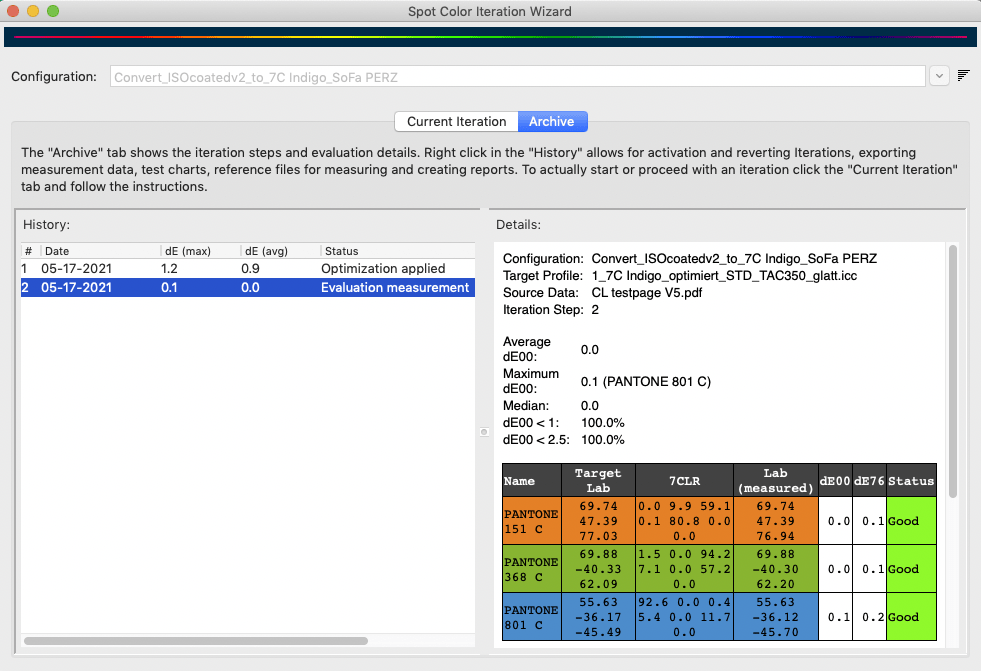
The Archive tab shows all iteration steps and evaluation details. The History table contains a list of all iterations. More information for the selected iteration step is displayed under Details.

The columns of the History table show the iteration step number #, the maximum DeltaE00 value dE00 (max), the average DeltaE00 value dE00 (avg), the Status of the selected iteration step. It also shows some Information about the iteration process itself, such as Optimization applied, when the measurements done from the printed test chart have actually been used to iterate a spot color, or Evaluation measurement, when the measurements have been used for evaluation only and have not been used to iterate a spot color.

In addition, the iteration process (being performed in the Current Iteration tab) can be discontinued, which is indicated with various messages such as Next step: save chart, Next step: measure or load data, Next step: Evaluate.

Right clicking on an iteration step in the History displays a context menu with the following options:

Save Chart: Exports the test chart into a file selected by the user. The test chart is not newly created but only copied from the internal database. This implies that the file selection only supports the file type initially chosen by the user.

Save Reference Data: Exports the reference data that belongs to the test chart into a file selected by the user.

Save Measurement Data: Exports the measurement data into a file selected by the user.

Save Report: Saves a report containing all Details displayed on the right and the full information about each spot color. This is useful to identify colors with the highest or lowest deltaE values, or colors which are out of gamut. The report is explained in more detail below.

Revert to state before: This is only available for iterations with the status applied. Reverts back to the state before this iteration, giving the previous iteration, if any, the applied state. The status changes to evaluation measurement. All subsequent items are deleted.

Revert to state after: This is only available for iterations with the status applied. Proceeds to the state after this iteration step, making it the active iteration. The status of a next iteration, if available, would be evaluation measurement. All subsequent items after the next iteration are deleted.

Apply Optimization: This is only available for iterations with the status evaluation measurement. It can be used for evaluation measurements that have not been applied in the iteration process itself. Use this option if you want to apply an iteration later on.

Evaluation Results

The Evaluation Results shown under Details are always the evaluations of the previous step. This means, if an iteration has been applied in step 1, the evaluation results shown under Details for the selected step 1 are the values before the iteration has actually been applied. Therefore, in order to see the results of the first iteration a second step is necessary. The evaluation results shown for that second step are actually the iteration results of the first iteration step, and so on. This offers the possibility to use the results of an iteration itself for a second iteration. But again, another measurement step is needed to find out if this iteration actually improved the result.

The Report

By right-clicking on an iteration step in the left table, a report can be created for this step which can be saved in various formats such as PDF, HTML, XML and TXT. The PDF and HTML formats are the most common versions for end users, while the other formats are more intended for automation and usage in other systems such as a MIS (Management Information System). The following is a description of the PDF report.

The Report contains all information about the spot color Name, the device values generated by ZePrA (displayed in the color space of the target profile) and the measured Lab values as well as the dE2000 and dE76 deviations from the reference Lab values of the spot color and the Status. Under Status it is displayed whether the respective spot color has been well matched (less than 1 deltaE2000) and whether it can still be optimized. If the match of a spot color is smaller than 2 dE00 but larger than 1 dE00 and the match can be further improved, then it is displayed in yellow in the Status column. Finally, spot colors with a deviation higher than 2 dE00 will be highlighted in orange. If a color cannot be optimized or is out-of-gamut, it cannot be improved, which is also displayed in the Status information. The Legend below the table explains additional information messages that can be displayed.

Video Tutorial: Spot Color Iteration Wizard

ZePrA | Apply Photoshop color corrections to PDF files

Apply Photoshop color corrections to PDF files

In some applications it is not possible to use measurement based DeviceLink profiles. This is true, for example, if a customer brings print data and a print that should be as accurate as possible in the production run without a correct proof. If you view the print data on a monitor with a soft proof of the print standard for the production run, clear deviations from the print that you have brought with you can become visible.

In this case you could either print outside the standard and try to recreate the default - either by making gradation corrections in ZePrA or by using the capabilities of the printing press - or print inside the standard by applying Photoshop corrections to the PDF file. The latter has the advantage that you can proof the color-corrected data according to the standard and have it approved by the customer. This procedure requires an experienced Photoshop user and CoPrA's Editing tool.

For a test with production data the demo version of the programs can also be used. To do this, meaningful objects must be combined from the existing PDF data into one file in Photoshop and combined with CoPrA's test chart (EditTarget). This test file is then corrected under softproof conditions on the monitor. The edited image is imported into CoPrA and the corrections are taken into account in the created DeviceLink profile.

Then the DeviceLink profile can be used in ZePrA to correct the color of the original PDF data. If necessary, the corrections can be approved by the customer on a proof before printing. The printer can work as usual according to standard and reach the proof reliably.

The individual steps are described in detail in the chapter How to create DeviceLink profiles with edited charts in the CoPrA Help.

ZePrA | Proofing

Proofing

Color-consistent simulation of the printing result

Proofing

ZePrA's sophisticated technology - e.g. the quality of DeviceLink and SmartLink profiles and the spot color rendering of its advanced spot color module - can be used for proofing as well. This is especially useful as many RIPs do not support CxF/X-4 data and SCTV calibration nor have a spectral color prediction model for spot color rendering.

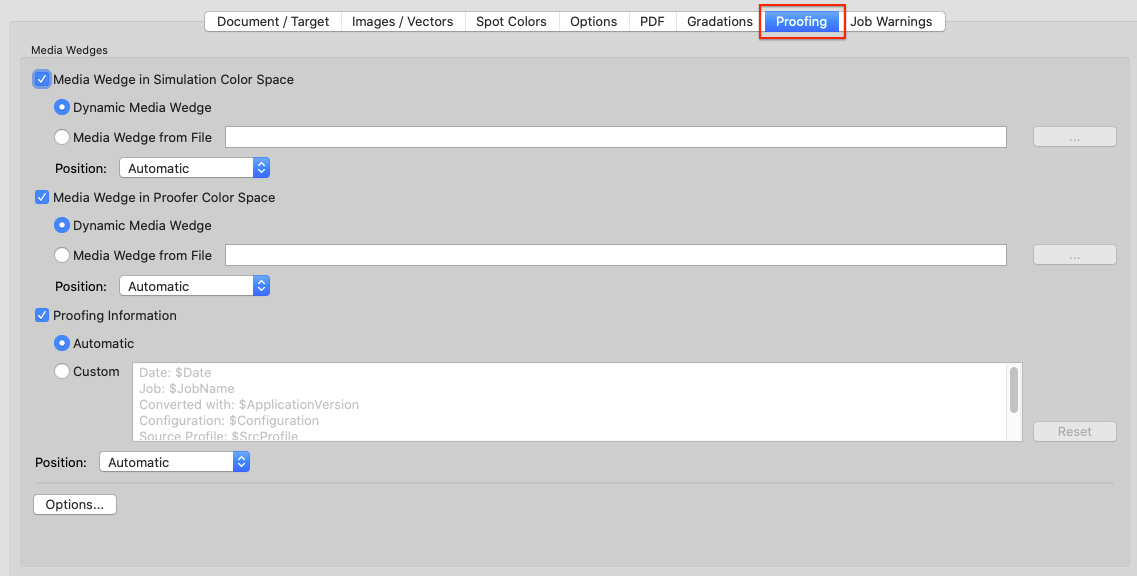
The Proofing tab under Configuration contains all Media wedge settings and the Proofing Information label.

Media Wedges

Two types of media wedges can be used:

  1. Media Wedge in Simulation Color Space: Can be used to determine the accuracy of the proof. This media wedge is converted based on the color management setting defined in the various configuration tabs.
  2. Media Wedge in Proofer Color Space: Allows using a second media wedge that is not color managed. It must be in the color space of the proofer and can be used to determine the stability of the proof printer.

Choose a Media Wedge.The media wedge is added outside the document's media box to verify the proof. This can either be a dynamic or an external media wedge.

Dynamic Media Wedge: Uses the color space information of the simulation color space and dynamically adds all spot colors of the documents to be processed. The required reference files for measuring the wedges are created on-the-fly by ZePrA. They will be saved in the Folder for Report and other Data folder of the proofing queue that has automatically been set up by the Auto Setup Wizard.

Note: Currently, a maximum of 32 channels is supported for dynamic media wedges.

The reference files for dynamic media wedges contain both the device values (DCS values) and the target Lab values. The target Lab values are also calculated for the spot colors of the job and incorporated into the reference file in addition to the color values of the document color space. This is done according to the settings under Configurations > Options (solid tone only or gradation values as well) and Configurations > Spot Colors.

The measured values obtained can then be immediately compared to the target Lab values (e.g. in ColorAnt/Compare or Evaluate). Use these reference files in appropriate tools, such as ColorAnt’s Measure Tool, for measuring.

Note: Reference files are not created when the report folder Folder for Report and other Data is missing. If an existing queue is to be used for proofing, it must be verified that the folder for reports exists. If necessary, it must be created manually so that a reference file can be created. If this folder is missing, the reference file cannot be created.​
Reference files are created for each job in the queue and named as follows:

Jobname_DynamicMediaWedgeReferenceSource
Jobname_DynamicMediaWedgeReferenceTarget

If dynamic media wedges are selected for source and target color spaces, two reference files for each job will be created.

Note: If the same job is run again, the reference file will be overwritten. This means that if the spot color patches are changed under Options, a modified reference file is saved, and any previous conversion with the reference file with a different number of patches is lost.
The use of spot colors for the dynamic media wedge can be defined under Options 

Media Wedge from File: Can be media wedges such as the FOGRA, UGRA, Idealliance* or other media wedges. For external media wedges, the corresponding reference file is required to measure the printed wedge. Measurements can be done with any proof evaluation software or with ColorAnt’s Measure Tool.

*The IDEAlliance ISO 12647-7 Control Wedge 2013 is included in ZePrA and available under /Users/Shared/ColorLogic/MediaWedges (Idealliance ISO 12647-7: 2013, 3-Row Digital Control Wedge ® is a registered trademark of the Idealliance).

Note: A separate ColorAnt license is required to use the measurement and comparison features.

Proofing Information: Enabling this checkbox will add text information which are in accordance with ISO 12647-7 such as information about the job, date and time, conversion settings and the software used. The information that will be added to the converted file can be verified and edited in the text field. For editing switch to Custom.

Frame: Adds a frame around the Proofing Information.

Logo: Inserts the logo specified in the Preferences into the Proofing Information.

Position: The two media wedges and the proofing information label can be positioned independently on the converted document. For each of these 3 elements, the user can specify where it should be placed. Positioning options are: Automatic, Bottom Margin, Right Margin, Top Margin, Left Margin. The elements are placed outside the media box of the document according to this setting. This results in an enlarged media box in the converted document. Automatic is suggested as default settings for all 3 elements to make sure that they are placed together on the converted job.

Options: General settings and settings for Dynamic Media Wedges can be defined under Options.

Media Wedge Options

General

Font Size: Defines the font size used for the proofing information label in points.

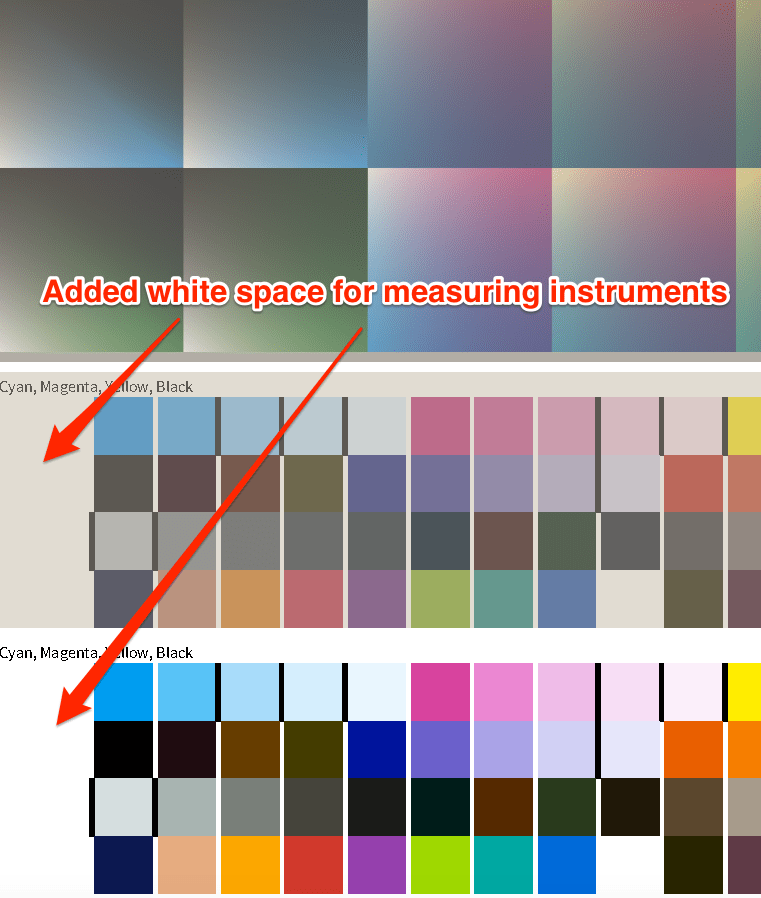
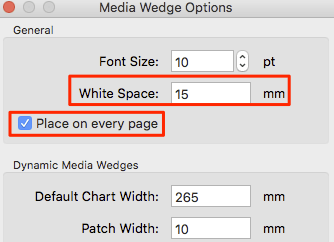
White Space: Allows the placement of margins on media wedges by entering a user-defined distance in mm. By default, a white space of 15 mm is added. This ensures that enough white space is added on the left and right of the placed media wedges which some instruments need for correct measuring. The White Space margin applies both to external and dynamic media wedges.

Note: If the external media wedge already has a margin, we recommend entering 0 mm as White Space. As a rule of thumb, the white space in millimeters for dynamic media wedges should be at least the size of the Patch Width. The white space of the Media Wedge in Simulation Color Space is color managed whereas the white space of the Media Wedge in Proofer Color Space is not.

Place on every page: For multi-page PDF files media wedges can be placed on each page. By disabling the checkbox media wedges will be placed on the first page of the PDF only.

Dynamic Media Wedges

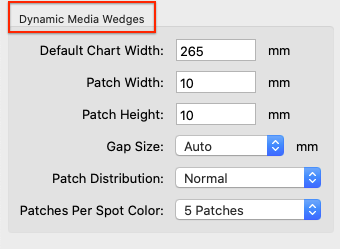
Defines the Default Chart Width, the Patch Width and the Patch Height of the dynamic wedge.

Gap Size: To separate individual patches. Select the width in mm. When using the Auto option, gaps of 0.5 mm are added between patches.

Patch Distribution: Defines the distribution of patches on the media wedge.

  • Randomize: Color patches are distributed randomly.
  • Normal: Color patches are distributed as specified in the reference file.
  • Sorted: Color patches are sorted from light to dark.

Patches per Spot Color: Defines whether spot colors are to be used in the dynamic media wedge and, if so, whether tints are to be used.

  • None: No spot color is added to the dynamic wedge.
  • Solid Tone: Only the solid tone of each spot color in the job is used in the dynamic wedge.
  • 3 Patches: Uses the following patches for each spot color: 100%, 70%, 40%.
  • 5 Patches: Uses the following patches for each spot color: 100%, 70%, 40%, 20%, 10%.

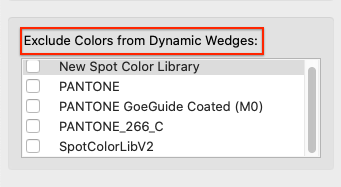
Exclude Colors from dynamic wedges: Spot colors are used in documents for various reasons besides printing purposes, e.g. to illustrate the DIE cut lines, or varnish, braille or other nonprinting elements. Obviously, those colors are not to be used in the dynamic media wedge. To avoid using them in media wedges, create a library (or more if needed) containing all spot colors to be excluded and select it (or them) from the list under Exclude Colors from dynamic wedges. This list contains all spot color libraries managed by ZePrA. Enable the checkboxes of only those libraries which contain the colors to be excluded.
The selected libraries containing the colors to be excluded are also applied to spot colors of external media wedges. Typically, if the Document Color Space is Multicolor, ZePrA assigns the channels of the Document Color Space to the channels of the media wedge. This is intended in most cases, e.g. if a 7C media wedge with generic channel names is used for a 7C Document Color Space in such a way that the channels are associated. However, this is not intended in case a spot color White is to be used as 5th channel and the 5th channel in the Multicolor profile of the Document Color Space is called Orange (for example). To retain the white spot colors an exclusion library which contains White as non-printing color can be selected.

Video Tutorial

How to Use the Proof Evaluation Tool in ColorAnt in combination with ZePrA

Learn step-by-step how to use the Proof Evaluation tool in ColorAnt for the evaluation of a proofing media wedge created with ZePrA. In this example, we will be demonstrating the special feature of ZePrA to create a dynamic media wedge using process and spot colors and how to use the supplied reference data from ZePrA for evaluation of a Contract Proof.