
huenify | Overview

User Interface and Sidebar
Information to come
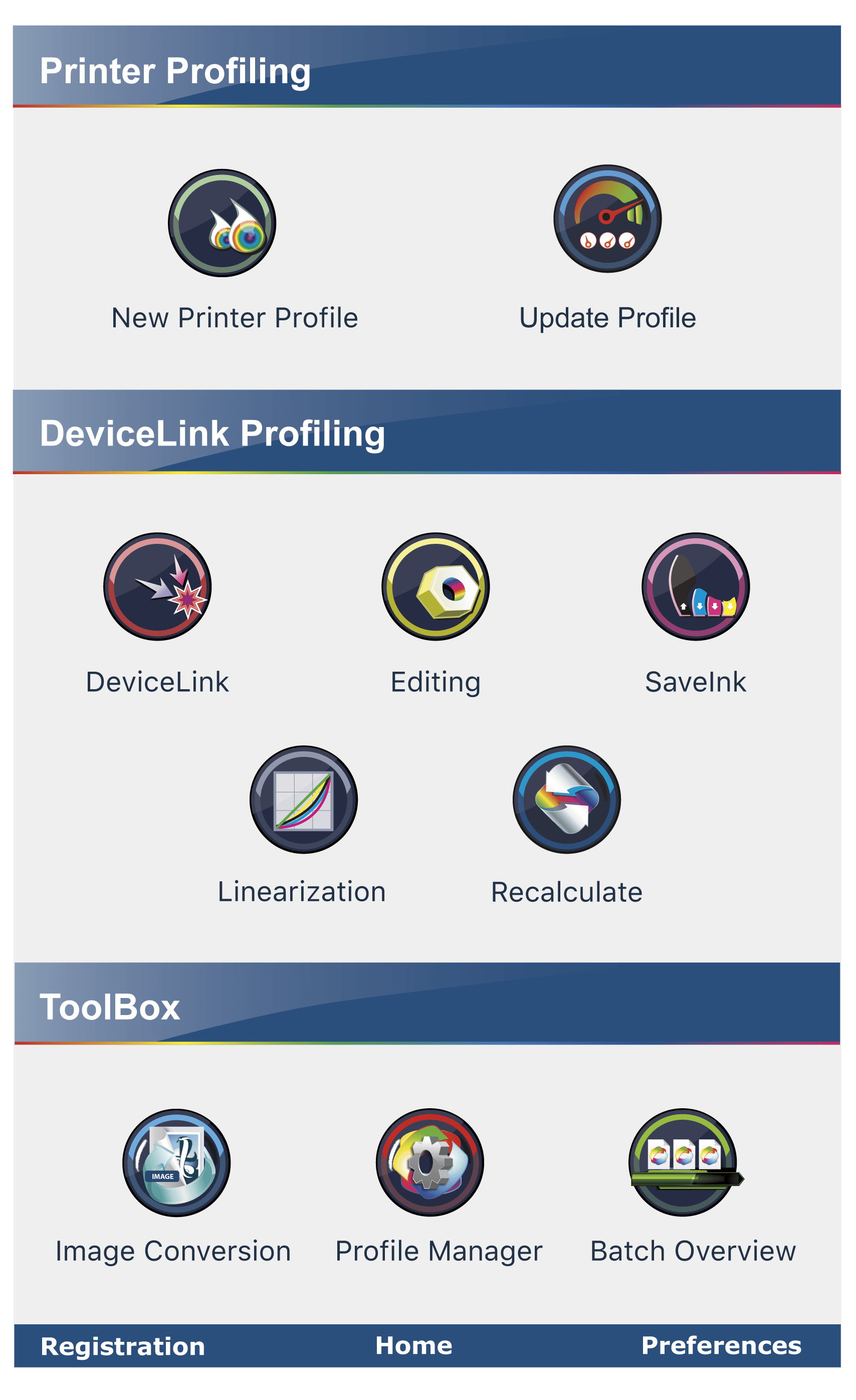
Sidebar
The controls to configure and use CoPrA can be found in the Sidebar. Clicking on the Home icon at the left of the window opens the Sidebar which allows a quick selection of the desired tools.
To launch a specific module, click on the corresponding button of the Sidebar. The colored bar of the upper left corner under Color Profiling Application indicates the active module.
Printer Profiling

New Printer Profile
Create printer profiles with a variety of options

Update Profile
Update printer profiles with a small test chart
DeviceLink Profiling

DeviceLink
Create DeviceLink profiles from standard ICC profiles

Editing
Create DeviceLinks via edit charts
SaveInk
Create SaveInk profiles from CMYK profiles
Linearization
Optimize tone values for any printer and color combination

Recalculate
Recalculate DeviceLink profiles with a different profile
Tools

Image Conversion
Convert images using a variety of profiles

Profile Manager
Manage profiles in one convenient place
Batch Overview
View progress of profile generation, create reports, generate preview profiles
Menu Bar
CoPrA
CoPrA
CoPrA (macOS only): Allows access the dialogue About (see below), Preferences and Services and quit CoPrA.
Preferences

Define CoPrAs settings, such as the preferred starting page, overwriting of preview profiles or report settings.
Clicking on the respective icon opens the corresponding CoPrA tool. The functioning of these tools is explained in the individual chapters. The creation of Multicolor printer and DeviceLink profiles requires an additional add-on module which can be purchased additionally.
Navigation
Navigation
Navigation (Windows only): In this menu, change the Preferences and select CoPrA's various modules (the modules can also be accessed via the sidebar). The menu also shows the shortcuts for the individual modules.
Navigation (macOS only): Select CoPrA's various modules (the modules can also be accessed via the sidebar). The menu also shows the shortcuts for the individual modules.
Tools
Import Settings
Import CoPrA settings to the preset menu
Export Settings
Export CoPrA's settings for backup or to load in another system
Cleanup Settings
All settings found under the entry [EDITED] will be deleted automatically when using the command Cleanup settings from the Tools menu.
Open EditTargets folder
Opens the EditTargets folder can be found under:
Windows: C:\Program Files(x86)\CoPrA5\EditTargets
macOS: Applications\CoPrA5\EditTargets
Open Testcharts folder
The folders Testcharts can be found under:
Windows: C:\Program Files(x86)\CoPrA5\Testcharts
macOS: Applications\CoPrA5\Testcharts
Help
Online Help
Opens CoPrA’s Online Help (internet connection required).
Quick Start Guide
Opens the online help page for the Quick Start Guide (internet connection required).
What's New
Links to the online help page with the new features and bug fixes in CoPrA (internet connection required).
readme.txt
Contains the release notes with short information about the latest changes.
Registration
Load and activate licenses, request a demo license or get more information about the licenses.
Check for update
Checks whether a new program version is available (internet connection required).
Save Support Data
Creates a compressed and encrypted text file that contains important support information.
About
Opens the registration dialog. Contains information about the version and build number.