ColorAnt | Edit Primaries

Edit Primaries

Customize options for file processing

Edit Primaries

The Edit Primaries tool allows users to add, remove, and exchange primaries or the paper/substrate in existing measurement data and also cover many other use cases.

In typical print production, adding or swapping ink(s) requires the expense of printing a complete, full size test chart. The Edit Primaries tool simply requires the spectral data of the new ink(s) to be added or exchanged. It also recalculates all overprints based on intelligent spectral color models.

One of the major features of the Edit Primaries tool is the ability to dynamically select the best patches from the data provided. The more complete the data (spectral data is preferred) the more accurate the results.

More complete data improves:

  • Exchange of gradations of the primary color
  • Overprint information, e.g the primary combined with black and secondary colors
  • Spectral data in general, providing the printing sequence information.

This allows creating of new ICC profiles for new color combinations quickly.

Use cases and scenarios that demonstrate the potential of the Edit Primaries tool:

  • Variance in press condition: The characterization press run is slightly deficient in solid ink density or hue on one or more colors.
    This video demonstrates the procedure with ColorAnt
  • Exchange of paper/substrate: The inks are the same but a slightly different paper is used in production or a specific job.
  • Exchange inks in packaging print production: Create a new set of characterization data that swaps in e.g. Blue for a Cyan or a Rhodamine Red for Magenta.
  • Increase CMYK gamut: Add a fifth, sixth, or seventh color to your CMYK measurement data by adding only the data from a small spectrally measured wedge with the desired additional primary color..
  • Modify ink names and channel order: Reorder channel names without data modification. Watch an example here.
  • Adjust Printing Sequence: This simulates how a different printing sequence would render colors, and what impact this would have on the gamut.
  • Creation of tints for spot colors if only the full tones are known.
  • Create new characterization data with minimum information.

Define Primary Colors

Eyedropper icon: The primary colors of the selected dataset can be exchanged for primary colors of other datasets.

Click on the pipette symbol to open a list of available primaries.

This list shows all the primaries contained in the datasets loaded in the main window.

Lab values of the primary colors can be modified directly in the input field.

Star icon: A highlighted star symbol indicates that the imported measurement data is spectral data or contains a gradient.

Pencil icon: The Name of the primary color and/or its Density can be changed using the pencil icon. This allows density changes to be evaluated without having to print a new profiling chart, for example in Flexo printing when a new anilox roll is to be used for a primary color, or in offset printing if the density of an ink is to be increased or decreased.

After entering the new value for the density, corresponding Lab values are calculated and applied. The calculation is based on the spectral information of the primaries. Hence the density option is only available for spectral measurement data.

The value under Density indicates the current density taken from the measurement data. Enter the new density value and click on the triangular Arrow to apply the changes.

The Lab values are automatically calculated and displayed immediately. Clicking on OK accepts these values and closes the window.

The calculation can be aborted by clicking Cancel or reverted by clicking the Undo arrow to restore the original values.

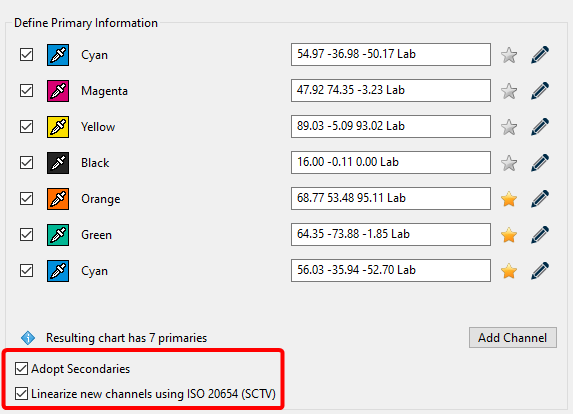
Adopt Secondaries: Allows secondary color values to be used additionally.

The checkbox is only available if secondary colors are present for at least two of the selected colors of a measurement file. At least one 100/100 color patch for the selected color must be present for the checkbox to be activated. In addition, other two-color combinations are considered as well (this can be any combination, such as 50/50 or 30/70 or 80/60 or any other combination of secondary colors).

The Lab values (or spectral values, if available) are then retrieved from the measurement file and entered into the spectral model. By supporting any existing printed secondary combination besides 100/100, the calculations are more precise.

Note: If a file contains the 50/50 patch but not the 100/100 patch, the file does have a secondary patch indeed, but the model still requires the 100/100 key point to function correctly.

When the mouse pointer is moved over the Adopt Secondaries function, a tool tip indicates the selected overprints and the associated data sets.

The option can be disabled if the measurement overprints are not suitable for the given data, in which case Edit Primaries will calculate the overprints itself.
Using color overprints can improve the accuracy of the rendering and calculation of the spectral color model.

Linearize new channels using ISO 20654 (SCTV): The checkbox becomes available when a new channel is added, or if reference data without measurement data are loaded. When checked the gradients of the newly added channels are linearized according to the ISO 20654 (SCTV) standard. If channels of another data set are selected and the checkbox is selected, all channels are linearized according to ISO 20654 (SCTV). Otherwise, the original gradations of the loaded colors will be used.

Search: Allows searching for specific colors in large color libraries such as Pantone®. It is available in the context menu by clicking the eyedropper when replacing a color.

Restore last edits: Use this function to exit the tool without losing any of the changes already made.

Click Cancel. ColorAnt will remember the edits made up to this point, and leave the Edit primaries tool. Restore these edits after you return by clicking the Restore button. You can now continue your work where you left off.

Example: If it becomes apparent after a few editing steps that a required file has not been loaded in ColorAnt, the tool can be closed, and the missing file can be loaded. Then return to Edit Primaries and click on Restore. All previously loaded data will be loaded without having to perform these editing steps again.

Exchange of Primary Colors in existing Characterization Data

One of the main features of Edit Primaries is the exchange of primary colors creating a new set of characterization data.

Procedure:

  1. Load the measurement data of the test chart to be edited in ColorAnt, then load the data set containing the measured new primaries, including gradations of the primaries and overprint information.
    A sample of a reference file for CMYK plus one spot color is included with ColorAnt. The wedge Spotcolor-CMYK+X-v1.txt (shown as Red spot color in the screenshot) is located under File/Open Predefined. Use the tool Export Chart to generate a printable wedge.
  2. Click on the measurement data to be edited (to select it) and click on Edit Primaries.

  3. Exchanging a primary: Click on the eyedropper icon of the color to be exchanged (see screenshot demonstrating an exchange of Yellow).
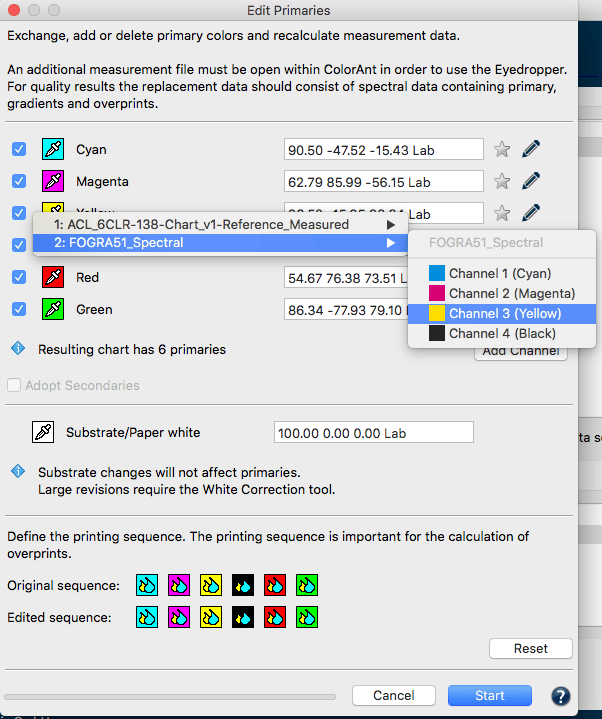
  4. Select the new primary from the second data set loaded in ColorAnt. To do so, click on the channel containing the new primary. Selecting a color from another channel of the same data set is also possible. In Edit Primaries the Lab value of the new primary will be shown allowing you to check immediately if the changes have taken place. If the imported measurement data are spectral data the star will be highlighted.
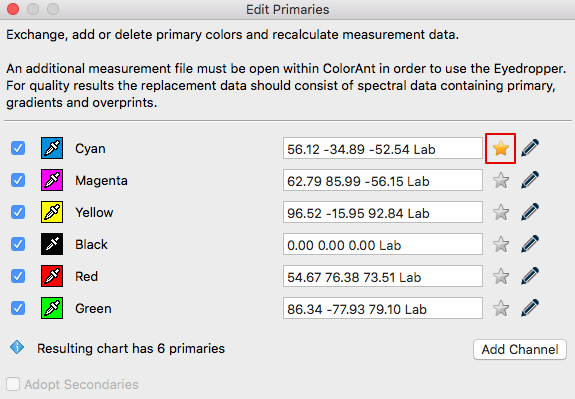
  5. If two or more primaries are added from a single data set containing overprints of these primaries, then these measurements can be used by ColorAnt and the checkbox Adopt Secondaries will be enabled.
    Note: Adopt Secondaries is only enabled if secondary colors are available in the selected data set. When moving the mouse over the text a tooltip will show the selected color combinations and the associated data sets.
  6. If no measurement data of the new primary is available, Lab values can be entered in the numbers box (however, calculations will not be as exact as with spectral measurement data). This will be visualized by a gray star icon.
  7. When complete click Start and the data will be modified and shown in the Data Sets section of ColorAnt. Save the new data with File/Save as to be used for other tasks, for example, creation of ICC profiles with ColorLogic CoPrA.
  8. To check the exchange of primaries, use the Compare tool to verify the data.

Specifics

  • If a solid color is used to replace a primary color but does not contain any gradation values, ColorAnt uses the gradation behavior of the original primary color.
  • Edit Primaries dynamically selects the best patches from the data provided. The more complete the data (spectral data is preferred) the more accurate the results. The exchange of primaries will improve when providing gradations of the primary color and  overprint information, such as the primary with black overprints or secondaries.
Simulating Density Changes

The Density of primary colors can be changed using the Pencil icon. This allows density changes to be evaluated without having to print a new profiling chart, for example in Flexo printing when a new anilox roll is to be used for a primary color, or in offset printing if the density of an ink is to be increased or decreased.

After entering the new value for the density, corresponding Lab values are calculated and applied. The calculation is based on the spectral information of the primaries. Hence the density option is only available for spectral measurement data.

The value under Density indicates the current density taken from the measurement data. Enter the new density value and click on the triangular Arrow to apply the changes.

The Lab values are automatically calculated and displayed immediately. Clicking on OK accepts these values and closes the window.

The calculation can be aborted by clicking Cancel or reverted by clicking the Undo arrow to restore the original values.

Adding additional Color Channels to existing Characterization Data

Note:  To add channels a ColorAnt L license is required.

Procedure:

  1. Load the test chart measurement data to be edited and load the secondary file with the measured primaries, gradation and overprint information into ColorAnt.
  2. Select the measurement data to be edited and click Edit Primaries.
  3. Click on Add Channel. A new channel with default gray Lab values and the channel name Auto is added.
    Note: The Auto entry will take the channel name from the second data set.
  4. Click on the eyedropper icon of the new channel and select the new primary from the second data set. Click on the desired channel to import its data.
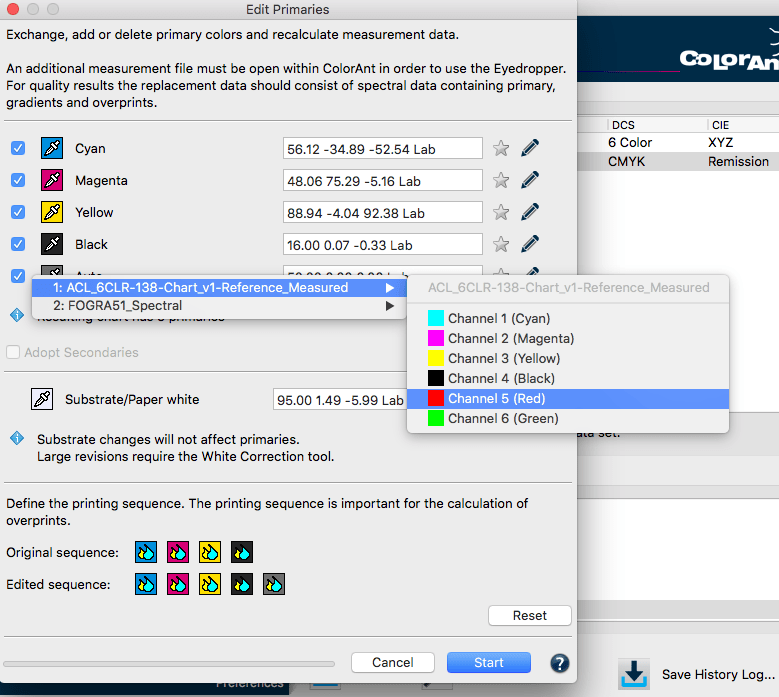
    Example of a 5th color (Red) being added to an original CMYK data set.

  5. To rename the channel click on the pencil icon and enter the desired name in the appearing window Edit Primary Name.
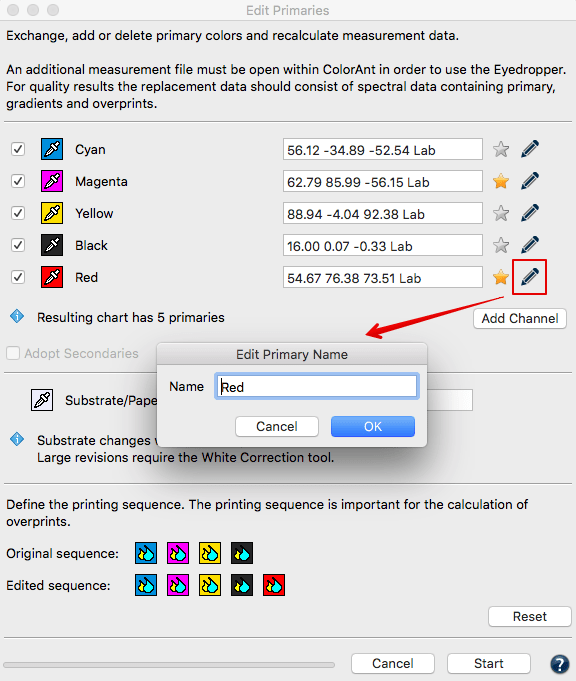
    Important:
    Define the Original Printing Sequence and the Edited Sequence. This is especially important when a new ink is added as it can be added as the last ink or placed in between other primaries.
  6. If two or more primaries are added from a single data set containing overprints of these primaries, then these measurements can be used by ColorAnt and the checkbox Adopt Secondaries will be enabled.
    Notes: Adopt Secondaries is only enabled if secondary colors are available in the selected data set. When moving the mouse over the text a tooltip will show the selected color combinations and the associated data sets.
    If no overprints are available in the loaded dataset, all overprints including secondary colors are still calculated using ColorLogic’s spectral overprint model. The Adopt Secondaries function, on the other hand, uses the existing data from the dataset and scales the spectral prediction to match the existing Secondaries data, resulting in slightly better matches of the loaded data.
  7. Click Start to generate the new data set with the added channel. Save this file under File/Save as for further usage, for example to create ICC printer profiles in CoPrA.
  8. To examine the new data set, use the View tool and select the tabs 2D, 3D, SpiderWeb and TVI  to check that all colors including overprints have been added correctly. The TVI curves of the 5th channel can be edited further by using the Tone value tool and/or other tools like Smoothing. Finally, CoPrA can be used to build a 5 channel printer profile.

Adopt Secondaries: Allows secondary color values to be used additionally. The option is only enabled if secondary colors are available in the picked data set and at least two colors are exchanged. A tool tip indicates the selected overprints and the associated data sets. The option can be disabled if the measurement overprints are not suitable for the given data, in which case Edit Primaries will calculate the overprints itself.
Using color overprints can improve the accuracy of the rendering and calculation of the spectral color model.

Linearize new channels using ISO 20654 (SCTV): This function allows the gradients of newly added channels to be linearized according to the ISO 20654 (SCTV) standard. The checkbox is available when a new channel is added, or when reference data are loaded without measurement data. If channels of another data set are selected and the checkbox is activated, all new channels are linearized according to ISO 20654 (SCTV). Otherwise the original gradations of the loaded colors will be used.
Remove Color Channels from Characterization Data to Save Inks in Printing

Note: A ColorAnt L license is required to remove channels.

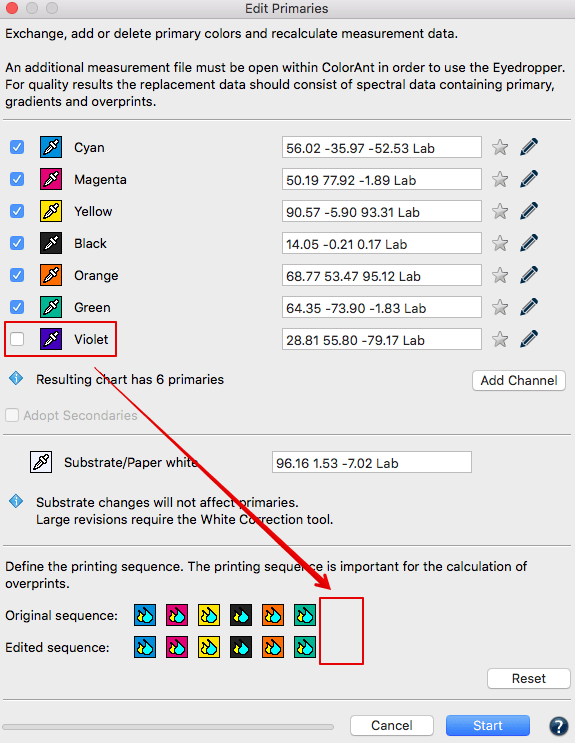
  1. Load and select the measurement data of a test chart and click Edit Primaries.
  2. Disable the checkboxes in front of the channels that need to be deleted and click Start. The information area of the Edit Primaries tool displays the channels of the resulting data set.
  3. The new data set will be reduced to the channels that have been enabled. Please be aware that this is a Multicolor file and may only be used in ColorLogic CoPrA if a Multicolor license is loaded.
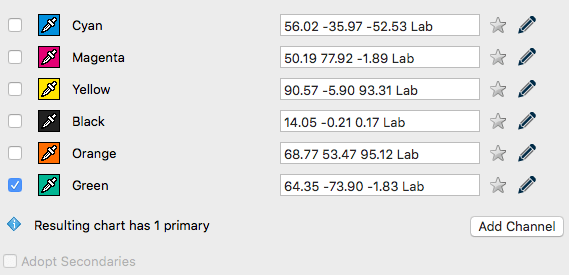
Note: Edit Primaries can be used to extract individual channels from complete test chart measurement data by removing all other channels. Just leave the checkbox of the desired channel activated and deactivate the checkboxes of all other channels.
Change inappropriate Color Channel Order to optimize Characterization Data and Profiles

The channel order can be changed within a file without changing the measurement data itself. For example, if you have added the additional channels Orange and Green to a CMYK data set you can change the order to CMYK+Green+Orange afterwards.
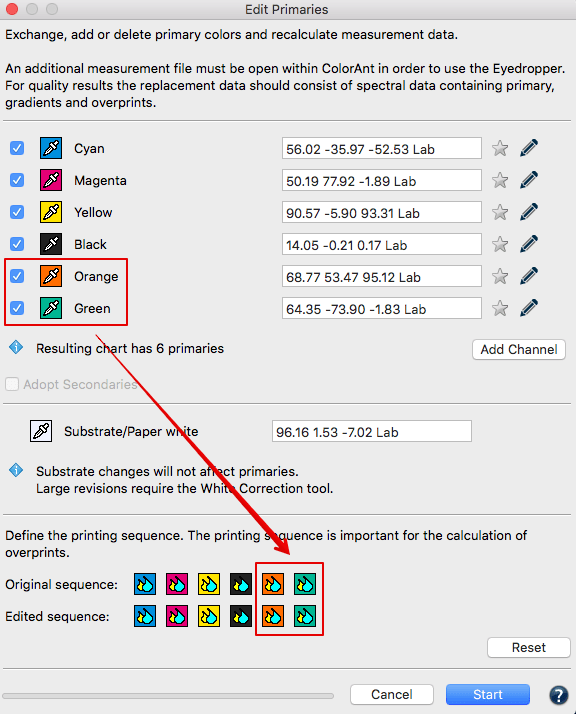
Simply click on the eyedropper icon and select Orange for Green and Green for Orange from the same measurement data file. This will change the channel order without changing the measurement data. If only the channel order has been changed, this is indicated by the name ChannelOrder in the file name.
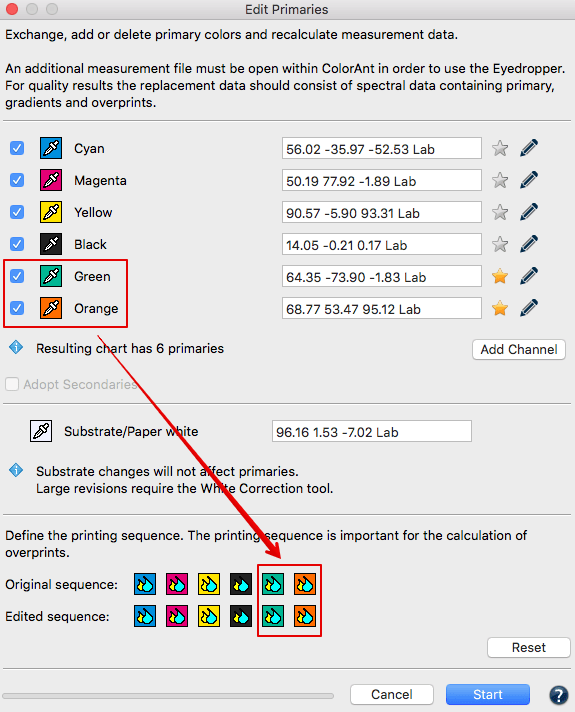
Note: The channel reordering feature in Edit Primaries and the Link tool Merge by Channel Name can be used to prepare Multicolor measurement data from different origins. For example it allows to combine the four separate 4 color Esko Equinox files to a 7 color Multicolor data set to be used for profiling in CoPrA.

Creating new characterization data on existing wedges

The Edit Primaries tool allows the assignment of new color values to device values (DCS values) which do not already contain color values. Thus, new characterization data can be created based on CxF/X-4 data, existing wedges of primaries, the input of Lab values or other characterization data sets without the need to reprint test charts.
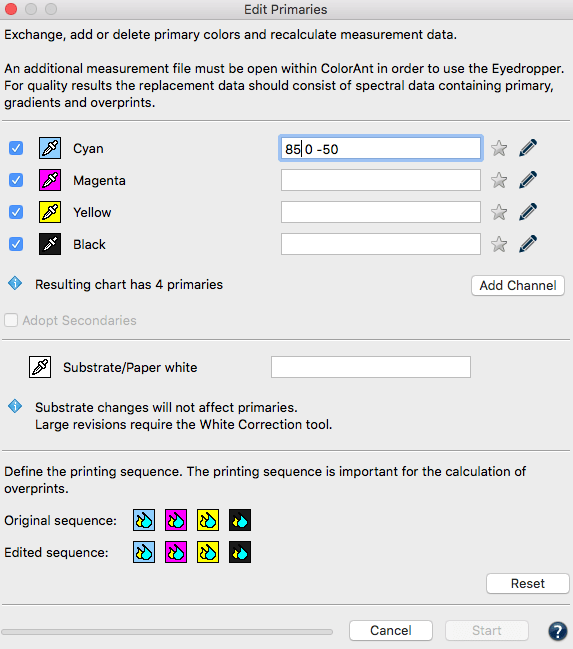
Procedure:

  1. Open a reference file (for example IT8/7-4) and, if available, measurement wedges or existing characterization data of test charts containing the desired colors.
  2. Select the reference file, click on Edit Primaries and use the eyedropper tool to choose colors from the pool of measurement values.
  3. Alternatively, fill in the Lab value if there isn’t other data available. The best results are achieved using spectral values, wedges or information on overprints.
  4. If two or more primaries are added from a single data set containing overprints of these primaries, then these measurements can be used by ColorAnt and the checkbox Adopt Secondaries will be enabled.
    Note: Adopt Secondaries is only enabled if secondary colors are available in the selected data set. When moving the mouse over the text a tooltip will show the selected color combinations and the associated data sets.
  5. If measurement values are assigned to all primaries and the paper white, click Start.

Note:

  1. The integrated progress bar shows the status of the calculations. With complex mathematical calculations, especially with large test charts and many channels, you are always informed how long these can still last.
  2. When extracting measurement data containing overprint information with black from CxF/X-4 files (so-called full characterisation), you should note that no black gradient is stored in CxF/X-4 files. If you want to edit a black channel with gradient in Edit Primaries, you should use the black gradient from another measurement file and not from the CxF/X-4 file.
Changing the Substrate/Paper White

Minor changes in paper color do not affect the full tone of the primary colors. In this case, the paper color can be replaced with a similar paper color of an existing dataset.

However, significant changes in paper white affect the entire color space. Major changes in paper white also have a strong effect on the primary colors.

If the white point changes significantly, it can be (re-)measured directly from within the Edit Primaries tool. This measurement data can then be used to correct the white point of the selected dataset. The corrected white point is then applied to the entire measurement data keeping the print characteristic intact. (see instructions below).

Note: If you just want to change the white point use our dedicated White/Black Correction tool.

Replacing the paper color with data from an existing dataset

  1. Load the test chart measurement data and load the secondary file containing information of the measured paper white into ColorAnt.
  2. Select the measurement data of the data to be edited and click Edit Primary.
  3. Click on the eyedropper icon of the Substrate/Paper white and select the new paper white from the second data set. Click on the name of the data set to import the data.
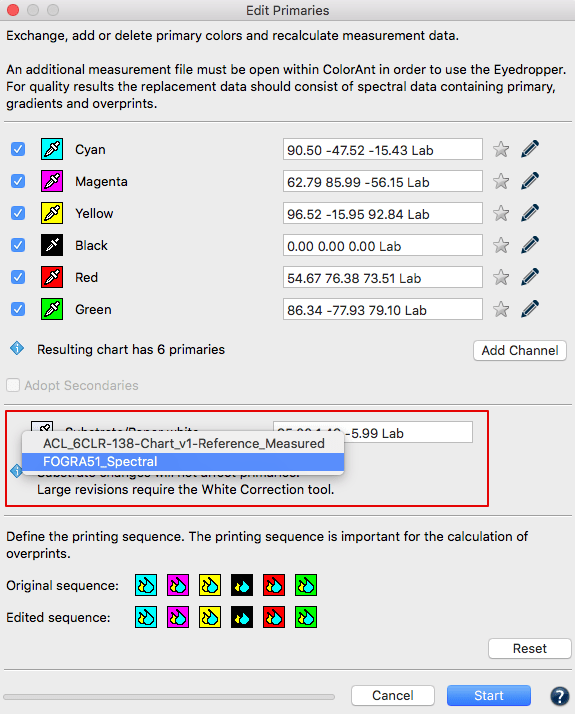
  4. Alternatively, if no measurement file of the new paper white is available, the new values can be entered in the number field as Lab values. However, this is not as precise as working with spectral data.
  5. Click Start and the data set will be modified. The modified measurement data can be found under Data Sets. Save this file under File/Save as for further usage, e.g., creation of ICC printer profiles with CoPrA.

Direct measurement of the white point

Proceed as follows to measure and adjust the white point:

  1. Load the measurement data to be corrected and open the Edit Primaries tool.
  2. Click on the eyedropper icon and select the option Measure.
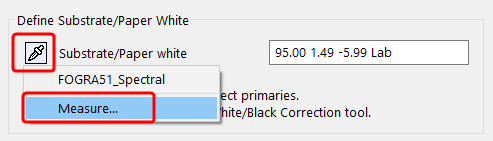
  3. The Measure Tool opens with the preselected chart for measuring the paper white with a single patch.
  4. After the measurement, the new white point data is transmitted back to the Edit Primaries tool and is applied to the entire measurement data keeping the print characteristic intact.

Note: The white point measurement is also listed under Data Sets.

Simulating the Differences in Color and Gamut Size when the Print Order is Changed

The Printing Sequence defines the order in which the colors are printed on top of each other and can be set independently of the channel sequence. When primary colors are exchanged or added, overprinting colors can be correctly calculated by specifying the correct printing order. By changing the print sequence, you can also check whether a changed sequence increases or decreases the gamut.
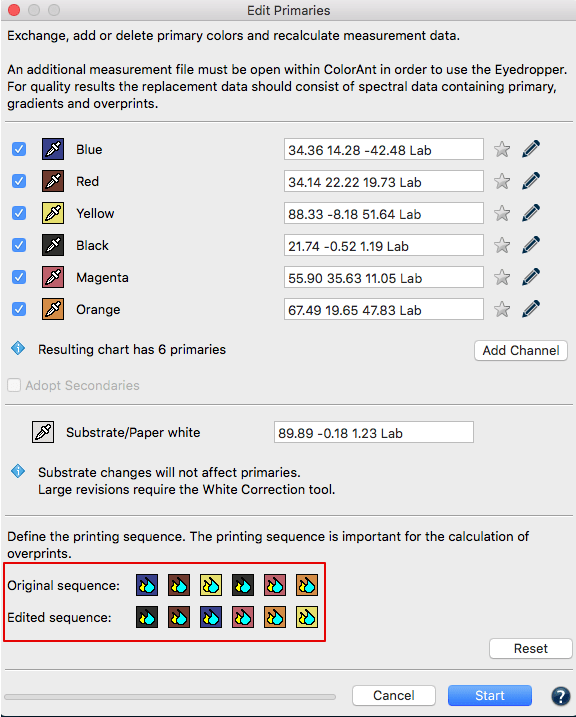
The printing sequence can be changed by dragging and dropping color symbols

Example: There is a difference in color when a red is printed on a yellow or vice versa. Users can set the print order independently of the channel order so that the channel order is maintained, for example as CMYK, even if the print order is KCMY.

Procedure:

  1. Load a measurement file under Data sets, preferably with spectral data, and open Edit Primaries.
  2. The initial print order, represented as the Original Sequence, of a loaded data set corresponds to the channel order. Change the Original Sequence by clicking on a colored icon and moving it to the desired position.
    Example flexo printing: The colours are usually printed from dark to light, whereas the channel sequence implies a different arrangement.
    Note: When an edited data set is reopened, the Original Sequence reflects what has been done and saved the last time.
  3. Edited Sequence specifies the order of the colors in which they are to be printed.
    Note: If you do not need to change the print order, make sure that the edited order is the same as the original order.
  4. After you are done click Start and the data set will be modified. The modified measurement data can be found under Data Sets.
  5. Save this file under File/ Save as for further usage, e.g. creation of ICC printer profiles with CoPrA.
ColorAnt | Tone Value

Tone Value

Correct measurement data to a specific set of curves

Tone Value

The Tone Value tool allows the correction of measurement data as well as the calculation of RIP compensation curves based on specific targets (e.g., G7®, ISO 20654 SCTV).
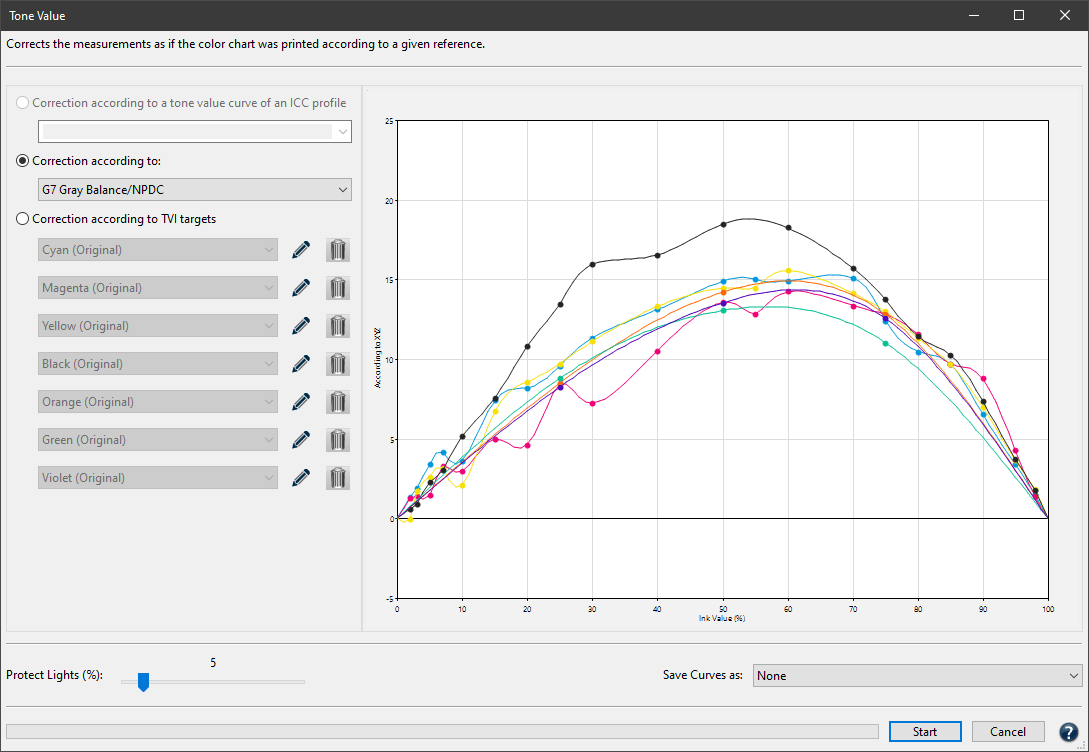
There are three different ways to ensure tone value correction is incorporated properly into measurement data. The curves created in this way are the final cut-back, compensation, calibration curves.
Note: It is not recommended to bend measurement data to a preferred standard without having printed so or without applying an appropriate RIP compensation curve.

Correction according to a tone value curve of an ICC profile:
Specify a profile and the measured values or the RIP compensation curves are adjusted to achieve the same tone value increase curves as those of the selected profile.

Correction according to a profile

Note: Depending on the loaded measurement data only ICC profiles fitting the color space are shown (e.g., CMYK or multicolor. In this example a 7 inks multicolor profile is selected).

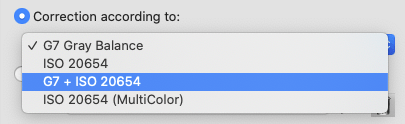
Correction according to:
Tone value curves are calculated to match the requirements of G7® Gray Balance or ISO 20654.

Correct Measurement data and RIP curves to given standards

G7® Gray Balance: The tone value curves are calculated to correspond to the gray balance conditions of the G7® method. The aim of the G7® method is to adjust the CMY curves in such a way that they result in as neutral a gray hue as possible with defined lightness over the entire gray balance.

ISO 20654: This method is based on colorimetric linearities and can be used instead of density calculations for spot colors. It can also be applied to CMYK and ensures that the gradations of all primary colors are colorimetrically linear. This can be checked in the View window under TVI or Curves.
Note: Density-based methods like Murray Davis do not work well with non-CMYK colors. The IS0 20654 method (also known as SCTV, Spot Color Tone Value) is an alternative method for handling the tone values of spot colors.

G7® + ISO 20654: G7 is defined to work with CMYK only. However, it is possible to apply the G7® method to the CMYK parts of a Multicolor measurement file and the additional (Multicolor) channels will be corrected according to ISO 20654. The G7® calibration method ensures that the CMY curves reach a neutral gray of defined lightness values throughout the entire gray balance curve.

ISO 20654 (Multicolor): Adjusts the Multicolor channels according to ISO 20654 and leaves the CMYK channels untouched. This is useful when the CMYK parts have been calibrated according to other standards, like PSO density curves or G7® and only the additional Multicolor channels need to match ISO 20654 (SCTV) requirements.

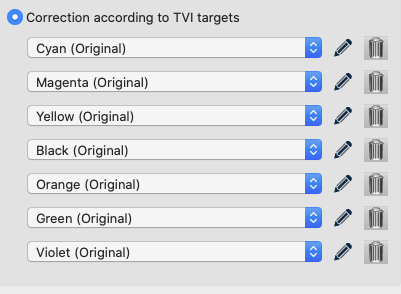
Correction according to TVI targets:

Manual editing of each channel allows predefining the increases in tone value to be incorporated in the measurement data.

This feature works for CMYK and multicolor color spaces. Depending on the data that was loaded into ColorAnt, additional or fewer channels are displayed.

The tone value curves can also be calculated to comply with the requirements of the BVDM ISO 12647-2 offset printing standards from 2004 or 2013.

ISO 12647-2/3:2013 Curve A-D for Conventional screen
ISO 12647-2/3:2013 Curve Ac for Conventional and NP screen (Coldset)
ISO 12647-2/3:2013 Curve A-D for NP-, X-, fine screen

ISO 12647-2:2004/2007 Curve A-E for Conventional screen
ISO 12647-2:2004/2007 Curve F for NP-, X-, fine screen

Protect Lights (%): Leaves the highlights untouched when applying any of the three correction modes.
Specify the percentage up to which the highlights are to be protected. Review the measurement data to ensure a clean transition between the protected and unprotected area. This feature is especially helpful for Flexo printing as it avoids overcompensation of dot gain in the highlights.

Save Compensation Curves as: TVI correction curves can be saved as Text, ACV, XML, or cfcurve (HYBRID CLOUDFLOW) files. Select None, if the curves are not to be saved.

Important: These curves have to be used in the RIP to implement the corrections. Further information can be found below in the chapter Combining Print Characterization and Compensation Curve Calculation.

Text: CGATS-compliant ASCII text. Used for direct import into RIP software or prepress workflows, e.g., HYBRID CLOUDFLOW.
ACV: Saves curves in the Photoshop ACV format.
XML: Saves curves as XML files according to ISO 18620.
cfcurve (HYBRID CLOUDFLOW): This JSON-based format that is compatible with Hybrid CLOUDFLOW, allowing the compensation curves to be imported into this application.
Note: These curves are automatically saved in the folder /Users/USERNAME/Documents/ColorAnt/Linearity on macOS systems or C:/Users/USERNAME/Documents/ColorAnt/Linearity on Windows PCs. They can then be used in either Adobe Photoshop or any external RIP software that supports the ISO 18620 standard. ZePrA also supports the exported ACV or XML curve formats in the Gradations dialog.

Correction of Tone Value Increase Curves through Presetting

With the method Correction according to TVI targets, you can edit and smooth tone value increase curves, add or remove individual control points, and transfer curves from one channel to another. You can also compare the original and modified curves. You can save curves and apply them to other data and channels. The tone value curves are displayed according to the calculation method selected in the Settings.

Apply curves to other data or channels

Procedure:

  1. Open the measurement and click on Tone Value. The channel names correspond to the names of the measurement file or are determined automatically by ColorAnt if the channel names are undefined.
     
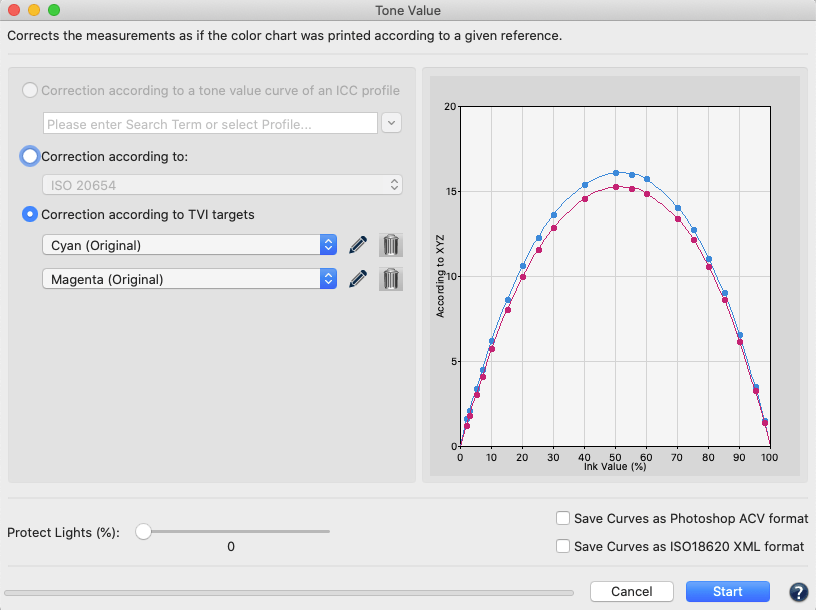
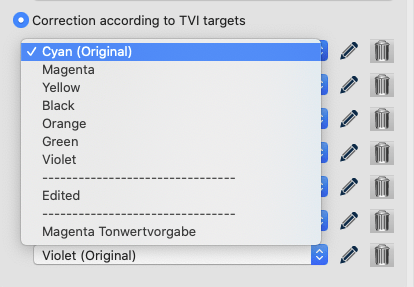
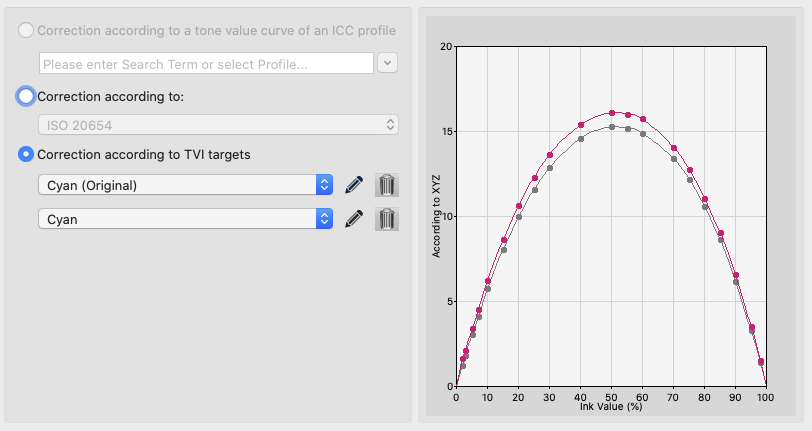
  2. To transfer a curve shape from one channel to another, simply select the desired curve from the drop-down list of the channel to be changed, for example Cyan, to apply the Cyan curve to the Magenta (original) channel. You can also apply a previously saved (and possibly optimized) curve from another data set to the Magenta (original) channel, here for example the Magenta Tonwertvorgabe curve.
  3. After curve transfer, you will see the curve shape of the new Magenta curve (colored) and the original Magenta curve (grayed out).

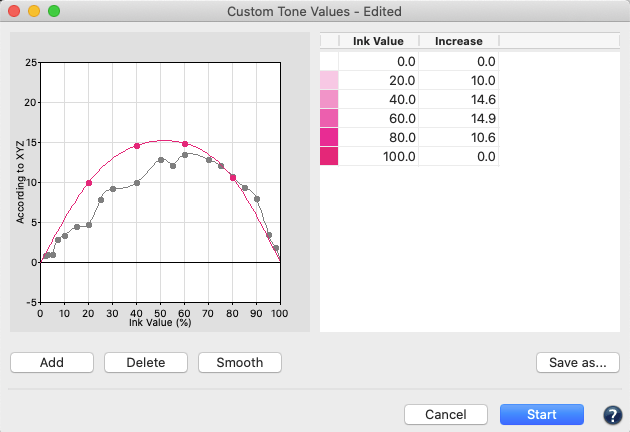
  4. To make further (manual) corrections to a channel, such as Smoothing, or to remove control points, or to change individual values, click on the pencil icon or select Edited from the drop-down menu. The Custom Tone Values – Edited window opens. For information on how to make manual corrections, see Custom Tone Value – Edited below.
  5. To undo changes, select (in this example) the entry Magenta (Original) from the drop-down list.

When you have finalized your edits, apply them to the measurement data by clicking Start.

Custom Tone Value – Edited

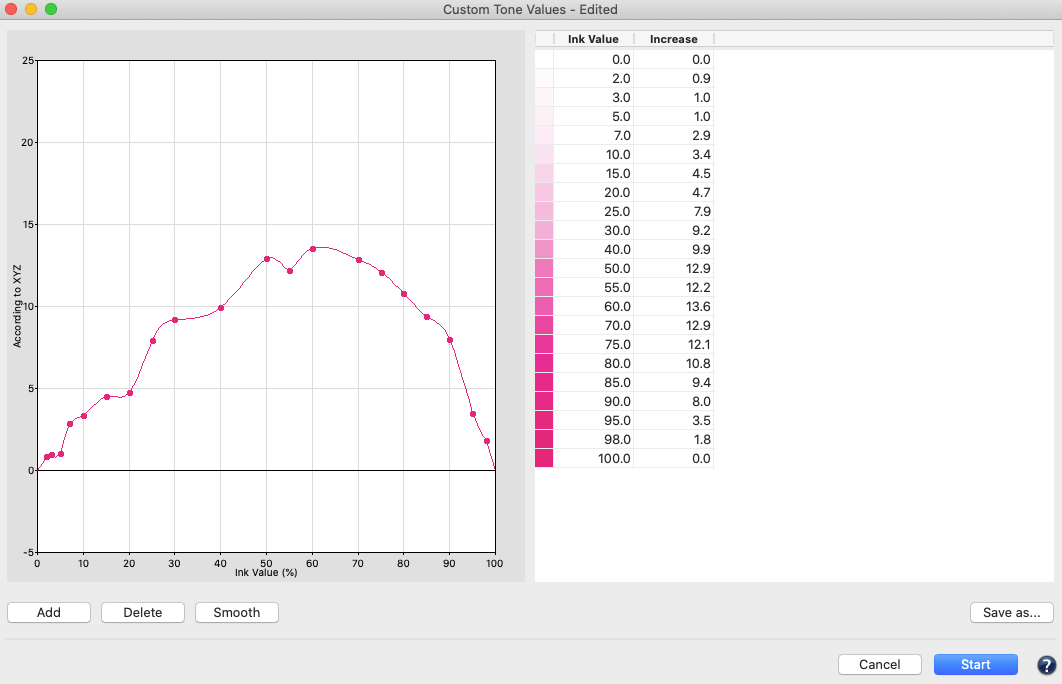
ColorAnt’s Custom Tone Value feature is specifically designed for manual corrections such as smoothing, adding or deleting points or changing individual TVI values. In addition, save custom curves and apply them on other channels and data.

Procedure:

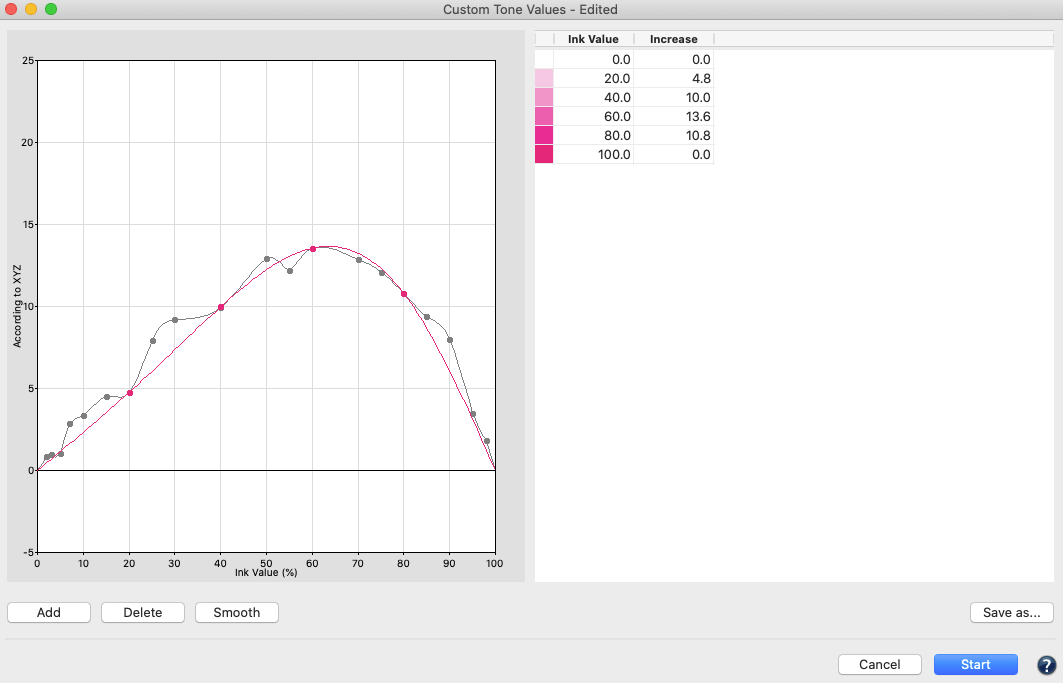
  1. Click on the Smooth button to smooth the curve. Only a few fulcrums are displayed after smoothing; ColorAnt does not delete​ any original fulcrums but helps to better optimize the data by reducing the number of values. Apply the corrections on the measurement data and all fulcrums will be adjusted to fit the smoothed curve.
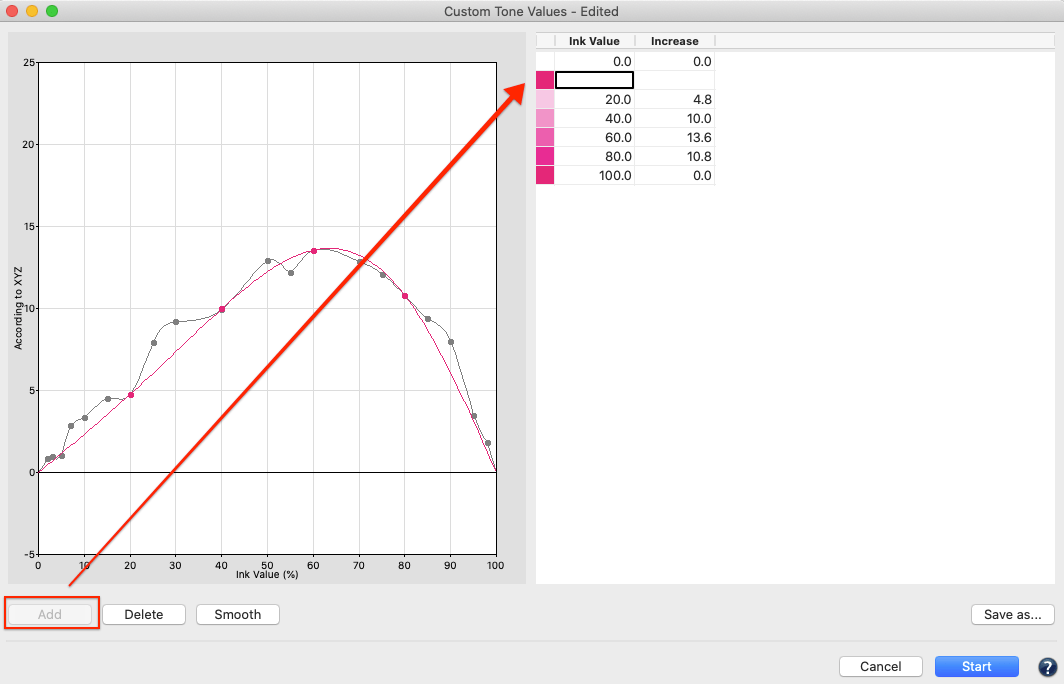
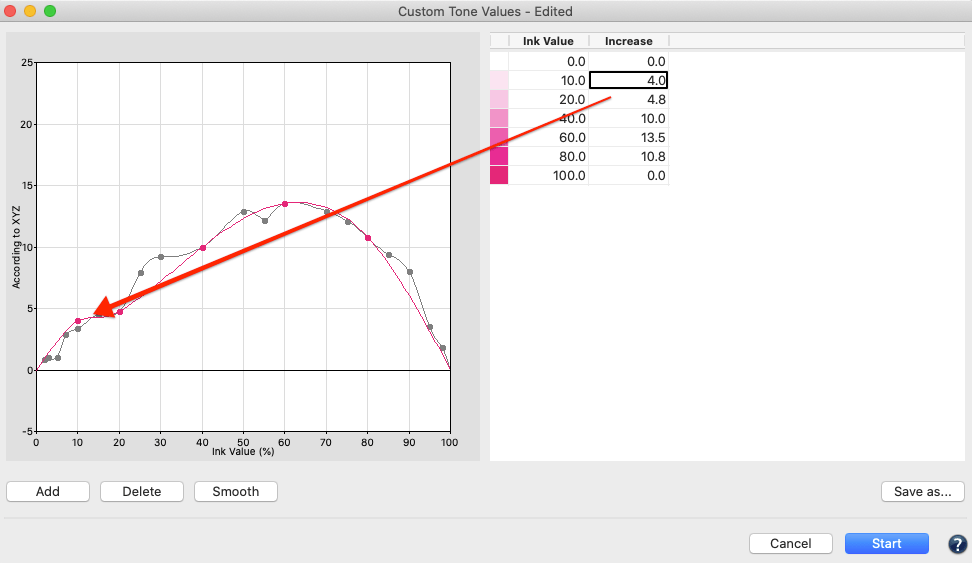
  2. In order to add any number of additional ink values, click on the Add button. Navigate to the new empty entry that will appear in the table and type in the desired Ink Value and the Increase value in dot percentage required. Apply the changes by hitting the tabulator or the enter key on the keyboard. The curve will be immediately updated.


    Note: The original curve will be displayed in gray as a reference.

  3. Change any of the existing Increase values in the table by simply selecting an entry and changing the numbers.
  4. To delete an Ink Value, select the desired entry in the table and click Delete.
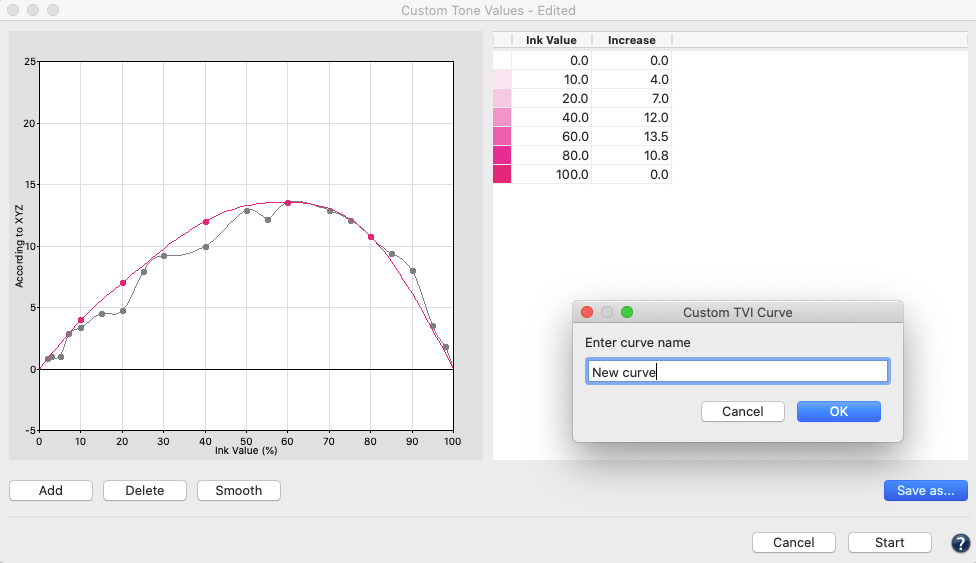
  5. Save the curve for later use. Click on Save as and enter a name for the curve in the appearing dialog.

  6. To apply the manual editing, click on OK and return to the Tone Value dialog. The edited curve will be marked as Edited.

Combining Print Characterization and Compensation Curve Calculation

  1. The ColorAnt TVI correction can be used to combine RIP compensation curves and print characterization in a single print run.
  2. Print a test chart for characterization/linearization with the RIP in linear mode
  3. Measure the test chart (These measurement data represent the linear print process)
  4. Smooth the measurement data (with the Smoothing tool)
  5. Open the Tone Value TVI correction tool
  6. Choose Correction according to a tone value curve of an ICC profile and select the target curve for the printing process
  7. Export the compensation curve in the format the RIP can read (e.g., Text for HYBRID Cloudflow)
  8. Apply the TVI correction to the measurement data (the measurement data represent the compensated print)
  9. Load the compensation curve into the RIP

The corrected measurement data can be used, for example, to create a proofing profile that represents the compensated printing process instead of the linear printing process.

ColorAnt | Preferences

Preferences

Define basic settings

Preferences

Use the ColorAnt Preferences to define the general behavior of the application.

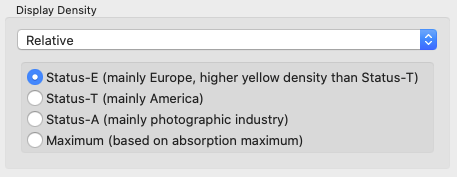
Display Density

Defines the method for calculating and displaying densities in View and Report.

Select whether the Relative or the Absolute density is to be displayed and which of the four methods is to be used for the calculation:

  • Status-E: The default setting for CMYK data, mainly used in Europe.
  • Status-T: Mainly used in America for CMYK data, with slightly lower yellow density values.
  • Status-A: Used in the photographic industry. Use it with RGB printing systems.
  • Maximum: For Multicolor/spot color measurement data. Automatically uses the maximum absorption of the spectral values to calculate the density instead of the specified CMY filters.

Tone Value Increase Calculation

Changes the calculation and display of the TVI curves in the View dialog.

The default setting in ColorAnt will calculate the TVI curves based on XYZ values. This mode ensures consistent views of TVI curves between measurement data and the same curves derived from ICC profiles. ICC profiles use colorimetric data. When spectral measurement data is present and the checkbox is disabled in Preferences, the TVI curves are based on density and the selected density mode is used for the calculation of the curves. This method is more consistent with the one used in print process control. Keep in mind that both the XYZ and the density method are not good indications for how TVI curves of spot colors actually look as these methods do not work well for non CMYK colors. Refer to the Curves View dialog instead to see curves according to colorimetric linearity or ISO 20654 (also known as SCTV).

General Settings

Units: Defines the measurement units used (mm or inches) in the Export Chart dialog.

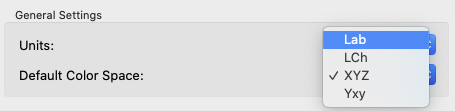
Default Color Space: Defines the color space for the 2D and 3D view of the View tool. Available color spaces are Lab, LCh, YXZ and Yxy.

3D Gamut Axes Ratio (L:a:b): The default 3D gamut view uses an 1:1:1 axes ratio of the Lab axes (L:a:b). Alternatively, the axis ratio of 2:1:1 used in ColorAnt 8 and older can be selected.

Default DeltaE Method: Define the DeltaE method to be used in reports, either dE76 or dE2000.

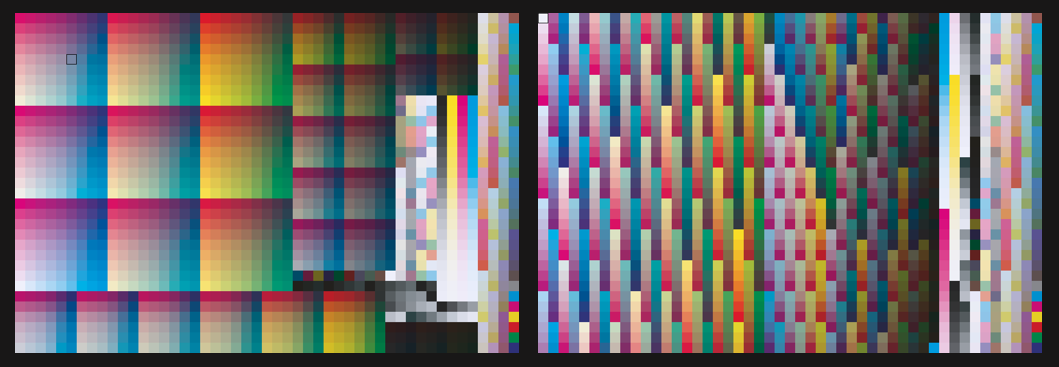
Automatically reorder known Charts: Enables the automatic rearrangement of color patches of randomized test charts according to the known default layout (see screenshot), i.e., it can be specified whether the existing randomized layout should be kept when loading the chart or whether the color patches should be rearranged automatically.

Note: The state of the checkbox can be switched by holding the Alt key when dragging and dropping files into ColorAnt.

Left chart: With automatic reordering
Right chart: Without automatic reordering
Test chart: IT8.7-4

Report Customization

Type: Select the report type for which the settings are to be adjusted from the drop-down menu.

Title: The report Title for measurement data reports can be customized individually for all report types. Select the report type from the drop-down menu and set the desired Titel for each of the available reports.

Remaining Number of Characters: Shows the number of remaining characters for the report title. The report title can contain a maximum of 50 characters.

Logo: The report Logo for measurement data reports can be customized individually for all report types. Select the report type from the drop-down menu and Load the desired Logo for each of the available reports.

Supported image formats for the Logo are TIFF, JPEG or GIF in RGB color space.

Default Report Format: Select the preferred file format for the report, either PDF or XML. If XML is selected as the format, the corresponding XSD files will be created automatically as well.

Open Profile Reports automatically with Default Viewer: Define whether the report should be automatically opened in the standard PDF viewer after creation.

Custom Directories

Custom directories can be selected for reports, charts and profiles. Click on the folder icon to select the preferred folder. The custom Profile Directory defined here is an additional directory alongside the system profile directory. To reset a custom directory to the default directory, click the undo arrow.

ColorAnt | White – Black Correction

White/Black Correction

Apply Manual Corrections to Paper White

Correcting the White and Black Point

Overview

This tool allows adjusting the paper white using the White Correction and the darkest color using the Black Correction.

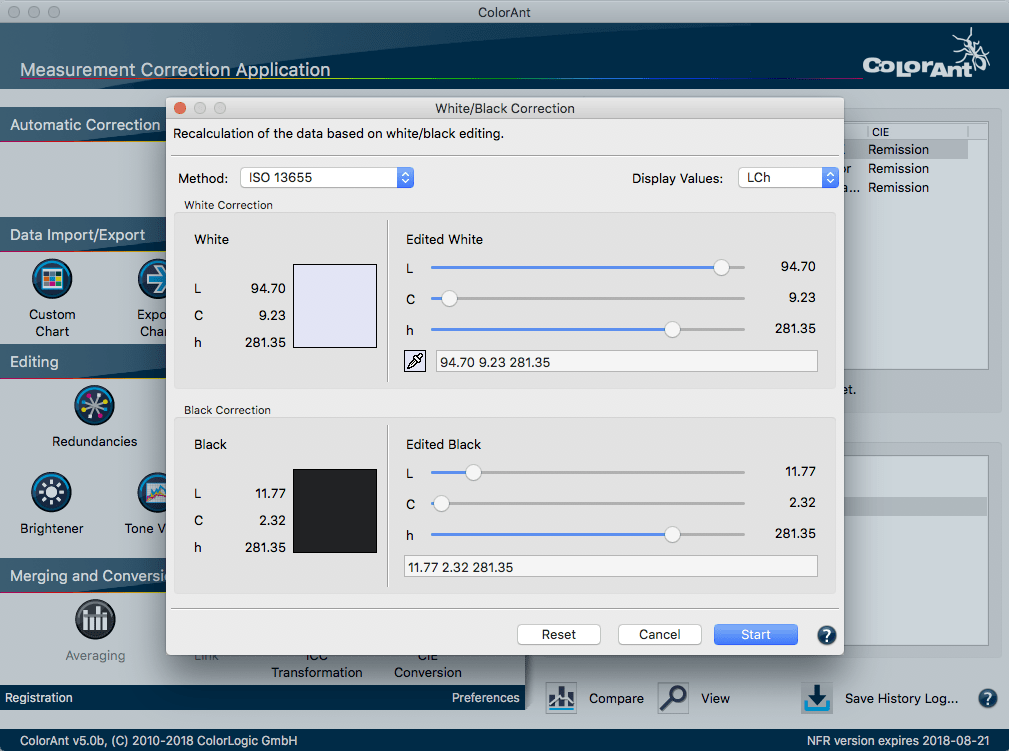
The White Correction tool allows manual correction of the whitest patch of the measurement data, which is usually the paper or substrate color. The tool is applied to a single measurement file. A correction by changing the Lab or LCh input value is useful in cases where either a specific target white point is to be achieved or corrections are required to lighten, darken or recolor the data. The manual correction is then applied to the entire measurement data, leaving the print characteristics intact.

White Correction: This calculates the effect of the changed paper white on the measurement values of a test chart. In ColorAnt, three different methods are available for calculating this effect: ColorLogic Default, ISO 13655 and Relative colorimetric.

Direct Measurement of the White Point

Changes in paper white affect the entire color space. Major changes in paper white also have a strong effect on the primary colors.

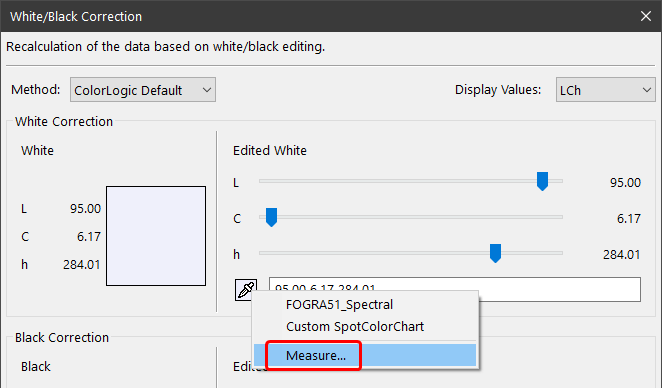
The white point can be (re-)measured directly from within the White/Black Correction tool. This measurement data can then be used to correct the white point of the selected dataset.

Follow these steps to adjust the white point:

  1. Load the measurement data to be corrected and open the White/Black Correction tool.
  2. Click on the eyedropper icon and select the option Measure.
  3. The Measure Tool opens with the preselected chart for measuring the paper white with a single patch.
  4. After the measurement, the new white point data is transmitted back to the White/Black Correction tool and is applied to the entire measurement data keeping the print characteristic intact.
    Note: The white point measurement is also listed under Data Sets.

White Correction Methods

ColorLogic Default: This method uses a spectral color model to apply corrections that produce the most realistic results possible. This works best when both the data to be changed and the white taken from another file are spectral data. If spectral data is not available, ColorLogic Default works in the same way as ISO 13655, assuming that shadows are not affected and that the impact on primary colors is much smaller.

ISO 13655: In the highlight areas and colorful primary colors, this method is similar to the Relative colorimetric method. However, this method assumes that the shadows and very dark colors are not changed. It corresponds to the Substrate Corrected Color Aim (SCCA) method.

Relative colorimetric: Changing the paper white will modify the entire color space. Major changes to the paper white also have a strong effect on the primary colors.

Procedure for White Correction:

  1. Load the measurement data to be corrected and the data containing measurements of the new paper white.
  2. Click on White/Black Correction
  3. Select the mode for adjusting the corrections: LCh or Lab Color Mode. The mode can be changed at any time. With LCh the hue or chroma can be adjusted independently, while the corrections in a* and b* change hue and chroma simultaneously. The split color patch displays the original white on the left side and the modified white on the right side.
  4. The white point can be edited either manually with the sliders or by entering Lab values. Alternatively, a new white point can be selected from another data file using the eyedropper icon. Simply click on it and select the data file that contains the desired white point. The new white point will be selected automatically.
    Notes: The eyedropper will pick the whites patch of the selected file. If spectral data is detected, the tool will use it according to the selected Method.
    The sliders allow for small changes. More precise numbers can be entered in the dialog box. The sliders are reset afterwards.
  5. If the lightness (L* value) is changed while using the Relative colorimetric method, the darkest colors of the measurement files are usually affected as well. If the black point and the darkest colors are not to be changed, the ISO 13655 method should be used. Both methods, Relative colorimetric and ISO 13655, apply calculations with colorimetric data. Only the ColorLogic Default method uses the full spectral data and a spectral model for the calculation.
    Note: Depending on the color difference of the paper white and the presence of optical brighteners, this may affect the primary colors.
  6. Clicking the Reset button will discard any slider modifications.
  7. Clicking the Start button applies all changes to the entire measurement file. The dialog is closed automatically after the calculation.

Black Correction

Black Correction: This method can be used to change the darkest black, thereby scaling the entire dataset to the modified black point. This is beneficial when black has been measured too dark or too light compared to the visual appearance. Common scenarios include materials used in industrial applications such as ceramics, textiles, glass, etc.
Important: Black Correction is not available when using the Relative Colorimetric Method.

Procedure for Black Correction:

  1. Load measurement data.
  2. Click on White/Black Correction.
  3. Select either ColorLogic Default or ISO 13655.
    Note: Relative colorimetric does not allow changes to the black point.
  4. Adjust the correction in LCh or Lab Color Mode. LCh allows adjustment of the hue or chroma independently whereas corrections in a* and b* will change hue and chroma simultaneously. The split color patch displays the original black on the left side and the modified black on the right side.
  5. The black point can be edited either manually with the sliders or by entering Lab values.
  6. Click the Reset button to discard any slider modifications.
  7. Click Start to apply the corrections. The dialog is closed automatically after the calculation.

ColorAnt | Report

Report

Create custom reports for measurement data

Create Report

Overview

If there are questions about the quality of the measurement data for further processing (e.g. for creating profiles) or if measurement data needs to be corrected, you can create a Report. This report is used to verify and graphically display the data and to provide recommendations for corrections. The Report is a very powerful feature to indicate the necessary corrections to the measurement data and provides useful comparisons.

Note: The Report tool is available, when a single data set or multiple data sets of the same color space are selected.
Multiple reports can be generated at once for several selected measurement data. In this case, individual reports for each of the selected data sets will be generated.
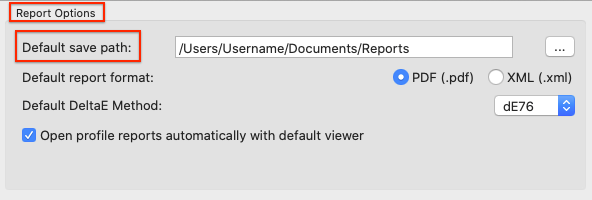
Under Preferences, the Default save path for the reports and the Default report format can be selected. If XML is selected as the format, the corresponding XSD files will be created automatically as well.

Specifics of the PDF Report

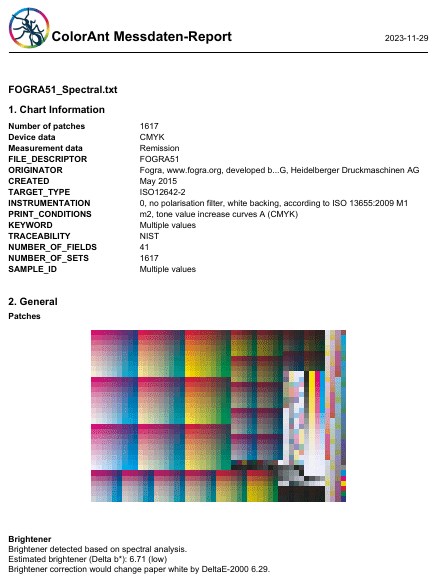
The different reports provide an insight into measurement or printing errors and the smoothness of the measurement file. Text assessments in the individual sections give tips on the correction tools to be used in ColorAnt. Get information about optical brighteners in the paper, which available ICC profiles best fit the measurement data, or how exactly the measurement data depicts a pre-defined reference profile.

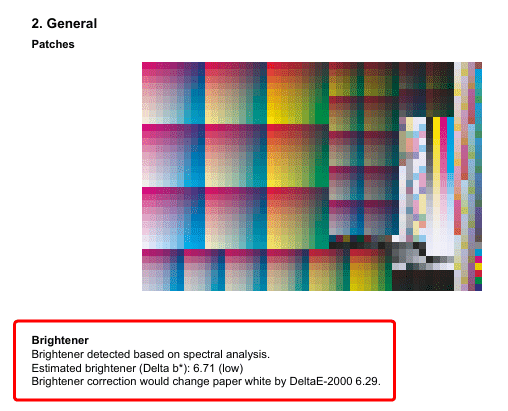
The Brightener section gives some useful information about the detected OBA in the file, for example the Estimated Brightener and how a brightener correction would affect the paper white. This is based on a predictive model that focuses exclusively on the change of the b* value, which is used as an indicator for the brightener share in the paper.
However, the actual correction could affect all L*, a*, b* values and result in a slightly different value (dE) than the predictive brightener indicator shows.

Delta b*: OBA share in paper

Delta b* < 1 = faint OBA
Delta b* < 4 = little OBA
Delta b* < 8 = low OBA
Delta b* < 14 = moderate OBA
Delta b* > 14 = high OBA

Display the required tone curves by switching on/off the different layers in the PDF file. Switch on/off the color patches highlighted with a red frame and also view color patches before and after correction and smoothing.

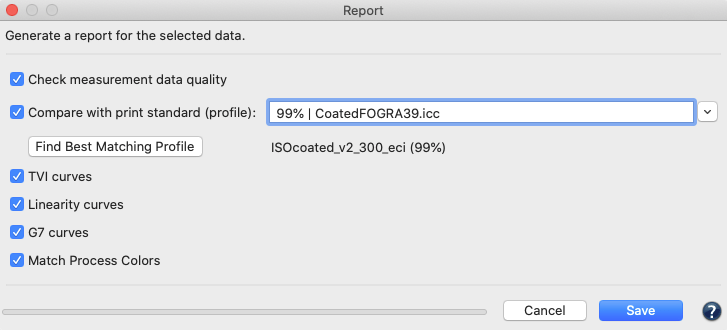
Check measurement data quality: Examines the measurement data and lists the results in the report, e.g. whether redundancies exist. The report also shows how much the application of data optimizing tools, such as correction and smoothing, would affect the data.

Compare with print standard (profile): Compares the measurement data with the selected reference profile and indicates the accuracy of color matches. Activate this checkbox to select a comparison profile. ICC profiles in the drop-down menu are shown with the matching percentage in front of the profile name and are sorted by percentages with the highest match on top. The best matching profile of the list will automatically be selected if the Find Best Matching Profile button is clicked.

Find Best Matching Profile: Automatically selects the best matching profile for comparison with the measurement data. Enabled for a single data set, disabled for multiple data sets.

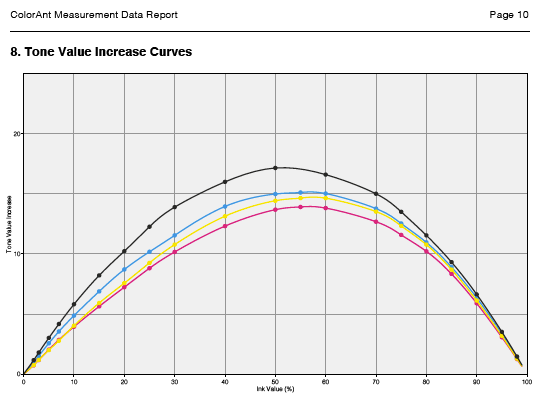
Include TVI curves: Includes the tone value increase curves in the report.

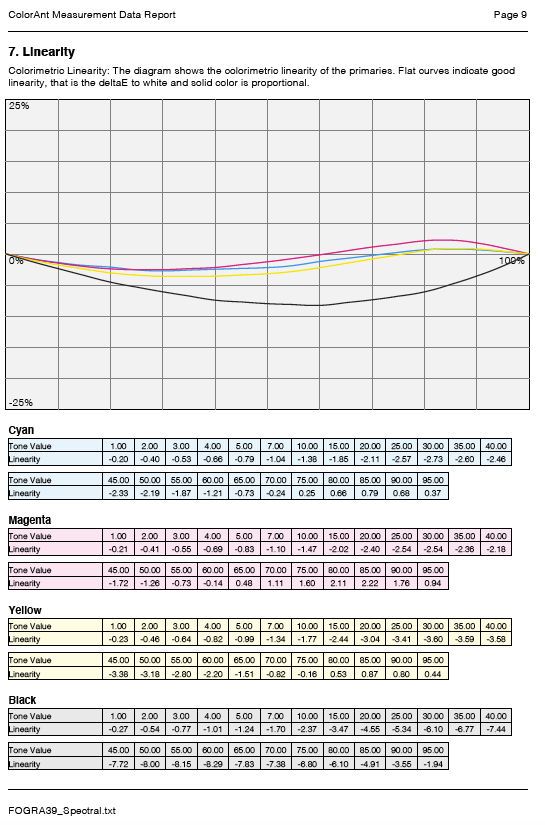
Include linearity curves: Shows the linearity curves in the report.

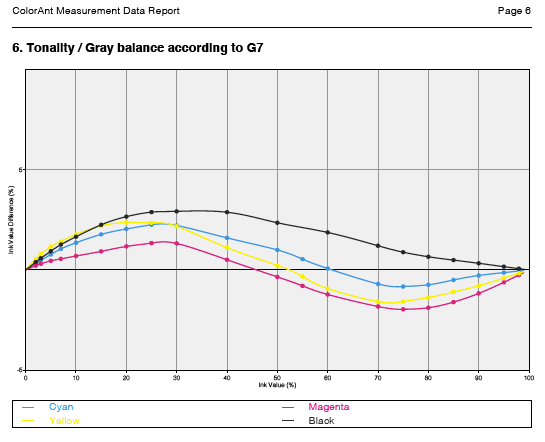
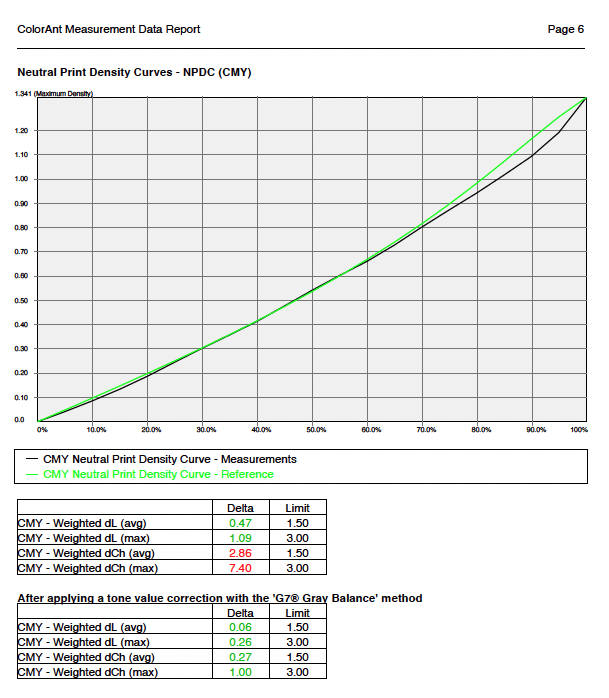
Include G7 curves: If activated, the selected CMYK or CMYK + data is checked for G7® compliance. The Report shows three graphs. The first graph indicates the Tonality / Gray balance according to G7 curves in relation to the G7® aim. Flat curves indicate a perfect G7® gray balance. The two other graphs show the Neutral Print Density Curves (NPDC) for CMY and K. In these graphs Reference (green curve) represents the desired target curve for G7® conformity and Measurements (black curve) represents the curve of the measured values. A perfect G7® match shows identical curves for the measurement data and the reference.
Note: G7® is defined for CMYK only. For Multicolor data only the CMYK parts are analyzed.

When Include G7 curves is activated, the report shows the various NPDC curves before and after the calculation and the G7® evaluation based on the measurement and calculation data.

The Weighted avg/max before (Measurements) and after (After applying a tone value correction with the ‘G7® Gray Balance’ method) are shown in tables for CMY and K respectively. This makes it easy to check whether a limit has been exceeded (red values) or not (green values).

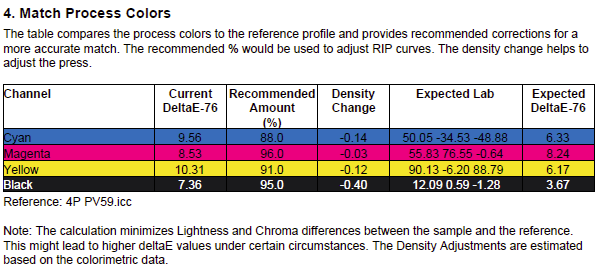
Match Process Color: Activate this checkbox to determine whether a close match between the measured solid process colors and the reference solid process colors (defined by the selected profile) can be achieved by adjusting the density or percentage values. Only the solid process colors of the loaded data set are used and compared to the selected profile. Therefore, this feature is only enabled if a comparison profile (Compare with print standard) has been selected.


Functional principle

  • Finds closest possible match to the reference based on recommended densitometric and percentage adjustments
  • Gives adjustment recommendations to increase or decrease density
  • Recommends Process Color % values to be entered into a RIP curve to match the reference primaries
  • Shows original DeltaE values and expected DeltaE values after the recommended optimization
  • Provides a quick and easy interpretation for printers and press personal if a match is possible and how to achieve it

The calculations minimize Lightness and Chroma differences between the sample and the reference for CMYK and Multicolor primaries. The density recommendations are an estimation based on colorimetric densities. The DeltaE values provided are either dE76 or dE00 depending on the setting under Preferences. Note that the expected DeltaEs may be higher than the initial values. This indicates that a perfect match is not possible.

Save: Reports are saved automatically in the folder defined under Preferences/Report Options/Default save path. Make sure that you have specified the preferred report format, the DeltaE method to be used and whether the created report(s) should automatically open in the default PDF viewer (under Preferences/Report Options). The report file automatically receives the file name of the selected data set including the creation time.