ZePrA | Flows EN

Flows

Automate various recurring routine tasks

Flows

Overview

The Flows tool can be used to automate various recurring routine tasks. This includes the ability to connect multiple configurations, route files based on conditions and perform simple automation tasks by setting up rules for file processing.

Flows help to reduce the number of queues and hot folders. However, more complex workflows require high-end automation workflows such as HYBRID CLOUDFLOW or Enfocus Switch, into which ZePrA can easily be integrated.

The Flows tool covers the following automation scenarios:

  • Combining multiple configurations, such as a color conversion configuration with an ink-saving configuration, in just a single queue.
  • Searching for output intents in PDF/X files or PDF files without output intents and forwarding them to the required configurations
  • Distribution of files based on naming convention, file size, file type, image width our height, or number of pages
  • Embedding CxF/X-4 spectral data for spot colors in PDF/X files
  • Automated creation of spot color reports for large numbers of PDF files and optional processing of the files with the best-suited configuration

Note: The Flows tool is part of the ZePrA Multicolor package, and can be added to a ZePrA Process package.

Working with Flows

Flows can be configured in the Define Flows section. Each flow carries a name and contains one or more Processing Rules. Similar to configurations, Flows can be created with or without a Queue and managed in the same way.

In the Overview, Flows are identified by a dedicated orange flow icon. For better distinction, configurations have their own blue icon.

Define Flows

Existing Flows can be selected from the drop-down menu. The sorting order of the menu items can be changed with the icon next to the menu:

  • Sort Order: Default – sorts the list of Flows by its IDs from lowest to highest number. Therefore, the Default sorting is not necessarily only sorting by creation date.
  • Sort Order: Name (A-Z) – sorts the list of Flows alphanumerically with numbers on top followed by the alphabets.
  • Sort Order: Modification Date – the last modified or created Flows are on top of the list.

Create, Rename, Delete and Save Flows

New: Creates a new Flow.

Rename: Can be used to change the name of an existing Flow.

Delete: Deletes the selected Flow.

Save: Saves the selected Flow.

Processing Rules

Processing Rules form the core of all Flows. A processing rule can include one or more Conditions. If a condition is met, a Procedure can be defined, which will then be executed. The next step after that can be defined as well. If a condition is not met, an alternative procedure and an alternative next step can both be defined.

New: Opens the Edit Processing Rule dialog that allows defining a new rule with  Conditions and Procedures for the selected Flow.

Edit: Allows processing rules to be modified as needed. Rules can also be edited by double-clicking on them.

Delete: Removes the selected processing rule from the Flow.

Conditions

Edit Processing Rule

Name: The name of the processing rule must be entered here. Without a dedicated name a processing rule cannot be saved.

Conditions

One or multiple conditions can be defined per rule. All specified conditions must be met for the rule to be applied. If multiple conditions are defined, the Filter Logic must be considered; see the section on Filter Logic below.

Select the Condition(s) that must be met for the filter rule to be applied:

  1. Select the Condition Type from the first drop-down menu
    If Output Intent is selected, the More Options button becomes available. Click this button to select the appropriate ICC profile.
  2. Select the Comparison Option from the second drop-down menu. Only applicable comparison options are available
  3. Specify the Comparison Criteria: In the text field, enter the value or text that the condition will be compared against

The following Conditions are available:

Always: No conditions need to be met; the selected Procedure is always carried out.

File Name: Enter the name of the file. The file name does not have to be entered exactly and is not case sensitive. Wildcards can also be used for file names:

  • The * wildcard stands for any number of characters.
    Example: CL*.pdf finds all files whose name begins with “CL” and ends with “.pdf” - e.g. CL_report.pdf or CL123.pdf.
  • The ? wildcard refers to exactly one character.
    Example: CL testpage V?.pdf would find CL testpage V5.pdf or CL testpage V9.pdf, but not CL testpage V11.pdf, as “11” contains two characters. To cover two characters, either use ?? or *.

Note: For wildcards to function correctly, the comparison option matches expressions with wildcards must be selected rather than equal to.
If several names are to be accepted, enter each one using wildcards and separate them with a semicolon (without spaces).
Example: CL*;ColorLogic*

If a search term contains a semicolon and should not be interpreted as a separator, enclose the entire term in quotation marks.
Example: "CL;must be"

File Size: Enter the file size using one of the following units: B, KB, MB, GB, or TB. The input is not case-sensitive, and spaces between the number and unit are optional.

If no unit is specified, bytes (B) are assumed by default.

Note: If the comparison criterion in range is selected, a unit can also be specified for the range.
Example: 10MB-20MB refers to a size between 10 and 20 megabytes.

Note: While some systems use 1000 as the conversion factor, the Flows tool uses 1024 (e.g., 1 KB = 1024 B, 1 MB = 1024 KB, 1 GB = 1024 MB, 1 TB = 1024 GB).

File Type: The following file types are supported: PDF, TIFF, PSD, PSB, JPEG.
Note: If multiple file types are to be accepted, use the comparison option is one of and list all file types separated by a semicolon (without spaces).
Example: TIF;JPG;PSD

Output Intent: Once the option Output Intent is selected from the Conditions drop-down menu, the More Options icon becomes available. Click this button to select the desired ICC profile.

Note: Select the equal to comparison option if the profile name should match exactly or use the is equivalent to comparison option if profiles that are similar to the selected profile should be treated as equivalent.
ZePrA contains an internal list of almost all known standard profiles. Many of these standard profiles are available in several naming variants which are also included in the list. These variants are the equivalent profiles recognized by ZePrA.

Equivalent profiles are for example: ISOcoated V2.icc, ISO coated V2 (300).icc, CoatedFOGRA39.icc, ISOcoated V2 (bas).icc

Note: If the text field of the comparison criterion is left empty, it is checked whether the PDF files have no output intent. This can be helpful for sorting out PDF files without an output intent.

Number of Pages: Enter the number of pages in the following formats:

  • Single page: 5 (refers only to page 5)
  • Page range: 2-6 (refers to pages 2 through 6)
  • Multiple single pages: 5,7 (refers to pages 5 and 7 but not 6)
    Note: If the in range comparison option is selected, the comparison criteria must be specified as a comma-separated list of ranges or numbers.
    Example: 1-3,6-7 (refers to the pages 1,2,3,6,7).

Width: Refers to the width of either a pixel file (such as TIFF, JPEG, PSD or PSB) or the width of the media box of a PDF file.

Height: Refers to the height of either a pixel file (such as TIFF, JPEG, PSD or PSB) or the height of the media box of a PDF file.
Note: Units should be specified for Width and Height. The input is not case-sensitive, and spaces between the number and unit are optional.
Example: 5 cm, 5INCH - both are valid and represent 5 centimeters and 5 inches, respectively.
If no unit is provided, the value is interpreted as pixels by default.
When the comparison criterion in range is selected, ranges can also have units. Example: 10cm-20cm refers to a range between 10 and 20 centimeters.

More Options icon (button with dots): If applicable, a dialog box opens where the desired item can be selected.

+/- buttons: Add or remove a Condition

Filter Logic: Only applicable if there is more than one condition.

  • or: Only one of the listed conditions is sufficient to initiate the respective Procedure
  • and: All of the listed conditions must be met to initiate the respective Procedure

Procedure - Operations

The operations which are to be carried out when the conditions are met can be defined in this section.

The following Operations are available:

None: No operation is performed.

Apply Configuration: The data is converted and processed according to the settings in the configuration. Use the More Options icon to select the desired Configuration.

Apply Flow: An existing Flow can be used and implemented as a self-contained step. Use the More Options icon to select the desired Flow.

External Command: After conversion, a file can be processed further by an application or a script file (e.g. a batch file under Windows or a shell script under macOS) which is to be used to open the converted file. This is equivalent to a drag-and-drop operation of the converted file onto the selected application or script.
For example, a script can be used to rename the file or add a number.

Path to Executable: Use the More Options icon to select a batch file or a Java Script file, whereby the path to the file is automatically specified. Example for a batch file: C:\CL\Temp\example.bat, example for a Java Script: C:\CL\Temp\example.js

Note: To use Java scripts, a Java Script runtime environment like Node.js must be installed.
Please make sure that the correct permissions are assigned to the script file, otherwise execution of the script will fail. This can be done via the console (terminal) with the command “chmod 755 /path/to/scriptfile.sh”.

Arguments: Specifies the command line arguments which are passed to the executable.

Time limit: Enter the time limit in seconds. If the script cannot be completed within the specified time, a timeout error is triggered.

Spot Color Report: Automatically creates a Spot Color Report. Click on the More Options icon to open the Spot Color Report dialog.

Select one or more configurations from the list which contain all settings for the conversion. Only Configurations which have the option Convert Spot Colors enabled are displayed in the list.
Note: Configurations that use PantoneLive spot color libraries are not listed here, as X-Rite/Pantone does not allow the export or embedding of the original PantoneLive spectral data.

Sort order: Sorts the spot colors in the list according to various criteria. When sorting by Delta E, spot colors with the lowest deltaE are listed at the top, and the highest deltaE at the bottom.

Format: The Spot Color Report can be saved in various formats:

  • PDF
  • HTML
  • Text
  • CGATS
  • CxF
  • JSON
  • XML

Note: Saving as CGATS text and Color Exchange Format (CxF) allows the file to be opened in external tools such as ColorAnt. This way, the device values (DCS) after optimization by ZePrA and the resulting Lab values can be examined. The Lab values of the spot colors in this file reflect the actual achievable Lab values resulting from the conversion via ZePrA and may differ from the original Lab values (due to out-of-gamut or other limitations).

The two file formats JSON and XML of the list are optimized for machine reading and are best for use by external systems to extract data for reports.

Note: The original PDF or image files with spot colors to be checked will be copied to the Output folder with the job ID added to the file name (provided that hot folders are assigned to the flow).
If the original PDF or image files are to be optionally converted using the best suitable configuration according to the results of the spot color report, a second processing rule must be defined with an Appy Configuration procedure that uses the %BestConfiguration placeholder. This placeholder can either be entered manually or selected via the More options button from the Configuration drop-down menu.

Embed CxF/X-4 Data in PDF: Embeds spectral measurement data of spot colors (CxF/X-4 compliant) into a PDF/X file so that other CxF/X-4 compliant tools can extract or use this data. Embedding complies with the PDF 2.0 and CxF/X-4 specifications if corresponding measurement data is provided in the spot color libraries.
Note: CxF/X-4 data can only be embedded in PDF/X-compliant files - embedding in normal PDF files is not possible.
Embedding also allows the addition of measurement data containing only full tone spectral data, even if these are not CxF/X-4b compatible. (CxF/X-4b requires both full tone data and paper white data).

Only spot color libraries that contain spectral data are displayed in the list. PantoneLive libraries are not listed here, as X-Rite/Pantone does not allow exporting or embedding the original PantoneLive spectral data. Use the checkboxes to select one or more spot color libraries. The order of the libraries is relevant as ZePrA checks the list from top to bottom for matching spot color names and only uses those spot colors which names are identical to the names in the PDF/X- file. To change the order of the libraries, use the buttons on the right.

There are two drop-down menus in the dialog to specify what to do with existing CxF/X-4 data and what to do if a spot color name does not exist in a selected spot color library:

Handling existing CxF/X-4 data: Select from the drop-down menu how existing spectral spot color data should be handled.

  • Always overwrite: Replaces any existing CxF/X-4 data with the data from the selected spot color library or libraries.
  • Don’t overwrite: Keeps the existing data unchanged; no overwriting occurs.
  • Overwrite if CxF/X-4 compliance is improved: Replaces the existing data only if the new data includes overprint information and improves compliance with the CxF/X-4 standard.

Undefined Spot Colors: If the name of a spot color cannot be found in a PDF/X file, there are three ways to handle this: Ignore it, Generate a Job Warning or Generate a Job Error.

Generate Job Error: This option displays a job error. Enter the message to be displayed in the text field. Error messages are displayed in the Overview > Processed Jobs list.

Generate Job Warning: This option displays a job warning. Enter the message to be displayed in the text field. The job warning will be displayed in the Overview > Processed Jobs list.

Add Information to Job Report: Enter the information to be added to the Job Report in the text field.

Copy File(s): Copies the processed file(s) to the folder specified here. Click on the More Options icon to select the folder.
If the text field remains empty, i.e. no folder is selected via More Options, the Output folder of the flow is automatically used.
Note: Only the resulting file(s) are copied, not the original one(s).

Procedure – Continuation

The next step after an operation has been completed must be defined. If a condition is not met, an alternative operation and an alternative next step can both be defined.

and continue with / and continue here: The drop-down menu contains all steps of the current Flow, along with an End and a Next Step option.

  • Next Step: The processing sequence continues with the next defined rule in the Flows table. This is the default setting.
    Note: If a continue with/here sections step is set to Next Step, make sure that this is still OK if a change of steps has been done for the flow.
  • Step 1, Step 2, …etc.: Sets one of the existing rules as the next processing step and ensures that a specific rule is applied next. This allows precise control over the flow's progression.
    Note: When changing the order of steps in the Flows table, the continue with/here sections in the rule are changed accordingly if a dedicated step was selected. Only if a step has been deleted and that step was selected in a processing rule the continue with/here sections will change to End.
  • End: This option stops further processing and should be selected if the current rule is to be the last processing step for the file. By default, files are processed sequentially through all steps from top to bottom.
Processing Rules table

The created processing rules are added to the table sequentially. The order of the rules is important, as the files are processed from top to bottom based on their order. Therefore, it is sometimes necessary to move rules from one position to another or to place new rules between existing rules when adding them.

The position of rules can be changed by drag-and-drop. Alternatively, right-click on a rule and use the context menu to move it. The context menu also offers additional options such as Duplicate, Delete, Cut, Copy, and Paste. Cut, Copy, and Paste can be used to transfer or copy rules from one flow to another.

Active rules are displayed with a marked checkbox. Removing the check mark deactivates the rule so it is skipped during processing.

ZePrA | Push 2 ZePrA

Push-2-ZePrA

Process PSD files directly from Photoshop

What is Push-2-ZePrA ?

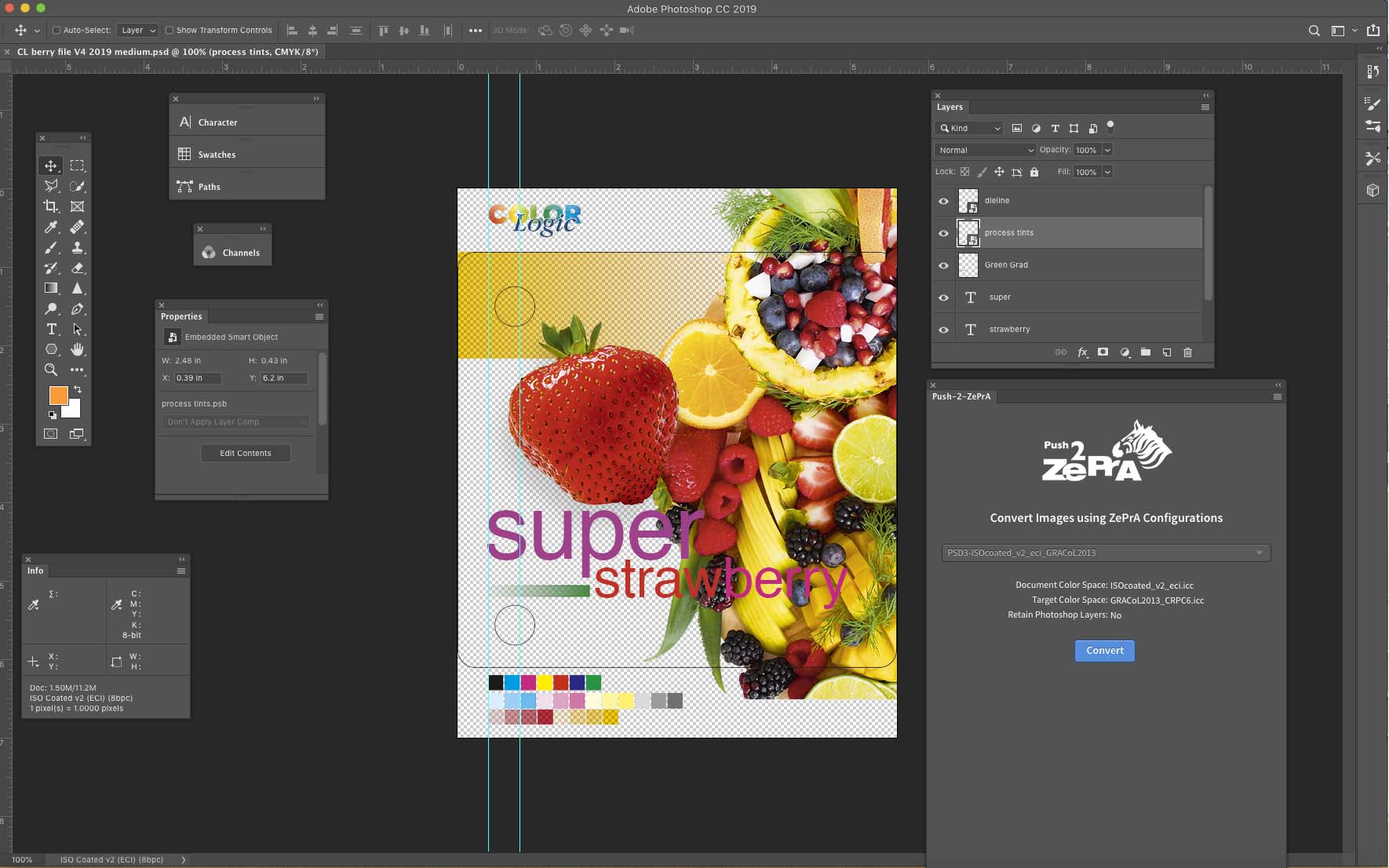
Push-2-ZePrA is an Adobe Photoshop extension that allows color converting an image file selected in Photoshop with ColorLogic’s color server ZePrA from Photoshop. Depending on the color server settings high quality color conversions with DeviceLink profiles will be performed leading to better color rendering of images than typical color conversion with Photoshop. Even spot colors can be converted if the selected ZePrA configuration is set up accordingly. The converted file will be opened up in Photoshop so that you do not need to leave Photoshop in order to get the best possible color converted images.

Push-2-ZePrA System Requirements

System Requirements for Push-2-ZePrA version 3

  • macOS 10.15 and higher
  • On macOS: Adobe Photoshop CC 2021 to Photoshop CC 2023.
    Note for macOS: Adobe Photoshop CC 2024 and higher is not supported on macOS.
  • Windows 10 and higher
  • On Windows: Adobe Photoshop CC 2021 and higher.
    Note for Windows: For Adobe Photoshop CC 2023 and higher, the Push-2-ZePrA extension needs to be reinstalled.
  • ZePrA 11 and higher
  • Supported file formats: TIFF, JPEG, PSD and PSB
  • Unsupported file formats: PNG, PDF and EPS
  • On macOS systems with Apple Silicon M-series chips (M1 and higher) make sure that you start Photoshop via Rosetta. The Push-2-ZePrA extension does not run natively on Apple Silicon M-series chips.

System Requirements for Push-2-ZePrA version 1 and 2

  • macOS 10.13 and higher
  • On macOS: Adobe Photoshop CC 2017 to Photoshop CC 2023.
  • Note for macOS: Adobe Photoshop CC 2024 and higher is not supported on macOS.
  • Windows 8 and higher
  • On Windows: Adobe Photoshop CC 2017 and higher.
    Note for Windows: For Adobe Photoshop CC 2023 and higher, the Push-2-ZePrA extension needs to be reinstalled.
  • Supported file formats: TIFF, JPEG, PSD and PSB
  • Unsupported file formats: PNG, PDF and EPS
  • On macOS systems with Apple Silicon M-series chips (M1 and higher) make sure that you start Photoshop via Rosetta. The Push-2-ZePrA extension does not run natively on Apple Silicon M-series chips.
  • ZePrA 9 and higher/Push-2-ZePrA v2 and higher: The 2nd edition of Push-2-ZePrA has network capability. This eliminates the need for ZePrA to be installed on the same computer as Photoshop.

Note: Push-2-ZePrA is integrated with a 1-client license in ZePrA XL and XXL. Additional 5-client or 10-client multi-user licenses can also be purchased. For ZePrA Entry, Basic and L, the Push-2-ZePrA Photoshop extension single and multi-user licenses can be purchased as add-ons.

Installation
  1. Use the installer for macOS or Windows for your respective operating system.
  2. Close Photoshop before installation and follow the easy-to-use installer.
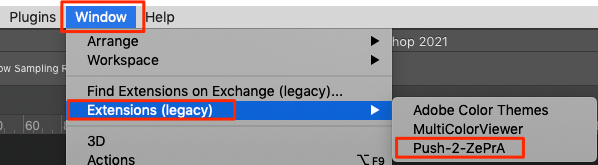
  3. Once installed, start Photoshop, go to Window/Extensions and select Push-2-ZePrA to open the extension.

Note: The installer on macOS systems will take an additional step to prepare Photoshop. Hence Photoshop must be closed before installation. The warning message is displayed twice. Just click the Allow button twice to install.

Using Push-2-ZePrA locally

Using Push-2-ZePrA locally

Configuring the Push-2-ZePrA clients in Photoshop:

  1. Once the Push-2-ZePrA extension is installed, start Photoshop, go to Windows/Extensions and select Push-2-ZePrA to open the extension.
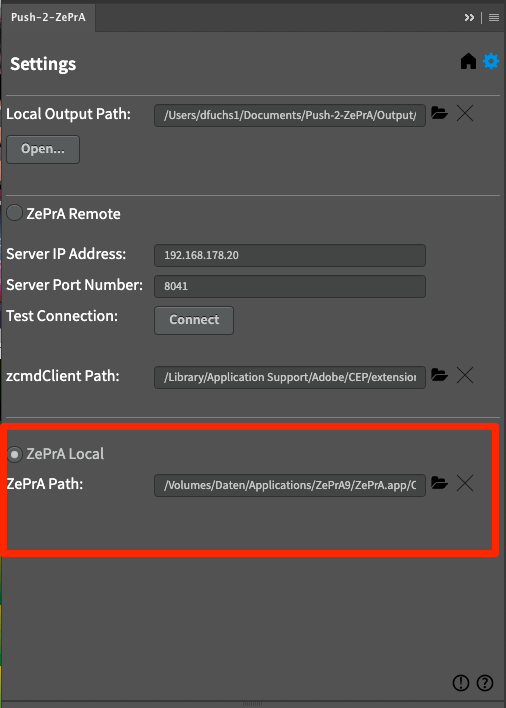
  2. Click the Gear icon. There are two ways to connect to the ZePrA server: locally or remotely. If your Photoshop/Push-2-ZePA installation is on the same computer as the installed ZePrA color server you should always prefer the ZePrA Local option as this is much faster than communicating via the network. Click ZePrA Local.

  3. Under ZePrA Path navigate to the ZePrA.app on macOS or zcmd.exe on Windows and select it.
  4. Define your Local Output Path (where converted files are to be saved) and click the Home button. You can then immediately use the extension.

Using Push-2-ZePrA locally

When ZePrA is installed on the same computer as Photoshop:

  1. In Photoshop, open the image to be color converted.
  2. Click on the Push-2-ZePrA extension.
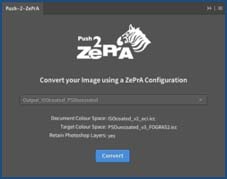
  3. On the Home tab select a ZePrA Configuration from the drop-down menu. The drop-down list will show all the configurations set up in ZePrA.
    Note: A search option is available here, where any number and letter can be entered and only the configurations containing these numbers and letters are listed in the drop-down menu below. This makes it easier to search for specific configurations, especially if the list of configurations in ZePrA is very long.
  4. Choose a configuration that fits your requirements in terms of Target Color Space and retaining of Photoshop Layers. This information is shown below the drop-down menu and picked from the selected configuration.
  5. Click Convert.
  6. After a few seconds, the progress will be displayed, and the converted file will be opened up in Photoshop.
  7. Output folder for local use: Converted files are always saved in the same location as the original file and the configuration name will be appended to the original file name.
    Notes: If the original file has been edited or copied in Photoshop without saving, a temporary file needs to be created by Push-2-ZePrA. The edited and the converted temporary files are saved in the output folder defined under Local Output Path.
    If the original file is located in a read-only folder, the user will be asked if the converted file is to be saved in the output folder defined under Local Output Path.

Note: ZePrA’s Command Line Interface (CLI) is used for the conversion but not the ZePrA application itself. Therefore, you won’t find any of the images that have been converted via the Push-2-ZePrA extension in ZePrA’s Overview or hot folders.

    Using Push-2-ZePrA over the network

    Connecting Push-2-ZePrA with ZePrA over the network

    Note: Requires ZePrA 9 or higher and Push-2-ZePrA v2 or higher.

    Push-2-ZePrA is network capable from version 2. This eliminates the need for ZePrA to be installed on the same computer as Photoshop.

    ZePrA 9 and higher have an integrated Push-2-ZePrA remote server, while the Push-2-ZePrA extension acts as a client application that can access ZePrA from a remote Photoshop installation over the network.

    Therefore, several users who have the extension installed in their Photoshop application can remotely access the same ZePrA server. The Photoshop clients can thus be used on different computers, but also under different operating systems than the ZePrA server.

    Establishing a connection

    Configuring the ZePrA server:

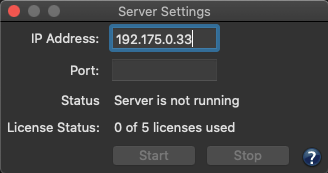
    1. Open the Server Settings from the Tools menu in ZePrA.
    2. Specify the IP address of the computer ZePrA is running on and set a Port. See your system administrator for IP and port information. You will need to enter both the IP address and the port number in the Push-2-ZePrA extension on all client computers.

    3. Click Start to activate the server. The Status changes to Server is running and the License Status indicates the number of licenses in use as well as the number of available licenses.
    4. Stop closes the server and the extensions will no longer work. Closing ZePrA does not stop the server service but shutting down the computer will. So when restarting the computer make sure to restart the ZePrA server in the Server Settings dialog so that the extensions can access it.

    Note: Under macOS the IP address of the computer can be found in the System Preferences/Network settings. Under Windows the IP address can be found under Settings > Network & Internet > Status > View hardware and connection properties.

    After a ZePrA update, stop the server and restart both ZePrA and the server. This way the newest version of the server will be used.

    Configuring the Push-2-ZePrA clients in Photoshop
    1. Install Push-2-ZePrA and open it in Photoshop.
      Note: On Macs with Apple Silicon M1 chip make sure to start Photoshop with Rosetta - see System Requirements.
    2. Click the Gear icon.
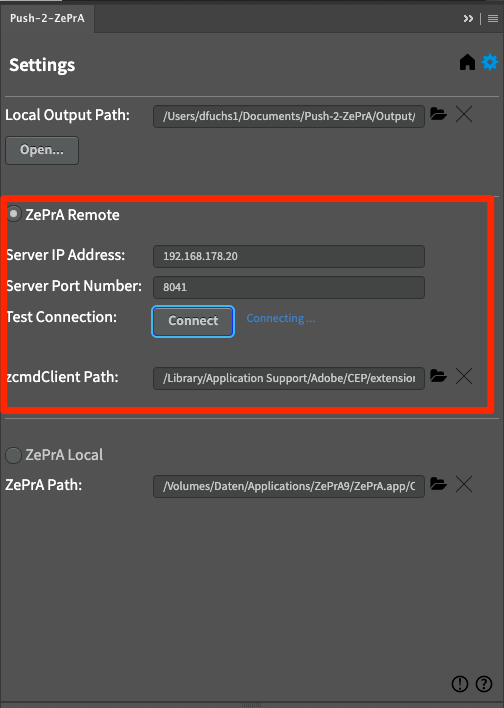
    3. There are two ways to connect to the ZePrA server: locally or remotely. If your Photoshop/Push-2-ZePA installation is on the same computer as the installed ZePrA color server you should always prefer the ZePrA Local option as this is much faster than communicating via the network. If your Photoshop/Push-2-ZePA installation is on a different computer, use the ZePrA Remote option.

    4. To use the ZePrA Remote option, enter the previously defined ZePrA server settings (Server IP Address and Server Port Number) under ZePrA Remote and click the Connect button under Test Connection. The connection status is displayed.
    5. When the connection is successfully established, define your Local Output Path (where converted files are to be saved) and click the Home button. You can then immediately use the extension.

    Note: If all available licenses are linked with the ZePrA server, additional Photoshop extension users will not be able to connect to the ZePrA server. The licenses are linked to the ZePrA server on a first come first served basis.

    Note: In order to use the Photoshop extension, the ZePrA remote server must be running. Once the server has been started in ZePrA, it will run even if the ZePrA application is closed later on. Only when the computer is shut down, the server is also shut down and must be restarted in ZePrA after the computer is restarted.

    Use the Question mark icon to access the Push-2-ZePrA online help page, and the Exclamation mark icon to get the version numbers of the extension and the ZePrA Remote server.

    Using Push-2-ZePrA remotely

    When ZePrA is accessed over the network:

    1. Open up an image in Photoshop to be color converted.
    2. Click on the Push-2-ZePrA extension.
    3. Select a ZePrA Configuration from the drop-down menu. The drop down list will show all the configurations set up in ZePrA.
      Note: A search option is available here, where any number and letter can be entered and only the configurations containing these numbers and letters are listed in the drop-down menu below. This makes it easier to search for specific configurations, especially if the list of configurations in ZePrA is very long.
    4. Choose a configuration that fits your requirements in terms of Target Color Space and Photoshop Layers retaining. This information is shown below the drop-down menu and picked from the selected configuration.
    5. Click Convert.
    6. After a few seconds, the progress will be displayed, and the converted file will be opened up in Photoshop.
    7. Output folder for network use: Converted files and temporary files are always placed in the output folder defined under Local Output Path and the configuration name will be appended to the original file name.
      Note: If the original file is located in a read-only folder, the user will be asked if the converted file is to be saved in the output folder defined under Local Output Path.

    Note: ZePrA’s Command Line Interface (CLI) is used for the conversion but not the ZePrA application itself. Therefore, you won’t find any of the images that have been converted via the Push-2-ZePrA extension in ZePrA’s Overview or hot folders.

    Recommendations and Troubleshooting

    Best Practices

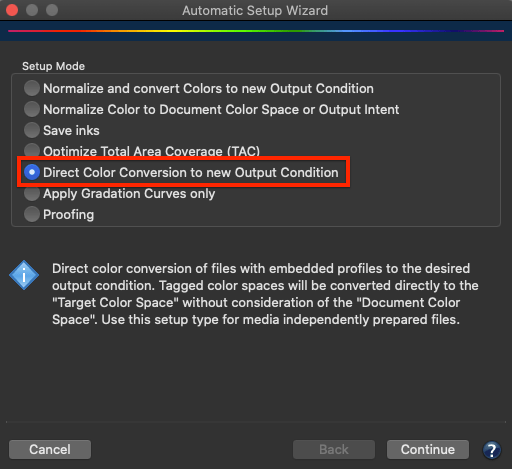
    For image conversions, we recommend setting up Direct Color Conversion configurations in ZePrA with the help of the Auto Setup Wizard. With a direct conversion from the image color space to the Target Color Space, double conversions are avoided. It is not recommended to use a Normalize and Convert queue as this can lead to converting the image two times (a double conversion - from the image color space to the Document Color Space and then to the Target Color Space), which typically is not wanted for image conversions.

    For any changes in terms of PSD or TIFF file layers handling, color conversion or spot color conversion, please adjust the appropriate ZePrA configuration in the ZePrA color server. The Push-2-ZePrA Photoshop extension uses the configurations, but editing configurations is not supported.

    Error Handling

    When working with the Push-2-ZePrA extension potential issues might happen:

    1. When updating Photoshop to a newer version, the Push-2-ZePrA extension may no longer be loaded. In this case, it is recommended to re-install the Push-2-ZePrA extension.
    2. The Push-2-ZePrA Photoshop extension version 3 is only executable with ZePrA 11.
    3. The maximum file size that can be processed via the remote connection using the zcmdServer of ZePrA 10 is 512 MB. Larger files can be processed directly via ZePrA Queues.
    4. The zcmdServer included in ZePrA 11 allows the processing of image files up to a size of 2 GB.
    5. Please do not use the zcmdServers of ZePrA 10 and 11 at the same time. Make sure the server in ZePrA 10 is stopped (click the Stop button in the Server Settings dialog). After that open the Server Settings dialog in ZePrA 11 and click on Start to activate the zcmdServer of ZePrA 11.
    6. Select the proper file for conversion: When several images are open in Photoshop keep in mind that only the selected, active document will be converted with Push-2-ZePrA.
    7. Incomplete conversions: When clicking the Convert button it may take a few seconds until the image is converted. During processing (the progress will be displayed), do not close the Push-2-ZePrA extension nor minimize Photoshop. This will immediately stop the conversion.
    8. Restricted folders and locations: A warning message appears when trying to save a file in a restricted location. If the selected location (folder) is read-only (for example, the application folder of an operating system), a warning message is displayed prompting you to cancel the conversion or save the converted file to the Local Output Path.
    9. Troubleshooting job warnings: An error message with the selected configuration appears. In such a situation, check the corresponding configuration in the ZePrA application and check for the cause of the error. It may be that the image file and the setting in the configuration do not match. In such a case, it is suggested to convert the image file in the ZePrA application with the same configuration used in the Push-2-ZePrA extension. The same job warning message may show in ZePrA. Troubleshoot the issue and change the settings in the ZePrA application, until the file conversion works as desired. Once the configuration has been saved in ZePrA go back to the Push-2-ZePrA extension, close it and reopen the extension to update the list of configurations and settings and convert the file in Photoshop again.
      Note: Push-2-ZePrA supports the same image file formats as ZePrA, e.g. TIFF, JPEG, PSD and PSB. Unsupported file formats, such as PNG, PDF or EPS, will generate file format errors.
    10. Changes and updates to configurations: When changes or updates to ZePrA configurations have not been applied in the Push-2-ZePrA extension, make sure that the edits have been saved in ZePrA before heading to the Photoshop extension. Then close the extension and start it again so that it refreshes the list of configurations and their settings.
    11. Support for prior ZePrA versions: ZePrA versions prior to v9 are not supported. The extension may show the settings of configurations from older ZePrA versions, but will not convert files. We do not recommend selecting prior ZePrA versions with the extension and will not be supporting prior versions in future releases.
    12. Avoid special characters in configuration names: characters such as | < > * ? / \\ : in configurations names with ZePrA. While ZePrA will handle such characters the Push-2-ZePrA extension does not.

    ZePrA | PantoneLive EN

    PantoneLIVE

    Access PantoneLIVE libraries in ZePrA

    Access PantoneLIVE libraries in ZePrA

    PantoneLIVE® by X-Rite is a cloud-based solution for the digital storage of spectral spot colors. This applies both for Pantone Guides, paper-dependent, so-called ‘Dependent Standards’, as well as specific color libraries of brand owners.

    Note: The use of PantoneLIVE requires a license for both the spot color module of ZePrA as well as a PantoneLIVE Production license from X-Rite. Activate your licenses in your My X-Rite account for use in ZePrA. See below for more details on the activation process.

    PantoneLive and Apple M1 chip support on macOS

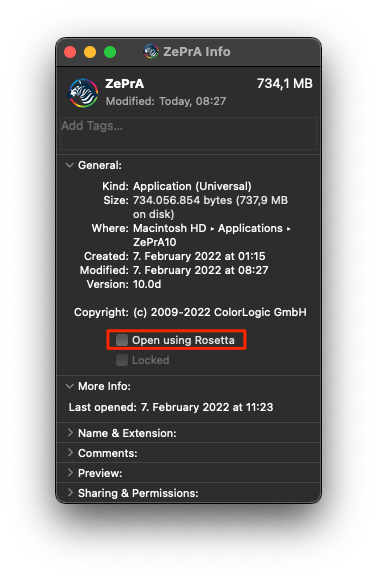
    PantoneLive does not run natively on Apple M1chips. If PantoneLive is required, ZePrA must be started in Rosetta mode (see screenshot), which is the emulation mode to make sure that legacy software runs on M1 chips. To do so, simply select the ZePrA.app and right click Information. In the information dialog select the checkbox Open using Rosetta and restart ZePrA.

    Note: ZePrA can be used in Rosetta mode to download PantoneLive libraries. ZePrA can then be restarted without the Rosetta emulation. This gives you access to previously downloaded PantoneLive libraries for up to 30 days with ZePrA running natively on the M1 chip.

    Importing PantoneLIVE libraries

    To import PantoneLIVE spot colors from the cloud into ZePrA, proceed as follows:

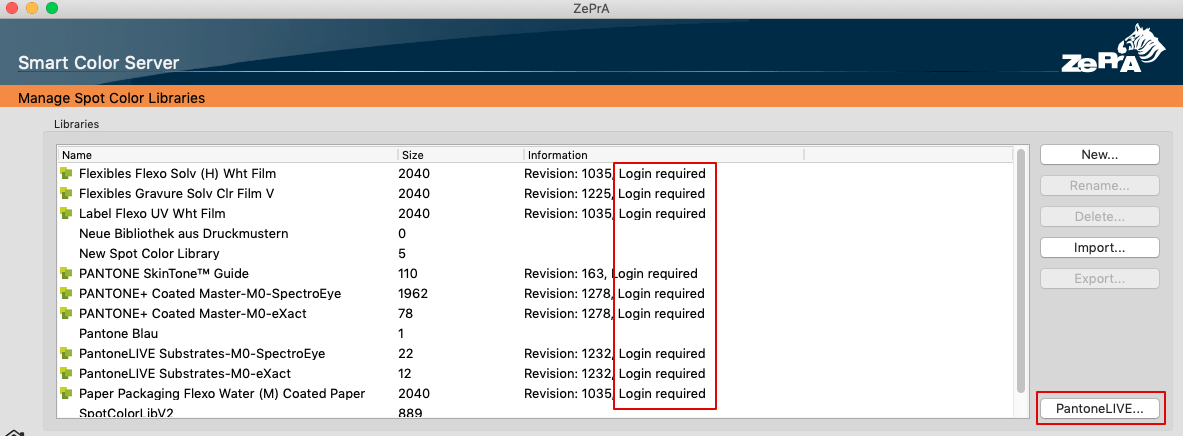
    1. Select Spot Color Libraries from the sidebar and click on PantoneLIVE.

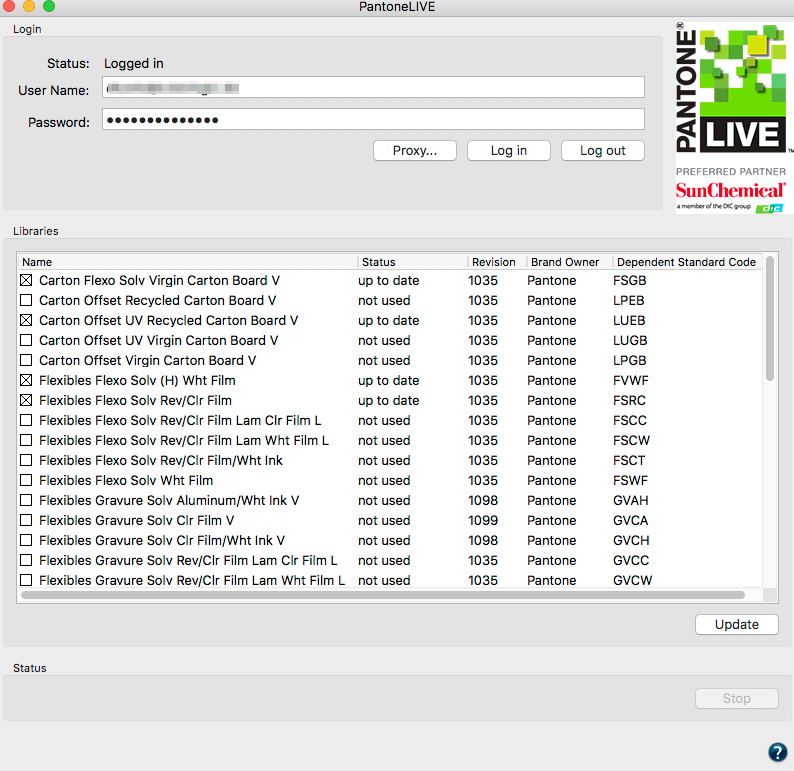
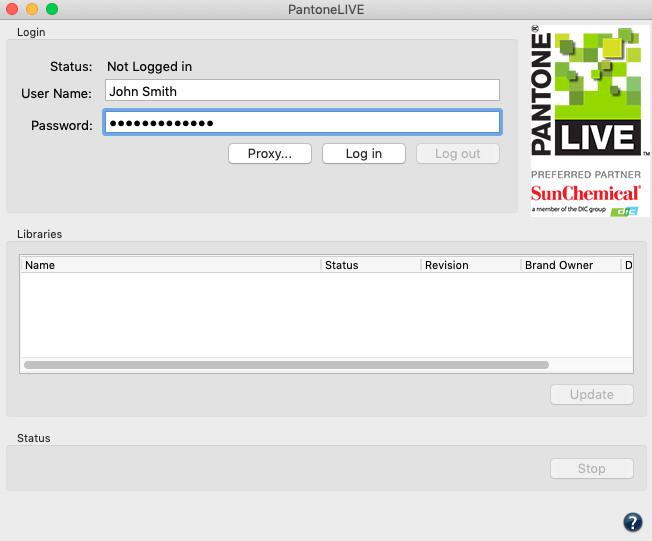
    2. In the Login section you can either login using the User Name registered with Pantone or your e-mail address and your Password.

      Note: The login requires an active Internet connection and an activated PantoneLIVE license for ZePrA.
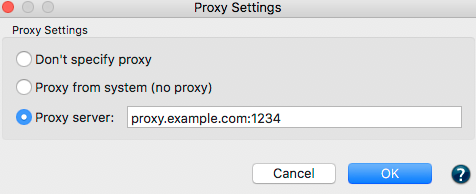
    3. If your company uses a proxy server you can enter the required proxy settings under Proxy before logging in.

      Setting proxy server for PantoneLIVE

    4. Your libraries will be displayed after successfully logging in.
    5. Select the libraries to import and use in ZePrA by enabling the corresponding check boxes. Then click Update. The spot colors will be downloaded from the cloud while the progress is shown in the lower part of the window under Status. Imported libraries are marked as up to date while libraries which have not been imported are marked as not used.
      Note: Depending on the number of selected spot colors and the speed of your internet connection this may take some time. The dialog cannot be closed during download.
    6. Once the selected libraries have been downloaded, you can close the dialog. Your PantoneLIVE libraries are now displayed under Libraries in the Manage Spot Color Libraries dialog and can easily be distinguished from other libraries by the Pantone icon.
    Characteristics and use of PantoneLIVE libraries
    • PantoneLIVE libraries can only be used in ZePrA while you are logged into PantoneLIVE. Once logged out, the libraries can no longer be used.
    • As long as ZePrA is connected to the internet and you are logged into PantoneLIVE, imported PantoneLIVE libraries can be used without limitation.
    • If you have not logged off from PantoneLIVE but the internet connection is interrupted, already imported PantoneLIVE libraries can be used until the expiration date. Typically, this is for one month. The remaining days are shown in the Information column. However, it is recommended to log in again as soon as possible to be informed about potential color updates or to prevent error messages because the libraries are not available.
    • The revision number of PantoneLIVE libraries is displayed in the column Revision of the PantoneLIVE dialog and for already imported libraries in the column Information of the Manage Spot Color Libraries dialog. Additionally, the PantoneLIVE dialog indicates the Brand Owner and the column Dependent Standard Code shows a letter combination. This Code provides further information, among others the printing process and the paper of the selected library.
    • When the revision number changes, or when spot colors have been updated in the cloud, the Status of the affected libraries will change in the PantoneLIVE dialog from up to date to needs update. In this case, click on Update and the libraries will be updated in ZePrA.
    • Standard libraries can be edited in ZePrA, which means that spot colors can be copied, modified, deleted, or exported from one library to another, and Lab values can be edited. This is not the intention of PantoneLIVE libraries and are prevented by ZePrA.
    • The Lab values of PantoneLIVE spot colors are displayed as rounded numbers in ZePrA; however, internally ZePrA calculates the spectral measurement values with full accuracy.
    • To aid recognition of PantoneLIVE libraries, these libraries are marked with a PL: in the drop-down menus of the sub-dialogs under Configuration and in the Spot Color Report.
    PantoneLIVE licenses in ZePrA

    ZePrA allows direct access to PantoneLIVE®. A ZePrA spot color module license and an active PantoneLIVE® Production license from X-Rite are required. PantoneLIVE® libraries will then be available for use in ZePrA.

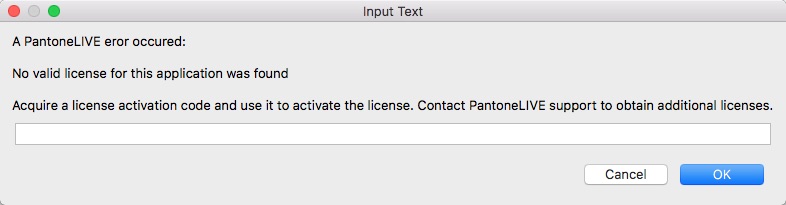
    PantoneLIVE licenses are computer-bound and may even be application bound. If the computer (and ZePrA) is not enabled, you will receive the following error message in ZePrA (see screenshot):

    To activate a PantoneLIVE license, open the page My PantoneLIVE of your My X-Rite account. The list with available licenses is found at the bottom of the page. If an Unused license is present, click Edit. This opens the dialog for this license, and you have two options to activate it:

    1. Activate the license by selecting Use this activation yourself and click on Done. In ZePrA, you can close the error message with Cancel and login again. Since the activation has already been done on the My X-Rite website, entering the activation code is not required.
    2. Do not change anything on the My PantoneLIVE website, simply copy the Activation Code and paste it into the error message in ZePrA. Then close the dialog box with OK. In this case, ZePrA completes the activation. The activation may be visible only after re-logining in on the My PantoneLIVE page.

    Please check this YouTube video for the licensing procedure.

    In case of problems with licensing please contact the X-Rite support.

    ZePrA | Quick Start Guide EN

    Getting Started with ZePrA

    Get ZePrA quickly into production

    Introduction

    Thank you for choosing ZePrA.

    ZePrA is a hot folder-based color server for optimizing TIFF/JPEG/PSD/PSB image files and PDF data with DeviceLink and ICC device profiles.

    ZePrA's primary application is optimization or color conversion of CMYK printing data, installation in media-neutral workflows with RGB data and Multicolor processing capabilities.

    The high quality of optimization or color conversion of CMYK, RGB, Grayscale and Multicolor printing data is achieved through DeviceLink profiles, as well as intelligent PDF processing. For a range of standard-compliant printing processes, ColorLogic has also developed standard DeviceLink profiles that can be purchased in a bundle. ZePrA includes SmartLink technology for on-the-fly calculation of DeviceLink profiles for high quality color conversion to a variety printing processes.
    Automated color management often requires extensive and complex configurations, especially with today's PDF files. ZePrA Smart Color Server's primary focus is to create, duplicate and modify configurations and queues for typical tasks in day-to-day production work easily.

    We hope you enjoy working with ZePrA and wish you successful optimization and color conversion!

    ZePrA’s Interface

    ZePrA's sidebar allows quick access to all main workflow functions. Simply move the mouse over the Home button on the left and click on the required module.

    Click to download a PDF version of the Quick Start Guide.

    Start

    Auto Setup

    Create workflows with ZePrA's Auto Setup Wizard

    Main Setup and Overview

    Overview 

    Access ZePrA's overview screen to view queues, pending jobs and processed jobs

    Configurations 

    View and customize processing settings

    Queues 

    Manage print jobs

    Tools

    Spot Color Report 

    Check the accuracy of spot color conversions prior to printing

    SaveInk Report 

    Generate an overall ink saving report

    Extract ICC Profile 

    Extract ICC profiles from images and PDF files

    Global Settings

    Spot Color Libraries 

    Manage libraries and edit spot colors

    Gradations

    Manage and create tone value correction curves

    Profile Assignments 

    Use existing or dynamically created DeviceLinks for file conversions

    System Requirements

    macOS®

    • macOS® 10.15 Catalina
    • macOS® or macOS® Server Version 10.9 and higher

    Windows®

    • Microsoft® Windows® 10
    • Microsoft® Windows® XP SP3 and higher

    Recommended Hardware

    • Minimum Dual Core Processor (Quad Core or more recommended)
    • Minimum 2 GB RAM (4 GB or more recommended)
    • Minimum 1024 × 768 resolution (1280 × 1024 or higher recommended)

    Specifics

    • macOSColorAnt, Measure Tool, CoPrA and ZePrA are running in 64 Bit mode
    • WindowsColorAnt, CoPrA and ZePrA are running in 64 Bit mode, the Measure Tool is running in 32 Bit mode
    Installation

    Installers for the respective platform install the application by default either in the folder Applications  (macOS) or Programs (Windows). Begin installation by double clicking on the installation package.

    After accepting the Software License Agreement, select the destination volume and choose between a Standard Installation or a Custom Installation. Standard Installation installs all components (e.g. the Measure Tool in CoPrA or the DLS-Manager as described below).

    ColorAnt: The integration of ColorAnt (or ColorAnt’s Measure Tool with CoPrA Basic) allows to measure test charts for profile creation from within CoPrA.

    DLS-Manager: Allows installation of DeviceLink Sets. DeviceLink sets are standard DeviceLinks that will perform a variety of standard color management tasks. A complete list of sets and profiles can be found in the online help.


    Product Package

    What’s included:

    • CoPrA software
    • Additional software: Profile Manager (integrated into CoPrA) and ColorAnt or ColorAnt’s Measure Tool
    • ColorAnt M is included in CoPrA M to XL.
    • CoPrA XXL includes ColorAnt L
    • CoPrA Basic includes ColorAnt’s Measure Tool.
    • USB stick (dongle) or computer based license
    • Editable test charts to use with the DeviceLink tool Editing (in the folder EditTargets after installation)
    • Test charts and reference files including Multicolor charts for creating printer profiles 
(in the folder Testcharts after installation)
    • Printed Quick Start Guide
    • Access to Online Help

    Note:

    The folder EditTargets can be found under:
    Windows: C:\Program Files (x86)\CoPrA5\EditTargets
    macOS: Applications\CoPrA5\EditTargets

    The folders Testcharts can be found under:
    Windows: C:\Program Files (x86)\CoPrA5\Testcharts
    macOS: Applications\CoPrA5\Testcharts

    These folders can also be accessed by using the entries Open EditTargets folder and Open Testchart folder in the menu Tools.

    The context sensitive Online Help opens up in a web browser after clicking the question mark icon of the respective program window, the F1 key or using the Help menu entry Online Help. An active internet connection is required.

    Activation

    Installing a Permanent License

    A permanent license will be provided by your dealer after purchasing the application. Permanent licenses are available as computer-based or dongle licenses.

    Computer-based licenses are always tied to the computer on which the software (CoPrA, ZePrA or ColorAnt) is installed. This is useful for temporary test purposes. Computer-based licenses are also required if the computer lacks an USB port or space for an USB dongle, i.e. a rack server.

    USB dongle licenses are serialized to the dongle. The USB dongle communicates with the appropriate software license and enables the software to be used on different computers. To assign the license to the USB dongle, it must be connected to the computer before starting the software.

    After purchasing the software, a permanent license file (*.lic) will be sent via email.


    Activating a License

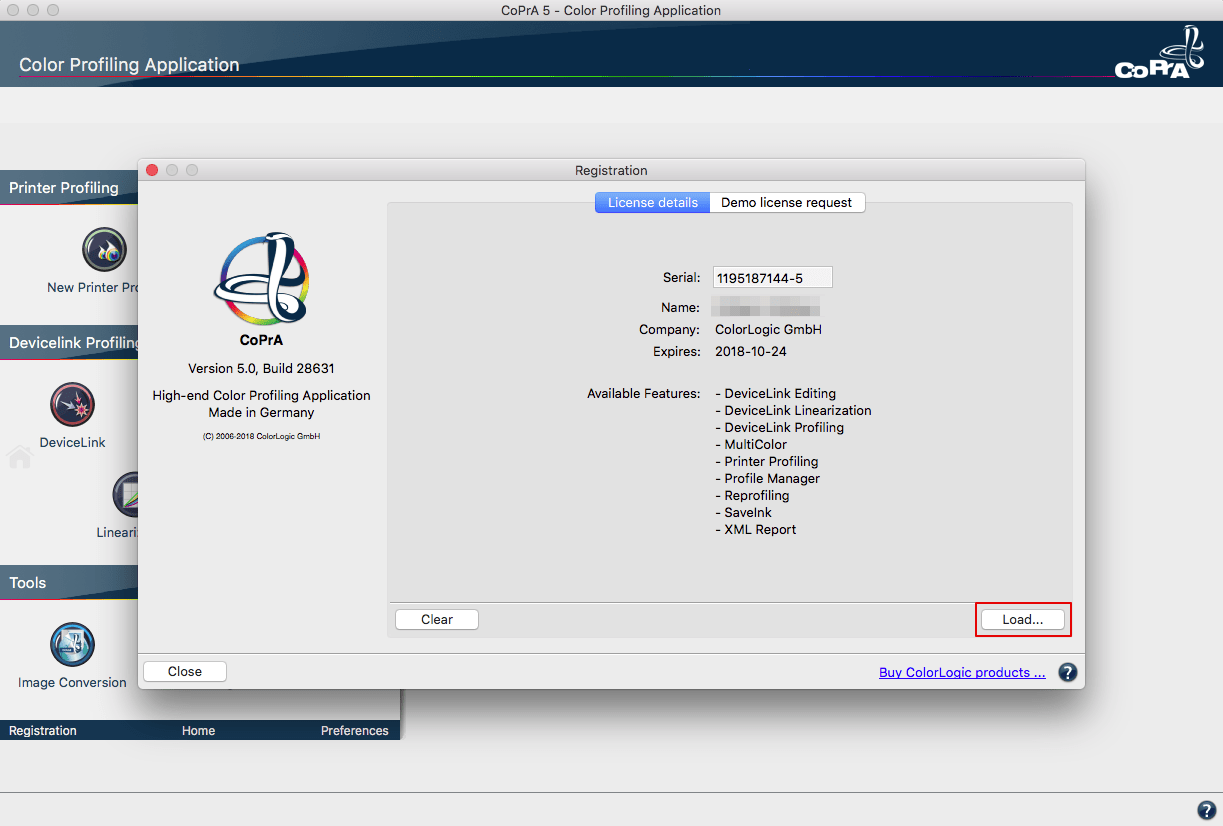
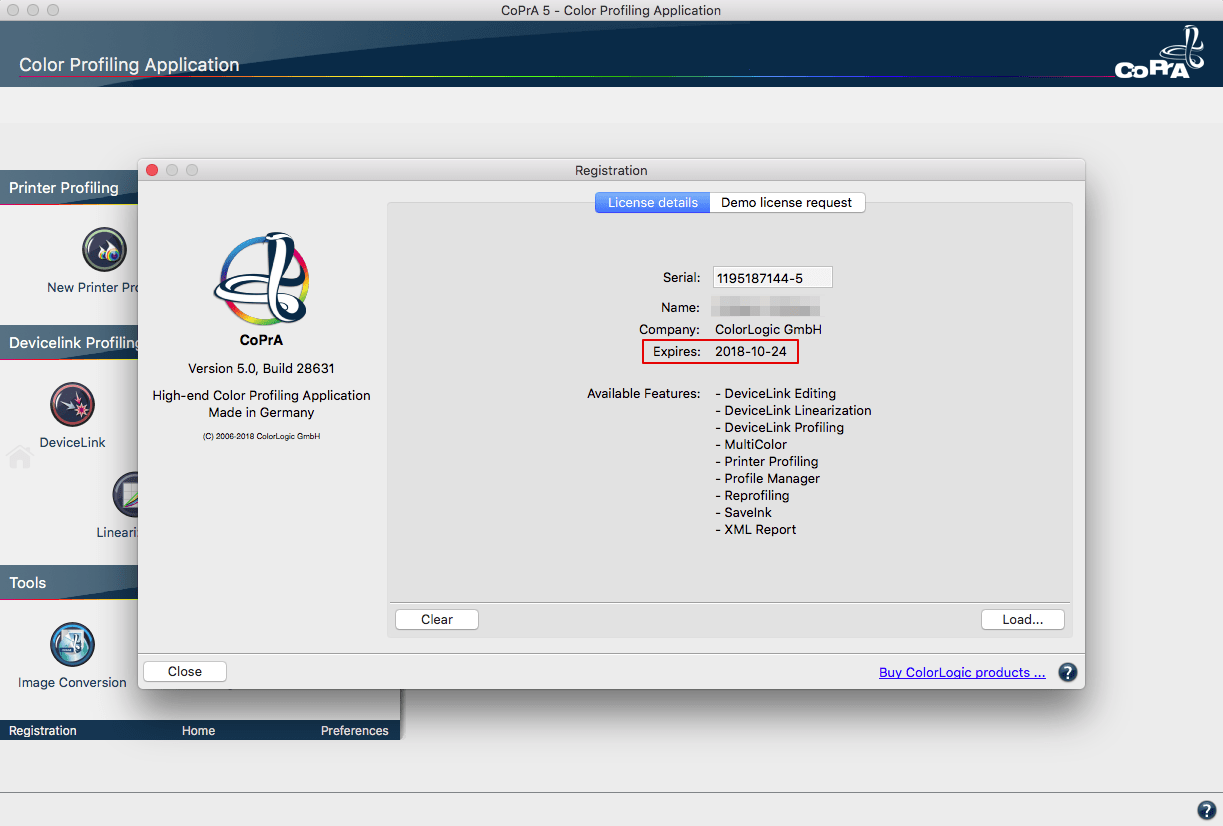
    Load the license file in the tab License details under Registration to activate the application.

    After installing the permanent license file, the licensed modules are displayed under License details.


    Using One License File on Multi-User Systems

    macOS

    Copy the license files of ColorLogic applications into the following folder:

    /Users/Shared/ColorLogic/LicenseInstall.

    • Create the folder if it does not exist.
    • Check the folder permissions.
    • When the application is launched, it will check the specified folder by default.

    Windows

    Copy the license files of ColorLogic applications into the following folder: C:\Users\Public\Documents\ColorLogic\LicenseInstall.

    • Create the folder if it does not exist.
    • Check the folder permission.
    • When the application is launched, it will check the specified folder by default.

    License Details

    License status: The expiry date for time limited versions of the software (for example, NFR or demo licenses) is shown at the bottom right of the software window. No expiry date is displayed for full versions.

    Available Features: Shows the activated modules and add-ons.

    Complete instructions on how to download and install ColorLogic applications and how to request and activate a demo license can be found here.

    Auto Setup

    Workflow Creation Using the Automatic Setup Wizard

    ZePrA has six auto setup methods to set up workflows for the most common color management tasks. It takes just a few steps to create Configurations and Queues.
    To process files, either use a previously created DeviceLink profile, or use the SmartLink function to create a DeviceLink profile on-the-fly (SmartLink license required).
    The Automatic Setup Wizard also allows workflows that save ink, optimize the total area coverage (TAC), and apply gradation corrections.

    Step 1: Select a Setup Mode

    Select Auto Setup in the sidebar. There are six different setup options for creating Configurations and Queues:

    Choosing a Setup Mode

    ZePrA’s Automatic Setup Wizard

    1. Normalize and Convert Colors to New Output Condition
      The content of the PDF file is first normalized to the document color space or output intent and then converted to the desired target color space using DeviceLink profiles.
    2. Normalize Color to Document Color Space or Output Intent
      The data is normalized to the document color space or output intent. After conversion, the final, normalized file consists only of a color space and spot colors, if present.
      If PDF objects are present in the RGB color space, they are converted with the embedded profile to the document color space using the rendering intent defined in the PDF file.
    3. Save inks
      The data is first normalized to the document color space and then optimized using either an existing SaveInk profile or a SmartLink SaveInk method. Three color saving methods are available.
    4. Optimize Total Area Coverage (TAC)
      The data is normalized to the document color space and the total amount of color is reduced. This can either be done using specific profiles to reduce the total area coverage (TAC), or by defining the SmartLink value under Desired TAC.
    5. Direct Color Conversion to New Output ConditionThe data is directly converted to the target color space with embedded profiles, without normalizing to the document color space beforehand. This setup mode enables the best color space utilization of the target color space and is particularly suitable for media-neutral data, e.g. RGB image data with ICC profiles.
    6. Apply Gradation Curves OnlyIf the printing process differs due to changed printing conditions (e.g. due to substrate or other printing parameters), adjustments can be done directly in ZePrA, without CtP compensation curves in the RIP, by applying gradation corrections "on-the-fly".

    Step 2: Use DeviceLink profile or SmartLink

    Use an existing DeviceLink profile or use SmartLink to create and use a high-quality DeviceLink profile on-the-fly.
    1. Using an Existing DeviceLink Profile
    Choose a DeviceLink profile for the configuration (e.g. from our DLS DeviceLink sets, available from any ColorLogic dealer), and select it from the drop-down menu. The source and target profiles are set by the DeviceLink profile.
    2. Use SmartLink
    The SmartLink function creates DeviceLinks on-the-fly from source and target profiles to avoid problems normally associated with a regular ICC conversion and increases conversion quality.
    Note: Requires a SmartLink license. If the SmartLink function is not available, normal ICC conversions are performed for objects with embedded ICC profiles.

    Document Color Space

    The document color space serves as a reference to create a uniform printing color space for the colors of the PDF file. Selecting the Prefer Output Intent checkbox will use the output intent of the PDF/X file instead of manually setting the document color space.

    Rendering Intent

    ZePrA contains five rendering intents in addition to the four standard ICC rendering intents. They are only available when SmartLink is licensed.

    ZePrA's Standard Compression Settings

    ZePrA's Rendering Intent Options

    Standard Compression: For conversions including color spaces of different sizes. Calculates a perceptive conversion for input and target profiles that is suitable for all types of gamuts.

    Black Point Compensation: Use Black Point Compensation to achieve the same results with a perceptive conversion as with “Relative Colorimetric with Black Point Compensation”. When converting from a large to a small color space, the image definition is preserved in the highlights and shadows, unlike a pure Relative Colorimetric conversion. Neutral tones are converted using the relative colorimetric intent. Out-of-gamut colors are clipped.

    Absolute Compression: If the color gamut is similar, but the paper shade differs significantly. In contrast to Standard Compression and Black Point Compensation, the gray balance compensates for paper coloration. The color of the original file is preserved in the best possible way on a target medium with a different paper color. Shadow areas are increased for small color gamuts. Standard Compression, the gray axis of the conversion is build relative to the paper white of the target profile.

    Dynamic Compression: Compares the source color space and target color space and generates compression that minimizes out-of-gamut areas. Preserves the brightness of the original color space while reducing the saturation, therefore preserving the image definition.

    Minimum Compression: Allows almost absolute colorimetric reproduction, compensating only for areas near the black and the white point.

    SmartLink Methods

    The SmartLink methods apply different requirements of various printing conditions so the desired color is correctly reproduced and optimally separated for a specific printing process.

    Traditional Printing – Classic: Offset, gravure, or newspaper printing. Black, grey, primary, secondary and tertiary color tones of the source profile are retained. The total area coverage from the target profile is applied.

    Traditional Printing – Automatic: When the color and paper of the target color space differ significantly from the output intent or document color space. The separation is retained.

    Large Format Printing - Inkjet: The separation is characterized by a strong GCR and a late black start. The black point and the total area coverage are calculated automatically. Otherwise like Traditional Printing – Automatic.

    Digital Printing - Toner: For toner-based digital printers and office printers. A high percentage of black is used to achieve a stable print and neutral gray balance. The total area coverage from the target profile is applied. Otherwise like Traditional Printing – Automatic.

    Apply Gradation Curves Only

    These gradation adjustments apply external files on-the-fly to existing curves, adjusting process colors and/or spot colors without changing the document color space.

    There are two ways to correct gradations:

    1: Select Curves
    Select linearization DeviceLink profiles created with CoPrA or previously imported files including curves (gradations).

    2: Use Curves from File
    External files including the gradation corrections for the curves (gradations) to be changed can be loaded. ZePrA then imports the files into its own folder structure.

    Considerations for Normalizing PDF files

    When working with PDF/X-3, PDF/X-4 or PDF/X-5n files that may still contain RGB or CMYK objects with embedded profiles, normalize the files.

    If the PDF file does not contain an output intent, define an ICC profile as the Document Color Space. Select the Prefer Output Intent checkbox to ensure that any existing output intent takes precedence over the specified document color space and is retained.

    Step 3: Create Configurations and Queues

    In the last step of the wizard, assign a Queue name. The corresponding configuration automatically receives the same name.
    Define the Base Folder. The Queue and its subfolders are created. To only create a new configuration, deactivate the Create Queue checkbox.
    The last step completes the workflow setup and it is immediately available.

    Main Setup and Overview

    Overview

    Processing Jobs via Queues
    In ZePrA, files are processed via queues. Each queue is assigned a configuration. A configuration contains all the necessary settings for converting and processing the file. Queues and their configurations are managed separately and configurations can be modified and re-assigned to different queues anytime.
    The Jobs and Queues Overview window (Sidebar: Overview) provides an overview of the queues and associated configurations.
    Queues created with the Automatic Setup Wizard usually have the same name as the corresponding configuration.
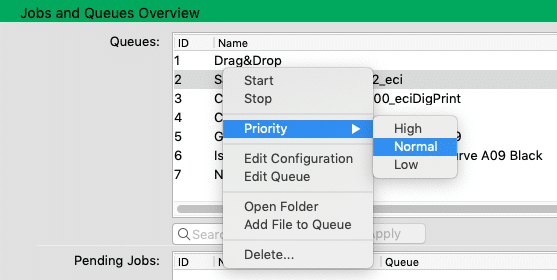
    The order of the jobs to be processed is determined by their priority. Change the Priority by right-clicking on the queue and change its default setting Normal to High or Low.
    Queues can be controlled with Start and Stop buttons located in the lower right corner.

    Manually Create a Queue
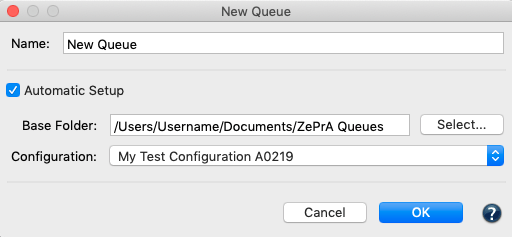
    To create a new queue, create a Base Folder, assign a configuration and a name. Use the New button in the Queues tool to manually create a queue. To configure the queue afterwards, first select the queue and then select the configuration from the Process with Configuration drop-down menu in the Options tab.

    Set up a Queue Manually

    Configurations

    All settings related to color handling and PDF processing are defined under Configurations. This includes color conversion via ICC output profiles or DeviceLink profiles, handling of mixed PDFs (documents with data in CMYK, RGB, Grayscale and spot colors) and individual settings of gradation curves and spot colors. Various presets and optimization options are available for all settings.
    In the upper part of the window, select a configuration, create, rename and save new configurations.
    To duplicate an existing configuration, select New, enter the new name and Save. To use a duplicated configuration, assign it to a queue.

    Queues

    Queues are displayed in the Overview in chronological order. The lists can be sorted by clicking on the respective column.

    Processing files - Starting queues
    To start a job, select Open Folder from the context menu to open the corresponding Input Folder (hot folder) of the queue. Copy or move the file (TIFF/JPEG/PSD/PSB image, PDF) into the Input Folder, or simply drag and drop the file onto the appropriate configuration in the queue overview. Alternatively, right-click on a file and copy it into the queue’s hot folder.
    When a file is placed in the Input Folder, ZePrA automatically converts it according to the settings specified in the configuration and places the converted file in the Output Folder. The job ID and configuration name are added to the file name. The original file is moved to the Originals Folder. Problem files are stored in the Error Folder.

    Convenient queue management

    Processed Jobs
    Files with a yellow warning in the overview window have been processed but may have issues. They are usually placed in the Output Folder. Alternatively, when configuring the queue, define an Output Folder with Warnings, where such files will be moved after processing. Incorrectly processed or unsupported file types are highlighted in red and moved to the Error Folder.
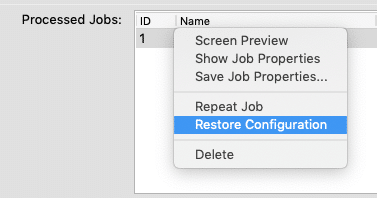
    A right click on a job opens a context menu with the following entries:

    Context menu with many useful functions

    Screen Preview
    Creates and displays the soft proof of the selected job.

    Show Job Properties
    Opens the job report.

    Save Job Properties
    Saves the job report as PDF, HTML, TXT or XML.

    Repeat Job
    Allows the reconversion of an already processed job using the same configuration without having to search for the file in the hot folder.

    Restore Configuration
    From ZePrA 7 onwards, the associated configuration settings of jobs are also saved. This allows the configuration to be restored and jobs can be processed using the original settings, even if the original configuration was changed or deleted.

    Delete
    Deletes selected jobs.

    Procedure

    1. On the sidebar, click on Queues.
    2. Click New to manually create a new queue. Give the queue a Name and select the Base Folder. The corresponding subfolders will be created automatically. Select the Configuration from the drop-down list. It contains all settings for the handling of the colors and the processing of the file.
    3. Copy or move the files to be converted into the Input Folder of the queue.
    4. If the files are to be copied to a server or network drive, it is recommended to create a Temporary Folder on the local system where ZePrA is running.
    5. The converted files can be found in the Output Folder. If a file could not be processed, it is moved to the Error Folder. Files that could be processed but may contain a problem are placed in the Output Folder with a warning. The original files are moved to the Originals Folder.
    Notes:

    Target File Name: Append text: Appends a suffix to the original filename.
    Append Job ID: Creates a unique serial number and appends it to the original filename.
    Copy File Types: Transfers a control file (JDF, XML, TXT, or similar file types) with your original file.
    Post Process: Defines the subsequent processing of a file after color conversion. Select an available script or batch file or enter a command line command manually.
    Job Report: Creates a report in PDF, HTML, XML or Text file format. The Folder defines where the job report is stored.

    Tools

    Spot Color Report

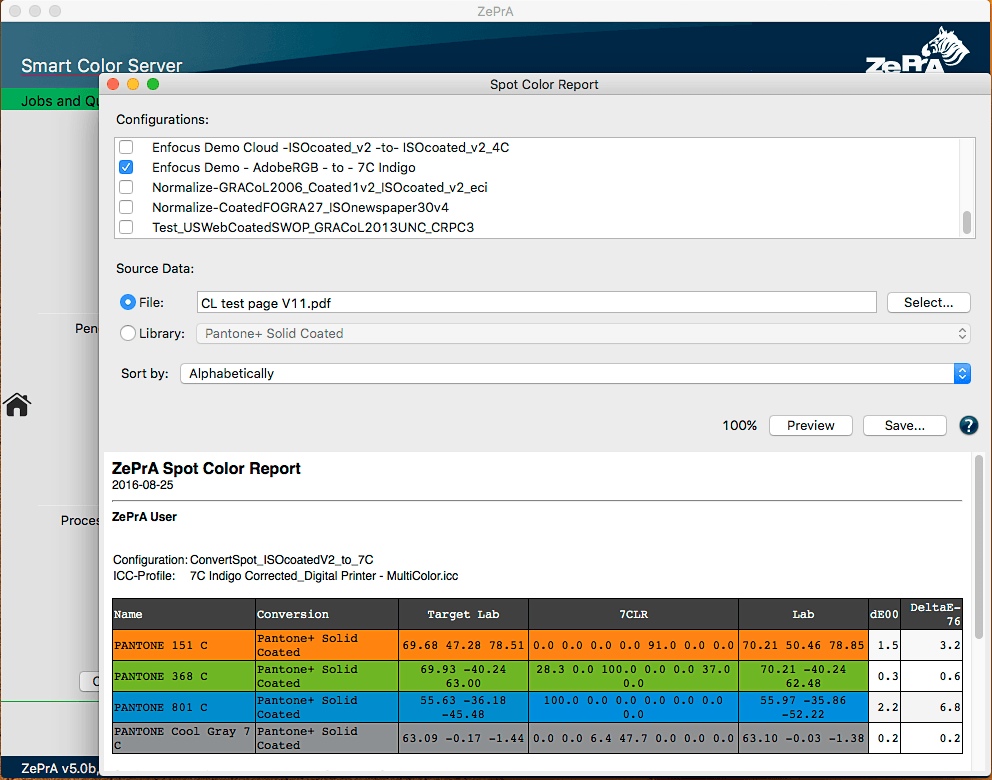
    Checks the accuracy of spot color conversion before printing spot or Pantone® colors of specific PDF and image files. The spot color report shows the results of a spot color conversion in terms of deltaE00, deltaE76 and separation into the process and/or multicolor.

    spot color report win1

    Procedure

    1. Configurations: Select one or more configurations from the list. A configuration contains all settings for the conversion. Only configurations with spot color conversion enabled are displayed in the list.
    2. Select a file or library under Source Data.
      PDF or Image File: Select the spot color PDF file to be processed with the settings of the selected configuration.
      Library: Select the spot color library to convert with the settings of the selected configuration.
    3. Sort order: Sorts the list according to various presets. When sorting by DeltaE, spot colors with the lowest dE are listed at the top of the table, those with the highest at the bottom.
    4. Preview and Save: Preview displays the results prior to creating a report (optional). Save will create and save the report in various data formats.

    Note: When creating the report, all spot color settings set in the configurations are used, including manual settings and warnings. Colors with warnings are displayed with red deltaE values.

    SaveInk Report

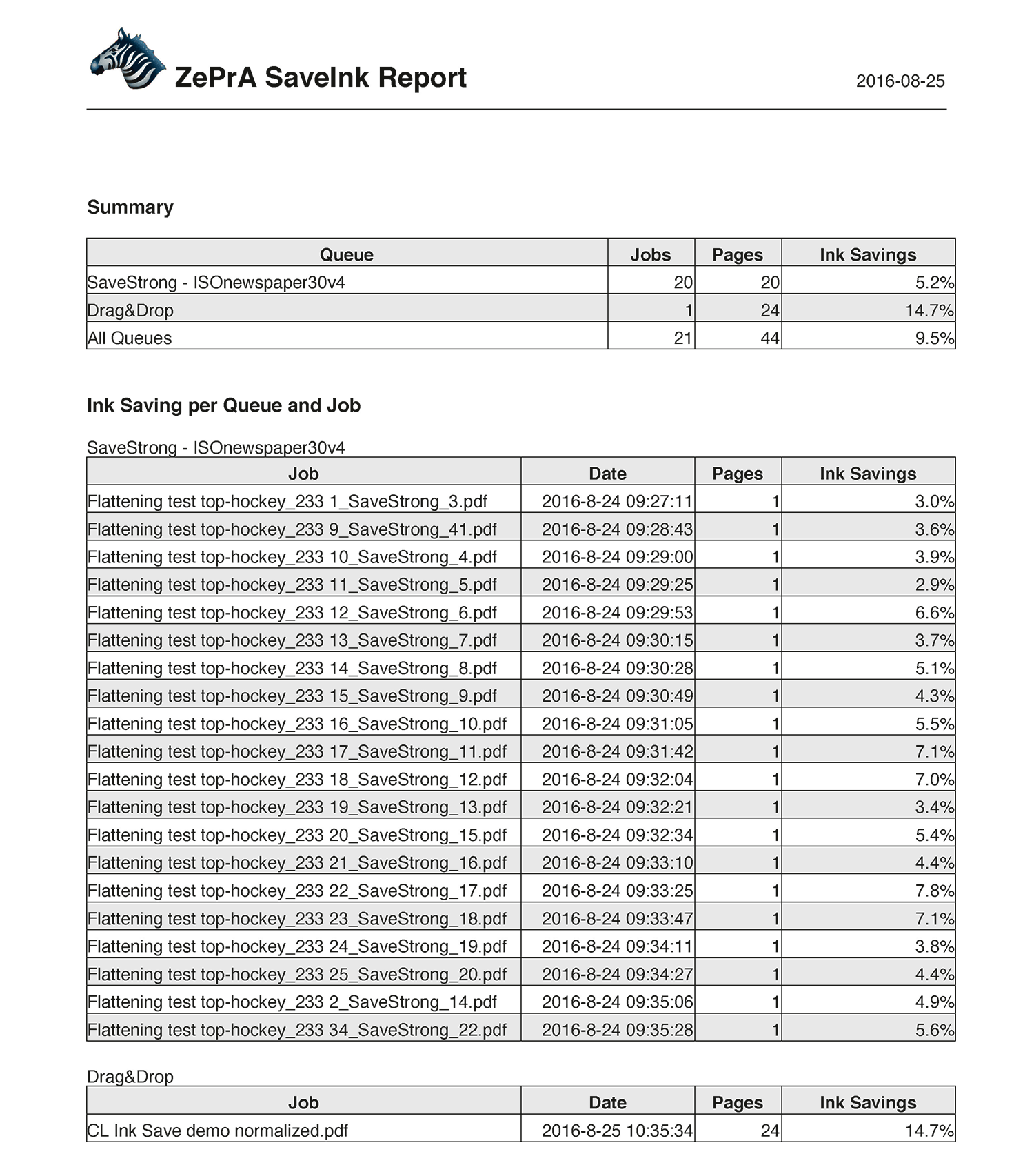
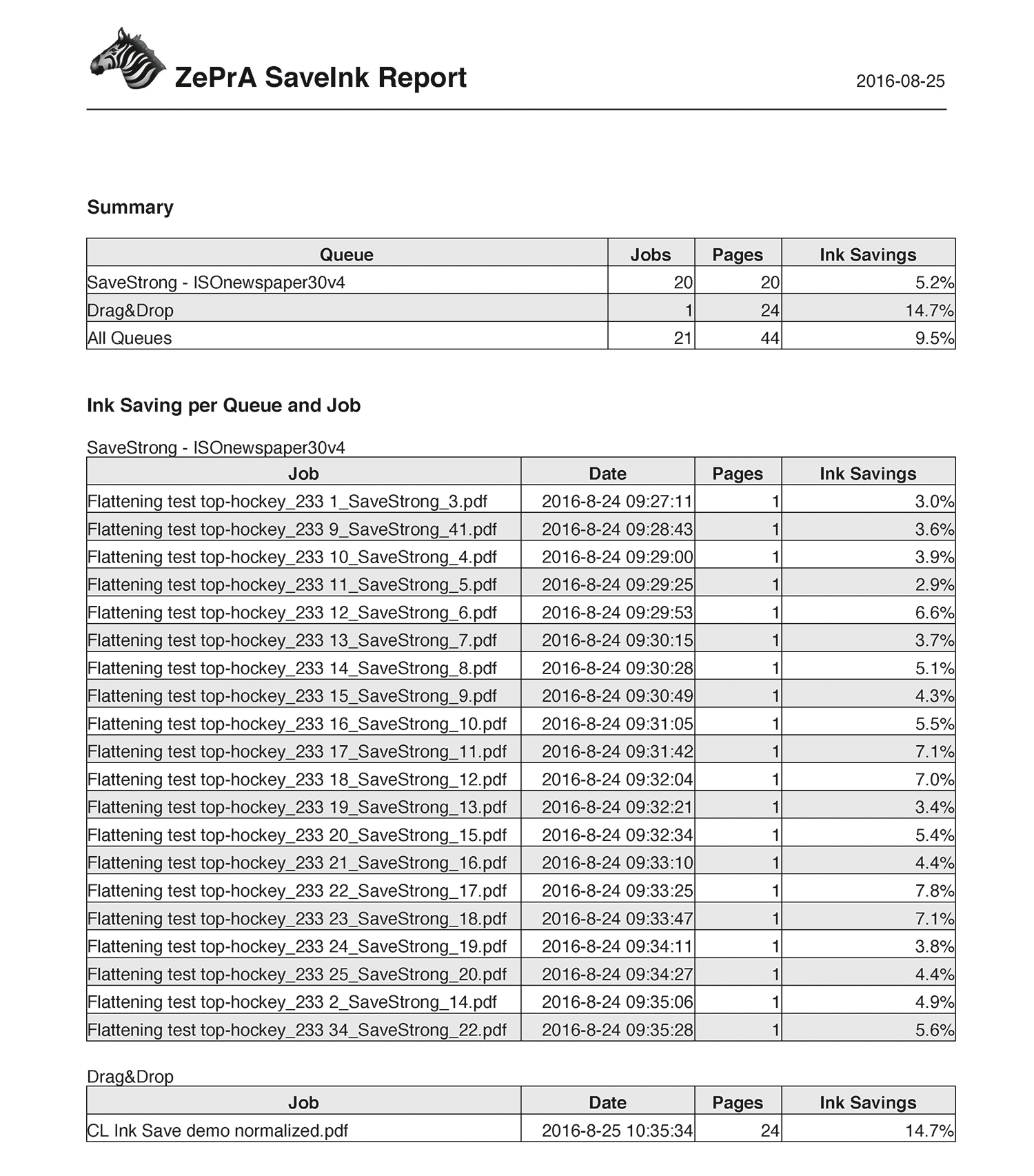
    The SaveInk report provides a detailed overview of the color savings of all SaveInk queues and processed jobs.

    SaveInkReport_converted

    Procedure

    1. Select SaveInk Report in the sidebar.
    2. Enter a file name and select the format. The report can be created as PDF, TXT, HTML or XML. PDF is the default setting. Then specify the storage location.
    3. Click Save to create the report.
      Summary: Shows the ink saving for all queues.
      Ink Saving per Queue and Job: Shows details of individual queues and jobs.
      Note: The percentage calculations in the SaveInk report only refer to the CMYK components. Transparency effects, overprinting elements and spot colors are not taken into account.

    Extract ICC Profile

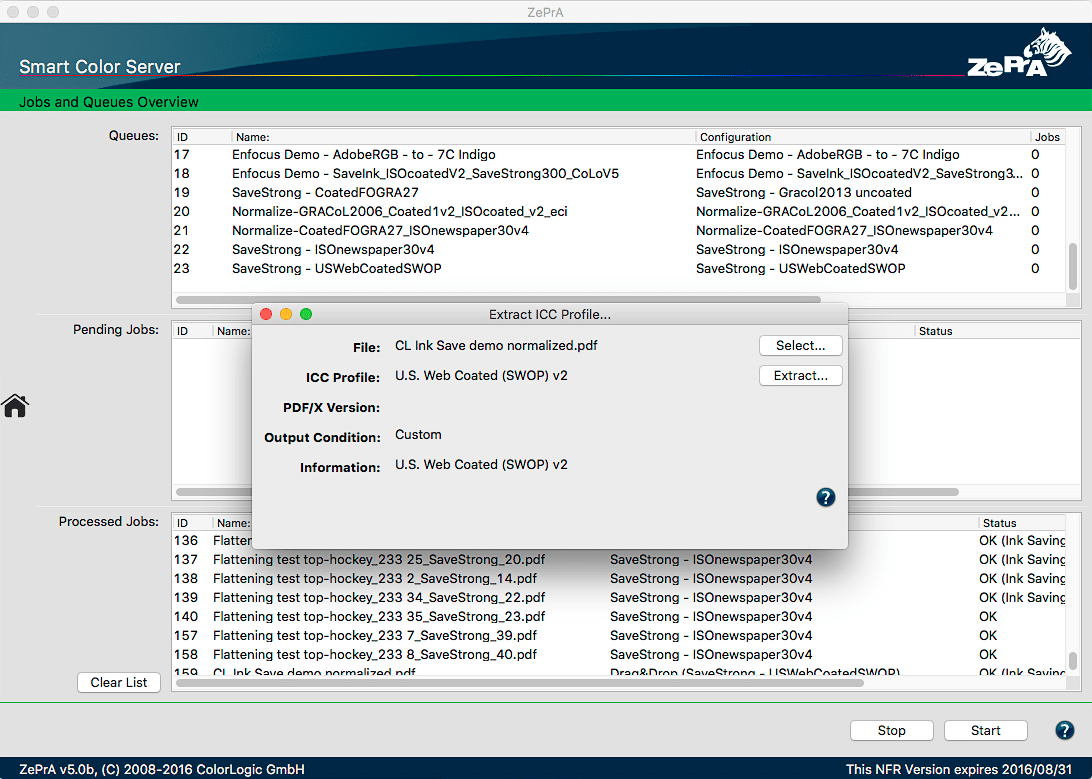
    The Extract ICC Profile tool extracts embedded profiles from images or output intents of PDF/X files. This way, embedded profiles that are not available as ICC profiles can be used to create DeviceLinks or SaveInk profiles.

    extract icc profile dialog

    Procedure

    1. Click on the Extract ICC Profile icon in the sidebar.
    2. Use Select to choose the file (PDF, JPEG, TIFF PSB or PSD) with the embedded profile. Click Open. Alternatively, you can drag and drop the file into the selection window.
    3. The embedded ICC Profile, the PDF/X Version, and the Output Condition are displayed. The embedded profile can be saved with Extract.

    Spot Color Iteration

    Color deviations in printing, e.g. due to differences in printers, inks or substrates, can be minimised using the spot color iteration tool. This ensures optimum conversion of spot colors to process colors, in digital or proofing production.
    Start the iteration process by printing spot color(s) converted by ZePrA on the printer to be used for the job. Test charts are measured and color deviations are optimized until the measured dE2000 values are within the desired tolerances.

    Procedure

    Activate the checkbox Convert Spot Colors in the Spot Colors tab under Configurations. Set the Calculation Method to Precise Match or Visual Matching for the best results. Then open the Iterate Spot Colors dialog by clicking Iterate.
    1. Select the Configuration.
    2. Select the source spot color (PDF file or spot color library).
    3. Create a test chart from a PDF file or spot color library. ZePrA uses all the spot colors it contains (solids) and converts them according to the selected configuration. Select an Instrument Setting and click Save.
    4. Print the test chart without applying color management.
    5. Measure the printed test chart. The reference file is automatically preselected.
    6. Optional, but highly recommended: Create a spot color iteration report with Calculate Report. It contains information about the achieved and measured deltaE values.
    7. Click Apply. The optimized spot colors are calculated and applied in the configuration.
    Note: We recommend activating the checkbox Iterate all Spot Colors.

    Global Settings

    Spot color Libraries

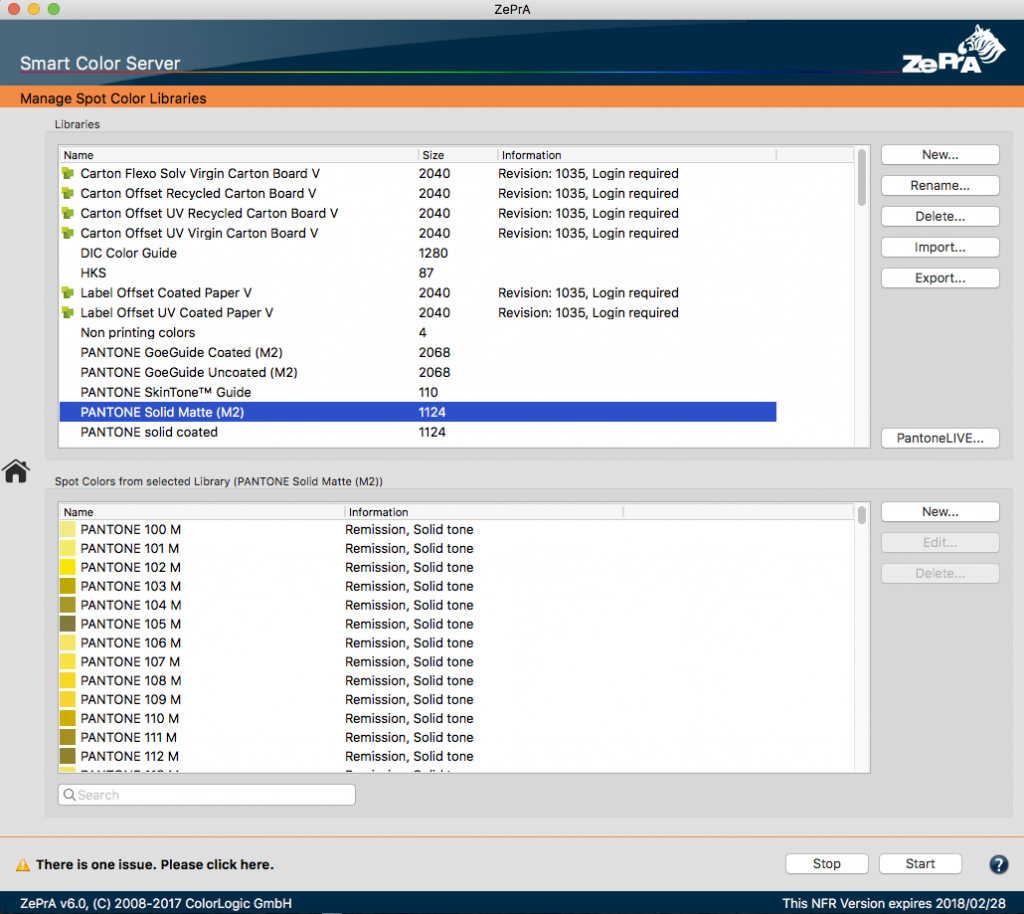
    Spot color libraries and spot colors can be managed conveniently in ZePrA's spot color module. Access the Spot Color Libraries in the sidebar. Libraries can be created, added, viewed and modified. Spot colors can be edited, imported or measured.
    For example, spot colors from color books can be measured with a spectrophotometer or lab values can be manually entered. Color tables with spot colors can also be imported. Supported formats include: Named Color ICC profiles, Photoshop ACO color tables, Adobe ASE color tables (from InDesign or Illustrator), text files in CGATS format or CxF or CxF/X-4 files. Both Lab and spectral color values are supported. Spectral measurement data is preferable as it provides the best results.

    Note: Spot color libraries are not included with ZePrA.

    PantoneLIVE®

    PantoneLIVE® from X-Rite is a cloud solution for the digital storage of spectral spot colors. This includes Pantone color books, paper-dependent "Dependent Standards", or custom color libraries.

    ZePrA includes direct access to PantoneLIVE®. A ZePrA spot color module license and an active PantoneLIVE® Production license from X-Rite are required. PantoneLIVE® libraries will be available and use them in ZePrA to process spot colors. For more information, see our online help. General information about PantoneLIVE® is available in the PantoneLIVE® documentation.

    Gradation

    Using gradation curves allows optimal preparation of print data for output. For example, applying tone value corrections just before printing and ensuring output quality within a printing standard.

    Optimal preparation of print data

    Procedure

    In the Curve Management window, you can create New curves and Duplicate or Delete existing ones. New curves can be adjusted in the Curve Design panel by clicking and dragging the curve or by entering values. To enter percentage values in the Input and Output fields, first create an anchor point on the curve by clicking onto it. The entered values will then affect this anchor point. X deletes anchor points.

    Profile Assignments

    ZePrA's SmartLink function can be customized by profile assignments. Standard Device Links, house standards or custom profiles can be assigned to configurations automatically.

    To add new SmartLink profile assignments, click New at the bottom of the window under Profile Assignments and select the DeviceLink profile directly from the DeviceLink Profile drop-down menu.

    To edit existing profile assignments, open the Edit Profile Assignment window by double-clicking the corresponding assignment.

    CLI Module

    ZePrA can be integrated into other workflows via a configurator in Enfocus Switch and generally via Command Line Interface. This enables even complex workflows including data input to sorting, preflighting, color conversion and data transfer.

    ZePrA | Tools | Spot Color Report

    Spot Color Report

    Review accuracy of spot color conversion

    Spot Color Report

    Overview

    The spot color report shows the results achieved with a spot color conversion in relation to deltaE00, deltaE76, and the separation into process colors. This allows the accuracy of spot color conversions to be checked before processing or printing, and to determine in advance how ZePrA converts spot colors (e.g., Pantone® or other spot colors).

    Procedure

      1. Open the Spot Color Report from the Tools menu.
      2. Configurations: Select one or more configurations from the list which contain all settings for the conversion. Only Configurations which have the option Convert Spot Colors enabled are displayed in the list.
      3. Select a single PDF or image file, a spot color library or multiple files under Source Data.
        PDF or Image File: Select the PDF or pixel image file with spot colors to be processed using the settings of the selected configuration.
        Library: Select the spot color library to be converted using the settings of the selected configuration.
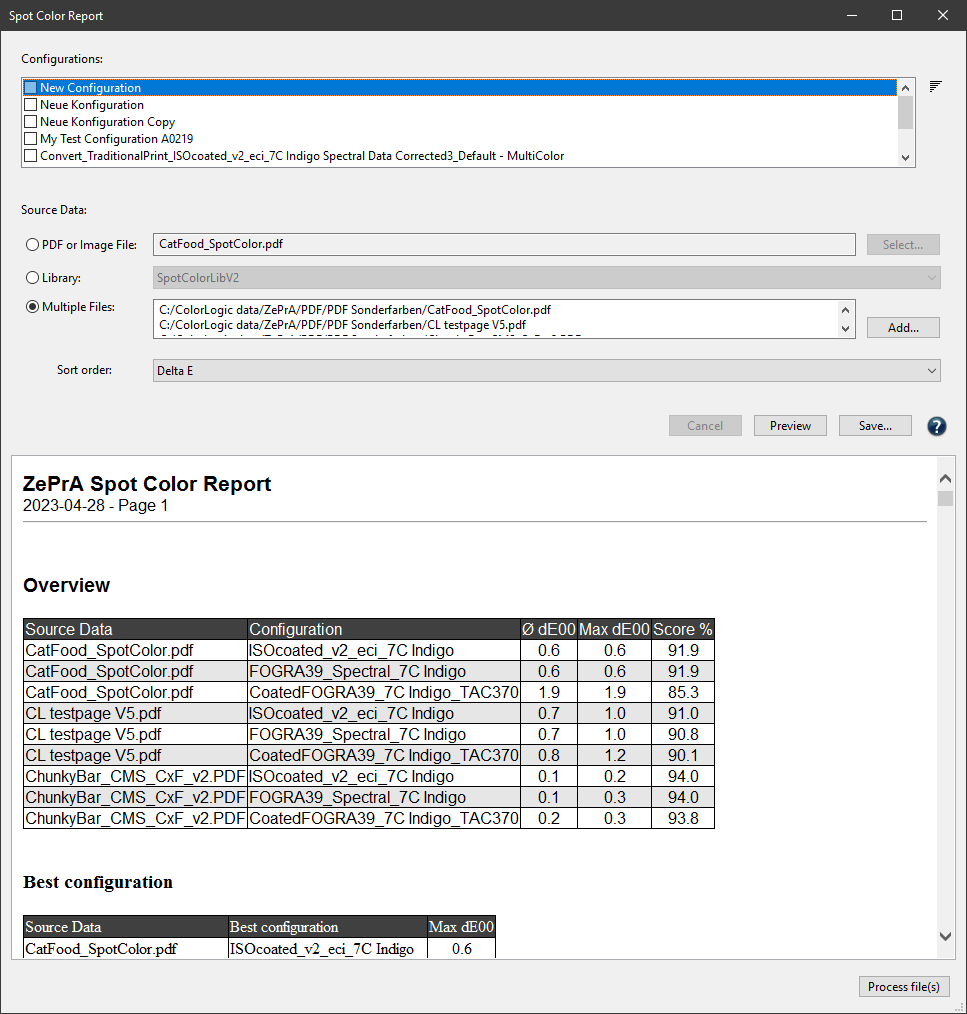
        File List: Add multiple files which will be checked simultaneously.
      4. Select the Sort order.
        Sorts the list according to various criteria. When sorting by Delta E, spot colors with the lowest deltaE are listed at the top, and the highest deltaE at the bottom.
      5. Create the report. It can be created in various formats (see below).
        Save: Creates the spot color report and saves it. Optionally, a Preview can be created beforehand.

      Supported file formats

      The Spot Color Report can be saved in various formats:

      • PDF
      • HTML
      • XML (both legacy and new formats)
      • Text
      • CGATS
      • CxF
      • JSON

      Note: Saving as CGATS text and Color Exchange Format (CxF) allows the file to be opened in external tools such as ColorAnt. This way, the device values (DCS) after optimization by ZePrA and the resulting Lab values can be examined. The Lab values of the spot colors in this file reflect the actual achievable Lab values resulting from the conversion via ZePrA and may differ from the original Lab values (due to out-of-gamut or other limitations).

      The two file formats JSON Files and XML Files at the bottom of the list are optimized for machine reading and are best for use by external systems to extract data for reports.
      Note: The XML (legacy format) option is only available for downwards compatibility to older ZePrA systems.

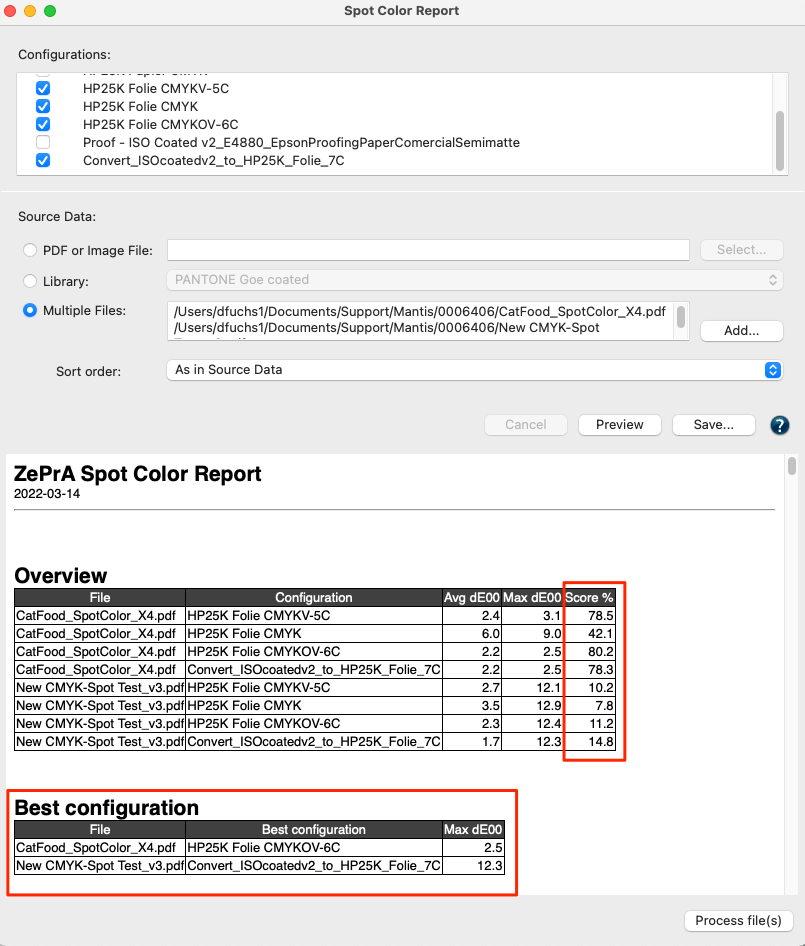
      Best Configuration: Automatically determines the Best Configuration to match the spot colors of one or several jobs from a list of selected configurations.
      Note: The configuration with the highest Score is automatically determined as Best Configuration and listed on top of the report. The highest score is always achieved by the configuration with the lowest number of channels while maintaining an equal or slightly poorer colorimetric result (compared to configurations with target profiles that use more channels).

      For example, if the spot colors of a job can be processed equally well with 7, 6 or 5 process colors on the same press, the configuration using 5 process colors is the best because it saves on inks and costs during production.

      Overview: The Preview and the spot color PDF report show an Overview and a Best Configuration section that describes how the file(s) were processed with the various user-selectable configurations.

      Score: Shows the percentage match of each tested configuration to achieve the spot colors of a job when converting spot colors to process colors (0% - no match, 100% - perfect match using a maximum of three process colors).
      Note: The calculation of the Score considers the maximum dE00, the average value (Avg dE00) over all individual dE00s of the spot color conversions and the number of channels. The configuration achieving the highest score will be listed on top under Best Configuration.

      The screenshot shows two files tested with four configurations. The Best Configuration section lists the configurations that achieve the best Score for each file.

      Process File(s): Selected files can be processed directly from the Spot Color Report window with the best configuration. The files are automatically moved to the Input folder of the corresponding configuration and automatically processed.

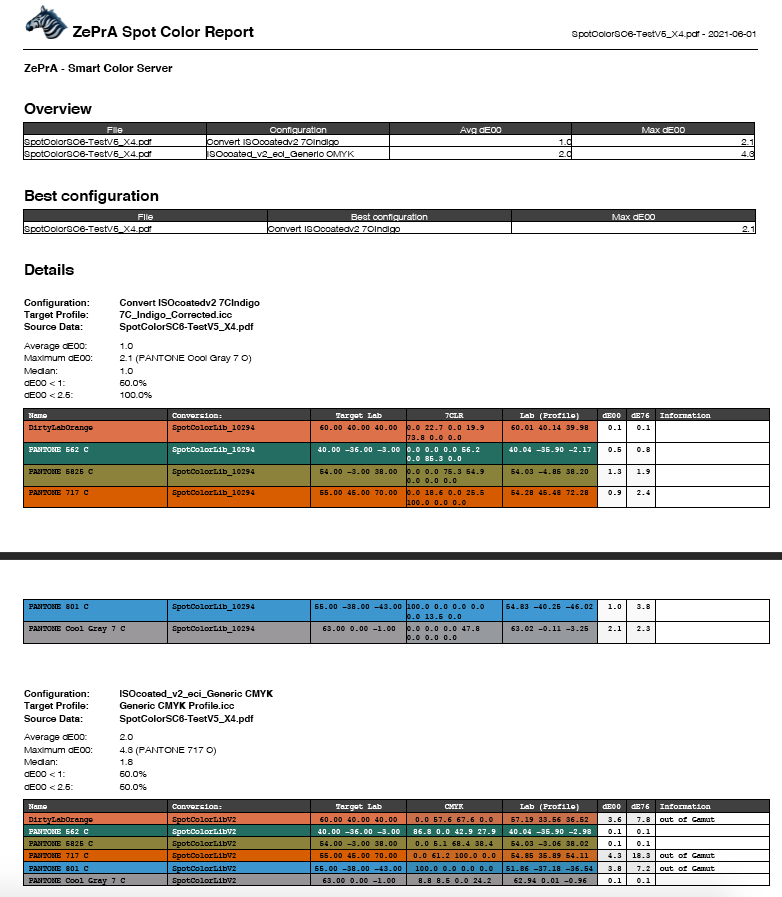
      The spot color report shows the results achieved with a spot color conversion in relation to deltaE00, deltaE76, and the separation into process colors.

      Note: When creating the report, all spot color settings made in the Configurations are used, including manual settings and warnings. Colors with warnings are displayed in red deltaE values.
      If the Minimize Channel function is activated, the report lists all profile variants that are created in this configuration and the spot color conversion using these variants. Hence, this can become quite a long report, which can also take considerable time to calculate and create, especially if several configurations are to be checked.

      A table of contents (TOC) in the PDF report file allows easy navigation to the details of each configuration. This is especially helpful in getting directly to the details of the individual configuration results if a spot color library has hundreds or even thousands of spot colors that have been evaluated.
      Basically, the report is structured so that the analyzed files are listed at the top in the Details section. Underneath are the configurations used per file, followed by the profile variants and their details.

      Features to streamline production

      Instead of using a single configuration with the Minimize Output Channels function, several configurations can be set up, for example for printing with the same printer but using different target profiles with CMYK, 5 colors, 6 colors or 7 colors. Then the production PDF file(s) can be checked with all possible color configurations. It may be found that the production PDF file(s) do not need 7C, but are already well suited with a certain set of 5 colors or even CMYK.

      This way, many clicks in digital printing or many plate productions in conventional printing could be saved. After checking the file(s) and determining the best matching configurations, the file(s) can be automatically processed with the configurations having the lowest maximum DeltaE directly from the Spot Color Report dialog.

      Spot Color Report Example: The screenshot shows the preview for processing spot colors with two different configurations. All spot colors found in the PDF file are included. One configuration uses a CMYK target profile and the other a 7C target profile. The report shows that in this case the 7C profile is much better suited for simulating the spot colors of the PDF file.

      Spot Color Iteration

      If spot colors have been iterated (see number 1 in the screenshot) the displayed Lab measurements and deltaE values (2) originate from the Spot Color Iteration process.

      If a final evaluation measurement has been conducted, a single asterisk is shown in the Information column (2) and the corresponding information message (3) indicates that The Lab and dE values are based on the measurements of the Spot Color Iteration.

      If no final evaluation measurement has been carried out, a message with two asterisks indicates that The Lab and dE values are based on the last applied Spot Color Iteration and may not match the actual print.

      ZePrA | SaveInk Report

      SaveInk Report

      Information on ink saving

      Creating SaveInk Reports

      SaveInk reports give a detailed overview of the ink savings of all SaveInk queues and jobs processed. To create a report select SaveInk Report in the sidebar.


      Ink savings on all SaveInk queues

      Procedure

      1. Select SaveInk-Report in the Sidebar.
      2. Enter a file name and select the format. The report can be created as PDF (default), TXT, HTML or XML. Then specify the save location.
      3. Click Save and the ink saving report will be generated.

      Summary: Shows the ink saving for all files for each SaveInk queue and for all queues.

      Ink Saving per Queue and Job: Shows details of individual queues and jobs.

      Note: The percentage calculations in the SaveInk Report refer only to the CMYK components. Transparency effects, overprinting elements, and spot colors are not taken into account.