


CoPrA 11.1.4 Release | February 2026
Bug Fixes in CoPrA 11.1.4
- Profile Manager / Batch Overview: Fixed an issue where the calculation of Multicolor profile variants from updated Multicolor profiles failed (Ticket #254584)
- DeviceLink Profiling: Fixed an issue where changing Settings, Black Calculation or the Multicolor Mode would cause incorrect Channel Combination curves to be displayed in the CoPrA Curves view and included in the resulting DeviceLink profile
- DeviceLink Profiling: Fixed an issue where the Black Calculation mode Auto based on Target Profile overrode the Multicolor Mode "Use Settings from Target Profile"
- DeviceLink Profiling: Fixed an issue where the embedded Multicolor Mode from the target profile was not extracted and used correctly with the Multicolor Mode “Use Settings of the Target Profile” (Ticket #254734)
- DeviceLink Profiling: Fixed an issue where the embedded Multicolor Mode “Generate Separations with sparse Inks” from the target profile was not extracted and used correctly with the Multicolor Mode “Use Settings of the Target Profile”
Improvements
- DeviceLink Profiling: The Multicolor Mode is now also included in the DeviceLink profile reports
The report now includes the used Multicolor Mode. In addition to the user-defined modes (Strong, Smooth, Generate Separations with sparse Inks, Use CMYK only, Preserve Color Properties) when using the mode Use Settings of the Target Profile the report includes the used mode from the target profile in parentheses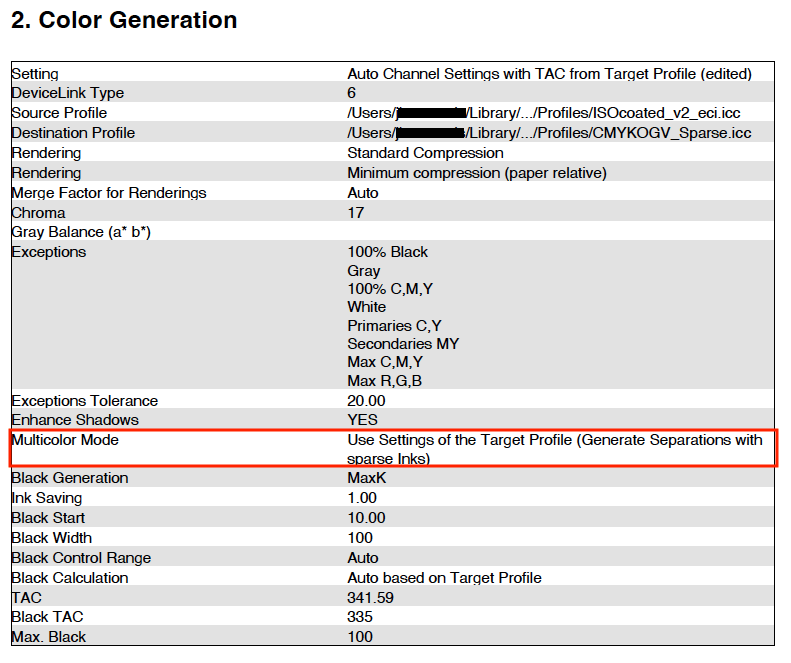
CoPrA 11.1.3 Release | June 2025
Bug Fixes in CoPrA 11.1.3
- DeviceLink Linearization: Fixed an issue where the calculation of DeviceLink Linearization profiles failed (Argument Error)
CoPrA 11.1.2 Release | May 2025
Bug Fixes in CoPrA 11.1.2
- DeviceLink Profiling: Fixed an issue where the Channel Definition was not applied when the setting Auto Channel Settings with TAC from Target Profile was selected
- DeviceLink Profiling: Fixed an issue where the Lab black point value was not correctly stated in the GUI. The calculation of the DeviceLink profile was correct
- DeviceLink Profiling: Fixed an issue where the DeviceLink profile could not be calculated when the Multicolor Mode "Preserve Color Properties" was used in combination with the Channel Setting "Auto"
- Update Profile: Fixed an issue where the creation of the Correction DeviceLink was using a wrong setting
- Printer Profile Report: Fixed an issue where the exported XML file did not contain the correct "ColorantInfo" for the Cyan channel and for the Channel Settings
- General: Includes the latest ColorAnt version (ColorAnt 11.1 with Measure Tool in version 8.1)
CoPrA 11.1.1 Release | April 2025
Bug Fixes in CoPrA 11.1.1
- Printer Profiling: Fixed an issue where the last two images of the Sample Images section in the Profile Report were superimposed if the number of channels was even
- Printer Profiling: Fixed an issue where the Measurement Correction returned incorrect values for the 400% patch and other overprints due to incorrect interpretation of data for a specific CMYK chart
- DeviceLink Profiling: Fixed an issue where the import of settings from DeviceLink profiles failed when the Save Ink option was selected for the Black Generation (Ticket #254444)
- DeviceLink Linearization: Fixed an issue where profile settings that were based on the Calculation method Ink Splitting could not be imported
- DeviceLink Linearization: Fixed an issue where the Protect Lights settings were not imported from profile settings
- Measure Tool: Fixed a bug in the Windows version of CoPrA where the latest version of ColorAnt 11/MeasureTool 8 was not recognized correctly (Ticket #254517)
CoPrA 11.1 Release | January 2025
Improvements in CoPrA 11.1
DeviceLink Profiling
- Improved drag and drop of profiles and settings. Now all profiles and settings can be imported at once when holding down the command key (macOS) or CTRL key (Windows) during drag and drop
Profiles can be manually set as Source and Target Profile in the DeviceLink-Profiler, either by selecting the profiles in the drop-down menus or by entering a few letters in the search field and selecting one of the profiles found. However, you can also drag and drop an existing DeviceLink profile over the profile menu. Settings from certain DeviceLink profiles can also be imported by drag and drop.
All this can now be done in a single step.

Select the DeviceLink profile from your Profiles folder and drag and drop it onto the Setting menu while holding the CMD key (macOS) or CTRL key (Windows).

The source profile, the target profile and the settings used are automatically loaded when the profiles are available in the Profiles folder.

This simplifies the initial setup and allows for quick and convenient selection of profiles and settings.
- New Presets for Correction DeviceLinks (CMYK and Multicolor): Correction DeviceLink – Analog Printing and Correction DeviceLink – Digital Printing
The two new presets are intended for analog and digital printing, respectively. Their settings are optimized to provide a good starting point for typical Correction DeviceLink use cases and can readily be adapted for special applications if required. The previous preset Default - Correction DeviceLink has been removed.
DeviceLink / Printer Profiling
- New status display for calculations of Curves, Exceptions and Gamut in the notification area at the bottom of the window

Image Conversion
- Image based ink savings achieved by using SaveInk Multicolor profiles or Multicolor source and target profiles with same numbers of channels are now displayed
In addition to the CMYK-to-CMYK conversions or the CMYK SaveInk DeviceLink profiles, the image based ink savings are now also displayed for Multicolor SaveInk profiles or Multicolor source and target profiles with the same number of channels.


Note: Please note that this is an information about image based ink savings which applies to the conversion of the selected image file. Therefore, different results may be obtained for different image files.

Printer Profiling
- Consistent display of DCS and Lab values for the black point of CMYK data in the GUI and the profile report
The display of the black point CMYK and Lab values has been corrected so that the values in the user interface match the values of the profile report.

Batch Overview
- Numerical sorting of the Index column

In addition to sorting the columns by creation date, type, name, etc., it is now possible to sort the Index column numerically correctly.
General
- Includes the latest ColorAnt 11.0 and Measure Tool 8.0
- Support for macOS 15 Sequoia
Bug Fixes
- Printer Profiling: Fixed an issue where the Avoid Dot-on-Dot setting did not work as expected for some CMYKRGB data.
- Printer Profiling: Fixed a problem which occurred when importing a profile setting with Multicolor Mode Generate Separations with sparse inks via drag and drop into the Setting section.
- Printer Profiling: Fixed that the black channel was not recognized correctly after switching to Use CMYK only mode when the black channel was previously disabled.
- Printer Profiling: The Black Start option is no longer available for the Multicolor mode Generate Separations with sparse inks.
- Printer Profiling: Fixed a bug in the correction of measurements with xyz data. (Ticket #234311)
- DeviceLink Profiling: Improved Channel Definition information.
- DeviceLink Profiling: Fixed an issue where Exceptions were not displayed when various settings were selected in a specific order. (Ticket #234314)
- DeviceLink Profiling: Fixed an issue where the Black Calculation setting Balance CMY was shown as Neutral when first selected.
- DeviceLink Profiling: The Multicolor preset Auto Channel Settings with TAC from Target Profile is now applied correctly.
- DeviceLink Profiling: Fixed an issue where the graphic for the Black Generation settings Preserve Separation, Preserve Black and Save Ink was not directly displayed in the Curves view (macOS only).
- DeviceLink / Printer Profiling: Optimized alignment of the sample images in the profile report.
- DeviceLink / Printer Profiling: The flickering of the Curves / Gamut window when changing settings has been improved.
- General: Revised terminology.
CoPrA 11 Release | September 2024
Improvements and Bug Fixes in CoPrA 11
Improvements
- More Linearization Options and new channel-specific Custom ink limitations
- Redesigned Profile Filter and improved Profile List
- Sort columns by column title
- New Date column - Major improvements to the Gamut tab
- Redesigned user interface
- Show up to three profiles in 2D view and change color space outline color
- Change Lightness
- Change zoom factor via the mouse wheel
- Save last used options of Gamut view context menu
- New 3D conversion Gamut view in DeviceLink Profiling
- Show Measurements of underlying data in Gamut view
- Save last used options of Gamut view context menu
- Colorants Information included in the profile reports for CMY and CMYK color spaces
- Black Start option for the Multicolor Mode “Generate Separations with sparse inks”
- Save ink with the new setting Sparse Ink
- Minor user interface adjustments to the Viewing Conditions section
- Improved patch selection and analysis
- New Toggle Preview for color management workflow comparison
- New image preview scaling options
- The optimized Batch Overview simplifies the further processing of profiling jobs
Improvements and Bug Fixes
DeviceLink Linearization
More Linearization Options and new channel-specific Custom ink limitations
With CoPrA 11, the flexibility in creating a DeviceLink Linearization has been greatly improved. Adding a dedicated Ink Limitation mode with the option to set Custom ink limits allows for user-defined, channel-specific ink limiting. The previous options with fixed ink limits have now been replaced by a more flexible alternative.

In order to provide flexible assignments of the available Ink Limitation modes to the various calculation modes, these previously fixed settings have now been separated and extended.
Linearization Options

Now, there are four Linearization Options. The Ink Limitation mode and the Maximum Values are new.
Calculation
The Calculation mode defines the method for calculating the colorimetric linearity. The available standard methods can be customized and saved.

When selecting a Calculation mode, a suitable Ink Limitation mode is automatically set. However, the preselected Ink Limitation mode can be set to Custom which then allows user-defined ink limits to be set. The previous calculation modes with fixed predefined ink limits have been removed.
Ink Limitation
There are three different Ink Limitation modes to choose from:

Maximum: No limit is applied, the output per channel is 100%.

This is the preselected default Ink Limitation mode for the calculation modes Linearization according to G7 (CMYK only) and Linearization according to G7 (CMYK) and ISO 20654 (spot colors).
Automatic: The applied ink limit is calculated based on the measurement data and is displayed grayed out in the Maximum Values section for each color.

This is the preselected default for the Calculation modes ColorLogic Default (Colorimetric Linearization), Linearization according to ISO 20654 and Ink Splitting (ColorLogic Default).
Note: Automatic is the default Ink Limitation mode for the Ink Splitting (ColorLogic Default) calculation mode and cannot be changed.

Custom: Based on the automatically calculated values for the ink limits, these values can be changed in the corresponding input fields of the Maximum Values section.

Maximum Values: Displays the maximum values of the individual channels and if activated, allows these values to be changed. Please note that the maximum used values of the light (ink splitting) channels are also displayed.

All changes and limits are immediately calculated and applied to the Calculated Curves view, which means that the curves are based on the currently selected settings that will be applied in the resulting Linearization DeviceLink profile.
The linearization settings of CoPrA10 and older (up to CoPrA8) are compatible with CoPrA11. This does not apply vice versa.
Profile Manager
Redesigned Profile Filter and improved Profile List
The Profile Filter section has been redesigned to be more compact, leaving more space for the Profile List.
New column sort function and new Date column in the Profile List
All columns can now be sorted by clicking on the column title. A new addition to the Profile List is the Date column, which displays the creation date of the respective profile.

Major improvements to the Gamut tab
The Gamut view has been revised and enhanced allowing the comparison of two profiles in the 3D view and up to three profiles in the 2D view. The gamut view has also been enlarged.
2D View
Lightness: The Lightness slider has been removed; it is now possible to change the lightness with the mouse wheel or by entering the value directly in the input field.
With the ab-Projection checkbox, the entire gamut can be shown as a flat projection on the ab plane.

Profile Selection: The gamut of the Selected Profile can be compared to the gamut of up to two Comparison Profiles selected in the Profile Selection. These comparison profiles can either be set via the context menu of the profile list or via the Load option of the context menu that can be accessed by right-clicking the area next to Comparison Profile 1 and 2.


The color of the outlines of the individual profiles can be changed by clicking the color field and using the tools provided.

3D View:
Gamut Zoom: The Zoom slider has been removed; it is now possible to change the zoom factor with the mouse wheel, a shortcut (macOS: CMD+ / CMD-, Windows: STRG+ / STR-) or by entering the value directly in the input field.

Profile Selection: The comparison profile can either be set via the context menu of the profile list or via the Load option of the context menu of Comparison Profile 1 (accessible by right-clicking in the area next to Comparison Profile 1).
Since only two profiles can be compared in the 3D gamut view, Comparison Profile 2 is grayed out here.
In the 3D view, Comparison Profile 1 is displayed in a semi-transparent white color.
Context menu of the Gamut view
A context menu that provides additional viewing options can be opened by right-clicking on the gamut view. The Grid, Axes and Axes Labels can be switched on and off here. When analyzing Sample Data, the sphere size can also be increased or decreased using a key combination (macOS: Option+ / Option-, Windows: ALT+ / ALT-). For a better display of the Sample Data, the gamut view can be switched between a Gamut Surface view and a polygonal gamut grid view.
The options last used in the Gamut view are saved and applied again when CoPrA is restarted.

DeviceLink Profiling
New 3D conversion Gamut view in DeviceLink Profiling
A new function in the DeviceLink tool is the option to switch between Curves and Gamut view, as in the Printer Profiling tools. The gamut view reflects the conversion between the source and target profile.
Curves: Visualizes the effects of the selected Color Generation and Black Point and TAC settings of the selected target profile.
Gamut: The Gamut view shows changes to the gamut shape immediately when settings are changed and provides a real-time preview of the expected conversion between source and target profile. All settings, e.g. rendering intents, exceptions, black point, etc., are considered and displayed in the gamut view.
Note: Below are some examples of the Gamut preview for a DeviceLink creation with the profiles ISOnewspaper26v4.icc and CMYKOGV.icc with different settings. The gamut shows the conversion between these two profiles.


Calculating the gamut preview can take some time due to the complexity of this process. While the gamut preview is being updated, the message "The gamut is calculated..." is displayed. However, further settings can be made during the calculation.
In addition, the Gamut Volume is calculated and expressed in Lab units using absolute colorimetric rendering intent which allows finding the settings that produce the largest gamut (highest number) easily.
DeviceLink / Printer Profiling
Show Measurements of underlying data in Gamut view
Another new feature is the option to view the Measurements of the underlying data in the Gamut view.
When creating printer profiles, this allows analyzing the patch distribution within the profile gamut so that the measurement data can be optimized in ColorAnt beforehand if necessary.
When creating DeviceLink profiles, the measurement data of the target profile is displayed in comparison to the DeviceLink conversion. This allows a comparison to be made between the maximum color space of the target profile and the actual conversion in the DeviceLink profile depending on the selected settings.

Context menu of the Gamut view
A context menu that provides additional viewing options can be opened by right-clicking on the gamut view. The Grid, Axes and Axes Labels and the Measurements of the underlying data can be switched on and off here. The sphere size can also be increased or decreased using a key combination (macOS: Option+ / Option-, Windows: ALT+ / ALT-). For a better display of the Measurements, the gamut view can be switched between a Gamut Surface view and a polygonal gamut grid view.
The options last used in the Gamut view are saved and applied again when CoPrA is restarted.
Colorants Information included in the profile reports for CMY and CMYK color spaces
The colorants information in the profile reports for printer and DeviceLink profiling is now also available for CMY and CMYK color spaces in addition to the still available information for xCLR color spaces.

Printer Profiling
Black Start option for the Multicolor Mode “Generate Separations with sparse inks”
For color spaces from 5CLR up to 15CLR it is now possible to define the Black Start when using the Multicolor mode Generate Separations with sparse ink. This allows the black channel to be controlled to avoid the use of black ink in the highlights if required.

Save ink with the new setting Sparse Ink
To simplify the use of the Multicolor mode Generate Separations with sparse ink, there is a new setting Sparse Ink available.
Minor adjustments to Viewing Conditions
Minor user interface adjustments have been made here.

DeviceLink Editing
Improved patch selection and analysis
When moving the mouse pointer over a color patch, it is highlighted by a black or white frame and the source and target color space values are displayed. A left mouse click captures the color patch, making it easier to check whether and to what extent it is affected by an exception.

Exceptions which are unavailable are grayed out. This may be the case when a dependency between exceptions exists, or when exceptions are not relevant for a specific color space.

Image Conversion
New Toggle Preview for color management workflow comparison

With the adjustable overlay tool, you can define a resizable comparison area of the image preview in which you can compare the image with the target profile using the defined color management workflow from the source profile via the rendering intent.

The Toggle Preview button switches the entire visible preview area so that either the image rendered with the Source profile, or the Target profile is shown.
To change the size of the comparison area, the adjustable overlay tool can be picked in the opposite corner of the selected preview, i.e. in the bottom right corner of the Source profile preview and in the top left corner of the Target profile preview.

New image preview scaling options
New preview scaling options have been added to the Image Conversion preview area.

The Fit Image option scales the image to the maximum size of the full image in height or width, depending on the image orientation.
Fit Width scales the image to the maximum width (recommended for images in portrait format).

Fit Height scales the image to the maximum height (recommended for images in landscape format).
Batch Overview
The optimized Batch Overview simplifies the further processing of profiling jobs
The Batch Overview window has been completely revised. The icons present in CoPrA10 and older have been removed and all post-processing options have been moved to a context menu. This provides a clearer overview and a more efficient handling of subsequent tasks.

Parent Job with Index numbers
Different processes within a profiling job have been combined under a single higher-level parent job with a unique Index number. The profile name is shown in the column Type of this parent job.

For example, the printer profiles created, the profile reports, the preview profiles and the Multicolor variants are listed under the parent job. Additional information such as color space and profile types can also be found in the Type column.
Additional Columns:
The respective file names and the number of profile variants are displayed in the column Name.
The Status shows the current processing progress of the job, i.e. whether it is currently being created or has already been completed.

Progress shows the progress of parent jobs and individual jobs as a percentage.
Follow-up processing via Context Menu
Additional tasks can be assigned to each job within the parent job using the context menu. For example, additional variants can be calculated that were not yet calculated in the first step.

Depending on the type of the selected job, corresponding options are available in the context menu.


Improvements and Bug Fixes
- General: Revised naming of terms
- General: If several profiles with identical names are found on the system, all of them are now listed in the profile list. After selecting a profile, its storage location is therefore now displayed in a tooltip.


- Preferences: Fixed that disabling the option Open profile reports automatically with default viewer had no effect.
- Printer Profiling: Improved Black Channel detection with Auto Definition
- Printer Profiling: Improved Gamut view and Gamut Volume calculation when enabling and disabling channels
- DeviceLink Profiling: Improved Channel Definition information in GUI
- DeviceLink Profiling: Fixed that a wrong Channel Definition order of the Source Profile was shown in the Profile Report
- DeviceLink Profiling: Fixed that wrong channel colors were used for the DeviceLink gray balance input graph in the Profile Report
- Update Profiling: Revised “Default” setting names across color spaces (Ticket #233923)