
Installation and Activation
ColorAnt - CoPrA - ZePrAInstallation and Activation of ColorLogic products
System Requirements
macOS®
- macOS® 26 Tahoe
- macOS® 14 Sonoma and higher
Windows®
- Microsoft Windows® 11
Recommended Hardware
- Minimum Quad Core Processor
- Minimum 8 GB RAM (16 GB or more recommended)
- Minimum resolution 1280 × 1024 (higher resolution recommended)
Virtual Machines
ZePrA is approved for use on physical and virtual systems.
ColorAnt and CoPrA are approved exclusively for use on physical workstations. Use in virtual environments is not part of the officially supported scope of functionality. No technical support is provided for issues related to such environments.
The Licensing System
ColorLogic, a Hybrid Software brand, distributes its software solutions, license keys and related resources digitally through the Hybrid DataCenter - eliminating the need for physical media. Visit the platform at http://login.packz.com/.
The credentials to access the Hybrid DataCenter (username and password) can be obtained from your authorized reseller. For details, see sections Buying ColorLogic Products or Accessing the DataCenter below.
Advantages
- Only a single license key is required. The license key is linked to a user ID, not to a computer or hardware, and can be used on any system (Windows and macOS).
- Easy switching between computers. Simply deactivate the license on the current computer, enter it on another computer, and reactivate it there.
- Internet-based licensing system. An Internet connection is required to activate or deactivate a license, but after activation the software can be used offline. This significantly reduces administrative efforts and increases flexibility when switching computers.
- Simple update process. Automatically receive all updates as long as your Software Maintenance Contract remains active.
- Includes the Activation Manager application which allows you to manage all your license keys.
To use the licensing technology, you must initially log in to the Hybrid Software Group DataCenter. There, you will find all the software products and keys you have licensed (under My Licenses), as well as the latest versions available for download (under My Products).
Updates
Automatically receive all updates, including major releases, as long as your Software Maintenance Contract remains active.
Note: For automatic updates and license validation, the system must be connected to the Hybrid license server. No permanent connection is required, but the software must periodically connect to the server.
Requesting Trial Versions
ColorLogic offers trial versions for the applications CoPrA, ZePrA and ColorAnt allowing the user to evaluate the software features and performance.
Request a trial version as follows:
- Visit the ColorLogic homepage at www.colorlogic.de.
- Click the Request Trial link in the top-right corner of the page

You will then be redirected to an online form. - In the form, enter your contact information in the fields provided.
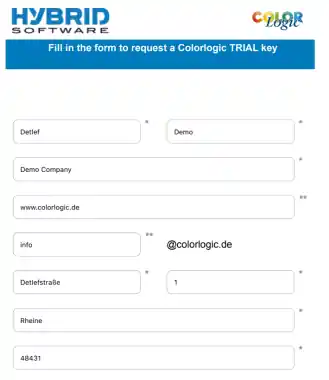
Note: Please enter a valid website address, as it is used to derive parts of the email address and to verify the validity of the trial request.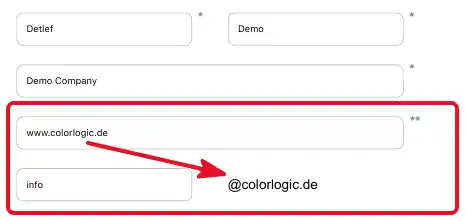
If the company's website address and email address differ, the website must be entered so that the email address is correct, and the correct company address must then be entered in the message field below. - Select both the applicable country and a dealer from the available options. The selected dealer will be assigned to you and will take care of everything once you have submitted the form.
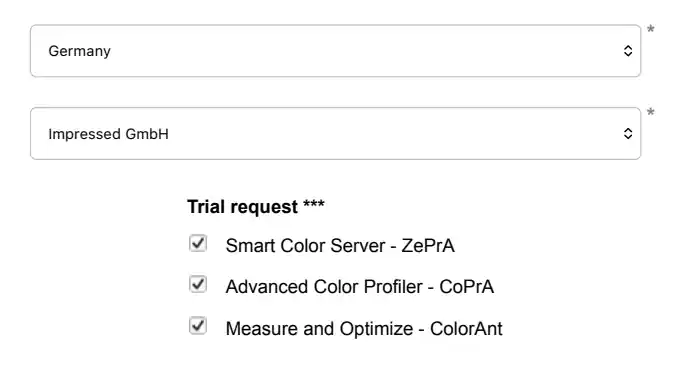
- Under Trial request, select the ColorLogic products you would like to test.
- At the bottom of the form, you will find a comment field which may be used to describe the nature of your business, outline the goals to be achieved with the product, or pose any preliminary questions to the selected dealer.
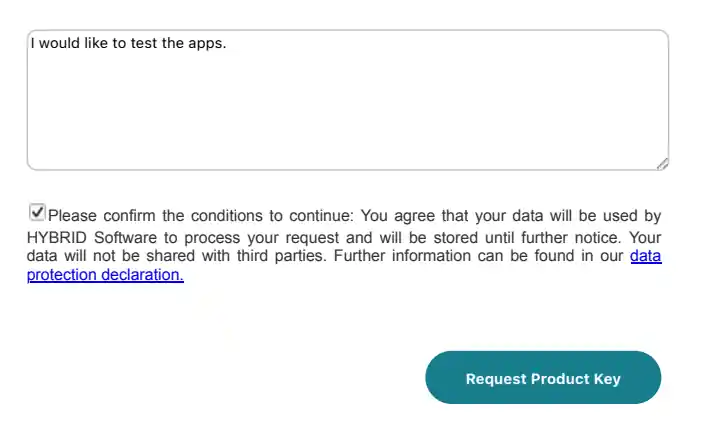
- Submit the form using the Request Product Key. Once the request has been submitted, you will automatically receive a confirmation email.
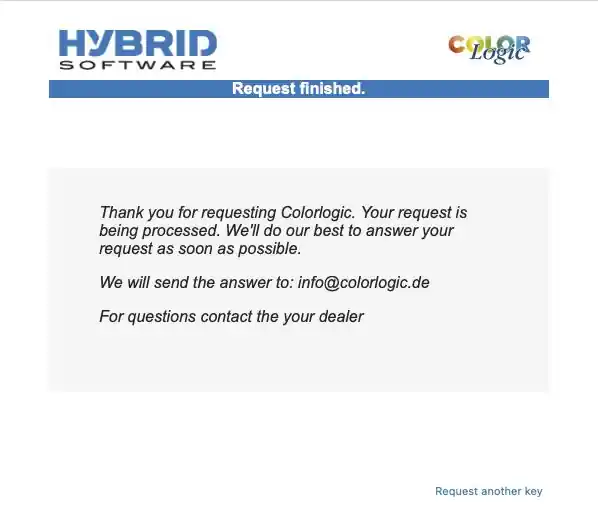
- Your information will then be reviewed by the dealer you selected in the form. After successful verification, a user account will be set up for you in the Hybrid DataCenter. You will then receive a second email containing your login credentials for the Hybrid DataCenter.
Please make a note of your username.
Important: This username cannot be changed and is different from your email address.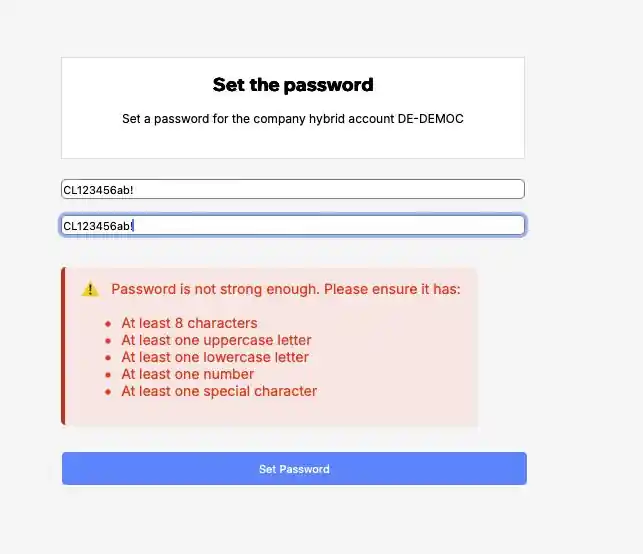
- Click on the Set Password button and log in to the Hybrid DataCenter by entering the username from the welcome mail and your new password.
- Under My Products, you will find the current versions of the products for which you requested a trial license. Download the software from there.
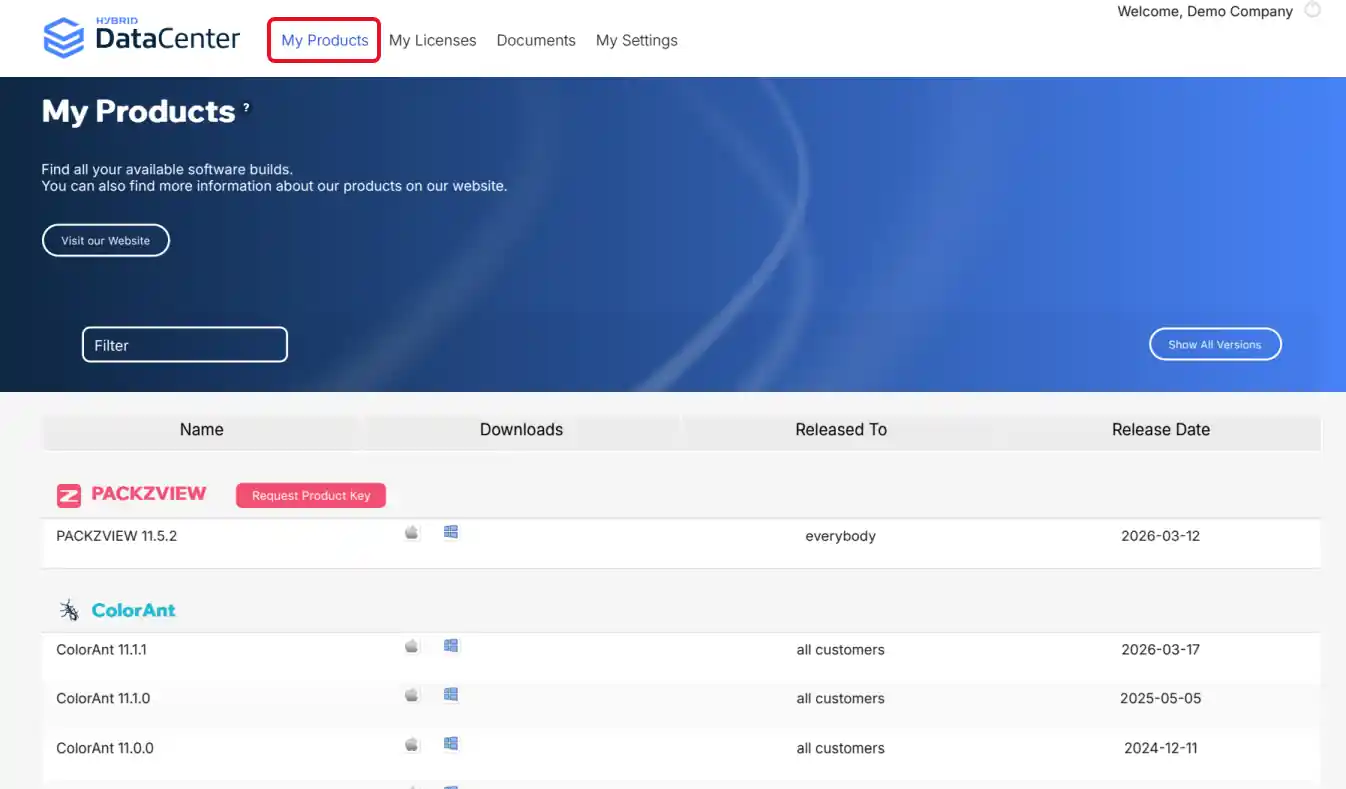
- Under My Licenses, you can view the requested trial license keys and use them to activate the software.
Accessing the DataCenter
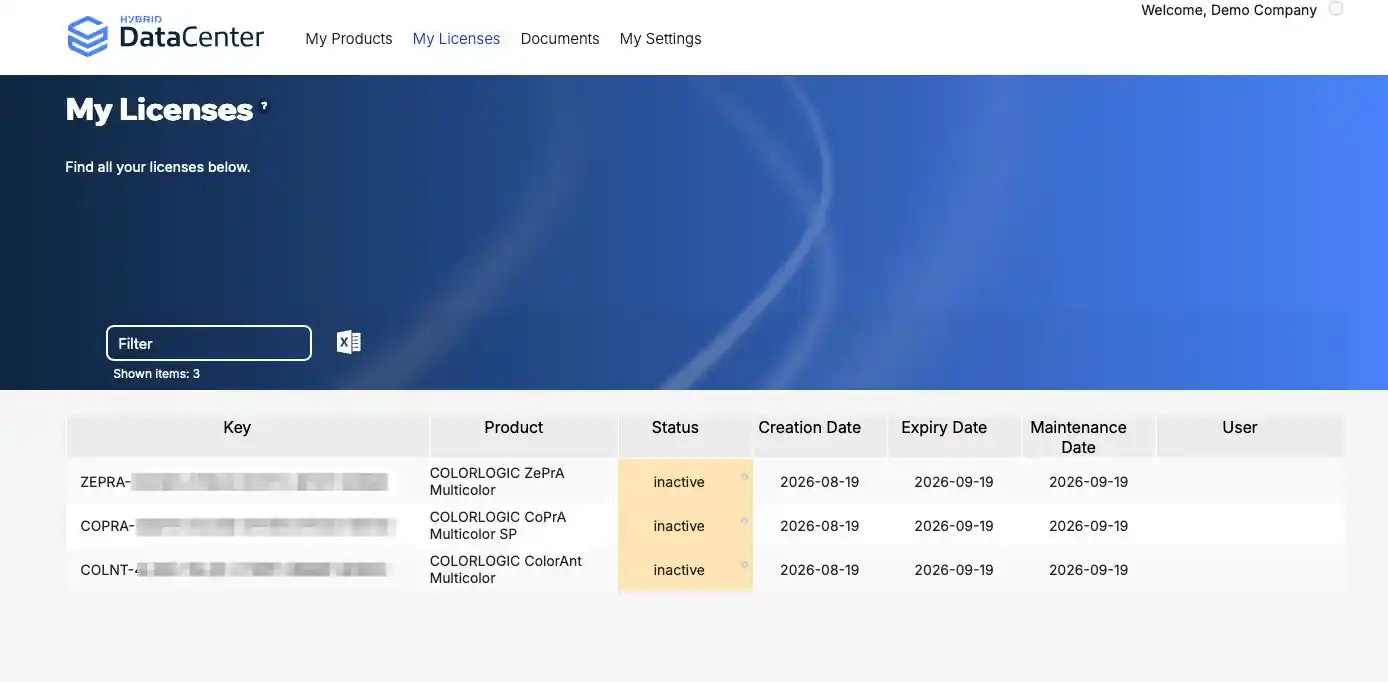
In the DataCenter you can manage and access license keys, software downloads, documentation, and related resources.
Once you have received the welcome email with your login credentials, please make a note of your username.
Important: This username cannot be changed and is different from your email address.
- Click Set Password, create your password, and login to the DataCenter by entering the username from the welcome mail and your new password.
- Download the latest software versions under My Products.
- Find your license keys under My Licenses.
- Activate your ColorLogic application by copying the license key and pasting it into the Activation Manager.
Activation Manager
ColorLogic products are activated using the Activation Manager, which handles software licenses, license activation and deactivation across ColorLogic and Hybrid Software products. It manages license renewals (especially for subscription-based models).
Note: An Internet connection is required to validate, activate, or deactivate license keys.
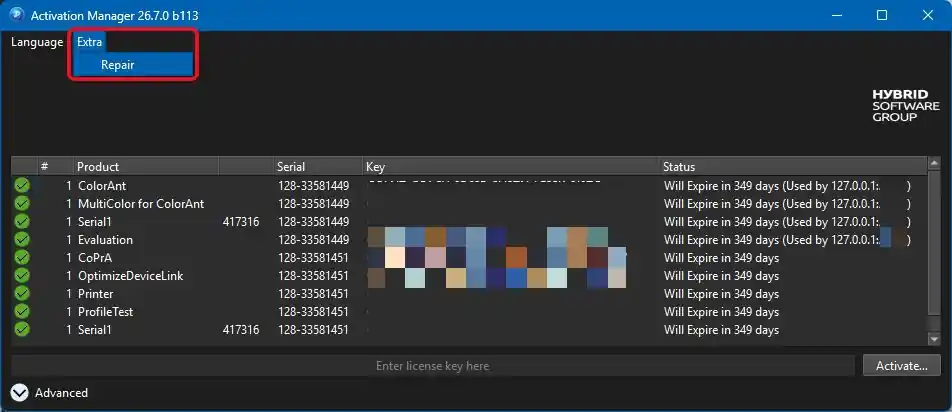
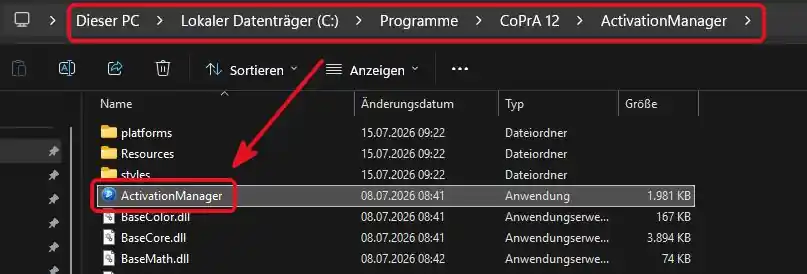
After installing the ColorLogic product, the Activation Manager can be found in the ColorLogic application folder or via the Registration dialog of the application.
On macOS, ColorLogic application folders are located under Applications (the Activation Manager is then located in the respective application folder).
On Windows systems, ColorLogic application folders are located under Programs:
Activating ColorLogic Products
Activate your ColorLogic application as follows:
- Install the latest software version. It includes the Activation Manager. When launched for the first time, the Activation Manager opens automatically.
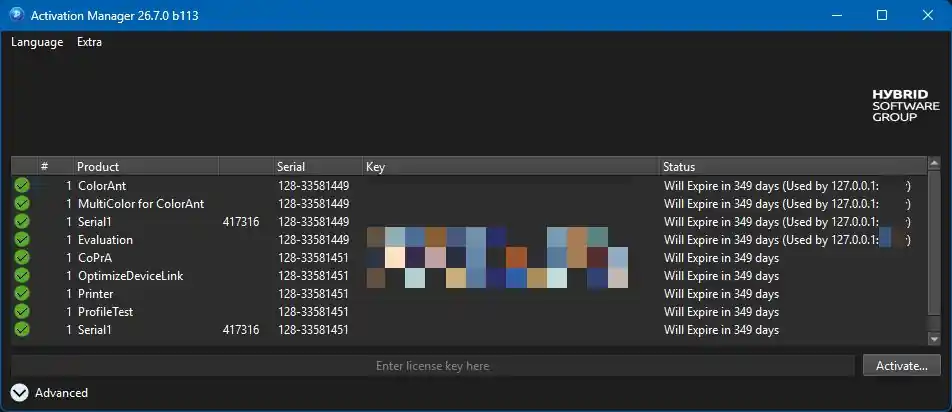
- Copy the license key from the DataCenter and paste it into the text field underneath the table.
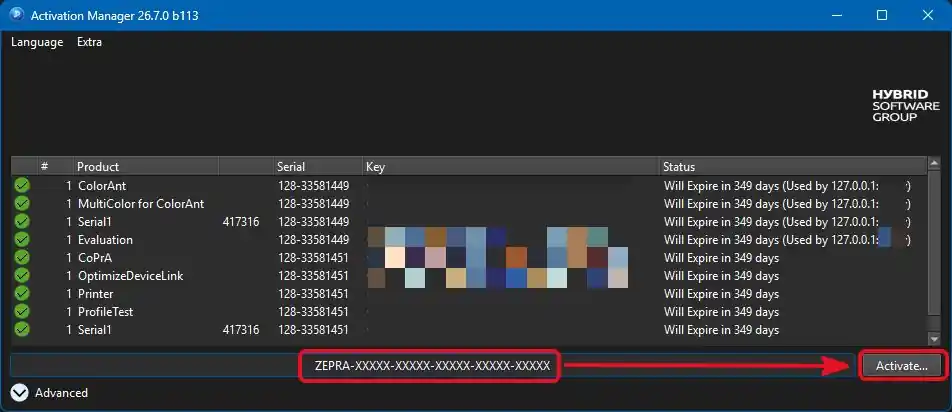
- Confirm activation by clicking on Activate (an internet connection is required). The Activation Manager validates the license key and if it is valid, the software is activated and the license key is registered for use on the target system.
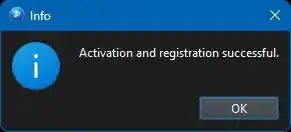
- After successful activation, close the Activation Manager.
- Restart the main application.
License Information
There are two dates in the Registration dialog:
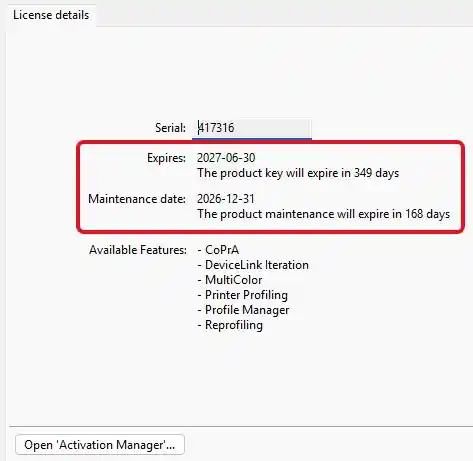
- Expires: The date, when the software will need a new validation
- Maintenance date: The duration for which you receive automatic updates and upgrades.
Note: Any license key validation or software update requires an online connection.
Deactivating License Keys
- To deactivate a license key, click the Advanced button to reveal the Deactivate button, enter the license key in the text field (you can select it from the list above) and click on Deactivate.
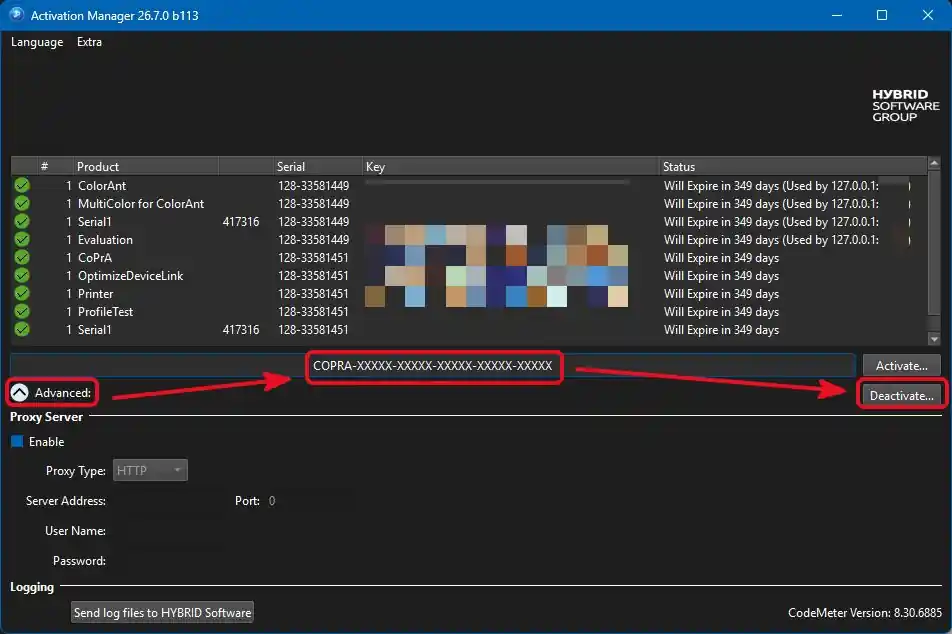
Note: All ColorLogic and Hybrid applications (for example PACKZ) must be closed before you can deactivate a license. - Confirm the deactivation:
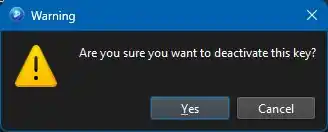
- Upon deactivation, the license key is freed up for reuse on a different computer.
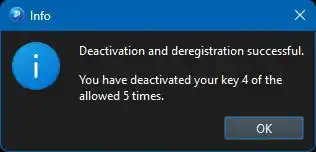
Note: Licenses can be activated/deactivated five times.
Moving Your License to Another Computer
Transferring the license key to a different computer is straightforward:
- Open the Activation Manager from the ColorLogic installation folder or via the Registration dialog in the application
- Select the license key you would like to transfer
- Open the Advanced options
- Click Deactivate to release the license key. The key can now be activated on another computer
- Activate the ColorLogic app on the other machine using the same key
(internet connection required for both deactivation and reactivation)
Keeping Your License Valid
For your license to remain up to date, the software must synchronize with the server periodically. You can initiate this synchronization manually using the Repair function under the Extra menu. This corrects most synchronization issues such as incorrect expiration dates or a renew of a maintenance date after purchasing an SMA prolongation. If problems persist, contact your selected dealer for assistance.